

Step 3: Configure and deploy an environment
This pageapplies toApigee andApigee hybrid.
View Apigee Edge documentation.
Configure and deploy an environment that includes thehelloworld API proxy.
- Create an environment:
- Position your cursor over theenvironments folder and click
 .
.
TheCreate environment wizard opens.
- Enterdev for the environment name and pressEnter.
The environment is created.
- Expand thedev environment folder to view its contents.
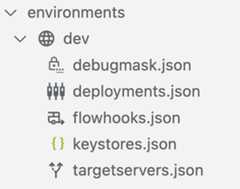
When you create an environment, a set of configuration files are included by default in the
devenvironment folder for configuring your deployment and any required debug masks, flow hooks, or target servers.
- Position your cursor over theenvironments folder and click
- Configure the deployment details for the
helloworldAPI proxy in the environment:- Position your cursor over thedeployments.json file and click
 .
.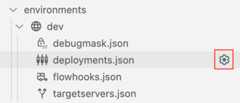
The Deployments wizard opens.
- Select thehelloworld API proxy to add it to the deployment and clickOK.
The
deployments.jsonfile is opened in the editor. The file has been updated to include thehelloworldAPI proxy in theproxiesdeployment array:{ "proxies": [ { "name": "helloworld" } ], "sharedflows": []}
- Position your cursor over thedeployments.json file and click
- Deploy thedev environment:
- Position your cursor over thedev environment folder in the Apigee section and click
 .
.
Note: If prompted to select a test bundle to export, clickDeploy without a test bundle. This prompt displays only if you have created a test bundle in your Apigee workspace. You'll create and export a test bundle in the next step.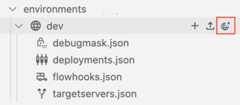

The
devenvironment is deployed and theOutput tab shows a success message.The
helloworlddeployed application information is displayed in theemulators section: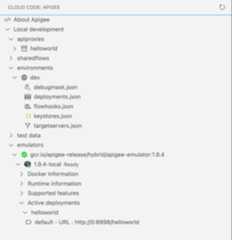
- Position your cursor over thedev environment folder in the Apigee section and click
Congratulations! You've deployed your first API proxy application. In the next step, you'll test the API proxy using curl.
123(NEXT) Step 4: Test your API5678
Except as otherwise noted, the content of this page is licensed under theCreative Commons Attribution 4.0 License, and code samples are licensed under theApache 2.0 License. For details, see theGoogle Developers Site Policies. Java is a registered trademark of Oracle and/or its affiliates.
Last updated 2025-12-17 UTC.