

Deployment overview
This pageapplies toApigee andApigee hybrid.
View Apigee Edge documentation.
When you make a change to an API proxy, you can save it as a new revision and deploy it to yourcluster.
Quick Start:About deployment
The deployment lifecycle of an API proxy revision on Apigee is shown in the following figure.
Note: In Apigee, MPs act independently of one another and any given MP can be in a different state than the other MPs (such as active or disabled). This is known as aneventually consistentdeployment model for API proxies.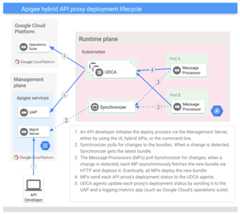
API proxy revisions limitations
The following limitations apply to API proxy revisions:
- If you make any changes to an API proxy, you must deploy it as a new revision.
- After you deploy an API proxy, the revision is read-only. You cannot change an API proxy revision (such as to make incremental changes); the only way tochange a revision is to create a new revision and deploy it.
- MPs can deploy a proxy bundle only in its entirety. If you make changes to individual fragments or policies, the MPs will still deploy the entire proxy bundle.
- If your Apigee usage distinguishes betweenStandard and Extensible proxies, when deploying a revision that changes an API proxy from a Standard proxy to an Extensible proxy:
- a cost might be incurred. If you are a Pay-as-you-go customer, see thePay-as-you-go entitlements. If you are a Subscription customer, see your plan's details.
- the deployment requires additional time. During the deployment window the API call flow is not disrupted but you can't deploy, undeploy, or delete the proxy. Also, current or new revisions cannot be deleted during the deployment window. Changes to the API proxy and new revision creation are allowed.
Zero-downtime deployment
All successful API proxy deployments to Apigee, arezero-downtime deployments. API proxy deployments happen in this order:
- Revision 1 of the API proxy
/hellois deployed and handling traffic. - Revision 2 of
/hellois deployed. - Revision 2 is deployed to the Message Processors in the runtime plane.
- Revision 1 is undeployed.
The API proxy revision deployment is now complete with no downtime.
Note: If the deployment of Revision 2fails for any reason, the previous version, Revision 1 is still undeployed. In this case, you can re-deploy the previous revision to restore it. Then, you can fix the new revision and deploy it.Viewing deployment status
Deploying an API proxy on Apigee does not make it immediately available. It takes time forthe API proxy to be synchronized across allMPs in the runtime plane. However, Apigee providestools that can give you some information about the status of your API proxy revisions.
Apigee in Cloud console
In the Google Cloud console, go to theProxy development> API proxies page.
- Select the desired API proxy; the status is displayed in theDeployments section.
The Apigee UI uses the following icons to give a quick status for each API proxy:
 Indicates that the API proxy has not been deployed to the selected environment.
 Indicates that there are no errors or warnings for that proxy in the selected environment.
 Indicates that some routing did not update due to base path conflicts.
 Indicates that there was an error deploying the API proxy.
Classic Apigee UI
Within the Apigee UI, there are several views that provide the deployment status of your APIproxies.
| Apigee UI View | Steps & Description |
|---|---|
| Proxies |
The Apigee UI uses the following icons to give a quick status for each API proxy:
To view the status icon, click theDevelop tab. Alternatively, you can selectDevelop > API Proxies and click an API proxy |
Apigee API
To view the deployment status of your API proxy revision in an environment, use the following API call:
curl "https://apigee.googleapis.com/v1/organizations/$ORG/environments/$ENV/apis/$API/revisions/$REV/deployments" \ -X GET \ -H "Authorization: Bearer $TOKEN"
Where$TOKEN is set to your OAuth 2.0 access token, as described inObtaining an OAuth 2.0 access token. For information about thecurl options used in this example, seeUsing curl. For a description of environment variables you can use, seeSettingenvironment variables for Apigee API requests.
The following provides an example of the response. This examples shows deployment status for revision1 of thehelloworld API proxy that is deployed in thetest environment:
{ "environment": "test", "apiProxy": "helloworld", "revision": "1", "deployStartTime": "1559149080457", "pods": [ { "podName": "apigee-runtime-myorg-test-f8bdf9d-2s72w", "deploymentStatus": "deployed", "statusCodeDetails": "Deployment Success", "podStatus": "active", "podStatusTime": "1595357668001" } ], "state": "READY"}For more information, see theAPI proxy revision environment deployments API.
gcloud
To view the deployment status of your API proxy revision in an environment, use the following gcloud command:
gcloud alpha apigee deployments describe --api=$API --environment=$ENV
For more information and a description of the environment variables used in the examples,seeGetting started using gcloud with Apigee.
The following provides an example of the response. This examples shows deployment status for revision1 of thehelloworld API proxy that is deployed in thetest environment:
Using Apigee organization `my-org`Using deployed revision `1`apiProxy: helloworlddeployStartTime: '1598032332802'environment: testpods:- deploymentStatus: deployed podName: apigee-runtime-myorg-test-f8bdf9d-2s72w podStatus: active podStatusTime: '1598302128087' statusCodeDetails: Deployment Successrevision: '1'state: READY
For more information, seeDescribe deployments CLI.
View proxy deployment usage
The usage of API proxies in your organization may be subject to a deployments quota, which is a limit on how many deployment units you can use at a time. See your entitlements (Pay-as-you-go orSubscription) for details. You can view your organization's proxy deployment usage from several places within theApigee UI in Cloud console, as described below.
Note: If your organization is Apigee hybrid-enabled, only a sub-set of these usage metrics are displayed.View deployment usage on the Apigee Overview page
To view your API proxy deployment usage from the ApigeeOverview page:
In the Google Cloud console, go to theOverview page.
- You can view proxy deployment usage for your organization at a glance using theProxy Usage card, whichdisplays the following information for your organization:
- Total proxies created: The total number of API proxies created, including deployed and undeployed proxies.
- Proxies deployed: The total number of API proxies deployed across all environment(s) in the organization.
- Proxy deployment units: The total number of API proxy or shared flow revisions deployed in your organization. Each deployment per environment, per instance, is counted as one unit.
- Proxies and shared flows deployed against limit: Total number of API proxies and shared flows deployed in the organization, against the limit for your organization type.
- Extensible deployment units: The number of extensible API proxy revisions deployed in your organization. Each deployment per environment, per instance, is counted as one unit.
- Standard deployment units: The number of standard API proxy revisions deployed in your organization. Each deployment per environment, per instance, is counted as one unit.
View deployment usage on the API Proxies page
To view your API proxy deployment usage from theAPI Proxies page:
In the Google Cloud console, go to theAPI Proxies page.
- TheAPI Proxies page displays the following information:
- Total proxies created: The total number of API proxies developed in your organization, including deployed and undeployed proxies.
- Proxies deployed: The total number of API proxy revisions deployed across all environments in your organization.
- Proxy deployment units: The total number of API proxy or shared flow revisions deployed across all environments in your organization. Each deployment per environment, per instance, is counted as one unit.
- Extensible proxy deployment units: The number of extensible API proxy revisions deployed across all environments in your organization. Each deployment per environment, per instance, is counted as one unit.
- Standard proxy deployment units: The number of standard API proxy revisions deployed across all environments in your organization. Each deployment per environment, per instance, is counted as one unit.
View deployment usage on the Environments page
To view your API proxy deployment usage from theEnvironments page:
In the Google Cloud console, go to theEnvironments page.
- Select theEnvironments overview tab to display the following information for all of the environments:
- Total proxy deployment units: The total number of API proxy or shared flow revisions deployed across all environments in your organization.
- Extensible proxy deployment units: The number of extensible API proxy revisions deployed across all environments in your organization. Each deployment per environment, per instance, is counted as one unit.
- Standard proxy deployment units: The number of standard API proxy revisions deployed across all environments in your organization. Each deployment per environment, per instance, is counted as one unit.
- Shared flow deployment units: The total number of shared flow revisions deployed across all environments in your organization. Each deployment per environment, per instance, is counted as one unit.
- To view proxy deployment usage for a single environment:
- In theEnvironments list, select an environment name to view its details.
- Select theDeployments tab to view deployment unit usage for the selected environment.
Next steps
Learn how to deploy:
|
Learn how to undeploy:
|
Except as otherwise noted, the content of this page is licensed under theCreative Commons Attribution 4.0 License, and code samples are licensed under theApache 2.0 License. For details, see theGoogle Developers Site Policies. Java is a registered trademark of Oracle and/or its affiliates.
Last updated 2025-12-17 UTC.