

Investigate anomalies
This pageapplies toApigee andApigee hybrid.
View Apigee Edge documentation.
When you see an anomaly in theOperations Anomalies dashboard, youcan investigate it further in theAPI Monitoring dashboards.The dashboards display graphs and tables of recent API data, which providehighly specific information about what was occurring in the API at the time of the anomaly.
The following sections present examples that illustrate how to investigateanomalies in the dashboards.
Example: fault code anomaly
Suppose are looking at the Operations Anomalies dashboard, and you notice the anomaly shown below:

To view the details of the anomaly, clickInvestigate in theSummary column. This displays theAPI Monitoring Investigate dashboard, as shown below.
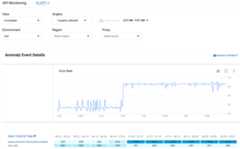
The Anomaly Event Details pane displays an error rate timeline.The graph shows that the anomaly occurred after 07:00 AM, when the error ratejumped from less than 0.4 to more than 0.8.
The error rate in the timeline graph includes errors for all fault codes.To see a breakdownof errors for different fault codes, look at the Fault Code by Time graph displayedbelow the timeline.
Note: If the Fault Code by Time graphisn't currently displayed, selectFault Code in theGraphs menu to show it: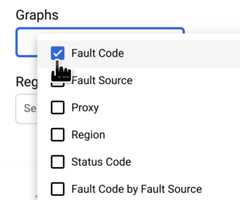
The circled column of the Fault Code by Time graph corresponds to the time interval containingthe time of the anomaly.
Note: A small difference between the data displayed in the graphand the reported time of the anomaly is normal.

You observe that in the interval07:03 - 07:27, there were 1499 responses with fault codesteps.json2xml.SourceUnavailable (an error code that is returned when a JSON to XML policy message source is unavailable). This is the fault code that triggered the anomaly. By contrast, over the preceding four intervals the average number of responses with that fault code was about 291, so the jump to 1499 was certainly an unusual event.
For more information about theSourceUnavailable error message, see JSON to XML policy runtime error troubleshooting.
At this point, there are a couple of ways to continue investigating the cause of the anomaly:
Drill down on the fault code data at the time of the anomaly by clicking the cell for the anomaly in the Fault Code by Time graph.
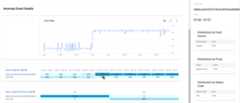
This displays distribution tables for
steps.json2xml.SourceUnavailableby fault source, proxy, and status code in the right-hand pane.In this example, the tables don't provide any additional information because all the fault codes arise from the same fault source, proxy, and status code. But in other situations, the distribution tables can point you to the location and cause of the anomaly.
- Create an alert for the anomaly and set up a notification. After you have done this, AAPI Ops will send you a message whenever a similar event occurs in the future.
Except as otherwise noted, the content of this page is licensed under theCreative Commons Attribution 4.0 License, and code samples are licensed under theApache 2.0 License. For details, see theGoogle Developers Site Policies. Java is a registered trademark of Oracle and/or its affiliates.
Last updated 2025-12-17 UTC.