Select content to sync
Once you’ve set up Desktop Sync, all your Alfresco Content Services folders will be displayed from My Files, Shared Files, and your Sites.
- Windows
My Files><selected-sync-folder>Sites><Site Name>><selected-sync-folder>Shared Files><selected-sync-folder>Synchronize your content fromMy Files andShared Files.
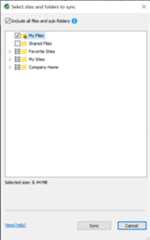
SelectMy Files to expand the folder list in yourMy Files area of Alfresco Content Services.
You can navigate through the folder hierarchy and click the check box to select individual folders, or select
 My Files to sync everything. SeeMy Files for more.
SelectShared Files to sync all the files and folders underShared Files in Alfresco.
You can navigate through the folder hierarchy and click the check box to select individual folders, or select
Shared Files to sync everything. SeeShared Files for more.
Select
next toFavorite Sites to sync all your favorite sites.To select specific sites, click
 to expand the list and select the relevant site.
To sync a specific folder within a site, double-click the site name and select the folder.
Select
next toFavorite Folders to sync all your favorite folders.To sync specific folders, click
to expand the list, double-click the site name and select the relevant folder.When you expandFavorite Folders, all the favorite folders for a site are grouped under that site.
UnderMy Sites, you’ll see all the sites you’re a member of.
To sync specific folders, click
to expand the list, double-click the site name and select the relevant folder.Note: Sites display their full name and folders display the hierarchy of the folder, for example,My Site | My Folder.
UnderCompany Home, you’ll see all the folders created by the Administrator under Company Home of Alfresco repository.
ClickSync to start initial syncing of the selected Alfresco files and folders to your desktop.
Tip: You can clickCancel to cancel the sync and close the Select sites and folders to sync screen.
Note: During the initial sync, don’t disconnect your computer from the network or put your computer to sleep. Although the sync will resume if interrupted, it will likely need to check the content again and very large initial syncs may take a long time to complete.
In theAlfresco sync folder location dialog, choose where the sync folder is stored.
The content is synced to
C:\Users\<username>\Alfrescoby default.To use the default location and start the sync, clickOK.
To change the sync location, selectBrowse…, choose a new location, clickSelect Folder, and then clickOK to start the sync.
Note: If you wish to move the Alfresco sync folder location later, you’ll have to remove your account and set up Desktop Sync again.
Note: The sync folder location must be set to a local folder as network folders aren’t supported.
- You canReturn to content selection to change the content selected for synchronization. Note that after making changes, your sync will restart from the beginning.
- If you create a new file or update a file on your desktop, it will be synced only after the initial sync is over.
- It’s recommended that you don’t move the parent folders being synced.
- Mac
My Files><selected-sync-folder>Sites><Site Name>><selected-sync-folder>Shared Files><selected-sync-folder>Synchronize your content fromMy Files andShared Files.
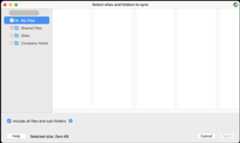
SelectMy Files to expand the folder list in yourMy Files area of Alfresco Content Services.
You can navigate through the folder hierarchy and click the check box to select individual folders, or select
My Files to sync everything. SeeMy Files for more.SelectShared Files to expand the folder list in yourShared Files area of Alfresco Content Services.
You can navigate through the folder hierarchy and click the check box to select individual folders, or select
Shared Files to sync everything. SeeShared Files for more.
SelectSites to expand the list of sites you are a member of in Alfresco Content Services, sites you have favorited, and sites with content that you have favorited.
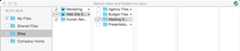
 indicates a favorite site or folder
 indicates a site or folder that contains favorited content
These are listed in alphabetical order, grouped by favorites, then sites with favorited content, and then other sites you’re a member of.
SelectSites to expand the folder list in yourSites area of Alfresco Content Services.
You can navigate through the folder hierarchy and click the check box to select individual folders.
SelectCompany Home to expand the folder list in yourCompany Home area of Alfresco Content Services (if set up by your IT team).
You can navigate through the folder hierarchy and click the check box to select individual folders.
Note: It’s not possible to select all yourSites or all ofCompany Home as it’s likely to involve a large sync and may take a long time.
ClickSync to start initial syncing of the selected files and folders to your desktop.
Tip: You can clickCancel to cancel selecting content and close the Select sites and folders to sync dialog.
Note: During the initial sync, don’t disconnect your computer from the network or put your computer to sleep. Although the sync will resume if interrupted, it’s likely to need to check the content again, and very large initial syncs may take a long time to complete.
In theAlfresco sync folder location dialog, choose where the sync folder is stored.
The content is synced to
<userHome>/Alfrescoby default.To use the default location and start the sync, clickOK.
To change the sync location, selectBrowse…, choose a new location, clickSelect Folder, and then clickOK to start the sync.
Note: If you wish to move the Alfresco sync folder location later, you’ll have to remove your account and set up Desktop Sync again.
Note: The sync folder location must be set to a local folder as network folders aren’t supported.
- You can close the sync progress dialog using the red cross, and the initial sync will continue in the background which allows you to continue working elsewhere.
- You canReturn to content selection to change the content selected for synchronization. Note that after making changes, your sync will restart from the beginning.
- If you create a new file or update a file on your desktop, it’ll be synced after the initial sync is over.
- It’s recommended that you don’t move folders until the initial sync has completed.
Use theSelect sites and folders to sync screen to select the content to sync between Alfresco Content Services and your desktop. The content is synced atC:\Users\<username>\Alfresco.
If you work with content that has deep folder structures, you may wish to deselect theInclude all files and sub-folders checkbox. This allows you to only sync selected folders deep in your hierarchy, without syncing the intermediate folders, and prevent lengthy folder paths being created. By default, this feature is enabled, and if you want to sync only particular folders then the checkbox has to be deselected. In this case, only the files in the selected folders are synced using a folder structure starting from their respective root paths in Content Services (such as My Files, Shared Files, and your Sites).
Here’s an example that shows how the folder paths may be shortened:
When the checkbox is selected (since it’s enabled by default), the folders are synced using the hierarchy in Content Services. This replicates the behavior from previous releases of Desktop Sync.
Note: The screen provides an estimate of how much disk space will be occupied, so only select the content you need. The more content you select, the more space will be taken on your local machine and the more time it will take to perform the initial sync.
About the initial sync
TheSync progress screen shows the status of initial sync. The Alfresco icon in the system tray will spin during the sync process. On completion, a notification appears on the system tray.
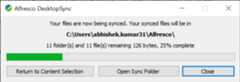
In C:\Users\<username>\Alfresco, copies of all the content you’ve selected to sync are created. Desktop Sync automatically keeps both the local copy and the Alfresco versions in sync with each other whenever any changes are made.
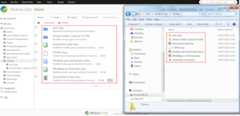
During initial sync:
Working with content
To save your work in Alfresco, just work on your files in theC:\Users\<username>\Alfresco folder, and everything in the folder will be automatically synced to Alfresco.
Use theSelect sites and folders to sync dialog to select the content to sync between Alfresco Content Services and your desktop. The content is synced to your/<userHome>/Alfresco folder, located in Finder underGo > Home.
If you work with content that has deep folder structures, you may wish to deselect theInclude all files and sub-folders checkbox. This allows you to only sync selected folders deep in your hierarchy, without syncing the intermediate folders, and prevent lengthy folder paths being created. By default, this feature is enabled, and if you want to sync only particular folders then the checkbox has to be deselected. In this case, only the files in the selected folders are synced using a folder structure starting from their respective root paths in Content Services (such as My Files, Shared Files, and your Sites).
Here’s an example that shows how the folder paths may be shortened:
When the checkbox is selected (since it’s enabled by default), the folders are synced using the hierarchy in Content Services. This replicates the behavior from previous releases of Desktop Sync.
Note: The screen provides an estimate of how much disk space will be occupied, so only select the content you need. The more content you select, the more space will be taken on your computer and the more time it’ll take to perform the initial sync.
About the initial sync
TheSync progress dialog shows the status of the initial sync. The Alfresco icon in the menu bar changes to indicate that the sync is in progress . Once the sync has completed successfully, the icon changes to
 .
.
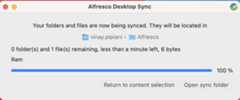
In/<userHome>/Alfresco, copies of all the content you’ve selected to sync are created. Desktop Sync automatically keeps both the local copy and the Alfresco Content Services versions in sync with each other whenever any changes are made.
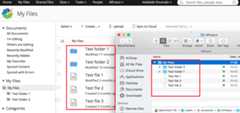
During initial sync:
Working with content
To save your work in Alfresco, just work on your files in the/<userHome>/Alfresco folder, and everything in the folder will be automatically synced to Alfresco.