
Send a message using the Google Chat API

Page Summary
The Google Chat API enables sending messages as a Chat app or on behalf of a user.
Chat apps can send rich messages with text, cards, and interactive elements, while user-sent messages are limited to text.
Messages can be sent to spaces, users directly, or within specific threads using a
thread_key.Developers can assign custom IDs to messages for easier retrieval and management.
Code examples in Node.js and Python are provided to guide developers in implementing message sending functionalities.
This guide explains how to use thecreate()method on theMessage resource of the Google Chat API to do any of the following:
- Send messages that contain text, cards, and interactive widgets.
- Send messages privately to a specific Chat user.
- Start or reply to a message thread.
- Name a message, so that you can specify it in other Chat APIrequests.
The maximum message size (including any text or cards) is 32,000 bytes.To send a message that exceeds this size, your Chat appmust send multiple messages instead.
In addition to calling the Chat API to create messages,Chat apps can create and send messages to reply to userinteractions, such as posting a welcome message after a user adds theChat app to a space. When responding to interactions,Chat apps can use other types of messaging features, includinginteractive dialogs and link preview interfaces. To reply to a user, theChat app returns the message synchronously, withoutcalling the Chat API. To learn about sending messages to respond tointeractions, seeReceive and respond to interactions with your Google Chat app.
For more examples, seeGoogle Chat app samples.
How Chat displays and attributes messages created with the Chat API
You can call thecreate() method usingapp authenticationanduser authentication.Chat attributes the message sender differentlydepending on the type of authentication that you use.
When you authenticate as the Chat app,the Chat app sends the message.

App next to its name.When you authenticate as a user, the Chat app sends themessage on behalf of the user. Chat also attributes theChat app to the message by displaying its name.

The authentication type also determines which messaging features and interfacesthat you can include in the message. With app authentication,Chat apps can send messages that contain rich text,card-based interfaces, and interactive widgets.Since Chat users can only send text in their messages, you canonly include text when creating messages using user authentication.To learn more about messagingfeatures available for the Chat API, see theGoogle Chat messages overview.
This guide explains how to use either authentication type to send a messagewith the Chat API.
Prerequisites
Node.js
- A Business or EnterpriseGoogle Workspace account with access toGoogle Chat.
- Set up your environment:
- Create a Google Cloud project.
- Configure the OAuth consent screen.
- Enable and configure the Google Chat API with a name,icon, and description for your Chat app.
- Install the Node.js Cloud Client Library.
- Create access credentials based on how you want to authenticate in your Google Chat API request:
- To authenticate as a Chat user,create OAuth client ID credentials and save the credentials as a JSON file named
credentials.jsonto your local directory. - To authenticate as the Chat app,create service account credentials and save the credentials as a JSON file named
credentials.json.
- To authenticate as a Chat user,create OAuth client ID credentials and save the credentials as a JSON file named
- Choose an authorization scope based on whether you want to authenticate as a user or theChat app.
- AGoogle Chat space where the authenticated user orcalling Chat app is a member. To authenticate as theChat app,add theChat app to the space.
Python
- A Business or EnterpriseGoogle Workspace account with access toGoogle Chat.
- Set up your environment:
- Create a Google Cloud project.
- Configure the OAuth consent screen.
- Enable and configure the Google Chat API with a name,icon, and description for your Chat app.
- Install the Python Cloud Client Library.
- Create access credentials based on how you want to authenticate in your Google Chat API request:
- To authenticate as a Chat user,create OAuth client ID credentials and save the credentials as a JSON file named
credentials.jsonto your local directory. - To authenticate as the Chat app,create service account credentials and save the credentials as a JSON file named
credentials.json.
- To authenticate as a Chat user,create OAuth client ID credentials and save the credentials as a JSON file named
- Choose an authorization scope based on whether you want to authenticate as a user or theChat app.
- AGoogle Chat space where the authenticated user orcalling Chat app is a member. To authenticate as theChat app,add theChat app to the space.
Java
- A Business or EnterpriseGoogle Workspace account with access toGoogle Chat.
- Set up your environment:
- Create a Google Cloud project.
- Configure the OAuth consent screen.
- Enable and configure the Google Chat API with a name,icon, and description for your Chat app.
- Install the Java Cloud Client Library.
- Create access credentials based on how you want to authenticate in your Google Chat API request:
- To authenticate as a Chat user,create OAuth client ID credentials and save the credentials as a JSON file named
credentials.jsonto your local directory. - To authenticate as the Chat app,create service account credentials and save the credentials as a JSON file named
credentials.json.
- To authenticate as a Chat user,create OAuth client ID credentials and save the credentials as a JSON file named
- Choose an authorization scope based on whether you want to authenticate as a user or theChat app.
- AGoogle Chat space where the authenticated user orcalling Chat app is a member. To authenticate as theChat app,add theChat app to the space.
Apps Script
- A Business or EnterpriseGoogle Workspace account with access toGoogle Chat.
- Set up your environment:
- Create a Google Cloud project.
- Configure the OAuth consent screen.
- Enable and configure the Google Chat API with a name,icon, and description for your Chat app.
- Create a standalone Apps Script project,and turn on theAdvanced Chat Service.
- In this guide, you must use eitheruser or app authentication. To authenticate as the Chat app, create service account credentials. For steps, seeAuthenticate and authorize as a Google Chat app.
- Choose an authorization scope based on whether you want to authenticate as a user or theChat app.
- AGoogle Chat space where the authenticated user orcalling Chat app is a member. To authenticate as theChat app,add theChat app to the space.
The code samples in this page use the gRPC API interface with the Google Cloud clientlibraries. Alternatively, you can use the REST API interface. For more information about the gRPCand REST interfaces, seeGoogle Chat API overview.
Send a message as the Chat app
This section explains how to send messages that contain text, cards, andinteractive accessory widgets usingapp authentication.

To call theCreateMessage()method using app authentication, you must specify the following fields in therequest:
- The
chat.botauthorization scope. - The
Spaceresource in which you want to post the message. TheChat app must be a member of the space. - The
Messageresource to create. To define the content of the message, you can includerich text(text),one or more card interfaces(cardsV2),or both.
Optionally, you can include the following:
- The
accessoryWidgetsfield to includeinteractive buttons at the bottom of the message. - The
privateMessageViewerfield tosend the message privately to a specified user. - The
messageIdfield, which lets youname the message to use in other API requests. - The
thread.threadKeyandmessageReplyOptionfields tostart or reply to a thread. If the space doesn'tuse threading, this field is ignored.
The following code shows an example of how a Chat appcan send a message posted as the Chat app that containstext, a card, and a clickable button at the bottom of the message:
Node.js
import{createClientWithAppCredentials}from'./authentication-utils.js';// This sample shows how to create message with app credentialasyncfunctionmain(){// Create a clientconstchatClient=createClientWithAppCredentials();// Initialize request argument(s)constrequest={// Replace SPACE_NAME here.parent:'spaces/SPACE_NAME',message:{text:'👋🌎 Hello world! I created this message by calling '+"the Chat API's `messages.create()` method.",cardsV2:[{card:{header:{title:'About this message',imageUrl:'https://fonts.gstatic.com/s/i/short-term/release/googlesymbols/info/default/24px.svg',},sections:[{header:'Contents',widgets:[{textParagraph:{text:'🔡 <b>Text</b> which can include '+'hyperlinks 🔗, emojis 😄🎉, and @mentions 🗣️.',},},{textParagraph:{text:'🖼️ A <b>card</b> to display visual elements'+'and request information such as text 🔤, '+'dates and times 📅, and selections ☑️.',},},{textParagraph:{text:'👉🔘 An <b>accessory widget</b> which adds '+'a button to the bottom of a message.',},},],},{header:"What's next",collapsible:true,widgets:[{textParagraph:{text:"❤️ <a href='https://developers.google.com/workspace/chat/api/reference/rest/v1/spaces.messages.reactions/create'>Add a reaction</a>.",},},{textParagraph:{text:"🔄 <a href='https://developers.google.com/workspace/chat/api/reference/rest/v1/spaces.messages/patch'>Update</a> "+"or ❌ <a href='https://developers.google.com/workspace/chat/api/reference/rest/v1/spaces.messages/delete'>delete</a> "+'the message.',},},],},],},},],accessoryWidgets:[{buttonList:{buttons:[{text:'View documentation',icon:{materialIcon:{name:'link'}},onClick:{openLink:{url:'https://developers.google.com/workspace/chat/create-messages',},},},],},},],},};// Make the requestconstresponse=awaitchatClient.createMessage(request);// Handle the responseconsole.log(response);}awaitmain();
Python
fromauthentication_utilsimportcreate_client_with_app_credentialsfromgoogle.appsimportchat_v1asgoogle_chat# This sample shows how to create message with app credentialdefcreate_message_with_app_cred():# Create a clientclient=create_client_with_app_credentials()# Initialize request argument(s)request=google_chat.CreateMessageRequest(# Replace SPACE_NAME here.parent="spaces/SPACE_NAME",message={"text":'👋🌎 Hello world! I created this message by calling '+'the Chat API\'s `messages.create()` method.',"cards_v2":[{"card":{"header":{"title":'About this message',"image_url":'https://fonts.gstatic.com/s/i/short-term/release/googlesymbols/info/default/24px.svg'},"sections":[{"header":"Contents","widgets":[{"text_paragraph":{"text":'🔡 <b>Text</b> which can include '+'hyperlinks 🔗, emojis 😄🎉, and @mentions 🗣️.'}},{"text_paragraph":{"text":'🖼️ A <b>card</b> to display visual elements'+'and request information such as text 🔤, '+'dates and times 📅, and selections ☑️.'}},{"text_paragraph":{"text":'👉🔘 An <b>accessory widget</b> which adds '+'a button to the bottom of a message.'}}]},{"header":"What's next","collapsible":True,"widgets":[{"text_paragraph":{"text":"❤️ <a href='https://developers.google.com/workspace/chat/api/reference/rest/v1/spaces.messages.reactions/create'>Add a reaction</a>."}},{"text_paragraph":{"text":"🔄 <a href='https://developers.google.com/workspace/chat/api/reference/rest/v1/spaces.messages/patch'>Update</a> "+"or ❌ <a href='https://developers.google.com/workspace/chat/api/reference/rest/v1/spaces.messages/delete'>delete</a> "+"the message."}}]}]}}],"accessory_widgets":[{"button_list":{"buttons":[{"text":'View documentation',"icon":{"material_icon":{"name":'link'}},"on_click":{"open_link":{"url":'https://developers.google.com/workspace/chat/create-messages'}}}]}}]})# Make the requestresponse=client.create_message(request)# Handle the responseprint(response)create_message_with_app_cred()
Java
importcom.google.apps.card.v1.Button;importcom.google.apps.card.v1.ButtonList;importcom.google.apps.card.v1.Card;importcom.google.apps.card.v1.Icon;importcom.google.apps.card.v1.MaterialIcon;importcom.google.apps.card.v1.OnClick;importcom.google.apps.card.v1.OpenLink;importcom.google.apps.card.v1.TextParagraph;importcom.google.apps.card.v1.Widget;importcom.google.apps.card.v1.Card.CardHeader;importcom.google.apps.card.v1.Card.Section;importcom.google.chat.v1.AccessoryWidget;importcom.google.chat.v1.CardWithId;importcom.google.chat.v1.ChatServiceClient;importcom.google.chat.v1.CreateMessageRequest;importcom.google.chat.v1.Message;// This sample shows how to create message with app credential.publicclassCreateMessageAppCred{publicstaticvoidmain(String[]args)throwsException{try(ChatServiceClientchatServiceClient=AuthenticationUtils.createClientWithAppCredentials()){CreateMessageRequest.Builderrequest=CreateMessageRequest.newBuilder()// Replace SPACE_NAME here..setParent("spaces/SPACE_NAME").setMessage(Message.newBuilder().setText("👋🌎 Hello world! I created this message by calling "+"the Chat API\'s `messages.create()` method.").addCardsV2(CardWithId.newBuilder().setCard(Card.newBuilder().setHeader(CardHeader.newBuilder().setTitle("About this message").setImageUrl("https://fonts.gstatic.com/s/i/short-term/release/googlesymbols/info/default/24px.svg")).addSections(Section.newBuilder().setHeader("Contents").addWidgets(Widget.newBuilder().setTextParagraph(TextParagraph.newBuilder().setText("🔡 <b>Text</b> which can include "+"hyperlinks 🔗, emojis 😄🎉, and @mentions 🗣️."))).addWidgets(Widget.newBuilder().setTextParagraph(TextParagraph.newBuilder().setText("🖼️ A <b>card</b> to display visual elements "+"and request information such as text 🔤, "+"dates and times 📅, and selections ☑️."))).addWidgets(Widget.newBuilder().setTextParagraph(TextParagraph.newBuilder().setText("👉🔘 An <b>accessory widget</b> which adds "+"a button to the bottom of a message.")))).addSections(Section.newBuilder().setHeader("What's next").setCollapsible(true).addWidgets(Widget.newBuilder().setTextParagraph(TextParagraph.newBuilder().setText("❤️ <a href='https://developers.google.com/workspace/chat/api/reference/rest/v1/spaces.messages.reactions/create'>Add a reaction</a>."))).addWidgets(Widget.newBuilder().setTextParagraph(TextParagraph.newBuilder().setText("🔄 <a href='https://developers.google.com/workspace/chat/api/reference/rest/v1/spaces.messages/patch'>Update</a> "+"or ❌ <a href='https://developers.google.com/workspace/chat/api/reference/rest/v1/spaces.messages/delete'>delete</a> "+"the message.")))))).addAccessoryWidgets(AccessoryWidget.newBuilder().setButtonList(ButtonList.newBuilder().addButtons(Button.newBuilder().setText("View documentation").setIcon(Icon.newBuilder().setMaterialIcon(MaterialIcon.newBuilder().setName("link"))).setOnClick(OnClick.newBuilder().setOpenLink(OpenLink.newBuilder().setUrl("https://developers.google.com/workspace/chat/create-messages")))))));Messageresponse=chatServiceClient.createMessage(request.build());System.out.println(JsonFormat.printer().print(response));}}}
Apps Script
/** * This sample shows how to create message with app credential * * It relies on the OAuth2 scope 'https://www.googleapis.com/auth/chat.bot' * used by service accounts. */functioncreateMessageAppCred(){// Initialize request argument(s)// TODO(developer): Replace SPACE_NAME here.constparent="spaces/SPACE_NAME";constmessage={text:"👋🌎 Hello world! I created this message by calling "+"the Chat API's `messages.create()` method.",cardsV2:[{card:{header:{title:"About this message",imageUrl:"https://fonts.gstatic.com/s/i/short-term/release/googlesymbols/info/default/24px.svg",},sections:[{header:"Contents",widgets:[{textParagraph:{text:"🔡 <b>Text</b> which can include "+"hyperlinks 🔗, emojis 😄🎉, and @mentions 🗣️.",},},{textParagraph:{text:"🖼️ A <b>card</b> to display visual elements"+"and request information such as text 🔤, "+"dates and times 📅, and selections ☑️.",},},{textParagraph:{text:"👉🔘 An <b>accessory widget</b> which adds "+"a button to the bottom of a message.",},},],},{header:"What's next",collapsible:true,widgets:[{textParagraph:{text:"❤️ <a href='https://developers.google.com/workspace/chat/api/reference/rest/v1/spaces.messages.reactions/create'>Add a reaction</a>.",},},{textParagraph:{text:"🔄 <a href='https://developers.google.com/workspace/chat/api/reference/rest/v1/spaces.messages/patch'>Update</a> "+"or ❌ <a href='https://developers.google.com/workspace/chat/api/reference/rest/v1/spaces.messages/delete'>delete</a> "+"the message.",},},],},],},},],accessoryWidgets:[{buttonList:{buttons:[{text:"View documentation",icon:{materialIcon:{name:"link"}},onClick:{openLink:{url:"https://developers.google.com/workspace/chat/create-messages",},},},],},},],};constparameters={};// Make the requestconstresponse=Chat.Spaces.Messages.create(message,parent,parameters,getHeaderWithAppCredentials(),);// Handle the responseconsole.log(response);}
To run this sample, replaceSPACE_NAME with the ID fromthe space'snamefield. You can obtain the ID by calling theListSpaces()method or from the space's URL.
Add interactive widgets at the bottom of a message
In the first code sample of this guide, theChat app message displays a clickable button at thebottom of the message, known as anaccessory widget. Accessory widgetsappear after any text or cards in a message. You can use these widgets to promptusers to interact with your message in many ways, including the following:
- Rate the accuracy or satisfaction of a message.
- Report an issue with the message or Chat app.
- Open a link to related content, such as documentation.
- Dismiss or snooze similar messages from the Chat appfor a specific period of time.
To add accessory widgets, include theaccessoryWidgets[]field in the body of your request and specify one or more widgets that you wantto include.
The following image shows a Chat app that appendsa text message with accessory widgets so that users can rate their experiencewith the Chat app.
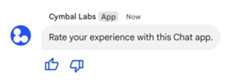
The following shows the body of the request that creates a text message withtwo accessory buttons. When a user clicks a button, the correspondingfunction (such asdoUpvote) processes the interaction:
{text:"Rate your experience with this Chat app.",accessoryWidgets:[{buttonList:{buttons:[{icon:{material_icon:{name:"thumb_up"}},color:{red:0,blue:255,green:0},onClick:{action:{function:"doUpvote"}}},{icon:{material_icon:{name:"thumb_down"}},color:{red:0,blue:255,green:0},onClick:{action:{function:"doDownvote"}}}]}}]}Send a message privately
Chat apps can send messages privately so that themessage is only visible to a specific user in the space. When aChat app sends a private message, the messageshows a label that notifies the user that the message is only visible to them.
To send a message privately using the Chat API, specify theprivateMessageViewerfield in the body of your request. To specify the user, you set the value totheUserresource that represents the Chat user. You can also use thenamefield of theUser resource, as shown in the following example:
{text:"Hello private world!",privateMessageViewer:{name:"users/USER_ID"}}To use this sample, replaceUSER_IDwith a unique ID for the user, such as12345678987654321 orhao@cymbalgroup.com. For more information about specifying users, seeIdentify and specify Google Chat users.
To send a message privately, you must omit the following in your request:
Send a text message on behalf of a user
This section explains how to send messages on behalf of a user usinguser authentication.With user authentication, the content of the message can only contain textand must omit messaging features that are only available toChat apps, including card interfaces and interactive widgets.

To call theCreateMessage() method using user authentication, you must specifythe following fields in the request:
- Anauthorization scopethat supports user authentication for this method. The following sample usesthe
chat.messages.createscope. - The
Spaceresource in which you want to post the message. The authenticated user must bea member of the space. - The
Messageresource to create. To define the content of the message, you must include thetextfield.
Optionally, you can include the following:
- The
messageIdfield, which lets youname the message to use in other API requests. - The
thread.threadKeyandmessageReplyOptionfields tostart or reply to a thread. If the space doesn'tuse threading, this field is ignored.
The following code shows an example of how a Chat appcan send a text message in a given space on behalf of an authenticated user:
Node.js
import{createClientWithUserCredentials}from'./authentication-utils.js';constUSER_AUTH_OAUTH_SCOPES=['https://www.googleapis.com/auth/chat.messages.create',];// This sample shows how to create message with user credentialasyncfunctionmain(){// Create a clientconstchatClient=awaitcreateClientWithUserCredentials(USER_AUTH_OAUTH_SCOPES,);// Initialize request argument(s)constrequest={// Replace SPACE_NAME here.parent:'spaces/SPACE_NAME',message:{text:'👋🌎 Hello world!'+'Text messages can contain things like:\n\n'+'* Hyperlinks 🔗\n'+'* Emojis 😄🎉\n'+'* Mentions of other Chat users `@` \n\n'+'For details, see the '+'<https://developers.google.com/workspace/chat/format-messages'+'|Chat API developer documentation>.',},};// Make the requestconstresponse=awaitchatClient.createMessage(request);// Handle the responseconsole.log(response);}awaitmain();
Python
fromauthentication_utilsimportcreate_client_with_user_credentialsfromgoogle.appsimportchat_v1asgoogle_chatSCOPES=["https://www.googleapis.com/auth/chat.messages.create"]defcreate_message_with_user_cred():# Create a clientclient=create_client_with_user_credentials(SCOPES)# Initialize request argument(s)request=google_chat.CreateMessageRequest(# Replace SPACE_NAME here.parent="spaces/SPACE_NAME",message={"text":'👋🌎 Hello world!'+'Text messages can contain things like:\n\n'+'* Hyperlinks 🔗\n'+'* Emojis 😄🎉\n'+'* Mentions of other Chat users `@`\n\n'+'For details, see the '+'<https://developers.google.com/workspace/chat/format-messages'+'|Chat API developer documentation>.'})# Make the requestresponse=client.create_message(request)# Handle the responseprint(response)create_message_with_user_cred()
Java
importcom.google.chat.v1.ChatServiceClient;importcom.google.chat.v1.CreateMessageRequest;importcom.google.chat.v1.Message;// This sample shows how to create message with user credential.publicclassCreateMessageUserCred{privatestaticfinalStringSCOPE="https://www.googleapis.com/auth/chat.messages.create";publicstaticvoidmain(String[]args)throwsException{try(ChatServiceClientchatServiceClient=AuthenticationUtils.createClientWithUserCredentials(ImmutableList.of(SCOPE))){CreateMessageRequest.Builderrequest=CreateMessageRequest.newBuilder()// Replace SPACE_NAME here..setParent("spaces/SPACE_NAME").setMessage(Message.newBuilder().setText("👋🌎 Hello world!"+"Text messages can contain things like:\n\n"+"* Hyperlinks 🔗\n"+"* Emojis 😄🎉\n"+"* Mentions of other Chat users `@` \n\n"+"For details, see the "+"<https://developers.google.com/workspace/chat/format-messages"+"|Chat API developer documentation>."));Messageresponse=chatServiceClient.createMessage(request.build());System.out.println(JsonFormat.printer().print(response));}}}
Apps Script
/** * This sample shows how to create message with user credential * * It relies on the OAuth2 scope 'https://www.googleapis.com/auth/chat.messages.create' * referenced in the manifest file (appsscript.json). */functioncreateMessageUserCred(){// Initialize request argument(s)// TODO(developer): Replace SPACE_NAME here.constparent="spaces/SPACE_NAME";constmessage={text:"👋🌎 Hello world!"+"Text messages can contain things like:\n\n"+"* Hyperlinks 🔗\n"+"* Emojis 😄🎉\n"+"* Mentions of other Chat users `@` \n\n"+"For details, see the "+"<https://developers.google.com/workspace/chat/format-messages"+"|Chat API developer documentation>.",};// Make the requestconstresponse=Chat.Spaces.Messages.create(message,parent);// Handle the responseconsole.log(response);}
To run this sample, replaceSPACE_NAME with the ID fromthe space'snamefield. You can obtain the ID by calling theListSpaces()method or from the space's URL.
Start or reply in a thread
For spaces that usethreads,you can specify whether a new message starts a thread, or replies toan existing thread.
By default, messages that you create using the Chat API start a newthread. To help you identify the thread and reply to it later, you can specify athread key in your request:
- In the body of your request, specify the
thread.threadKeyfield. - Specify the query parameter
messageReplyOptionto determine what happens if the key already exists.
To create a message that replies to an existing thread:
- In the body of your request, include the
threadfield. If set, you canspecify thethreadKeythat you created. Otherwise, you must use thenameof the thread. - Specify the query parameter
messageReplyOption.
The following code shows an example of how a Chat appcan send a text message that starts or replies to a given thread identified bykey of a given space on behalf of an authenticated user:
Node.js
import{protos}from'@google-apps/chat';import{createClientWithUserCredentials}from'./authentication-utils.js';constUSER_AUTH_OAUTH_SCOPES=['https://www.googleapis.com/auth/chat.messages.create',];// This sample shows how to create message with user credential with thread keyasyncfunctionmain(){// Create a clientconstchatClient=awaitcreateClientWithUserCredentials(USER_AUTH_OAUTH_SCOPES,);// Initialize request argument(s)constrequest={// Replace SPACE_NAME here.parent:'spaces/SPACE_NAME',// Creates the message as a reply to the thread specified by thread_key// If it fails, the message starts a new thread insteadmessageReplyOption:protos.google.chat.v1.CreateMessageRequest.MessageReplyOption.REPLY_MESSAGE_FALLBACK_TO_NEW_THREAD,message:{text:'Hello with user credential!',thread:{// Thread key specifies a thread and is unique to the chat app// that sets itthreadKey:'THREAD_KEY',},},};// Make the requestconstresponse=awaitchatClient.createMessage(request);// Handle the responseconsole.log(response);}awaitmain();
Python
fromauthentication_utilsimportcreate_client_with_user_credentialsfromgoogle.appsimportchat_v1asgoogle_chatimportgoogle.apps.chat_v1.CreateMessageRequest.MessageReplyOptionSCOPES=["https://www.googleapis.com/auth/chat.messages.create"]# This sample shows how to create message with user credential with thread keydefcreate_message_with_user_cred_thread_key():# Create a clientclient=create_client_with_user_credentials(SCOPES)# Initialize request argument(s)request=google_chat.CreateMessageRequest(# Replace SPACE_NAME hereparent="spaces/SPACE_NAME",# Creates the message as a reply to the thread specified by thread_key.# If it fails, the message starts a new thread instead.message_reply_option=MessageReplyOption.REPLY_MESSAGE_FALLBACK_TO_NEW_THREAD,message={"text":"Hello with user credential!","thread":{# Thread key specifies a thread and is unique to the chat app# that sets it."thread_key":"THREAD_KEY"}})# Make the requestresponse=client.create_message(request)# Handle the responseprint(response)create_message_with_user_cred_thread_key()
Java
importcom.google.chat.v1.ChatServiceClient;importcom.google.chat.v1.CreateMessageRequest;importcom.google.chat.v1.CreateMessageRequest.MessageReplyOption;importcom.google.chat.v1.Message;importcom.google.chat.v1.Thread;// This sample shows how to create message with a thread key with user// credential.publicclassCreateMessageUserCredThreadKey{privatestaticfinalStringSCOPE="https://www.googleapis.com/auth/chat.messages.create";publicstaticvoidmain(String[]args)throwsException{try(ChatServiceClientchatServiceClient=AuthenticationUtils.createClientWithUserCredentials(ImmutableList.of(SCOPE))){CreateMessageRequest.Builderrequest=CreateMessageRequest.newBuilder()// Replace SPACE_NAME here..setParent("spaces/SPACE_NAME")// Creates the message as a reply to the thread specified by thread_key.// If it fails, the message starts a new thread instead..setMessageReplyOption(MessageReplyOption.REPLY_MESSAGE_FALLBACK_TO_NEW_THREAD).setMessage(Message.newBuilder().setText("Hello with user credentials!")// Thread key specifies a thread and is unique to the chat app// that sets it..setThread(Thread.newBuilder().setThreadKey("THREAD_KEY")));Messageresponse=chatServiceClient.createMessage(request.build());System.out.println(JsonFormat.printer().print(response));}}}
Apps Script
/** * This sample shows how to create message with user credential with thread key * * It relies on the OAuth2 scope 'https://www.googleapis.com/auth/chat.messages.create' * referenced in the manifest file (appsscript.json). */functioncreateMessageUserCredThreadKey(){// Initialize request argument(s)// TODO(developer): Replace SPACE_NAME here.constparent="spaces/SPACE_NAME";// Creates the message as a reply to the thread specified by thread_key// If it fails, the message starts a new thread insteadconstmessageReplyOption="REPLY_MESSAGE_FALLBACK_TO_NEW_THREAD";constmessage={text:"Hello with user credential!",thread:{// Thread key specifies a thread and is unique to the chat app// that sets itthreadKey:"THREAD_KEY",},};// Make the requestconstresponse=Chat.Spaces.Messages.create(message,parent,{messageReplyOption:messageReplyOption,});// Handle the responseconsole.log(response);}
To run this sample, replace the following:
THREAD_KEY: an existing thread key in the space, orto create a new thread, a unique name for the thread.SPACE_NAME: the ID from the space'snamefield. You can obtain the ID by calling theListSpaces()method or from the space's URL.
Name a message
To retrieve or specify a message in future API calls, you can name a messageby setting themessageId field in your request.Naming your message lets you specify the message without needing to store thesystem-assigned ID from the resource name of the message (represented in thenamefield).
For example, to retrieve a message using theget() method, you use theresource name to specify which message to retrieve. The resource name isformatted asspaces/{space}/messages/{message}, where{message} representsthe system-assigned ID or the custom name that you set when you created themessage.
To name a message, specify a custom ID in themessageIdfield when you create the message. ThemessageId field sets the value for theclientAssignedMessageIdfield of theMessage resource.
You can only name a message when you create the message. You can't name ormodify a custom ID for existing messages. The custom ID must meet the followingrequirements:
- Begins with
client-. For example,client-custom-nameis a valid customID, butcustom-nameis not. - Contains up to 63 characters and only lowercase letters, numbers, andhyphens.
- Is unique within a space. A Chat app can't use thesame custom ID for different messages.
The following code shows an example of how a Chat appcan send a text message with an ID to a given space on behalf of anauthenticated user:
Node.js
import{createClientWithUserCredentials}from'./authentication-utils.js';constUSER_AUTH_OAUTH_SCOPES=['https://www.googleapis.com/auth/chat.messages.create',];// This sample shows how to create a message with user credentials and a custom// message idasyncfunctionmain(){// Create a clientconstchatClient=awaitcreateClientWithUserCredentials(USER_AUTH_OAUTH_SCOPES,);// Initialize request argument(s)constrequest={// Replace SPACE_NAME here.parent:'spaces/SPACE_NAME',// Message id lets chat apps get, update or delete a message without needing// to store the system assigned ID in the message's resource namemessageId:'client-MESSAGE-ID',message:{text:'Hello with user credential!'},};// Make the requestconstresponse=awaitchatClient.createMessage(request);// Handle the responseconsole.log(response);}awaitmain();
Python
fromauthentication_utilsimportcreate_client_with_user_credentialsfromgoogle.appsimportchat_v1asgoogle_chatSCOPES=["https://www.googleapis.com/auth/chat.messages.create"]# This sample shows how to create message with user credential with message iddefcreate_message_with_user_cred_message_id():# Create a clientclient=create_client_with_user_credentials(SCOPES)# Initialize request argument(s)request=google_chat.CreateMessageRequest(# Replace SPACE_NAME hereparent="spaces/SPACE_NAME",# Message id let chat apps get, update or delete a message without needing# to store the system assigned ID in the message's resource name.message_id="client-MESSAGE-ID",message={"text":"Hello with user credential!"})# Make the requestresponse=client.create_message(request)# Handle the responseprint(response)create_message_with_user_cred_message_id()
Java
importcom.google.chat.v1.ChatServiceClient;importcom.google.chat.v1.CreateMessageRequest;importcom.google.chat.v1.Message;// This sample shows how to create message with message id specified with user// credential.publicclassCreateMessageUserCredMessageId{privatestaticfinalStringSCOPE="https://www.googleapis.com/auth/chat.messages.create";publicstaticvoidmain(String[]args)throwsException{try(ChatServiceClientchatServiceClient=AuthenticationUtils.createClientWithUserCredentials(ImmutableList.of(SCOPE))){CreateMessageRequest.Builderrequest=CreateMessageRequest.newBuilder()// Replace SPACE_NAME here..setParent("spaces/SPACE_NAME").setMessage(Message.newBuilder().setText("Hello with user credentials!"))// Message ID lets chat apps get, update or delete a message without// needing to store the system assigned ID in the message's resource// name..setMessageId("client-MESSAGE-ID");Messageresponse=chatServiceClient.createMessage(request.build());System.out.println(JsonFormat.printer().print(response));}}}
Apps Script
/** * This sample shows how to create message with user credential with message id * * It relies on the OAuth2 scope 'https://www.googleapis.com/auth/chat.messages.create' * referenced in the manifest file (appsscript.json). */functioncreateMessageUserCredMessageId(){// Initialize request argument(s)// TODO(developer): Replace SPACE_NAME here.constparent="spaces/SPACE_NAME";// Message id lets chat apps get, update or delete a message without needing// to store the system assigned ID in the message's resource nameconstmessageId="client-MESSAGE-ID";constmessage={text:"Hello with user credential!"};// Make the requestconstresponse=Chat.Spaces.Messages.create(message,parent,{messageId:messageId,});// Handle the responseconsole.log(response);}
To run this sample, replace the following:
SPACE_NAME: the ID from the space'snamefield. You can obtain the ID by calling theListSpaces()method or from the space's URL.MESSAGE-ID: a name for the message that beginswithcustom-. Must be unique from any other message names created by theChat app in the specified space.
Quote a message
You can quote another message by callingCreateMessage()(rpc,rest)and settingquotedMessageMetadata(rpc,rest)in the request.
You can quote messages within a thread or in the main chat, but you can't quotea message from a different thread.
The following code shows how to create a message that quotes another message:
Node.js
import{createClientWithUserCredentials}from'./authentication-utils.js';constUSER_AUTH_OAUTH_SCOPES=['https://www.googleapis.com/auth/chat.messages.create'];// This sample shows how to create a message that quotes another message.asyncfunctionmain(){// Create a clientconstchatClient=awaitcreateClientWithUserCredentials(USER_AUTH_OAUTH_SCOPES);// Initialize request argument(s)constrequest={// TODO(developer): Replace SPACE_NAME .parent:'spaces/SPACE_NAME',message:{text:'I am responding to a quoted message!',// quotedMessageMetadata lets chat apps respond to a message by quoting it.quotedMessageMetadata:{// TODO(developer): Replace QUOTED_MESSAGE_NAME// and QUOTED_MESSAGE_LAST_UPDATE_TIME.name:'QUOTED_MESSAGE_NAME',lastUpdateTime:'QUOTED_MESSAGE_LAST_UPDATE_TIME'}}};// Make the requestconstresponse=awaitchatClient.createMessage(request);// Handle the responseconsole.log(response);}main().catch(console.error);Python
fromauthentication_utilsimportcreate_client_with_user_credentialsfromgoogle.appsimportchat_v1asgoogle_chatfromgoogle.protobuf.timestamp_pb2importTimestampSCOPES=['https://www.googleapis.com/auth/chat.messages.create']# This sample shows how to create a message that quotes another message.defcreate_message_quote_message():'''Creates a message that quotes another message.'''# Create a clientclient=create_client_with_user_credentials(SCOPES)# Create a timestamp from the RFC-3339 string.# TODO(developer): Replace QUOTED_MESSAGE_LAST_UPDATE_TIME.last_update_time=Timestamp()last_update_time.FromJsonString('QUOTED_MESSAGE_LAST_UPDATE_TIME')# Initialize request argument(s)request=google_chat.CreateMessageRequest(# TODO(developer): Replace SPACE_NAME.parent='spaces/SPACE_NAME',# Create the message.message=google_chat.Message(text='I am responding to a quoted message!',# quotedMessageMetadata lets chat apps respond to a message by quoting it.quoted_message_metadata=google_chat.QuotedMessageMetadata(name='QUOTED_MESSAGE_NAME',last_update_time=last_update_time)))# Make the requestresponse=client.create_message(request)# Handle the responseprint(response)create_message_quote_message()Java
importcom.google.chat.v1.ChatServiceClient;importcom.google.chat.v1.CreateMessageRequest;importcom.google.chat.v1.Message;importcom.google.chat.v1.QuotedMessageMetadata;importcom.google.protobuf.util.Timestamps;importcom.google.workspace.api.chat.samples.utils.AuthenticationUtils;importjava.text.ParseException;// This sample shows how to create a message that quotes another message.publicclassCreateMessageQuoteMessage{publicstaticvoidmain(String[]args)throwsException,ParseException{// Create a client.ChatServiceClientchatClient=AuthenticationUtils.createClientWithUserCredentials();// Initialize request argument(s).// TODO(developer): Replace SPACE_NAME, QUOTED_MESSAGE_NAME,// and QUOTED_MESSAGE_LAST_UPDATE_TIME here.Stringparent="spaces/SPACE_NAME";StringquotedMessageName="QUOTED_MESSAGE_NAME";StringlastUpdateTime="QUOTED_MESSAGE_LAST_UPDATE_TIME";QuotedMessageMetadataquotedMessageMetadata=QuotedMessageMetadata.newBuilder().setName(quotedMessageName).setLastUpdateTime(Timestamps.parse(lastUpdateTime)).build();Messagemessage=Message.newBuilder().setText("I am responding to a quoted message!").setQuotedMessageMetadata(quotedMessageMetadata).build();CreateMessageRequestrequest=CreateMessageRequest.newBuilder().setParent(parent).setMessage(message).build();// Make the request.Messageresponse=chatClient.createMessage(request);// Handle the response.System.out.println(response);}}Apps Script
/** * Creates a message that quotes another message. * * Relies on the OAuth2 scope 'https://www.googleapis.com/auth/chat.messages.create' * referenced in the manifest file (appsscript.json). */functioncreateMessageQuoteMessage(){// Initialize request argument(s)// TODO(developer): Replace SPACE_NAME here.constparent='spaces/SPACE_NAME';constmessage={// The text content of the message.text:'I am responding to a quoted message!',// quotedMessageMetadata lets chat apps respond to a message by quoting it.//// TODO(developer): Replace QUOTED_MESSAGE_NAME// and QUOTED_MESSAGE_LAST_UPDATE_TIME .quotedMessageMetadata:{name:'QUOTED_MESSAGE_NAME',lastUpdateTime:'QUOTED_MESSAGE_LAST_UPDATE_TIME',}};// Make the requestconstresponse=Chat.Spaces.Messages.create(message,parent);// Handle the responseconsole.log(response);}To run this sample, replace the following:
SPACE_NAME: the ID from the space'snamefield. You can obtain the ID by calling theListSpaces()(rpc,rest)method or from the space's URL.QUOTED_MESSAGE_NAME: the message resourcename(rpc,rest)of themessage to quote in the formatspaces/{space}/messages/{message}.QUOTED_MESSAGE_LAST_UPDATE_TIME: the last update timeof the message that you want to quote. If the message was never edited,corresponds withcreateTime(rpc,rest). If the message wasedited, corresponds withlastUpdateTime(rpc,rest).
Troubleshoot
When a Google Chat app orcard returns an error, the Chat interface surfaces a message saying "Something went wrong." or "Unable to process your request." Sometimes the Chat UI doesn't display any error message, but the Chat app or card produces an unexpected result; for example, a card message might not appear.
Although an error message might not display in the Chat UI, descriptive error messages and log data are available to help you fix errors when error logging for Chat apps is turned on. For help viewing, debugging, and fixing errors, seeTroubleshoot and fix Google Chat errors.
Related topics
- Use the Card Builder todesign and preview JSON card messages for Chat apps.
- Format messages.
- Get details about a message.
- List messages in a space.
- Update a message.
- Delete a message.
- Identify users in Google Chat messages.
- Send messages to Google Chat with incoming webhooks.
Except as otherwise noted, the content of this page is licensed under theCreative Commons Attribution 4.0 License, and code samples are licensed under theApache 2.0 License. For details, see theGoogle Developers Site Policies. Java is a registered trademark of Oracle and/or its affiliates.
Last updated 2025-12-11 UTC.