
Validate an input variable
This guide explains how to validate an input variable.
When defining an input variable, as a best practice, validate that the userenters an appropriate value. For example, if you ask the user to input anumeral, verifying that they enter1 instead ofa verifies that your stepruns without error.
There are two ways to validate an input variable:
- Client-side validation:With client-side validation, you verify the user's input directly on theirdevice. The user receives immediate feedback and can correct any errors intheir input while configuring the step.
- Server-side validation:Server-side validation lets you run logic on the server during validation,which is useful when you need to lookup information that the client doesn'thave, like data in other systems or databases.
Client-side validation
There are two ways to implement client-side validation:
- For basic validation, like verifying a widget contains fewer than a certainnumber of chracters or contains the
@symbol, invoke theValidationclassof the Google Workspace add-on's Card service. - For robust validation, like comparing widget values with other widgetvalues, you can add Common Expression Language (CEL)validation to the following supported card widgets using
CardService.
Invoke theValidation class
The following example validates that aTextInput widget contains 10 or fewercharacters:
Apps Script
constvalidation=CardService.newValidation().setCharacterLimit('10').setInputType(CardService.InputType.TEXT);For additional validation options use CEL validation.
CEL Validation
Common Expression Language (CEL) validation offers instantinput checks without the latency of server-side validation by offloading inputvalue checks that are not dependent on the lookup of data from other services tothe client side.
You can also use CEL to create card behaviors, like displaying or hiding awidget depending on the result of the validation. This kind of behavior isuseful for showing or hiding an error message that helps users correct theirinputs.
Building a complete CEL validation involves the following components:
ExpressionDatain Card: Contains the specified validation logic and widgettriggering logic when one of the defined Conditions is met.Id: A unique identifier for theExpressionDatawithin the currentCard.Expression: The CEL string that defines the validation logic (e.g.,"value1 == value2").Conditions: A list of conditions that contains a selection ofpredefined validation results (SUCCESS or FAILURE). Conditions are tiedto the widget-sideEventActionthroughTriggerswith a sharedactionRuleId.- Card-level
EventAction: Activates CEL validations in the Card andassociates theExpressionDatafield to result widgets throughpost-event triggers.actionRuleId: Unique ID for thisEventAction.ExpressionDataAction: Set toSTART_EXPRESSION_EVALUATIONtoindicate this action starts CEL evaluation.Trigger: Connects theConditionsto Widget-sideEventActionsbased on theactionRuleId.
Widget-level
EventAction: Controls the result widget's behavior when thesuccess or failure condition is met. A result widget, for example, can be aTextParagraphthat contains an error message which only becomes visiblewhen the validation fails.actionRuleId: Matches theactionRuleIdin the card-sideTrigger.CommonWidgetAction: Defines actions that don't involve evaluations,such as updating widget visibility.UpdateVisibilityAction: An action that updates a widget'svisibility state (VISIBLE or HIDDEN).
The following example demonstrates how to implement CEL validation to check iftwo text inputs are equal. An error message is shown if they are not equal.

Figure 1: When the failConditionis met (inputs are not equal), the error message widget is set toVISIBLEand appears.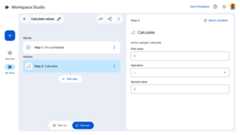
Figure 2: When the successConditionis met (inputs are equal), the error message widget is set toHIDDENand doesn't appear.
Here're the example application code and JSON manifest file:
Apps Script
functiononConfig(){// Create a CardletcardBuilder=CardService.newCardBuilder();consttextInput_1=CardService.newTextInput().setTitle("Input field 1").setFieldName("value1");// FieldName's value must match a corresponding ID defined in the inputs[] array in the manifest file.consttextInput_2=CardService.newTextInput().setTitle("Input field 2").setFieldName("value2");// FieldName's value must match a corresponding ID defined in the inputs[] array in the manifest file.letsections=CardService.newCardSection().setHeader("Enter same values for the two input fields").addWidget(textInput_1).addWidget(textInput_2);// CEL Validation// Define Conditionsconstcondition_success=CardService.newCondition().setActionRuleId("CEL_TEXTINPUT_SUCCESS_RULE_ID").setExpressionDataCondition(CardService.newExpressionDataCondition().setConditionType(CardService.ExpressionDataConditionType.EXPRESSION_EVALUATION_SUCCESS));constcondition_fail=CardService.newCondition().setActionRuleId("CEL_TEXTINPUT_FAILURE_RULE_ID").setExpressionDataCondition(CardService.newExpressionDataCondition().setConditionType(CardService.ExpressionDataConditionType.EXPRESSION_EVALUATION_FAILURE));// Define Card-side EventActionconstexpressionDataAction=CardService.newExpressionDataAction().setActionType(CardService.ExpressionDataActionType.START_EXPRESSION_EVALUATION);// Define Triggers for each Condition respectivelyconsttrigger_success=CardService.newTrigger().setActionRuleId("CEL_TEXTINPUT_SUCCESS_RULE_ID");consttrigger_failure=CardService.newTrigger().setActionRuleId("CEL_TEXTINPUT_FAILURE_RULE_ID");consteventAction=CardService.newEventAction().setActionRuleId("CEL_TEXTINPUT_EVALUATION_RULE_ID").setExpressionDataAction(expressionDataAction).addPostEventTrigger(trigger_success).addPostEventTrigger(trigger_failure);// Define ExpressionData for the current CardconstexpressionData=CardService.newExpressionData().setId("expData_id").setExpression("value1 == value2")// CEL expression.addCondition(condition_success).addCondition(condition_fail).addEventAction(eventAction);card=card.addExpressionData(expressionData);// Create Widget-side EventActions and a widget to display error messageconstwidgetEventActionFail=CardService.newEventAction().setActionRuleId("CEL_TEXTINPUT_FAILURE_RULE_ID").setCommonWidgetAction(CardService.newCommonWidgetAction().setUpdateVisibilityAction(CardService.newUpdateVisibilityAction().setVisibility(CardService.Visibility.VISIBLE)));constwidgetEventActionSuccess=CardService.newEventAction().setActionRuleId("CEL_TEXTINPUT_SUCCESS_RULE_ID").setCommonWidgetAction(CardService.newCommonWidgetAction().setUpdateVisibilityAction(CardService.newUpdateVisibilityAction().setVisibility(CardService.Visibility.HIDDEN)));consterrorWidget=CardService.newTextParagraph().setText("<font color=\"#FF0000\"><b>Error:</b> Please enter the same values for both input fields.</font>").setVisibility(CardService.Visibility.HIDDEN)// Initially hidden.addEventAction(widgetEventActionFail).addEventAction(widgetEventActionSuccess);sections=sections.addWidget(errorWidget);card=card.addSection(sections);// Build and return the Cardreturncard.build();}JSON manifest file
{"timeZone":"America/Los_Angeles","exceptionLogging":"STACKDRIVER","runtimeVersion":"V8","addOns":{"common":{"name":"CEL validation example","logoUrl":"https://www.gstatic.com/images/branding/productlogos/calculator_search/v1/web-24dp/logo_calculator_search_color_1x_web_24dp.png","useLocaleFromApp":true},"flows":{"workflowElements":[{"id":"cel_validation_demo","state":"ACTIVE","name":"CEL Demo","description":"Demonstrates CEL Validation","workflowAction":{"inputs":[{"id":"value1","description":"The first number","cardinality":"SINGLE","dataType":{"basicType":"STRING"}},{"id":"value2","description":"The second number","cardinality":"SINGLE","dataType":{"basicType":"STRING"}}],"onConfigFunction":"onConfig","onExecuteFunction":"onExecute"}}]}}}fieldName of the text inputs must match theid defined in theinputs field in the manifest file. To learn more, seeDefine the input variable in the manifest file.Supported CEL validation widgets and operations
Card widgets that support CEL validation
The following widgets support CEL validation:
TextInputSelectionInputDateTimePicker
Supported CEL validation operations
- Arithmetic operations
+: Adds twoint64,uint64, ordoublenumbers.-: Subtracts twoint64,uint64, ordoublenumbers.*: Multiplies twoint64,uint64, ordoublenumbers./: Divides twoint64,uint64, ordoublenumbers (integer division).%: Computes the modulo of twoint64oruint64numbers.-: Negates anint64oruint64number.
- Logical operations:
&&: Performs a logicalANDoperation on two boolean values.||: Performs a logicalORoperation on two boolean values.!: Performs a logicalNOToperation on a boolean value.
- Comparison Operations:
==: Checks if two values are equal. Supports numbers and lists.!=: Checks if two values are not equal. Supports numbers and lists.<: Checks if the firstint64,uint64, ordoublenumber is less than the second.<=: Checks if the firstint64,uint64, ordoublenumber is less than or equal to the second.>: Checks if the firstint64,uint64, ordoublenumber is greater than the second.>=: Checks if the firstint64,uint64, ordoublenumber is greater than or equal to the second.
- List Operations:
in: Checks if a value is present in a list. Supports numbers, strings and nested lists.size: Returns the number of items in a list. Supports numbers and nested lists.
Unsupported CEL validation scenarios
- Incorrect Argument Sizes for Binary Operations: Binary operations (for example,
add_int64, equals) require exactly two arguments. Providing a different number of arguments will throw an error. - Incorrect Argument Sizes for Unary Operations: Unary operations (for example,
negate_int64) require exactly one argument. Providing a different number of arguments will throw an error. - Unsupported Types in Numerical Operations: Numerical binary and unary operations only accept number arguments. Providing other types (for example, boolean) will throw an error.
Server-side validation
With server-side validation, you can run server-side logic by specifying theonSaveFunction() in your step's code. When the user navigates away from thestep's configuration card,onSaveFunction() runs and lets you verify theuser's input.
If the user's input is valid, returnsaveWorkflowAction.
If the user's input is invalid, return a configuration card that displays anerror message to the user that explains how to resolve the error.
Because server-side validation is asynchronous, the user might not know aboutthe input error until they publish their flow.
Each validated input'sid in the manifest file must match a card widget'sname in the code.
The following example validates that a user text input includes the "@" sign:
Manifest file
The manifest file excerpt specifies anonSaveFunction() named"onSave":
JSON
{"timeZone":"America/Los_Angeles","exceptionLogging":"STACKDRIVER","runtimeVersion":"V8","addOns":{"common":{"name":"Server-side validation example","logoUrl":"https://www.gstatic.com/images/branding/productlogos/calculator_search/v1/web-24dp/logo_calculator_search_color_1x_web_24dp.png","useLocaleFromApp":true},"flows":{"workflowElements":[{"id":"server_validation_demo","state":"ACTIVE","name":"Email address validation","description":"Asks the user for an email address","workflowAction":{"inputs":[{"id":"email","description":"email address","cardinality":"SINGLE","required":true,"dataType":{"basicType":"STRING"}}],"onConfigFunction":"onConfig","onExecuteFunction":"onExecute","onSaveFunction":"onSave"}}]}}}Application code
The step's code includes a function calledonSave(). It validates that auser-inputted string includes @. If it does, it saves the step. If itdoesn't, it returns a configuration card with an error message explaining how tofix the error.
Apps Script
// A helper method to push a card interfacefunctionpushCard(card){constnavigation=AddOnsResponseService.newNavigation().pushCard(card);constaction=AddOnsResponseService.newAction().addNavigation(navigation);returnAddOnsResponseService.newRenderActionBuilder().setAction(action).build();}functiononConfig(){constemailInput=CardService.newTextInput().setFieldName("email").setTitle("User e-mail").setId("email");constsaveButton=CardService.newTextButton().setText("Save!").setOnClickAction(CardService.newAction().setFunctionName('onSave'))constsections=CardService.newCardSection().setHeader("Server-side validation").setId("section_1").addWidget(emailInput).addWidget(saveButton);letcard=CardService.newCardBuilder().addSection(sections).build();returnpushCard(card);}functiononExecute(event){}/*** Validates user input asynchronously when the user* navigates away from a step's configuration card.*/functiononSave(event){console.log(JSON.stringify(event,null,2));// "email" matches the input ID specified in the manifest file.varemail=event.formInputs["email"][0];console.log(JSON.stringify(email,null,2));// Validate that the email address contains an "@" sign:if(email.includes("@")){// If successfully validated, save and proceed.consthostAppAction=AddOnsResponseService.newHostAppAction().setWorkflowAction(AddOnsResponseService.newSaveWorkflowAction());consttextDeletion=AddOnsResponseService.newRemoveWidget().setWidgetId("errorMessage");constmodifyAction=AddOnsResponseService.newAction().addModifyCard(AddOnsResponseService.newModifyCard().setRemoveWidget(textDeletion));returnAddOnsResponseService.newRenderActionBuilder().setHostAppAction(hostAppAction).setAction(modifyAction).build();}else{// If the input is invalid, return a card with an error messageconsttextParagraph=CardService.newTextParagraph().setId("errorMessage").setMaxLines(1).setText("<font color=\"#FF0000\"><b>Error:</b> Email addresses must include the '@' sign.</font>");constemailInput=CardService.newTextInput().setFieldName("email").setTitle("User e-mail").setId("email");constsaveButton=CardService.newTextButton().setText("Save!").setOnClickAction(CardService.newAction().setFunctionName('onSave'))constsections=CardService.newCardSection().setHeader("Server-side validation").setId("section_1").addWidget(emailInput).addWidget(textParagraph)//Insert the error message.addWidget(saveButton);letcard=CardService.newCardBuilder().addSection(sections).build();constnavigation=AddOnsResponseService.newNavigation().pushCard(card);constaction=AddOnsResponseService.newAction().addNavigation(navigation);consthostAppAction=AddOnsResponseService.newHostAppAction().setWorkflowAction(AddOnsResponseService.newWorkflowValidationErrorAction().setSeverity(AddOnsResponseService.ValidationErrorSeverity.CRITICAL));returnAddOnsResponseService.newRenderActionBuilder().setHostAppAction(hostAppAction).setAction(action).build();}}Related topics
- Define an input variable
- Log activity and errors
- Workspace Studio event objects
- Common Expression Language (CEL)
Except as otherwise noted, the content of this page is licensed under theCreative Commons Attribution 4.0 License, and code samples are licensed under theApache 2.0 License. For details, see theGoogle Developers Site Policies. Java is a registered trademark of Oracle and/or its affiliates.
Last updated 2025-12-11 UTC.