
Element operations
The Google Slides API lets you create and edit aPageElementresource, including text boxes, images, tables, basic shapes, lines, andembedded videos. The examples on this page show some common page elementoperations using thepresentations.batchUpdatemethod.
These examples use the following variables:
- PRESENTATION_ID—Indicates where you provide thepresentationID. You canretrieve the value for this ID from the presentation URL.
- PAGE_ID—Indicates where you provide thepage objectID. You can retrievethe value for this from the URL or by using an API read request.
- PAGE_ELEMENT_ID—Indicates where you provide thepageelement object ID. Youcan specify this ID for elements you create (withsomerestrictions)or allow the Slides API to automatically create one. Element IDscan be retrieved through an API read request.
These examples are presented as HTTP requests to be language neutral. To learnhow to implement a batch update in different languages using the Google APIclient libraries, see the following guides:
Add a bulleted list to a text box
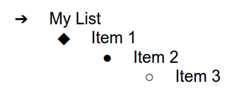
The followingpresentations.batchUpdatecode sample shows how to use theInsertTextRequestmethod to insert text into an empty text box specified by thePAGE_ELEMENT_ID. The sample then uses theCreateParagraphBulletsRequestmethod to convert all the text box text into a bulleted list. Items in the listare separated by\n characters, while indention is controlled with\tcharacters.
The following is the request protocol to create a presentation:
POST https://slides.googleapis.com/v1/presentations/PRESENTATION_ID:batchUpdate
{"requests":[{"insertText":{"objectId":PAGE_ELEMENT_ID,"text":"My List\n\tItem 1\n\t\tItem 2\n\t\t\tItem 3","insertionIndex":0},"createParagraphBullets":{"objectId":PAGE_ELEMENT_ID,"bulletPreset":"BULLET_ARROW_DIAMOND_DISC","textRange":{"type":"ALL"}}}]}
This request can create a bulleted list that looks like this:
Add a shape to a slide
The followingpresentations.batchUpdatecode sample shows how to use theCreateShapeRequestmethod to add a wave shape to a slide specified by thePAGE_ID.This request specifies the shape type, then scales and positions the shape inthe slide. It then uses theInsertTextRequestmethod to add text to that shape. The request sets the line's ID toPAGE_ELEMENT_ID.
The following is the request protocol to add a shape to a slide:
POST https://slides.googleapis.com/v1/presentations/PRESENTATION_ID:batchUpdate
{ "requests": [ { "createShape": { "objectId":PAGE_ELEMENT_ID, "elementProperties": { "pageObjectId":PAGE_ID, "size": { "width": { "magnitude": 3000000, "unit": "EMU" }, "height": { "magnitude": 3000000, "unit": "EMU" } }, "transform": { "scaleX": 0.6807, "scaleY": 0.4585, "translateX": 6583050, "translateY": 1673950, "unit": "EMU" } }, "shapeType": "WAVE" } }, { "insertText": { "objectId":PAGE_ELEMENT_ID, "text": "My Wave Shape", "insertionIndex": 0 } } ]}Add a video to a slide
The followingpresentations.batchUpdatecode sample shows how to use theCreateVideoRequestmethod to embed a video into a slide specified by thePAGE_ID.This request scales and positions the video in the slide, and sets the video'sID toPAGE_ELEMENT_ID. The source video's unique identifier isset toVIDEO_ID. For example, the YouTube video athttps://www.youtube.com/watch?v=7U3axjORYZ0 has the ID7U3axjORYZ0.
The following is the request protocol to add a video to a slide:
POST https://slides.googleapis.com/v1/presentations/PRESENTATION_ID:batchUpdate
{ "requests": [ { "createVideo": { "objectId":PAGE_ELEMENT_ID, "elementProperties": { "pageObjectId":PAGE_ID, "size": { "width": { "magnitude": 12000, "unit": "EMU" }, "height": { "magnitude": 9000, "unit": "EMU" } }, "transform": { "scaleX": 381, "scaleY": 381, "translateX": 152400, "translateY": 152400, "unit": "EMU" } }, "source": "YOUTUBE", "id":VIDEO_ID } } ]}Copy and edit an element
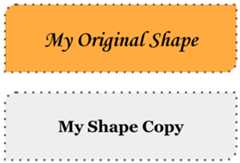
The followingpresentations.batchUpdatecode sample shows how to use theDuplicateObjectRequestmethod to take an existing shape (specified by thePAGE_ELEMENT_ID) and make a copy (specified by theCOPY_ELEMENT_ID).
The subsequent requests then make the following changes to the duplicate object:
- Sets the background color to the
LIGHT2theme color. - Moves the copy down the page (from the original shape's position).
- Sets the text font to 18-pt Georgia.
- Edits the text to read "My Shape Copy".
The requests here usefield masks to preservethe shape properties that aren't changed (such as the outline style). Usingfield masks also improves performance.
For more information about copying a slide, see the sampleCopy aslide.
The following is the request protocol to copy and edit an element:
POST https://slides.googleapis.com/v1/presentations/PRESENTATION_ID:batchUpdate
{"requests":[{"duplicateObject":{"objectId":PAGE_ELEMENT_ID,"objectIds":{PAGE_ELEMENT_ID:COPY_ELEMENT_ID}}},{"updateShapeProperties":{"objectId":COPY_ELEMENT_ID,"fields":"shapeBackgroundFill.solidFill.color","shapeProperties":{"shapeBackgroundFill":{"solidFill":{"color":{"themeColor":"LIGHT2"}}}}}},{"updatePageElementTransform":{"objectId":COPY_ELEMENT_ID,"applyMode":"RELATIVE","transform":{"scaleX":1,"scaleY":1,"translateX":0,"translateY":1250000,"unit":"EMU"}}},{"updateTextStyle":{"objectId":COPY_ELEMENT_ID,"fields":"fontFamily,fontSize","textRange":{"type":"ALL"},"style":{"fontFamily":"Georgia","fontSize":{"magnitude":18,"unit":"PT"}}}},{"deleteText":{"objectId":COPY_ELEMENT_ID,"textRange":{"type":"ALL"}}},{"insertText":{"objectId":COPY_ELEMENT_ID,"text":"My Shape Copy","insertionIndex":0}}]}
Here's what a shape and its copy might look like after these updates:
Edit an image or video outline
The followingpresentations.batchUpdatecode sample shows how to use theUpdateImagePropertiesRequestmethod to update the outline appearance of an image specified by theIMAGE_ELEMENT_ID. It also uses theUpdateVideoPropertiesRequestmethod to update the outline appearance of an embedded video specified by theVIDEO_ELEMENT_ID.
The requests make the following changes to the object:
- Sets the image outline color to the
ACCENT5theme color with partialtransparency. - Sets the video outline color to the
ACCENT1theme color with notransparency. - Sets the outline weights to 3-pt for both.
- Sets the image outline style to
SOLID. - Sets the video outline style to
DASH_DOT.
Both theUpdateImagePropertiesRequest method and theUpdateVideoPropertiesRequest method can only change the appearance of imageand video outlines. All other properties are read-only. The requests here usefield masks to specify that only the outlineshould be changed to protect the code against future API changes. Using fieldmasks also improves performance.
The following is the request protocol to edit an image or video outline:
POST https://slides.googleapis.com/v1/presentations/PRESENTATION_ID:batchUpdate
{ "requests": [ { "updateImageProperties": { "objectId":IMAGE_ELEMENT_ID, "fields": "outline", "imageProperties": { "outline": { "dashStyle": "SOLID", "outlineFill": { "solidFill": { "alpha": 0.8, "color": { "themeColor": "ACCENT5" } } }, "weight": { "magnitude": 3, "unit": "PT" } } } } }, { "updateVideoProperties": { "objectId":VIDEO_ELEMENT_ID, "fields": "outline", "videoProperties": { "outline": { "dashStyle": "DASH_DOT", "outlineFill": { "solidFill": { "alpha": 0.8, "color": { "themeColor": "ACCENT1" } } }, "weight": { "magnitude": 3, "unit": "PT" } } } } } ]}Here's what an image and embedded video might look like after these updates:

Edit the outline of a shape
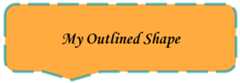
The followingpresentations.batchUpdatecode sample shows how to use theUpdateShapePropertiesRequestmethod to take an existing shape (specified by thePAGE_ELEMENT_ID) and updates the appearance of its outline.
The requests make the following changes to the object:
- Sets the outline color to the
ACCENT5theme color with partialtransparency. - Sets the outline weight to 3-pt.
- Sets the outline style to
LONG_DASH.
The requests here usefield masks to preservethe shape properties that aren't changed (such as the shape fill color). Usingfield masks also improves performance.
The following is the request protocol to edit the outline of a shape:
POST https://slides.googleapis.com/v1/presentations/PRESENTATION_ID:batchUpdate
{ "requests": [ { "updateShapeProperties": { "objectId":PAGE_ELEMENT_ID, "fields": "outline", "shapeProperties": { "outline": { "dashStyle": "LONG_DASH", "outlineFill": { "solidFill": { "alpha": 0.6, "color": { "themeColor": "ACCENT5" } } }, "weight": { "magnitude": 3, "unit": "PT" } } } } } ]}Here's what a shape might look like after these updates:
Format text in a shape or text box
The followingpresentations.batchUpdatecode sample shows how to use theUpdateTextStyleRequestmethod to take an existing shape (specified by thePAGE_ELEMENT_ID) and updates the appearance of its text.
The requests make the following changes to the object:
- Sets the text color to the
ACCENT5theme color. - Sets the font to be bold, italic 18-pt Corsiva.
- Underlines the text.
The requests here usefield masks to preservethe text style properties that aren't changed (such as the background color,links, or baseline offsets). Using field masks also improves performance.
The following is the request protocol to format text in a shape or text box:
POST https://slides.googleapis.com/v1/presentations/PRESENTATION_ID:batchUpdate
{"requests":[{"updateTextStyle":{"objectId":PAGE_ELEMENT_ID,"fields":"foregroundColor,bold,italic,fontFamily,fontSize,underline","style":{"foregroundColor":{"opaqueColor":{"themeColor":"ACCENT5"}},"bold":true,"italic":true,"underline":true,"fontFamily":"Corsiva","fontSize":{"magnitude":18,"unit":"PT"}},"textRange":{"type":"ALL"}}}]}
Here's what the shape text might look like after these updates:

Import a chart from Google Sheets
The followingpresentations.batchUpdatecode sample shows how to use theCreateSheetsChartRequestmethod to import a chart from a sheet and place it on a slide specified by thePAGE_ID.
The request requires the spreadsheet ID (specified by theSPREADSHEET_ID) and the spreadsheet chart ID (specified by theSPREADSHEET_CHART_ID). The chart ID within theSlides presentation is specified by thePRESENTATION_CHART_ID.
The request also sets theLinkingModeof the Slides chart toLINKED so that you can update theembedded chart if the chart on the source spreadsheet is updated.
The following is the request protocol to import a chart fromSheets:
POST https://slides.googleapis.com/v1/presentations/PRESENTATION_ID:batchUpdate
{ "requests": [ { "createSheetsChart": { "objectId":PRESENTATION_CHART_ID, "spreadsheetId":SPREADSHEET_ID, "chartId":SPREADSHEET_CHART_ID, "linkingMode": "LINKED", "elementProperties": { "pageObjectId":PAGE_ID, "size": { "width": { "magnitude": 4000000, "unit": "EMU" }, "height": { "magnitude": 4000000, "unit": "EMU" } }, "transform": { "scaleX": 1, "scaleY": 1, "translateX": 100000, "translateY": 100000, "unit": "EMU" } } } ]}Refresh a chart from Sheets
The followingpresentations.batchUpdatecode sample shows how to use theRefreshSheetsChartRequestmethod to refresh a linked chart in a presentation, replacing it with the latestversion of that chart from the Sheets source spreadsheet. Therequest requires the chart ID within the Slides presentation(specified by thePRESENTATION_CHART_ID).
The following is the request protocol to refresh a chart fromSheets:
POST https://slides.googleapis.com/v1/presentations/PRESENTATION_ID:batchUpdate
{ "requests": [ { "refreshSheetsChart": { "objectId":PRESENTATION_CHART_ID } } ]}Except as otherwise noted, the content of this page is licensed under theCreative Commons Attribution 4.0 License, and code samples are licensed under theApache 2.0 License. For details, see theGoogle Developers Site Policies. Java is a registered trademark of Oracle and/or its affiliates.
Last updated 2025-12-11 UTC.