
Discover your links
Monday, February 05, 2007
Update on October 15, 2008: For more recent news on links, visitLinks Week on our Webmaster Central Blog. We're discussinginternal links,outbound links, andinbound links. You asked, and we listened: We've extended our support for querying links to your site to much beyond thelink: operator you might have used in the past. Now you can useWebmaster Tools to view a much larger sample of links to pages on your site that we found on the web. Unlike thelink: operator, this data is much more comprehensive and can be classified, filtered, and downloaded. All you need to do is verify site ownership to see this information.
To make this data even more useful, we have divided the world of links into two types: external and internal. Let's understand what kind of links fall into which bucket.
What are external links?
External links to your site are the links that reside on pages that do not belong to your domain. For example, if you are viewing links forhttps://www.google.com/, all the links that do not originate from pages on any subdomain of google.com would appear as external links to your site.
What are internal links?
Internal links to your site are the links that reside on pages that belong to your domain. For example, if you are viewing links forhttps://www.google.com/, all the links that originate from pages on any subdomain of google.com, such ashttps://www.google.com/ ormobile.google.com, would appear as internal links to your site.
Viewing links to a page on your site
You can view the links to your site by selecting a verified site in your Webmaster Tools account and clicking on the newLinks tab at the top. Once there, you will see the two options on the left: external links and internal links, with the external links view selected. You will also see a table that lists pages on your site, as shown below. The first column of the table lists pages of your site with links to them, and the second column shows the number of the external links to that page that we have available to show you. (Note that this may not be 100% of the external links to this page.)
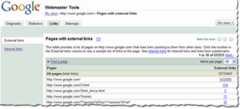
This table also provides the total number of external links to your site that we have available to show you. When in this summary view, click the linked number and go to the detailed list of links to that page. When in the detailed view, you'll see the list of all the pages that link to specific page on your site, and the time we last crawled that link. Since you are on the External Links tab on the left, this list is the external pages that point to the page.
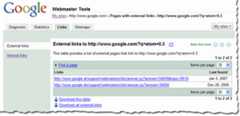
Finding links to a specific page on your site
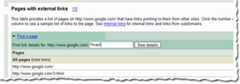
To find links to a specific page on your site, you first need to find that specific page in the summary view. You can do this by navigating through the table, or if you want to find that page quickly, you can use the handyFind a page link at the top of the table. Just fill in the URL and click See details. For example, if the page you are looking for has the URLhttps://www.google.com/?main, you can enter?main in theFind a page form. This will take you directly to the detailed view of the links tohttps://www.google.com/?main.
Viewing internal links
To view internal links to pages on your site, click on theInternal Links tab on the left side bar in the view. This takes you to a summary table that, just like external links view, displays information about pages on your site with internal links to them.
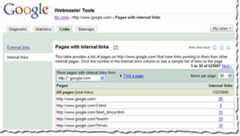
However, this view also provides you with a way to filter the data further: to see links from any of the subdomain on the domain, or links from just the specific subdomain you are currently viewing. For example, if you are currently viewing the internal links to https://www.google.com/, you can either see links from all the subdomains, such as links fromhttps://mobile.google.com/ and https://www.google.com, or you can see links only from other pages onhttps://www.google.com.
Downloading links data
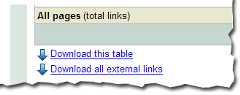
There are three different ways to download links data about your site. The first: download the current view of the table you see, which lets you navigate to any summary or details table, and download the data in the current view. Second, and probably the most useful data, is the list all external links to your site. This allows you to download a list of all the links that point to your site, along with the information about the page they point to and the last time we crawled that link. Thirdly, we provide a similar download for all internal links to your site.
We do limit the amount of data you can download for each type of link (for instance, you can currently download up to one million external links). Google knows about more links than the total we show, but the overall fraction of links we show is much, much larger than thelink: command currently offers. Why not visit us atWebmaster Central and explore the links for your site?
Except as otherwise noted, the content of this page is licensed under theCreative Commons Attribution 4.0 License, and code samples are licensed under theApache 2.0 License. For details, see theGoogle Developers Site Policies. Java is a registered trademark of Oracle and/or its affiliates.