
Customize map styles
Paid feature: Features accessed by adding amap ID triggers a map load charged against the Dynamic Maps SKU for Android and iOS. SeeGoogle Maps Billing for more information.
You can use cloud-based map styling to define reusable map styles for the Google navigationexperience in the Navigation SDK. This page provides an overview of how you can define and apply mapstyles, as well as specific implementation details for the Navigation SDK. For complete informationabout cloud-based map styling, see theOverviewpage in Maps SDK for iOS documentation.
Define map styles
The first step in customizing map styles for the Navigation SDK is creating a map style andassociating it with a map ID. Map styles are created, stored, and edited in the Google MapsPlatform Cloud Console. You then reference the map ID in your app code to display the customizedmap.
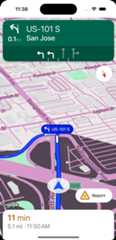
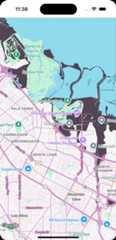
There are two map types in the Navigation SDK that can be styled: the navigation map, which isvisible during an active navigation session, and the road map, which is visible whenever there isno navigation session active. The styles that you define and associate with a map ID apply to boththe navigation and road map types.
For complete details about defining map styles, see Create and use map styles in the Maps SDK for iOS documentation.
Note: While it is technically possible to define separate styles for the navigationand road map types by associating separate styles with different map IDs, this implementation is notrecommended because it requires reloading the map to load the different map ID.Apply map styles
Once you have map styles associated with a map ID, you can add the ID by creating aGMSMapIDwith the map string from the Cloud Console, and then creating aGMSMapViewspecifying the map ID.
For more information about applying map styles, seeAdd the map ID to your app in the Maps SDK for iOS documentation.
Light and dark mode styles
Cloud-based map styling lets you define light mode and dark mode styles. In the Navigation SDK,road maps (non-navigation maps) can have light and dark modes, and navigation maps can havedaylight and low-light or night modes. When you associate styles with maps in the Navigation SDK,the styles apply to both road and navigation maps:
- Light mode styles in the Cloud Console apply to both light mode road maps and daylight navigation maps.
- Dark mode styles in the Cloud Console apply to both dark mode road maps and low-light/night mode navigation maps.
Billing
When an app loads a map that has a map ID applied, a map load charged against theDynamic MapsSKU is triggered. Note that this trigger is different from that of map loads that don't have mapIDs applied. Map loads without map IDs are charged against theMaps SDK SKU. For more informationabout triggers and pricing for each SKU, seePricing and Billing.
Policies and use
When customizing map styles in the Navigation SDK, you must adhere to the policiesregarding acceptable modifications to the navigation UI. In particular, you must notremove road networks from the navigation map or significantly reduce color contrastof map features on the navigation map.
For complete details about acceptable modifications to the Navigation UI, seePolicies for Navigation SDK foriOS.
Except as otherwise noted, the content of this page is licensed under theCreative Commons Attribution 4.0 License, and code samples are licensed under theApache 2.0 License. For details, see theGoogle Developers Site Policies. Java is a registered trademark of Oracle and/or its affiliates.
Last updated 2025-12-11 UTC.