
Get Started

Page Summary
The Google Maps Static API generates static map images in various formats (PNG, JPEG, GIF) using HTTP requests and customizable parameters.
Control map appearance with markers, paths, custom icons, zoom levels, and map types, specifying locations by address or coordinates.
For larger image sizes beyond the standard limits, contact Google Maps Platform support for potential options up to 2048x2048 pixels.
Implicit positioning allows automatic centering and zoom level calculation when using markers, paths, or viewport visibility parameters.
Use the
styleparameter for advanced customization and ensure security with API keys and digital signatures while staying within the URL character limit.
Introduction
The Maps Static API returns an image (either GIF, PNG or JPEG) inresponse to an HTTP request via a URL. For each request, you can specify thelocation of the map, the size of the image, the zoom level, the type of map,and the placement of optional markers at locations on the map. You canadditionally label your markers using alphanumeric characters.
A Maps Static API image is embedded within an<img> tag'ssrc attribute, or its equivalent in other programming languages.
This document describes the required format of Maps Static API URLs and theavailable parameters. It also points out some tips and tricks in specifyingyour URLs.
Before you begin
This document is intended for website and mobile developers who want to include Maps Static API images within a webpage or mobile application. It provides an introduction to using the API and reference material on the available parameters.
Before you start developing with the Maps Static API, review theauthentication requirements (you need an API key) and the API usage and billing information (you need to enable billing on your project).
URL Parameters
A Maps Static API URL must be of the following form:
https://maps.googleapis.com/maps/api/staticmap?parameters
If your website is accessed over HTTPS, you must load Maps Static API imagesover HTTPS as well in order to avoid browser security alerts. HTTPS is alsorecommended if your requests include sensitive user information, such as auser's location:
https://maps.googleapis.com/maps/api/staticmap?parameters
Whether using HTTP or HTTPS, certain URL parameters are required while someare optional. As is standard in URLs, all parameters are separated using theampersand (&) character. The list of parameters and theirpossible values are enumerated in this document.
|)as a separator, which should be encoded as%7C in the final URL, asin the quick example at the top of this document. For more information, seeBuilding a Valid URL.The Maps Static API defines map images using the following URLparameters:
Location parameters
center(required if markers not present) defines the center of the map, equidistant from all edges of the map. This parameter takes a location as either a comma-separated {latitude,longitude} pair (e.g. "40.714728,-73.998672") or a string address (e.g. "city hall, new york, ny") identifying a unique location on the face of the earth. For more information, seeLocations.zoom(required if markers not present) defines thezoom level of the map, which determines the magnification level of the map. This parameter takes a numerical value corresponding to the zoom level of the region desired. For more information, seeZoom levels.
Map parameters
size(required) defines the rectangular dimensions of the map image. This parameter takes a string of the form{horizontal_value}x{vertical_value}. For example,500x400defines a map 500 pixels wide by 400 pixels high. Maps smaller than 180 pixels in width will display a reduced-size Google logo. This parameter is affected by thescaleparameter; the final output size is the product of the size and scale values.scale(optional) affects the number of pixels that are returned.scale=2returns twice as many pixels asscale=1while retaining the same coverage area and level of detail (i.e. the contents of the map don't change). This is useful when developing for high-resolution displays. The default value is1. Accepted values are1and2. SeeScale Values for more information.format(optional) defines the format of the resulting image. By default, the Maps Static API creates PNG images. There are several possible formats including GIF, JPEG and PNG types. Which format you use depends on how you intend to present the image. JPEG typically provides greater compression, while GIF and PNG provide greater detail. For more information, seeImage Formats.maptype(optional) defines the type of map to construct. There are several possible maptype values, includingroadmap,satellite,hybrid, andterrain. For more information, seeMaps Static API Maptypes.language(optional) defines the language to use for display of labels on map tiles. Note that this parameter is only supported for some country tiles; if the specific language requested is not supported for the tile set, then the default language for that tileset will be used.region(optional) defines the appropriate borders to display, based on geo-political sensitivities. Accepts a region code specified as a two-character ccTLD ('top-level domain') value. SeeGoogle Maps Platform Coverage Details for supported regions.
Feature parameters
map_id(optional) specifies the identifier for a specific map. The map ID associates a map with a particular style or feature, and must belong to the same project as the API key used to initialize the map. For more information, seeUsing map IDs.markers(optional) define one or more markers to attach to the image at specified locations. This parameter takes a single marker definition with parameters separated by the pipe character (|). Multiple markers may be placed within the samemarkersparameter as long as they exhibit the same style; you may add additional markers of differing styles by adding additionalmarkersparameters. Note that if you supply markers for a map, you do not need to specify the (normally required)centerandzoomparameters. For more information, seeMaps Static API Markers.path(optional) defines a single path of two or more connected points to overlay on the image at specified locations. This parameter takes a string of point definitions separated by the pipe character (|), or an encoded polyline using theenc:prefix within the location declaration of the path. You may supply additional paths by adding additionalpathparameters. Note that if you supply a path for a map, you do not need to specify the (normally required)centerandzoomparameters. For more information, seeMaps Static API Paths.visible(optional) specifies one or morelocations that should remain visible on the map, though no markers or other indicators will be displayed. Use this parameter to ensure that certain features or map locations are shown on the Maps Static API.style(optional) defines a custom style to alter the presentation of a specific feature (roads, parks, and other features) of the map. This parameter takesfeatureandelementarguments identifying the features to style, and a set of style operations to apply to the selected features. You can supply multiple styles by adding additionalstyleparameters. For more information, see the guide tostyled maps.
Key and signature parameters
key(required) allows you to monitor your application's API usage in theGoogle Cloud console, and ensures that Google can contact you about your application if necessary. For more information, seeUse API Keys with Maps Static API.signature(recommended) is a digital signature used to verify that any site generating requests using your API key is authorized to do so. Requests without a digital signature might fail. For more information, seeUse a Digital Signature.
URL size restriction
Maps Static API URLs are restricted to 16384 characters in size. In practice, you will probably not have need for URLs longer than this, unless you produce complicated maps with a high number of markers and paths.
Parameter Usage
The Maps Static API is relatively easy to use, as it consists solely of aparameterized URL. This section explains how to use these parameters toconstruct your URLs.
Specifying Locations
The Maps Static API must be able to precisely identify locations on themap, both to focus the map at the correct location (using thecenter parameter) and/or to place any optional placemarks(using themarkers parameter) at locations on the map. The Maps Static APIuses numbers (latitude and longitude values) or strings (addresses)to specify these locations. These values identify ageocodedlocation.
Several parameters (such as themarkers andpathparameters) take multiple locations. In those cases, the locations areseparated by the pipe (|) character.
Latitudes and longitudes
Latitudes and longitudes are defined using numerals within acomma-separated text string that have a precision to 6 decimal places. Forexample, "40.714728,-73.998672" is a valid geocode value. Precision beyond the6 decimal places is ignored.
Longitude values are based on their distance from Greenwich, England, homeof the prime meridian. Since Greenwich is situated at 51.477222 latitude, wecan enter acenter value of51.477222,0 to centerthe map on Greenwich:
Latitude and longitude values must correspond to a valid location on theface of the earth. Latitudes can take any value between-90 and90 while longitude values can take any value between-180 and180. If you specify an invalid latitude orlongitude value, your request will be rejected as a bad request.
Addresses
Most people don't speak in latitudes and longitudes; they denote locationsusingaddresses. The process of turning an address into a geographicpoint is known asgeocoding and the Maps Static API service can performgeocoding for you if you provide valid addresses.
In any parameter where you may provide a latitude/longitude, you mayinstead specify a string indicating anaddress. Google will geocode theaddress and provide the Maps Static API service with a latitude/longitude value touse in placing markers or specifying locations. The string should beURL-encoded, soaddresses such as "City Hall, New York, NY" should be converted to"City+Hall,New+York,NY", for example.
Note that addresses may reflect either precise locations, such as streetaddresses, polylines such as named routes, or polygonal areas such as cities,countries, or national parks. For polylinear and polygonal results, the Maps Static APIserver will use the center point of the line/area as the address center.If you have doubt about how an address may geocode, you can test out theaddress using this Geocoding Utility.
Note: If you choose to specify locations using a method that requires geocoding, such as human-readable address strings or polylines, the request is limited to a maximum of 15 locations. This limit applies only to locations that require geocoding. It does not apply to locations specified with latitude/longitude coordinates.The following example generates a static map image for Berkeley, CA:
https://maps.googleapis.com/maps/api/staticmap?center=Berkeley,CA&zoom=14&size=400x400&key=YOUR_API_KEY&signature=YOUR_SIGNATURE
Zoom levels
Maps on Google Maps have an integer 'zoom level' which defines theresolution of the current view. Zoom levels between0 (the lowestzoom level, in which the entire world can be seen on one map) and21+ (down to streets and individual buildings) are possiblewithin the defaultroadmap view. Building outlines, whereavailable, appear on the map around zoom level17. This valuediffers from area to area and can change over time as the data evolves.
Google Maps sets zoom level0 to encompass the entire earth.Each succeeding zoom level doubles the precision in both horizontal andvertical dimensions. More information on how this is done is available in theGoogle Maps JavaScript API documentation.
Note: not all zoom levels appear at all locations on the earth. Zoom levelsvary depending on location, as data in some parts of the globe is moregranular than in other locations.
If you send a request for a zoom level in which no map tiles exist, the Maps Static API will return a blank image instead.
The following list shows the approximate levelof detail you can expect to see at each zoom level:
- 1: World
- 5: Landmass/continent
- 10: City
- 15: Streets
- 20: Buildings
This example requests two maps of Manhattan at the samecenter value but at zoom levels 12 and 14, respectively:
https://maps.googleapis.com/maps/api/staticmap?center=40.714728,-73.998672&zoom=12&size=400x400&key=YOUR_API_KEY&signature=YOUR_SIGNATUREhttps://maps.googleapis.com/maps/api/staticmap?center=40.714728,-73.998672&zoom=14&size=400x400&key=YOUR_API_KEY&signature=YOUR_SIGNATURE
Image sizes
Thesize parameter, in conjunction withcenter, defines the coverage area of a map. It also defines the output size of the map in pixels, when multiplied with thescale value (which is1 by default).
This table shows the maximum allowable values for thesize parameter at eachscale value.
scale=1 | scale=2 |
|---|---|
640x640 | 640x640 (returns 1280x1280 pixels) |
This example requests a "slice" of the earth at the equator at zoomlevel 1:
https://maps.googleapis.com/maps/api/staticmap?center=0,0&zoom=1&size=400x50&key=YOUR_API_KEY&signature=YOUR_SIGNATURE
This example requests a small map, of size 100 x 100 pixels centeredon the same region. Note the smaller Google logo:
https://maps.googleapis.com/maps/api/staticmap?center=0,0&zoom=1&size=100x100&key=YOUR_API_KEY&signature=YOUR_SIGNATURE
Scale values
Thesize parameter of the Maps Static API defines the size of a map in pixels, so that a map withsize=200x200 will be returned as 200 pixels by 200 pixels. On an LCD computer monitor, which typically displays about 100 pixels per inch (ppi), a 200x200 map will be about 2 inches in each dimension.
However, mobile devices increasingly include high resolution screens with pixel densities over 300ppi, which either:
- Reduce the size of a 200x200 pixel image to only 0.7 of an inch, rendering labels and icons too small to read; or
- Scale (zoom) the image to improve legibility, resulting in a fuzzy or pixelated image.
| Too small | Too fuzzy |
|---|---|
 |  |
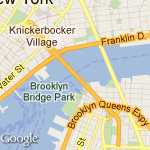
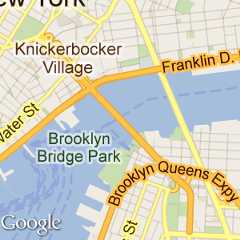
When developing for mobile devices, you can use the API'sscale parameter to return higher-resolution map images that solve the issues above. Thescale value is multiplied with thesize to determine the actual output size of the image in pixels, without changing the coverage area of the map. Defaultscale value is 1; accepted values are 1 and 2.
For example, a scale value of 2 will return the same map coverage area as a request with no scale specified, but with twice as many pixels in each dimension. This includes roads and labels, so that they're legible on high resolution, small size screens, as well as when scaled by the browser.
| 150x150 | 150x150&scale=2 |
|---|---|
 |  |
Such an image will also perform well on desktop browsers, when inserted into animg ordiv tag with the height and width set using CSS. The browser will downsize the image to the correct size, without loss of quality.
This table shows three different image requests.
- The first is for a 100x100 image, with no scale value specified. It displays properly on the desktop, but is too small to read on a mobile device.
- The second doubles the map size. On the desktop, the CSS fits it into the specified 100x100
imgelement, but in downsizing the image, roads and labels become too small. On the mobile device, the image is the right size, but again, roads and labels are illegible. - The third request is for a 100x100 map with
scale=2. The image is returned with 200px of detail; the desktop scales it down perfectly, so that it's indistinguishable from the original 100x100 request, while the mobile browser benefits from the additional resolution returned by the API.
| Image requests | |||
|---|---|---|---|
| Device | 100x100 | 200x200 | 100x100&scale=2 |
| Desktop (with height="100px" andwidth="100px" on theimg tag) | 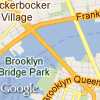 | 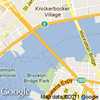 |  |
| High Resolution (simulated) |  | | |
scale=1 andscale=2 respectively.For more information about developing for mobile and high resolution displays, the following reading is recommended:
- Supporting Multiple Screens in the Android developer documentation.
- Webkit.org's recommendations for developingHigh DPI Web Sites.
- Supporting High-Resolution Screens in the iOS Developer Library.
Image formats
Images may be returned in several common web graphics formats:GIF,JPEG andPNG. Theformat parameter takes one of thefollowing values:
png8orpng(default) specifies the 8-bitPNG format.png32specifies the 32-bitPNG format.gifspecifies theGIF format.jpgspecifies theJPEG compression format.jpg-baselinespecifies a non-progressiveJPEG compression format.
These examples request maps ingif andpng formats:
https://maps.googleapis.com/maps/api/staticmap?center=40.714728,-73.998672&format=gif&zoom=14&size=400x400&key=YOUR_API_KEY&signature=YOUR_SIGNATUREhttps://maps.googleapis.com/maps/api/staticmap?center=40.714728,-73.998672&format=png&&zoom=14&size=400x400&key=YOUR_API_KEY&signature=YOUR_SIGNATURE
jpg andjpg-baseline typically provide thesmallest image size, though they do so through "lossy" compression which maydegrade the image.gif,png8 andpng32provide lossless compression.
Most JPEG images are progressive, meaning that they load a coarser imageearlier and refine the image resolution as more data arrives. This allowsimages to be loaded quickly in webpages and is the most widespread use of JPEGcurrently. However, some uses of JPEG requirenon-progressive (baseline) images. In such cases, you may want to use thejpg-baseline format, which is non-progressive.
Map types
The Maps Static API creates maps in several formats, listedbelow:
roadmap(default) specifies a standard roadmap image, as is normally shown on the Google Maps website. If nomaptypevalue is specified, the Maps Static API servesroadmaptiles by default.satellitespecifies a satellite image.terrainspecifies a physical relief map image, showing terrain and vegetation.hybridspecifies a hybrid of the satellite and roadmap image, showing a transparent layer of major streets and place names on the satellite image.
You can see the difference between roadmap and terrain types in this codeexample.
https://maps.googleapis.com/maps/api/staticmap?center=40.714728,-73.998672&zoom=12&size=400x400&maptype=roadmap&key=YOUR_API_KEY&signature=YOUR_SIGNATUREhttps://maps.googleapis.com/maps/api/staticmap?center=40.714728,-73.998672&zoom=12&size=400x400&maptype=terrain&key=YOUR_API_KEY&signature=YOUR_SIGNATURE
Hybrid maps use satellite images and prominent roadmap features to create acombination map. The following examples show satellite and hybrid maptypes:
https://maps.googleapis.com/maps/api/staticmap?center=40.714728,-73.998672&zoom=12&size=400x400&maptype=satellite&key=YOUR_API_KEY&signature=YOUR_SIGNATUREhttps://maps.googleapis.com/maps/api/staticmap?center=40.714728,-73.998672&zoom=12&size=400x400&maptype=hybrid&key=YOUR_API_KEY&signature=YOUR_SIGNATURE
Styled maps
Customize the presentation of the standard Google map by applying your own styles. See the guide tostyled maps.
Markers
Themarkers parameter defines a set of one or more markers (map pins) ata set of locations. Each marker defined within a singlemarkersdeclaration must exhibit the same visual style; if you wish to display markerswith different styles, you will need to supply multiplemarkersparameters with separate style information.
Themarkers parameter takes set of value assignments(marker descriptors) of the following format:
markers=markerStyles|markerLocation1|markerLocation2|... etc.
The set ofmarkerStyles is declared at the beginning of themarkers declaration and consists of zero or more styledescriptors separated by the pipe character (|), followedby a set of one or more locations also separated by the pipe character(|).
Because both style information and location information is delimited viathe pipe character, style information must appear first in any markerdescriptor. Once the Maps Static API server encounters alocation in the marker descriptor, all other marker parameters are assumed tobe locations as well.
Marker styles
The set of marker style descriptors is a series of value assignmentsseparated by the pipe (|) character. This style descriptordefines the visual attributes to use when displaying the markers within thismarker descriptor. These style descriptors contain the following key/valueassignments:
size:(optional) specifies the size of marker from the set{tiny, mid, small}. If nosizeparameter is set, the marker will appear in its default (normal) size.color:(optional) specifies a 24-bit color (example:color=0xFFFFCC) or a predefined color from the set{black, brown, green, purple, yellow, blue, gray, orange, red, white}.Note that transparencies (specified using 32-bit hex color values) are not supported in markers, though they are supported for paths.
label:(optional) specifies a singleuppercase alphanumeric character from the set {A-Z, 0-9}. (The requirement for uppercase characters is new to this version of the API.) Note that default andmidsized markers are the only markers capable of displaying analphanumeric-characterparameter.tinyandsmallmarkers are not capable of displaying an alphanumeric-character.
Marker scaling
Thescale value is multiplied with the marker image size toproduce the actual output size of the marker in pixels. Default scale valueis 1; accepted values are 1, 2, and 4.
The pixel size limit on images appliesafter scaling is applied. Forexample, if the marker is set toscale:2, then the marker can belarger than the maximum size of 4096 pixels, as long as it reduces to less than4096 pixels after scaling. Use marker scaling in conjunction withmap scaling when displaying higher-resolution maps.
Marker locations
Each marker descriptor must contain a set of one or more locations definingwhere to place the marker on the map. These locations may be either specifiedaslatitude/longitude values or asaddresses. These locations are separated using thepipe character (|).
Note: If you choose to specify marker locations using a method that requires geocoding, such as human-readable address strings or polylines, the request is limited to a maximum of 15 markers. This limit applies only to marker locations that require geocoding. It does not apply to marker locations specified with latitude/longitude coordinates.
The location parameters define the marker's location on the map. If thelocation is off the map, that marker will not appear in the constructed imageprovided thatcenter andzoom parameters aresupplied. However, if these parameters are not supplied, the Maps Static API serverwill automatically construct an image which contains the supplied markers.(SeeImplicit positioning.)
A sample marker declaration is shown here. Note that we define one set ofstyles and three locations:
https://maps.googleapis.com/maps/api/staticmap?center=Williamsburg,Brooklyn,NY&zoom=13&size=400x400&markers=color:blue%7Clabel:S%7C11211%7C11206%7C11222&key=YOUR_API_KEY&signature=YOUR_SIGNATURE
To define markers with differing styles, we need to supply multiplemarkers parameters. This set ofmarkers parametersdefines three markers: one blue marker labeled "S" at 62.107733, -145.5419,one tiny green marker at "Delta Junction, AK", and one mid-sized yellow markerlabeled "C" at "Tok, AK". These markers are shown in this example:
https://maps.googleapis.com/maps/api/staticmap?center=63.259591,-144.667969&zoom=6&size=400x400&markers=color:blue%7Clabel:S%7C62.107733,-145.541936&markers=size:tiny%7Ccolor:green%7CDelta+Junction,AK&markers=size:mid%7Ccolor:0xFFFF00%7Clabel:C%7CTok,AK"&key=YOUR_API_KEY&signature=YOUR_SIGNATURE
Custom icons
Rather than use Google's marker icons, you are free to use your own customicons instead. Custom icons are specified using theicon descriptor inthemarkers parameter. For example:
markers=icon:URLofIcon|markerLocation
Specify theicon using a URL (which should beURL-encoded). You can useURLs created by URL-shortening services such ashttps://goo.gl. MostURL-shortening services have the advantage of automatically encoding URLs.
You may specify an anchor point for the custom icon. The anchor point sets how theicon is placed in relation to the specifiedmarkers locations. By default, theanchor point of a custom icon is the bottom center of the icon image. You canspecify a different anchor point using theanchor descriptor in conjunctionwith youricon. Set theanchor as an x,y point of the icon (such as10,5), or as a predefined alignment using one of the following values:top,bottom,left,right,center,topleft,topright,bottomleft, orbottomright. For example:
markers=anchor:bottomright|icon:URLofIcon|markerLocation1|markerLocation2
You can use up to five unique custom icons per request. This limitation does not mean thatyou are limited to only 5 marked locations on your map. Each unique icon may be used with morethan onemarkers location on your map.
Icon format:
- Icon images may be in PNG, JPEG or GIF formats, though PNG is recommended.
- Icons may be up to 4096 pixels maximum size (64x64 for square images).
Custom icon examples
Example 1 creates custom icons and positions the icons usinganchors.
https://maps.googleapis.com/maps/api/staticmap?&size=600x400&style=visibility:on&style=feature:water%7Celement:geometry%7Cvisibility:on&style=feature:landscape%7Celement:geometry%7Cvisibility:on&markers=anchor:32,10%7Cicon:https://goo.gl/5y3S82%7CCanberra+ACT&markers=anchor:topleft%7Cicon:http://tinyurl.com/jrhlvu6%7CMelbourne+VIC&markers=anchor:topright%7Cicon:https://goo.gl/1oTJ9Y%7CSydney+NSW&key=YOUR_API_KEY&signature=YOUR_SIGNATURE
Example 2 creates the same custom icons as example 1, but does notset the icon positions using anchors, relying on the default anchor of bottom center.
https://maps.googleapis.com/maps/api/staticmap?&size=600x400&style=visibility:on&style=feature:water%7Celement:geometry%7Cvisibility:on&style=feature:landscape%7Celement:geometry%7Cvisibility:on&markers=icon:https://goo.gl/5y3S82%7CCanberra+ACT&markers=icon:http://tinyurl.com/jrhlvu6%7CMelbourne+VIC&markers=icon:https://goo.gl/1oTJ9Y%7CSydney+NSW&key=YOUR_API_KEY&signature=YOUR_SIGNATURE
Maps Static API paths
Thepath parameter defines a set of one or more locationsconnected by a path to overlay on the map image. Thepathparameter takes set of value assignments (path descriptors) of thefollowing format:
path=pathStyles|pathLocation1|pathLocation2|... etc.
Note that both path points are separated from each other using the pipecharacter (|). Because both style information and pointinformation is delimited via the pipe character, style information must appearfirst in any path descriptor. Once the Maps Static API server encounters alocation in the path descriptor, all other path parameters are assumed to belocations as well.
Path styles
The set of path style descriptors is a series of value assignmentsseparated by the pipe (|) character. This style descriptordefines the visual attributes to use when displaying the path. These styledescriptors contain the following key/value assignments:
weight:(optional) specifies the thickness of the path in pixels. If noweightparameter is set, the path will appear in its default thickness (5 pixels).color:(optional) specifies a color either as a 24-bit (example:color=0xFFFFCC) or 32-bit hexadecimal value (example:color=0xFFFFCCFF), or from the set{black, brown, green, purple, yellow, blue, gray, orange, red, white}.When a 32-bit hex value is specified, the last two characters specify the 8-bit alpha transparency value. This value varies between
00(completely transparent) andFF(completely opaque). Note that transparencies are supported in paths, though they are not supported for markers.fillcolor:(optional) indicates both that the path marks off a polygonal area and specifies the fill color to use as an overlay within that area. The set of locations following need not be a "closed" loop; the Maps Static API server will automatically join the first and last points. Note, however, that any stroke on the exterior of the filled area will not be closed unless you specifically provide the same beginning and end location.geodesic:(optional) indicates that the requested path should be interpreted as a geodesic line that follows the curvature of the earth. When false, the path is rendered as a straight line in screen space. Defaults to false.
Some example path definitions:
- Thin blue line, 50% opacity:
path=color:0x0000ff80|weight:1 - Solid red line:
path=color:0xff0000ff|weight:5 - Solid thick white line:
path=color:0xffffffff|weight:10
These path styles are optional. If default attributes are desired, you mayskip defining the path attributes; in that case, the path descriptor's first"argument" will consist instead of the first declared point (location).
Path points
In order to draw a path, thepath parameter must also bepassed two or more points. The Maps Static API will then connect thepath along those points, in the specified order. EachpathPoint isdenoted in thepathDescriptor separated by the| (pipe)character.
The following example defines a blue path with default 50% opacity fromUnion Square NY to Times Square, NY.
The specifics of thepath parameter are:
path=color:0x0000ff|weight:5|40.737102,-73.990318|40.749825,-73.987963|40.752946,-73.987384|40.755823,-73.986397
The following example defines the same path instead defining a solid redline with 100% opacity:
The specifics of thispath parameter are:
path=color:0xff0000ff|weight:5|40.737102,-73.990318|40.749825,-73.987963|40.752946,-73.987384|40.755823,-73.986397
The next example defines a polygonal area within Manhattan, passed aseries of intersections as locations:
The specifics of thispath parameter are:
path=color:0x00000000|weight:5|fillcolor:0xFFFF0033|8th+Avenue+%26+34th+St,New+York,NY|\8th+Avenue+%26+42nd+St,New+York,NY|Park+Ave+%26+42nd+St,New+York,NY,NY|\Park+Ave+%26+34th+St,New+York,NY,NY
Note that we set the path itself to be invisible and the polygonal area tohave a 15% opacity.
Encoded polylines
Instead of a series of locations, you may instead declare a path as anencoded polylineby using theenc: prefix within the location declaration of thepath.
The following example outlines the course of the Alaska Highway from DawsonCreek, BC to Delta Junction, AK with an encoded polyline:
https://maps.googleapis.com/maps/api/staticmap?size=400x400¢er=59.900503,-135.478011&zoom=4&path=weight:3%7Ccolor:orange%7Cenc:_fisIp~u%7CU%7D%7Ca@pytA_~b@hhCyhS~hResU%7C%7Cx@oig@rwg@amUfbjA%7Df%5BroaAynd@%7CvXxiAt%7BZwdUfbjAewYrqGchH~vXkqnAria@c_o@inc@k%7Bg@i%60%5Do%7CF%7DvXaj%5Ch%60%5Dovs@?yi_@rcAgtO%7Cj_AyaJren@nzQrst@zuYh%60%5Dv%7CGbldEuzd@%7C%7Cx@spD%7CtrAzwP%7Cd_@yiB~vXmlWhdPez%5C_%7BKm_%60@~re@ew%5ErcAeu_@zhyByjPrst@ttGren@aeNhoFemKrvdAuvVidPwbVr~j@or@f_z@ftHr%7BZlwBrvdAmtHrmT%7BrOt%7BZz%7DE%7Cc%7C@o%7CLpn~AgfRpxqBfoVz_iAocAhrVjr@rh~@jzKhjp@%60%60NrfQpcHrb%5Ek%7CDh_z@nwB%7Ckb@a%7BR%7Cyh@uyZ%7CllByuZpzw@wbd@rh~@%7C%7CFhqs@teTztrAupHhyY%7Dt%5Dhuf@e%7CFria@o%7DGfezAkdW%7C%7D%5BocMt_Neq@ren@e~Ika@pgE%7Ci%7CAfiQ%7C%60l@uoJrvdAgq@fppAsjGhg%60@%7ChQpg%7BAi_V%7C%7Cx@mkHhyYsdP%7CxeA~gF%7C%7D%5Bmv%60@t_NitSfjp@c%7DMhg%60@sbChyYq%7De@rwg@atFff%7D@ghN~zKybk@fl%7DA%7DcPftcAite@tmT__Lha@u~DrfQi%7DMhkSqyWivIumCria@ciO_tHifm@fl%7DA%7Brc@fbjAqvg@rrqAcjCf%7Ci@mqJtb%5Es%7C@fbjA%7BwDfs%60BmvEfqs@umWt_Nwn%5Epen@qiBr%60xAcvMr%7BZidg@dtjDkbM%7Cd_@&key=YOUR_API_KEY&signature=YOUR_SIGNATURE
As with standard paths, encoded polyline paths may also demarcate polygonalareas if afillcolor argument is passed to thepathparameter.
The following example outlines a polygonal area for Brooklyn, NY:
https://maps.googleapis.com/maps/api/staticmap?size=400x400¢er=40.653279,-73.959816&zoom=11&path=fillcolor:0xAA000033%7Ccolor:0xFFFFFF00%7Cenc:%7DzswFtikbMjJzZ%7CRdPfZ%7DDxWvBjWpF~IvJnEvBrMvIvUpGtQpFhOQdKpz%40bIx%7BA%7CPfYlvApz%40bl%40tcAdTpGpVwQtX%7Di%40%7CGen%40lCeAda%40bjA%60q%40v%7D%40rfAbjA%7CEwBpbAd_%40he%40hDbu%40uIzWcWtZoTdImTdIwu%40tDaOXw_%40fc%40st%40~VgQ%7C%5BuPzNtA%60LlEvHiYyLs%5EnPhCpG%7DSzCNwHpz%40cEvXg%40bWdG%60%5DlL~MdTmEnCwJ%5BiJhOae%40nCm%5B%60Aq%5DqE_pAaNiyBuDurAuB%7D%7DAy%60%40%7CEKv_%40%3F%7C%5BqGji%40lAhYyH%60%40Xiw%40tBerAs%40q%5DjHohAYkSmW%3FaNoaAbR%7DLnPqNtMtIbRyRuDef%40eT_z%40mW_Nm%7CB~j%40zC~hAyUyJ_U%7BZ%3F%3FcPvg%40%7Ds%40sHsc%40_z%40cj%40kp%40YePoNyYyb%40_iAyb%40gBw%5EbOokArcA%7DGwJuzBre%40i%5Ctf%40sZnd%40oElb%40hStW%7B%5Dvv%40%3F%3Fkz%40~vAcj%40zKa%60Atf%40uQj_Aee%40pU_UrcA&key=YOUR_API_KEY&signature=YOUR_SIGNATURE
Viewports
Images may specify aviewport by specifying visible locations usingthevisible parameter. Thevisible parameterinstructs the Maps Static API service to construct a map such that the existinglocations remain visible. (This parameter may be combined with existingmarkers or paths to define a visible region as well.) Defining a viewport inthis manner obviates the need to specify an exact zoom level.
The next example requests a map centered on Boston, MA containing both MITand Harvard Square in Cambridge, MA:
https://maps.googleapis.com/maps/api/staticmap?center=Boston,MA&visible=77+Massachusetts+Ave,Cambridge,MA%7CHarvard+Square,Cambridge,MA&size=512x512&key=YOUR_API_KEY&signature=YOUR_SIGNATURE
Implicit positioningof the map
Normally, you need to specifycenter andzoom URLparameters to define the location and zoom level of your generated map.However, if you supplymarkers,path, orvisible parameters, you can instead let the Maps Static APIdetermine the correct center and zoom level implicitly, based on evaluation ofthe position of these elements.
If supplying two or more elements, the Maps Static API will determine aproper center and zoom level, providing generous margins for the elementscontained. This example displays a map containing San Francisco, Oakland,and San Jose, CA:
https://maps.googleapis.com/maps/api/staticmap?size=512x512&maptype=roadmap\&markers=size:mid%7Ccolor:red%7CSan+Francisco,CA%7COakland,CA%7CSan+Jose,CA&key=YOUR_API_KEY&signature=YOUR_SIGNATURE
Larger image sizes
If you need images with sizes larger than 640 x 640 pixels (or 1280 x 1280pixels with a scale value of 2), pleasecontact the support team and provide the following information:
- Your use case and why you need large size images.
- Whether you considered using other Google Maps Platform APIs (Maps JavaScript API, Maps Embed API, Maps SDK for Android, or Maps SDK for iOS) and why don't they meet your needs.
- Screenshots, mocks, or samples of how you will use large size images.
- Your estimated monthly usage for large size images.
We will review your request based on the information you provide anddetermine if your use case complies withGoogle Maps Platform Terms of Service.
The maximum size we can provide is 2048 x 2048 pixels.
Troubleshooting and support
For more information on using the Maps Static API, take a look at thesupport page.
The Maps Static API may issue an error or warning when something goes wrong. You should check for warnings in particular if you notice that something is missing from the map. It's also a good idea to check for warnings before launching a new application. Note that the warnings may not be immediately apparent because they appear in the HTTP header. For more information, see the guide toerrors and warnings.
Except as otherwise noted, the content of this page is licensed under theCreative Commons Attribution 4.0 License, and code samples are licensed under theApache 2.0 License. For details, see theGoogle Developers Site Policies. Java is a registered trademark of Oracle and/or its affiliates.
Last updated 2025-12-11 UTC.