
Work with map style versions

Page Summary
Cloud-based map styles have version history, allowing you to view, restore, or duplicate previous versions of your custom styles.
Map style versions are categorized as drafts (saved or unsaved) and published versions, impacting their usability in your applications.
You can duplicate a map style version to create a new, independent style based on a previous iteration.
Restoring a map style version reverts the current style to a selected previous version, requiring publishing to make it live in your applications.
Publishing a map style makes the latest changes visible in all associated applications, so save changes as drafts until ready for final release.
When you make and save changes to a map style, those changes become savedversions that you can view, restore, or duplicate.
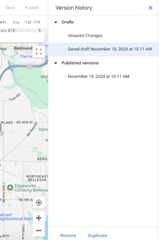
To view all versions of a map style, do the following:
- Go toMap Styles, and select a project, if needed.
- Select an existing map style.
- SelectCustomize.
- SelectVersion history.
Version history is divided into different types:
- AsDrafts
- SelectingSave creates new dated versions. Saved drafts are not usablein your apps until they are explicitly published.
- Changes you make without saving create anUnsaved changes draft thatare lost if you close your browser window or end your session.
- AsPublished Versions
- When you create a new map style, duplicate an existing style, orimport a JSON style, it is published automatically.
- SelectingPublish creates new dated versions that are available foruse in your apps. The most recent published version is applied to any appswith the associated map IDs.
You can view any previous version inVersion history.To reuse a version and make changes to it, you musteitherRestore the version, which sets that version to be the current,active version of the map style, orDuplicate it, which creates a new,separate map style based on that version.
If you have unsaved changes when you restore any version, those unsaved changesautomatically become a new dated draft version.
Important: When youPublish any map style associated with one or more map IDs, that style's latest published changes are visible in all apps using map IDs associated with that map style. Until your style changes are complete,Save rather thanPublish your style changes.Duplicate a map style version
- Go toMap Styles, and select a project, if needed.
- Select one of your existing styles, and clickCustomize.
- SelectVersion history.
- Select a style version, and then at the bottom of theVersion historypanel, selectDuplicate.
- The style is duplicated with "Copy of" added to the style name.
The duplicated style is automatically published and you get a link to openthe new style in a new tab.
Note: A duplicated style does not retain the versions of the style itduplicated.Restore a map style version
If you want to use a previous version of a map style, you can restore it.For example, if you created a branded map style to support a special event,when the event is finished you can restore the standard version of themap style.
Go toMap Styles, and select a project, if needed.
Select the style you want, and selectCustomize.
SelectVersion history.
Select the version you want to restore, and at thebottom of theVersion history panel, selectRestore. The restoredstyle becomes the most recent draft of the style.
Close theVersion history panel, and selectPublish.
Note: Style changes can take a few hours to propagate to your appswebsites, and apps can take longer if the devices aren't connected tothe internet. If you're still not seeing your style changes after afew hours, seeMy style changes aren't updating.
Except as otherwise noted, the content of this page is licensed under theCreative Commons Attribution 4.0 License, and code samples are licensed under theApache 2.0 License. For details, see theGoogle Developers Site Policies. Java is a registered trademark of Oracle and/or its affiliates.
Last updated 2025-12-11 UTC.