
Vector Map Features

Page Summary
Google Maps JavaScript API offers vector maps with sharper images, 3D buildings, and smoother transitions between zoom levels using fractional zoom.
Users can control the map's perspective with tilt and rotation using mouse or keyboard interactions, while developers can programmatically manipulate the camera for a dynamic user experience.
Zoom levels in Google Maps determine the level of detail visible, ranging from a world view to individual buildings, and can be fractional for smoother transitions.
Fractional zoom is enabled by default for vector maps and can be controlled using the
isFractionalZoomEnabledmap option, but it's important to optimizezoom_changedevent listeners for performance.
The Maps JavaScript API offers two different implementations of the map: rasterand vector. The raster map loads the map as a grid of pixel-based raster imagetiles, which are generated by Google Maps Platform server-side, then served toyour web app. The vector map is a composed of vector-based tiles, which aredrawn at load time on the client-side using WebGL, a web technology that allowsthe browser to access the GPU on the user's device to render 2D and 3D graphics.
The vector map is the same Google map your users are familiar with using, andoffers a number of advantages over the default raster tile map, most notablythe sharpness of vector-based images, and the addition of 3D buildings at closezoom levels. The vector map supports these features:
- Programmatic tilt and heading control
- Enhanced camera control
- Fractional zoom for smoother zooming
For maps loaded using a
divelement and JavaScript, the default renderingtype isgoogle.maps.RenderingType.RASTER.For maps loaded using the
gmp-mapelement, the default rendering type isgoogle.maps.RenderingType.VECTOR, with tilt and heading control enabled.
Tilt and rotation
You can set tilt and rotation (heading) on thevector mapby including theheading andtilt properties when initializing the map, andby calling thesetTilt andsetHeading methods on the map. The followingexample adds some buttons to the map which show programmatically adjusting tiltand heading in 20-degree increments.
TypeScript
functioninitMap():void{constmap=newgoogle.maps.Map(document.getElementById("map")asHTMLElement,{center:{lat:37.7893719,lng:-122.3942,},zoom:16,heading:320,tilt:47.5,mapId:"90f87356969d889c",});constbuttons:[string,string,number,google.maps.ControlPosition][]=[["Rotate Left","rotate",20,google.maps.ControlPosition.LEFT_CENTER],["Rotate Right","rotate",-20,google.maps.ControlPosition.RIGHT_CENTER],["Tilt Down","tilt",20,google.maps.ControlPosition.TOP_CENTER],["Tilt Up","tilt",-20,google.maps.ControlPosition.BOTTOM_CENTER],];buttons.forEach(([text,mode,amount,position])=>{constcontrolDiv=document.createElement("div");constcontrolUI=document.createElement("button");controlUI.classList.add("ui-button");controlUI.innerText=`${text}`;controlUI.addEventListener("click",()=>{adjustMap(mode,amount);});controlDiv.appendChild(controlUI);map.controls[position].push(controlDiv);});constadjustMap=function(mode:string,amount:number){switch(mode){case"tilt":map.setTilt(map.getTilt()!+amount);break;case"rotate":map.setHeading(map.getHeading()!+amount);break;default:break;}};}declareglobal{interfaceWindow{initMap:()=>void;}}window.initMap=initMap;
JavaScript
functioninitMap(){constmap=newgoogle.maps.Map(document.getElementById("map"),{center:{lat:37.7893719,lng:-122.3942,},zoom:16,heading:320,tilt:47.5,mapId:"90f87356969d889c",});constbuttons=[["Rotate Left","rotate",20,google.maps.ControlPosition.LEFT_CENTER],["Rotate Right","rotate",-20,google.maps.ControlPosition.RIGHT_CENTER],["Tilt Down","tilt",20,google.maps.ControlPosition.TOP_CENTER],["Tilt Up","tilt",-20,google.maps.ControlPosition.BOTTOM_CENTER],];buttons.forEach(([text,mode,amount,position])=>{constcontrolDiv=document.createElement("div");constcontrolUI=document.createElement("button");controlUI.classList.add("ui-button");controlUI.innerText=`${text}`;controlUI.addEventListener("click",()=>{adjustMap(mode,amount);});controlDiv.appendChild(controlUI);map.controls[position].push(controlDiv);});constadjustMap=function(mode,amount){switch(mode){case"tilt":map.setTilt(map.getTilt()+amount);break;case"rotate":map.setHeading(map.getHeading()+amount);break;default:break;}};}window.initMap=initMap;
CSS
/* * Always set the map height explicitly to define the size of the div element * that contains the map. */#map{height:100%;}/* * Optional: Makes the sample page fill the window. */html,body{height:100%;margin:0;padding:0;}.ui-button{background-color:#fff;border:0;border-radius:2px;box-shadow:01px4px-1pxrgba(0,0,0,0.3);margin:10px;padding:00.5em;font:40018pxRoboto,Arial,sans-serif;overflow:hidden;height:40px;cursor:pointer;}.ui-button:hover{background:rgb(235,235,235);}
HTML
<html> <head> <title>Tilt and Rotation</title> <link rel="stylesheet" type="text/css" href="./style.css" /> <script type="module" src="./index.js"></script> </head> <body> <div></div> <!-- The `defer` attribute causes the script to execute after the full HTML document has been parsed. For non-blocking uses, avoiding race conditions, and consistent behavior across browsers, consider loading using Promises. See https://developers.google.com/maps/documentation/javascript/load-maps-js-api for more information. --> <script src="https://maps.googleapis.com/maps/api/js?key=AIzaSyB41DRUbKWJHPxaFjMAwdrzWzbVKartNGg&callback=initMap&v=weekly" defer ></script> </body></html>
Try Sample
Use mouse and keyboard gestures
If tilt and rotation (heading) user interactions have been enabled (eitherprogrammatically or in the Google Cloud Console), then users can adjust the tiltand rotation using the mouse and keyboard:
- Using the mouse, hold down the shift key, then drag the mouseup and down to adjust tilt, right and left to adjust heading.
- Using the keyboard, hold down the shift key, then use the up and downarrow keys to adjust tilt, and the right and left arrow keys to adjustheading.
Programmatically adjust tilt and heading
Use thesetTilt() andsetHeading() methods to programmatically adjust tiltand heading on a vector map. Heading is the direction the camera is facing inclockwise degrees starting north, somap.setHeading(90) will rotate the mapso that east is facing up. The tilt angle is measured from the zenith, somap.setTilt(0) is looking straight down, whilemap.setTilt(45) will resultin an oblique view.
- Call
setTilt()to set the tilt angle of the map. UsegetTilt()to get thecurrent tilt value. - Call
setHeading()to set the heading of the map. UsegetHeading()to getthe current heading value.
To change the map center while preserving tilt and heading, usemap.setCenter() ormap.panBy().
Note that the range of angles that can be used varies with the current zoomlevel. Values outside this range are clamped to the allowedrange.
You can also use themoveCamera method to programmatically change heading,tilt, center, and zoom.Learn more.
Impact on other methods
When tilt or rotation is applied to the map, the behavior of otherMaps JavaScript API methods is affected:
map.getBounds()always returns the smallest bounding box that includesthe visible region; when tilt is applied, the returned bounds may represent alarger region than the visible region of the map's viewport.map.fitBounds()will reset tilt and heading to zero prior to fitting thebounds.map.panToBounds()will reset tilt and heading to zero prior to panning thebounds.map.setTilt()accepts any value, but restricts the maximum tilt based onthe current map zoom level.map.setHeading()accepts any value, and will modify it to fit into therange[0, 360].
Control the camera
Use themap.moveCamera() function to update any combination of cameraproperties at once.map.moveCamera() accepts a single parameter containingall of the camera properties to update. The following example shows callingmap.moveCamera() to setcenter,zoom,heading, andtilt at once:
map.moveCamera({center:newgoogle.maps.LatLng(37.7893719,-122.3942),zoom:16,heading:320,tilt:47.5});You can animate camera properties by callingmap.moveCamera() with ananimation loop, as shown here:
constdegreesPerSecond=3;functionanimateCamera(time){// Update the heading, leave everything else as-is.map.moveCamera({heading:(time/1000)*degreesPerSecond});requestAnimationFrame(animateCamera);}// Start the animation.requestAnimationFrame(animateCamera);The camera position
The map view is modeled as acamera looking down on a flat plane. The positionof the camera (and hence the rendering of the map) is specified by thefollowing properties:target (latitude/longitude location),bearing,tilt,andzoom.
Target (location)
The camera target is the location of the center of the map, specified aslatitude and longitude coordinates.
The latitude can be between -85 and 85 degrees, inclusive. Values aboveor below this range will be clamped to the nearest value within this range.For example, specifying a latitude of 100 will set the value to 85. Longituderanges between -180 and 180 degrees, inclusive. Values above or below thisrange will be wrapped such that they fall within the range (-180, 180). Forexample, 480, 840 and 1200 will all be wrapped to 120 degrees.Bearing (orientation)
The camera bearing specifies the compass direction, measured in degrees from true north, correspondingto the top edge of the map. If you draw a vertical line from the center of the map to the top edgeof the map, the bearing corresponds to the heading of the camera (measured in degrees) relativeto true north.
A bearing of 0 means that the top of the map points to true north.A bearing value 90 means the top of the map points due east (90 degrees on a compass). A value180 means the top of the map points due south.
The Maps API lets you change a map's bearing. For example, someone driving a caroften turns a road map to align it with their direction of travel, while hikers using a map andcompass usually orient the map so that a vertical line is pointing north.
Tilt (viewing angle)
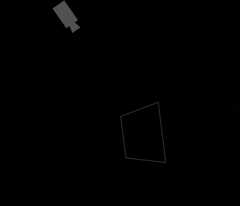
The tilt defines the camera's position on an arc directly over the map'scenter position, measured in degrees from thenadir(the direction pointing directly below the camera). A value of 0 corresponds to a camera pointedstraight down. Values greater than 0 correspond to a camera that is pitched toward the horizon bythe specified number of degrees.When you change the viewing angle, the map appears in perspective, with far-away featuresappearing smaller, and nearby features appearing larger. The followingillustrations demonstrate this.
In the images below, the viewing angle is 0 degrees. The first image shows aschematic of this; position1 is the camera position, and position2is the current map position. The resulting map is shown below it.
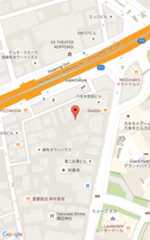 |  |
In the images below, the viewing angle is 45 degrees. Notice that the cameramoves halfway along an arc between straight overhead (0 degrees) and the ground (90 degrees),to position3. The camera is still pointing at the map's center point, but the arearepresented by the line at position4 is now visible.
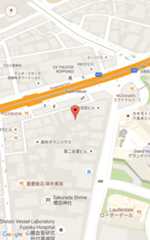 |  |
The map in this screenshot is still centered on the same point as in theoriginal map, but more features have appeared at the top of the map. As youincrease the angle beyond 45 degrees, features between the camera and the mapposition appear proportionally larger, while features beyond the map positionappear proportionally smaller, yielding a three-dimensional effect.
Zoom
The zoom level of the camera determines the scale of the map. At larger zoomlevels more detail can be seen on the screen, while at smaller zoom levelsmore of the world can be seen on the screen.
The zoom level need not be an integer. The range of zoomlevels permitted by the map depends on a number of factors including target,map type and screen size. Any number out of the range will be converted to thenext closest valid value, which can be either the minimum zoom level or themaximum zoom level. The following list shows the approximate level of detailyou can expect to see at each zoom level:
- 1: World
- 5: Landmass/continent
- 10: City
- 15: Streets
- 20: Buildings
 |  |  |
Fractional Zoom
Vector maps support fractional zoom, which lets you zoom using fractionalvalues instead of integers. While both raster and vector maps support fractionalzoom, fractional zoom is on by default for vector maps, and off by default forraster maps. Use theisFractionalZoomEnabled map option to turn fractionalzoom on and off.
The following example shows enabling fractional zoom when initializing the map:
map=newgoogle.maps.Map(document.getElementById('map'),{center:{lat:-34.397,lng:150.644},zoom:8,isFractionalZoomEnabled:true});You can also turn fractional zoom on and off by setting theisFractionalZoomEnabled map option as shown here:
// Using map.setmap.set('isFractionalZoomEnabled',true);// Using map.setOptionsmap.setOptions({isFractionalZoomEnabled:true});You can set a listener to detect whether fractional zoom is turned on; this ismost useful if you have not explicitly setisFractionalZoomEnabled totrueorfalse. The following example code checks to see whether fractional zoomis enabled:
map.addListener('isfractionalzoomenabled_changed',()=>{constisFractionalZoomEnabled=map.get('isFractionalZoomEnabled');if(isFractionalZoomEnabled===false){console.log('not using fractional zoom');}elseif(isFractionalZoomEnabled===true){console.log('using fractional zoom');}else{console.log('map not done initializing yet');}});zoom_changed event will fire more frequently when fractionalzoom is enabled. This will affect any listeners set up to trackzoom_changed.For optimal performance, consider updating only if the zoom has changed by aninteger value, or apply throttling.Except as otherwise noted, the content of this page is licensed under theCreative Commons Attribution 4.0 License, and code samples are licensed under theApache 2.0 License. For details, see theGoogle Developers Site Policies. Java is a registered trademark of Oracle and/or its affiliates.
Last updated 2025-12-11 UTC.