
Use embedded JSON style declarations

Page Summary
Customize the appearance of your maps using embedded JSON style declarations for the default map and selectable map types.
Style features and elements within the map by creating an array of
MapTypeStyleobjects defining the desired appearance, with thefeatureType,elementType, andstylersproperties determining specific modifications.Utilize the Maps Platform Styling Wizard to quickly generate JSON styling objects, simplifying the process of creating custom map styles.
Apply styles to the default map by setting the
stylesproperty in theMapOptionsobject during map creation or by using theMap.setOptionsmethod.Create styled map types by setting the style array to a
StyledMapTypeobject, enabling the addition of custom map styles without impacting the default map types.
You can apply customized styling through an embedded JSON style declarationsto the following:
- Default map.
- Map types that a user can switch between within a single map frame.
Specify styles to features
To apply styles to different features and elements in a map, create an array ofMapTypeStyleobjects that define how the map should be styled.
The array takes the following form:
varstylesArray=[{featureType:'',elementType:'',stylers:[{color:''},{visibility:''},// Add any stylers you need.]},{featureType:'',// Add the stylers you need.}]For a list of all available values forfeatureType,elementType, andstylers, see theJSON style reference.
Maps Platform Styling Wizard
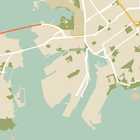
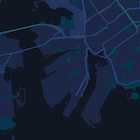

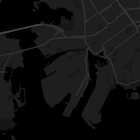
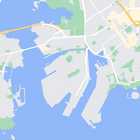
Use theMaps Platform Styling Wizard as a quick way to generate a JSON styling object.
Note: To have a style apply to multiple app platforms, consider usingcloud-based maps styling. If you want to use a JSONstyle, you can import it. For details, seeImport a JSON map style.Apply styles to a default map
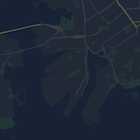
The following shows an example default map styled using light-colored text andicons on a dark background (i.e. dark mode). To see the code sample, go toStyled Maps - Night Mode code sample.
To modify the styles of the default map, set the map'sstyles property in theMapOptions object to your style array when:
- Creating your map.
- Or, when calling the
Map.setOptionsmethod.
Changes to labels and roads affect all map types including terrain, satellite,hybrid, and default roadmap types.
Apply styles to a map type
The following shows an added map type calledStyled Map in the control atthe top left of the map. To see the code sample, go toStyled Map Types.
To create a styled map type, set the style array to aStyledMapTypeobject. Creating a new styled map type does not affect the style of the defaultmap types.
Except as otherwise noted, the content of this page is licensed under theCreative Commons Attribution 4.0 License, and code samples are licensed under theApache 2.0 License. For details, see theGoogle Developers Site Policies. Java is a registered trademark of Oracle and/or its affiliates.
Last updated 2025-12-11 UTC.