
Import GeoJSON Data into Maps

Page Summary
This guide explains how to import and display GeoJSON data on Google Maps using JavaScript or TypeScript.
You can load GeoJSON data from your domain or a cross-origin domain that supports CORS.
If the remote domain only supports JSONP, you can use a script tag to fetch the data, but this approach has security risks and CORS is preferred if available.
Once loaded, GeoJSON data can be styled and customized using the Google Maps Data Layer.
This tutorial provides code examples and links to further resources for working with GeoJSON and Google Maps.
Overview
Learn how to importGeoJSON data from either a local or remotesource, and display it on your map. This tutorial uses the map below toillustrate various techniques to import data into maps.
The section below displays the entire code you need to create the map in thistutorial.
Tip: Check out thestore location solutions to seeanother example of using GeoJSON data with maps.TypeScript
letmap:google.maps.Map;functioninitMap():void{map=newgoogle.maps.Map(document.getElementById("map")asHTMLElement,{zoom:2,center:newgoogle.maps.LatLng(2.8,-187.3),mapTypeId:"terrain",});// Create a <script> tag and set the USGS URL as the source.constscript=document.createElement("script");// This example uses a local copy of the GeoJSON stored at// http://earthquake.usgs.gov/earthquakes/feed/v1.0/summary/2.5_week.geojsonpscript.src="https://developers.google.com/maps/documentation/javascript/examples/json/earthquake_GeoJSONP.js";document.getElementsByTagName("head")[0].appendChild(script);}// Loop through the results array and place a marker for each// set of coordinates.consteqfeed_callback=function(results:any){for(leti=0;i <results.features.length;i++){constcoords=results.features[i].geometry.coordinates;constlatLng=newgoogle.maps.LatLng(coords[1],coords[0]);newgoogle.maps.Marker({position:latLng,map:map,});}};declareglobal{interfaceWindow{initMap:()=>void;eqfeed_callback:(results:any)=>void;}}window.initMap=initMap;window.eqfeed_callback=eqfeed_callback;
JavaScript
letmap;functioninitMap(){map=newgoogle.maps.Map(document.getElementById("map"),{zoom:2,center:newgoogle.maps.LatLng(2.8,-187.3),mapTypeId:"terrain",});// Create a <script> tag and set the USGS URL as the source.constscript=document.createElement("script");// This example uses a local copy of the GeoJSON stored at// http://earthquake.usgs.gov/earthquakes/feed/v1.0/summary/2.5_week.geojsonpscript.src="https://developers.google.com/maps/documentation/javascript/examples/json/earthquake_GeoJSONP.js";document.getElementsByTagName("head")[0].appendChild(script);}// Loop through the results array and place a marker for each// set of coordinates.consteqfeed_callback=function(results){for(leti=0;i <results.features.length;i++){constcoords=results.features[i].geometry.coordinates;constlatLng=newgoogle.maps.LatLng(coords[1],coords[0]);newgoogle.maps.Marker({position:latLng,map:map,});}};window.initMap=initMap;window.eqfeed_callback=eqfeed_callback;
CSS
/* * Always set the map height explicitly to define the size of the div element * that contains the map. */#map{height:100%;}/* * Optional: Makes the sample page fill the window. */html,body{height:100%;margin:0;padding:0;}
HTML
<html> <head> <title>Earthquake Markers</title> <link rel="stylesheet" type="text/css" href="./style.css" /> <script type="module" src="./index.js"></script> </head> <body> <div></div> <!-- The `defer` attribute causes the script to execute after the full HTML document has been parsed. For non-blocking uses, avoiding race conditions, and consistent behavior across browsers, consider loading using Promises. See https://developers.google.com/maps/documentation/javascript/load-maps-js-api for more information. --> <script src="https://maps.googleapis.com/maps/api/js?key=AIzaSyB41DRUbKWJHPxaFjMAwdrzWzbVKartNGg&callback=initMap&v=weekly" defer ></script> </body></html>
Try Sample
Loading data
This section shows you how to load data from either the same domain as yourMaps JavaScript API application, or from a different one.
Loading data from the same domain
TheGoogle Maps Data Layerprovides a container for arbitrary geospatial data(including GeoJSON). If your data is in a file hosted on the same domainas your Maps JavaScript API application, you can load itusing themap.data.loadGeoJson() method. The file must be on the same domain,but you can host it in a differentsubdomain. For example, you can make a request tofiles.example.com fromwww.example.com.
map.data.loadGeoJson('data.json');Loading data across domains
You can also request data from a domain other than your own, if the domain'sconfiguration allows such a request. The standard for this permission iscalledCross-origin resource sharing(CORS). If a domain has allowed cross-domain requests, its response headershould include the following declaration:
Access-Control-Allow-Origin:*Use theChrome Developer Tools (DevTools)to find out if a domain has enabled CORS.
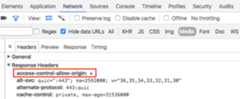
Loading data from such a domain is the same asloading JSON from the same domain:
map.data.loadGeoJson('http://www.CORS-ENABLED-SITE.com/data.json');Requesting JSONP
The target domain must support requests forJSONP in order to usethis technique.
Requesting JSONP from domains outside of your control is very risky.
Since your browser loads any code that returns as a script, you should only request JSONP from a domain that you trust. In general, JSONP is replaced byCORS; the latter is much safer and should be your preferred choice if both are available.
To request JSONP, usecreateElement() to add ascript tagto the head of your document.
varscript=document.createElement('script');script.src='http://earthquake.usgs.gov/earthquakes/feed/v1.0/summary/2.5_week.geojsonp';document.getElementsByTagName('head')[0].appendChild(script);When the script runs, the target domain passes the data as an argumenttoanother script, usually namedcallback(). The target domain defines thecallback script name, which is the first name on the page when you load thetarget URL in a browser.
For example, loadhttp://earthquake.usgs.gov/earthquakes/feed/v1.0/summary/2.5_week.geojsonpin your browser window to reveal the callback name aseqfeed_callback.
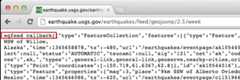
You must define the callback script in your code:
functioneqfeed_callback(response){map.data.addGeoJson(response);}Use theaddGeoJson() method to place the parsed GeoJSON data on the map.
Styling the data
You can change the appearance of your data by adding GeoJSON data to a Mapobject.Read the developer's guide for more information onstyling your data.
Learn more
- GeoJSON is a widely used open format for encoding geographic data, based onJSON (JavaScript Object Notation). JavaScript tools and methods designedfor JSON data also work with GeoJSON.Read thedeveloper's guidefor more information.
- JSONP stands forpadded JSON. It is a communication methodused in JavaScript programs that run in web browsers, to request data from aserver in a different domain.
Except as otherwise noted, the content of this page is licensed under theCreative Commons Attribution 4.0 License, and code samples are licensed under theApache 2.0 License. For details, see theGoogle Developers Site Policies. Java is a registered trademark of Oracle and/or its affiliates.
Last updated 2025-12-18 UTC.