
Create a mail merge with Gmail & Google Sheets

Page Summary
This solution automatically populates an email template with data from Google Sheets and sends the emails from your Gmail account.
The process involves creating a Gmail draft with placeholders that correspond to column headers in a Google Sheet.
The script uses the Gmail and Spreadsheet services of Apps Script to get and send emails, and fill in placeholders with personalized data.
Setting up the script involves copying a sample spreadsheet, updating recipient information, and creating a Gmail draft email template.
To run the script, you use a custom "Mail Merge" menu in the spreadsheet and authorize the script when prompted.
Coding level: Beginner
Duration: 10 minutes
Project type: Automation with acustom menu
Objectives
- Understand what the solution does.
- Understand what the Apps Script services do within thesolution.
- Set up the script.
- Run the script.
About this solution
Automatically populate an email template with data from Google Sheets. Theemails are sent from your Gmail account so that you can respond torecipient replies.
Important: This mail merge sample is subject to the email limits describedinQuotas for Google services.
How it works
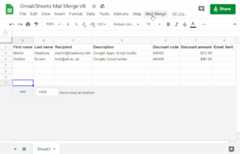
You create a Gmail draft template with placeholders thatcorrespond to data in a Sheets spreadsheet. Each column headerin a sheet represents a placeholder tag. The script sends the information foreach placeholder from the spreadsheet to the location of the correspondingplaceholder tag in your email draft.
Apps Script services
This solution uses the following services:
- Gmail service–Gets, reads,and sends the draft email you want to send to your recipients.
- If your email includes unicode characters like emojis, use theMail service instead. Learn how to updatethe code toinclude unicode characters in your email.
- Spreadsheet service–Fills in the emailplaceholders with the personalized information foreach of the recipients.
 | Prefer to learn through video? The Google Workspace Developers channel offers videos about tips, tricks, and the latest features. |
Prerequisites
To use this sample, you need the following prerequisites:
- A Google Account (Google Workspace accounts mightrequire administrator approval).
- A web browser with access to the internet.
Set up the script
Create the Apps Script project
- Click the following button to make a copy of theGmail/Sheets Mail Merge sample spreadsheet.The Apps Script project for thissolution is attached to the spreadsheet.
Make a copy - In your copied spreadsheet, update theRecipients column with emailaddresses you want to use in the mail merge.
- (Optional) Add, edit, or remove columns to customize the data you want toinclude in your email template.
If you change the name of theRecipient orEmailSent columns, you must update the corresponding code in theApps Script project. You can open the Apps Scriptproject from the spreadsheet byclickingExtensions>Apps Script.
Create an email template
- In your Gmail account, create an email draft. To include datafrom thespreadsheet in your email, use placeholders that correspond to column namessurrounded by curly braces, such as
{{First name}}.- If you format the text in the email, you must also format the placeholderbrackets.
- Placeholders are case sensitive and must exactly match the column headers.
- Copy the subject line of your email draft.
Run the script
- In the spreadsheet, clickMail Merge>Send Emails. You might need to refresh the page for this custom menuto appear.
When prompted, authorize the script.If the OAuth consent screen displays the warning,This app isn't verified,continue by selectingAdvanced>Go to {Project Name} (unsafe).
ClickMail Merge>Send Emailsagain.
Paste the email template subject line and clickOK.
If you applied a filter to the sheet, the script still emails the filteredparticipants, but it won't add the timestamp.
Review the code
To review the Apps Script code for this solution, clickView source code below:
View source code
Code.gs
// To learn how to use this script, refer to the documentation:// https://developers.google.com/apps-script/samples/automations/mail-merge/*Copyright 2022 Martin HawkseyLicensed under the Apache License, Version 2.0 (the "License");you may not use this file except in compliance with the License.You may obtain a copy of the License at https://www.apache.org/licenses/LICENSE-2.0Unless required by applicable law or agreed to in writing, softwaredistributed under the License is distributed on an "AS IS" BASIS,WITHOUT WARRANTIES OR CONDITIONS OF ANY KIND, either express or implied.See the License for the specific language governing permissions andlimitations under the License.*//** * @OnlyCurrentDoc *//** * Change these to match the column names you are using for email * recipient addresses and email sent column. */constRECIPIENT_COL="Recipient";constEMAIL_SENT_COL="Email Sent";/** * Creates the menu item "Mail Merge" for user to run scripts on drop-down. */functiononOpen(){constui=SpreadsheetApp.getUi();ui.createMenu("Mail Merge").addItem("Send Emails","sendEmails").addToUi();}/** * Sends emails from sheet data. * @param {string} subjectLine (optional) for the email draft message * @param {Sheet} sheet to read data from */functionsendEmails(subjectLine,sheet=SpreadsheetApp.getActiveSheet()){// option to skip browser prompt if you want to use this code in other projectsletprocessedSubjectLine=subjectLine;if(!processedSubjectLine){processedSubjectLine=Browser.inputBox("Mail Merge","Type or copy/paste the subject line of the Gmail "+"draft message you would like to mail merge with:",Browser.Buttons.OK_CANCEL,);if(processedSubjectLine==="cancel"||processedSubjectLine===""){// If no subject line, finishes upreturn;}}// Gets the draft Gmail message to use as a templateconstemailTemplate=getGmailTemplateFromDrafts_(processedSubjectLine);// Gets the data from the passed sheetconstdataRange=sheet.getDataRange();// Fetches displayed values for each row in the Range HT Andrew Roberts// https://mashe.hawksey.info/2020/04/a-bulk-email-mail-merge-with-gmail-and-google-sheets-solution-evolution-using-v8/#comment-187490// @see https://developers.google.com/apps-script/reference/spreadsheet/range#getdisplayvaluesconstdata=dataRange.getDisplayValues();// Assumes row 1 contains our column headingsconstheads=data.shift();// Gets the index of the column named 'Email Status' (Assumes header names are unique)// @see http://ramblings.mcpher.com/Home/excelquirks/gooscript/arrayfunctionsconstemailSentColIdx=heads.indexOf(EMAIL_SENT_COL);// Converts 2d array into an object array// See https://stackoverflow.com/a/22917499/1027723// For a pretty version, see https://mashe.hawksey.info/?p=17869/#comment-184945constobj=data.map((r)=>heads.reduce((o,k,i)=>{o[k]=r[i]||"";returno;},{}),);// Creates an array to record sent emailsconstout=[];// Loops through all the rows of dataobj.forEach((row,rowIdx)=>{// Only sends emails if email_sent cell is blank and not hidden by a filterif(row[EMAIL_SENT_COL]===""){try{constmsgObj=fillInTemplateFromObject_(emailTemplate.message,row);// See https://developers.google.com/apps-script/reference/gmail/gmail-app#sendEmail(String,String,String,Object)// If you need to send emails with unicode/emoji characters change GmailApp for MailApp// Uncomment advanced parameters as needed (see docs for limitations)GmailApp.sendEmail(row[RECIPIENT_COL],msgObj.subject,msgObj.text,{htmlBody:msgObj.html,// bcc: 'a.bcc@email.com',// cc: 'a.cc@email.com',// from: 'an.alias@email.com',// name: 'name of the sender',// replyTo: 'a.reply@email.com',// noReply: true, // if the email should be sent from a generic no-reply email address (not available to gmail.com users)attachments:emailTemplate.attachments,inlineImages:emailTemplate.inlineImages,});// Edits cell to record email sent dateout.push([newDate()]);}catch(e){// modify cell to record errorout.push([e.message]);}}else{out.push([row[EMAIL_SENT_COL]]);}});// Updates the sheet with new datasheet.getRange(2,emailSentColIdx+1,out.length).setValues(out);/** * Get a Gmail draft message by matching the subject line. * @param {string} subject_line to search for draft message * @return {object} containing the subject, plain and html message body and attachments */functiongetGmailTemplateFromDrafts_(subject_line){try{// get draftsconstdrafts=GmailApp.getDrafts();// filter the drafts that match subject lineconstdraft=drafts.filter(subjectFilter_(subject_line))[0];// get the message objectconstmsg=draft.getMessage();// Handles inline images and attachments so they can be included in the merge// Based on https://stackoverflow.com/a/65813881/1027723// Gets all attachments and inline image attachmentsconstallInlineImages=draft.getMessage().getAttachments({includeInlineImages:true,includeAttachments:false,});constattachments=draft.getMessage().getAttachments({includeInlineImages:false});consthtmlBody=msg.getBody();// Creates an inline image object with the image name as key// (can't rely on image index as array based on insert order)constimg_obj=allInlineImages.reduce((obj,i)=>{obj[i.getName()]=i;returnobj;},{});//Regexp searches for all img string positions with cidconstimgexp=/<img.*?src="cid:(.*?)".*?alt="(.*?)"[^\>]+>/g;constmatches=[...htmlBody.matchAll(imgexp)];//Initiates the allInlineImages objectconstinlineImagesObj={};for(constmatchofmatches){inlineImagesObj[match[1]]=img_obj[match[2]];}return{message:{subject:subject_line,text:msg.getPlainBody(),html:htmlBody,},attachments:attachments,inlineImages:inlineImagesObj,};}catch(e){thrownewError("Oops - can't find Gmail draft");}/** * Filter draft objects with the matching subject linemessage by matching the subject line. * @param {string} subject_line to search for draft message * @return {object} GmailDraft object */functionsubjectFilter_(subject_line){return(element)=>{if(element.getMessage().getSubject()===subject_line){returnelement;}};}}/** * Fill template string with data object * @see https://stackoverflow.com/a/378000/1027723 * @param {string} template string containing {{}} markers which are replaced with data * @param {object} data object used to replace {{}} markers * @return {object} message replaced with data */functionfillInTemplateFromObject_(template,data){// We have two templates one for plain text and the html body// Stringifing the object means we can do a global replacelettemplate_string=JSON.stringify(template);// Token replacementtemplate_string=template_string.replace(/{{[^{}]+}}/g,(key)=>{returnescapeData_(data[key.replace(/[{}]+/g,"")]||"");});returnJSON.parse(template_string);}/** * Escape cell data to make JSON safe * @see https://stackoverflow.com/a/9204218/1027723 * @param {string} str to escape JSON special characters from * @return {string} escaped string */functionescapeData_(str){returnstr.replace(/[\\]/g,"\\\\").replace(/[\"]/g,'\\"').replace(/[\/]/g,"\\/").replace(/[\b]/g,"\\b").replace(/[\f]/g,"\\f").replace(/[\n]/g,"\\n").replace(/[\r]/g,"\\r").replace(/[\t]/g,"\\t");}}
Modifications
You can edit the mail merge automation as much as you'd like to fit your needs.Below are a few optional changes you can make to the source code.
Add Bcc, Cc, ReplyTo, or From email parameters
The sample code includes a number of additional parameters, currently commented out, that let you control the name of the account the email is sent from, reply to email addresses, as well as Bcc and Cc email addresses.
Activate the parameters you want to add by removing the forward slashes// in front of each one.
The following sample shows an excerpt from thesendEmails function that activates most of the email parameters:
GmailApp.sendEmail(row[RECIPIENT_COL],msgObj.subject,msgObj.text,{htmlBody:msgObj.html,bcc:'bcc@example.com',cc:'cc@example.com',from:'from.alias@example.com',name:'name of the sender',replyTo:'reply@example.com',//noReply:true,//iftheemailshouldbesentfromagenericno-replyemailaddress(notavailabletogmail.comusers)
In the above sample, thenoReply parameter is still commented out because thereplyTo parameter is set.
Include unicode characters in your emails
If you want to include unicode characters, such as emojis, in your emails, you must update the code to use Mail service instead of Gmail service.
In the sample code, update the following line:
GmailApp.sendEmail(row[RECIPIENT_COL],msgObj.subject,msgObj.text,{
Replace the line with the following code:
MailApp.sendEmail(row[RECIPIENT_COL],msgObj.subject,msgObj.text,{
Contributors
The sample was created by Martin Hawksey, Learning Design and Technology Lead atEdinburgh Futures Institute, blogger, and Google Developer Expert.
- Find Martin on Twitter@mhawksey.
- Read Martin's Google Apps Script relatedblog posts.
- Watch Martin's YouTube show,Totally Unscripted.
This sample is maintained by Google with the help of Google Developer Experts.
Next steps
Except as otherwise noted, the content of this page is licensed under theCreative Commons Attribution 4.0 License, and code samples are licensed under theApache 2.0 License. For details, see theGoogle Developers Site Policies. Java is a registered trademark of Oracle and/or its affiliates.
Last updated 2025-12-11 UTC.