
Create a sign-up for sessions at a conference

Page Summary
This solution creates an automated event registration system using a custom menu in Google Sheets.
The script uses conference data from a spreadsheet to create a Google Calendar, a sign-up form, and automatically emails personalized itineraries to attendees.
The process involves setting up the script by making a copy of a sample spreadsheet and authorizing the script.
Running the script includes filling out and submitting the generated form, then verifying attendee addition in the Conference Calendar.
Optional steps are provided to reset the solution, allowing for re-use or customization with different event information.
Coding level: Beginner
Duration: 5 minutes
Project type: Automation with acustom menu andanevent-driven trigger
Objectives
- Understand what the solution does.
- Understand what the Apps Script services do within thesolution.
- Set up the script.
- Run the script.
About this solution
Create an end-to-end event registration system. If you have an eventcoming up, like a conference, you can set up a new calendar for conferencesessions, create a sign-up form, and automatically email attendees personalizeditineraries.
How it works
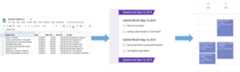
This solution uses a custom menu in Google Sheets to implement an automatedevent registration system. The script creates a calendar with the conferenceevents listed in the Sheets spreadsheet. Then, the script createsa form with the list of events that attendees can sign up for. After attendeesfill out the form, the script adds the attendees to the calendar events andemails itineraries to them.
Apps Script services
This solution uses the following services:
- Spreadsheet service–Provides theevent information to the other services.
- Calendar service–Creates anew calendar for the event, adds events to the calendar, and adds attendeesto the events they sign up for.
- Properties service–Stores theID of the calendar created by the Calendar service. When a userclicksSet up conference from the customConference menu, theProperties service checks whether the event registration system has alreadybeen set up by checking if the calendar ID property is present. Doing so helpsavoid the creation of duplicate forms and calendars.
- Forms service–Creates a formfrom the information in the spreadsheet that lets attendees sign up forsessions.
- Script service–Creates a trigger that fireswhen an attendee fills out the form.
- Document service–Gets the eventinformation for the events an attendee signs up for and adds a list of theevents to a new document. The script gives the attendee permission to editthe document.
- Mail service–Emails the itinerary document tothe attendee.
Prerequisites
To use this sample, you need the following prerequisites:
- A Google Account (Google Workspace accounts mightrequire administrator approval).
- A web browser with access to the internet.
Set up the script
- Click the following button to make a copy of theCreate a sign-up forsessions at a conference sample spreadsheet. The Apps Scriptproject for this solution is attached to the spreadsheet.
Make a copy - ClickConference>Set upconference. You might need to refresh the page for this custom menu toappear.
When prompted, authorize the script.If the OAuth consent screen displays the warning,This app isn't verified,continue by selectingAdvanced>Go to {Project Name} (unsafe).
ClickConference>Set upconference again.
Run the script
- ClickTools>Manage Form>Go to live form.
- Fill out and submit the form.
- Go tocalendar.google.com.
- At the left, make sure the box next toConference Calendar is checked.
- Go to the dates of the events you signed up for and confirm you've been addedas an attendee.
(Optional) Reset the solution
If you want to try this solution over again, or customize it to useyour own event information, you need to reset some items that were set upwhen you first ran the script. To view the steps to reset the solution, clickReset the solution below:
Reset the solution
Step 1: Reset the stored script properties
If you try to run the script more than once, you'll be prompted with,Your conference is already set up. Look in Google Drive for your sign-up form! This happens because once the Conference Calendar is created, the calendar ID is stored as a script property. When the script runs, it checks if the calendar ID property already exists, and stops running if it does.
Follow the below steps to remove the existing calendar ID property:
- In the spreadsheet, clickExtensions>Apps Script.
- In the Apps Script editor, select
resetPropertiesfrom the function dropdown list and clickRun.
Step 2: Delete the Conference Calendar
Every time the script runs, it creates a new calendar. If you don't want to keep the original calendar that was created, follow these steps:
- Go tocalendar.google.com.
- Next to Conference Calendar, click Options for Conference Calendar
 >Settings and sharing.
 - Scroll to the bottom of the settings and clickDelete.
Step 3: Delete the form submit trigger
The script creates a trigger for form submissions each time you run it. To avoid multiple triggers that result in duplicate emails, remove the original trigger. Follow these steps:
- In the spreadsheet, clickExtensions>Apps Script.
- In the Apps Script project, at the left, clickTriggers
 .
. - Next to the trigger, click More>Delete trigger.
Step 4: Unlink and delete the form
Each time you run the script, it creates a new form. Follow these steps to unlink the form from your spreadsheet and delete it:
- In the spreadsheet, right click theForm responses sheet and clickUnlink form>Ok.
- Right click theForm responses sheet again and clickDelete>Ok.
- Go toforms.google.com.
- Right clickConference Form and clickRemove>Move to trash.
Once you've reset the solution you can add your own data, or continue to use the sample data, and run the script again.
Review the code
To review the Apps Script code for this solution, clickView source code below:
View source code
Code.gs
// To learn how to use this script, refer to the documentation:// https://developers.google.com/apps-script/samples/automations/event-session-signup/*Copyright 2022 Google LLCLicensed under the Apache License, Version 2.0 (the "License");you may not use this file except in compliance with the License.You may obtain a copy of the License at https://www.apache.org/licenses/LICENSE-2.0Unless required by applicable law or agreed to in writing, softwaredistributed under the License is distributed on an "AS IS" BASIS,WITHOUT WARRANTIES OR CONDITIONS OF ANY KIND, either express or implied.See the License for the specific language governing permissions andlimitations under the License.*//** * Inserts a custom menu when the spreadsheet opens. */functiononOpen(){SpreadsheetApp.getUi().createMenu("Conference").addItem("Set up conference","setUpConference_").addToUi();}/** * Uses the conference data in the spreadsheet to create * Google Calendar events, a Google Form, and a trigger that allows the script * to react to form responses. */functionsetUpConference_(){constscriptProperties=PropertiesService.getScriptProperties();if(scriptProperties.getProperty("calId")){Browser.msgBox("Your conference is already set up. Look in Google Drive for your"+" sign-up form!",);return;}constss=SpreadsheetApp.getActive();constsheet=ss.getSheetByName("Conference Setup");constrange=sheet.getDataRange();constvalues=range.getValues();setUpCalendar_(values,range);setUpForm_(ss,values);ScriptApp.newTrigger("onFormSubmit").forSpreadsheet(ss).onFormSubmit().create();}/** * Creates a Google Calendar with events for each conference session in the * spreadsheet, then writes the event IDs to the spreadsheet for future use. * @param {Array<string[]>} values Cell values for the spreadsheet range. * @param {Range} range A spreadsheet range that contains conference data. */functionsetUpCalendar_(values,range){constcal=CalendarApp.createCalendar("Conference Calendar");// Start at 1 to skip the header row.for(leti=1;i <values.length;i++){constsession=values[i];consttitle=session[0];conststart=joinDateAndTime_(session[1],session[2]);constend=joinDateAndTime_(session[1],session[3]);constoptions={location:session[4],sendInvites:true};constevent=cal.createEvent(title,start,end,options).setGuestsCanSeeGuests(false);session[5]=event.getId();}range.setValues(values);// Stores the ID for the Calendar, which is needed to retrieve events by ID.constscriptProperties=PropertiesService.getScriptProperties();scriptProperties.setProperty("calId",cal.getId());}/** * Creates a single Date object from separate date and time cells. * * @param {Date} date A Date object from which to extract the date. * @param {Date} time A Date object from which to extract the time. * @return {Date} A Date object representing the combined date and time. */functionjoinDateAndTime_(date_,time){constprocessedDate=newDate(date_);processedDate.setHours(time.getHours());processedDate.setMinutes(time.getMinutes());returnprocessedDate;}/** * Creates a Google Form that allows respondents to select which conference * sessions they would like to attend, grouped by date and start time in the * caller's time zone. * * @param {Spreadsheet} ss The spreadsheet that contains the conference data. * @param {Array<String[]>} values Cell values for the spreadsheet range. */functionsetUpForm_(ss,values){// Group the sessions by date and time so that they can be passed to the form.constschedule={};// Start at 1 to skip the header row.for(leti=1;i <values.length;i++){constsession=values[i];constday=session[1].toLocaleDateString();consttime=session[2].toLocaleTimeString();if(!schedule[day]){schedule[day]={};}if(!schedule[day][time]){schedule[day][time]=[];}schedule[day][time].push(session[0]);}// Creates the form and adds a multiple-choice question for each timeslot.constform=FormApp.create("Conference Form");form.setDestination(FormApp.DestinationType.SPREADSHEET,ss.getId());form.addTextItem().setTitle("Name").setRequired(true);form.addTextItem().setTitle("Email").setRequired(true);for(constdayofObject.keys(schedule)){form.addSectionHeaderItem().setTitle(`Sessions for${day}`);for(consttimeofObject.keys(schedule[day])){form.addMultipleChoiceItem().setTitle(`${time}${day}`).setChoiceValues(schedule[day][time]);}}}/** * Sends out calendar invitations and a * personalized Google Docs itinerary after a user responds to the form. * * @param {Object} e The event parameter for form submission to a spreadsheet; * see https://developers.google.com/apps-script/understanding_events */functiononFormSubmit(e){constuser={name:e.namedValues.Name[0],email:e.namedValues.Email[0],};// Grab the session data again so that we can match it to the user's choices.constresponse=[];constvalues=SpreadsheetApp.getActive().getSheetByName("Conference Setup").getDataRange().getValues();for(leti=1;i <values.length;i++){constsession=values[i];consttitle=session[0];constday=session[1].toLocaleDateString();consttime=session[2].toLocaleTimeString();consttimeslot=`${time}${day}`;// For every selection in the response, find the matching timeslot and title// in the spreadsheet and add the session data to the response array.if(e.namedValues[timeslot] &&e.namedValues[timeslot]===title){response.push(session);}}sendInvites_(user,response);sendDoc_(user,response);}/** * Add the user as a guest for every session he or she selected. * @param {object} user An object that contains the user's name and email. * @param {Array<String[]>} response An array of data for the user's session choices. */functionsendInvites_(user,response){constid=ScriptProperties.getProperty("calId");constcal=CalendarApp.getCalendarById(id);for(leti=0;i <response.length;i++){cal.getEventSeriesById(response[i][5]).addGuest(user.email);}}/** * Creates and shares a personalized Google Doc that shows the user's itinerary. * @param {object} user An object that contains the user's name and email. * @param {Array<string[]>} response An array of data for the user's session choices. */functionsendDoc_(user,response){constdoc=DocumentApp.create(`Conference Itinerary for${user.name}`,).addEditor(user.email);constbody=doc.getBody();lettable=[["Session","Date","Time","Location"]];for(leti=0;i <response.length;i++){table.push([response[i][0],response[i][1].toLocaleDateString(),response[i][2].toLocaleTimeString(),response[i][4],]);}body.insertParagraph(0,doc.getName()).setHeading(DocumentApp.ParagraphHeading.HEADING1);table=body.appendTable(table);table.getRow(0).editAsText().setBold(true);doc.saveAndClose();// Emails a link to the Doc as well as a PDF copy.MailApp.sendEmail({to:user.email,subject:doc.getName(),body:`Thanks for registering! Here's your itinerary:${doc.getUrl()}`,attachments:doc.getAs(MimeType.PDF),});}/** * Removes the calId script property so that the 'setUpConference_()' can be run again. */functionresetProperties(){constscriptProperties=PropertiesService.getScriptProperties();scriptProperties.deleteAllProperties();}
Contributors
This sample is maintained by Google with the help of Google Developer Experts.
Next steps
Except as otherwise noted, the content of this page is licensed under theCreative Commons Attribution 4.0 License, and code samples are licensed under theApache 2.0 License. For details, see theGoogle Developers Site Policies. Java is a registered trademark of Oracle and/or its affiliates.
Last updated 2025-12-11 UTC.