
Sizing and positioning page elements

Page Summary
Page elements can be sized and positioned using getter/setter functions or by manipulating their affine transform.
Size and position are measured from the upper left corner of the page to the upper left corner of the element's unrotated bounding box, and lengths are in points.
You can set the size, position, and rotation of a page element when it's created or update them afterwards using specific setter functions.
Scaling and reflection along an edge can be achieved using
scaleWidth()andscaleHeight(), including with negative arguments for flipping.Lines have their rotation measured by their bounding box rotation, not their visual vertical angle.
There are two different ways you can get and change the size and position ofa page element:
- Using its getter and setter functions for size and position.
- Manipulating its affine transform, using its
getTransform()andsetTransform()functions while preserving the inherent size.
Reading page element properties
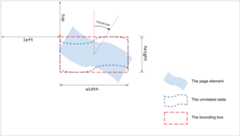
As shown in the figure, size and position are measured with respect to thebounding box of a rendered page element when it has no rotation:
- Left andTop: measured from the upper left corner of the page to theupper left corner of the unrotated bounding box. Use
getLeft()andgetTop()toread the values. - Width andHeight: the width and height of the unrotated bounding box.Use
getWidth()andgetHeight()to read the values. - Rotation: the clockwise rotation with respect to the vertical line aroundthe center of the bounding box. Use
getRotation()to read the value.
All lengths are measured in points (pt). The rotation is measured in degrees(°).
Setting page element properties
You can set the size and position of a page element when you create it usingan insert method such asinsertShape(). For an existing shape, you can setthe size, position, and rotation; you can also set an element's scaling toresize or to reflect it along one of its edges.
At creation
You can provide position and size information when creating a page element.
varslide=SlidesApp.getActivePresentation().getSlides()[0];varshape=slide.insertShape(SlidesApp.ShapeType.TEXT_BOX,100,200,300,60);Logger.log('Left: '+shape.getLeft()+'pt; Top: '+shape.getTop()+'pt; Width: '+shape.getWidth()+'pt; Height: '+shape.getHeight()+'pt; Rotation: '+shape.getRotation()+' degrees.');The above script creates a shape on the first slide of the active presentationwith the specified position and size and reads the position and size informationof the shape. The expected log is:
Left:100pt;Top:200pt;Width:300pt;Height:60pt;Rotation:0degrees.Size, position, and rotation
You can update the size and position of a page element after creation:
- Use
setLeft()andsetTop()to set the position of the upper left corner of theunrotated bounding box. - Use
setWidth()andsetHeight()to set the rendered width and height of the boundingbox. - Use
setRotation()to set the clockwise rotation of the bounding box around itscenter.
The following script creates a shape on the first slide of the active presentation,uses setters to update its position, size, and rotation, and reads the positionand size information of the shape.
varslide=SlidesApp.getActivePresentation().getSlides()[0];varshape=slide.insertShape(SlidesApp.ShapeType.RECTANGLE);shape.setLeft(100).setTop(200).setWidth(50).setHeight(60).setRotation(90);Logger.log('Left: '+shape.getLeft()+'pt; Top: '+shape.getTop()+'pt; Width: '+shape.getWidth()+'pt; Height: '+shape.getHeight()+'pt; Rotation: '+shape.getRotation()+'\u00B0.');The expected log output from this script is as shown below:
Left:100pt;Top:200pt;Width:50pt;Height:60pt;Rotation:90°.The size, position, and rotation setters can be used in any order or combination.Replacing the third line above with the following script will produce the same result:
shape.setWidth(55);shape.setRotation(90).setHeight(60).setLeft(100);shape.setWidth(50).setTop(200);Scaling
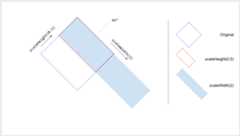
Instead of usingsetWidth() andsetHeight() above to set the size of the shapeto an absolute value,scaleWidth() andscaleHeight() can be used to stretch orsqueeze a page element with a relative scaling factor.
shape.scaleHeight(0.5).scaleWidth(2);The figure below depicts how above code works on a 45°-rotated square shape.Note that the upper left corner of the bounding box is fixed during scaling.
Reflection along edge
The argument inscaleWidth() andscaleHeight() can be negative so that they canbe used to flip a page element horizontally or vertically.
shape.scaleWidth(-1); // Flip horizontally along the left edge of the bounding box.shape.scaleHeight(-1); // Flip vertically along the top edge of the bounding box.The figure below depicts how above code works on a 45°-rotated shape. Note thatthe page element is flipped along one of the edges of its bounding box but notits center.

Line rotation
Like other page elements, a line's rotation isn't the vertical angle ofthe line, but the rotation of its bounding box. When you create a line withspecified start and end points, its rotation is always 0°. Draggingthe endpoints of the line in Google Slides UI changes its vertical angle as wellas the size and position of its bounding box, but doesn't changeits rotation. UsingsetRotation() rotates the bounding box of the line, whicheffectively changes its vertical angle. So two lines canhave the same visual vertical angle, but different bounding boxes and thereforedifferent size, position, and rotation values.
Limitations
Some sizing and positioning methods are incompatible with some types of pageelements. The table below summarizes the methods which are not compatible withcertain types of page elements.
| Methods | Shape | Video | Table |
|---|---|---|---|
| getHeight(), getWidth() | ✔ | ✔ | NO (returns null) |
| setHeight(), setWidth() | ✔ | ✔ | NO |
| setRotation() | ✔ | NO | NO |
| scaleHeight(), scaleWidth() | ✔ | ✔ | NO |
All sizing and positioning methods may give unexpected results if the pageelement has shearing. All limitations are subject to change. Check reference forup-to-date information.
Using affine transforms
For advanced control, the size and position of a page element can also becalculated and adjusted through its inherent (native) size andaffine transform.
Google Apps Script provides similar interface to use affine transform as Google Slides API.
- To read, thisarticle explainsthe concepts of affine transform and how to infer rendered size from inherent(native) size and transform for page elements. In Apps Script, use
getInherentWidth()andgetInherentHeight()for the native size of pageelements;getTransform()for the affine transform of the page elements.
- To write, thisarticle describeshow to size and position page elements using affine transform to achievescaling, rotation, reflection, etc. In Apps Script, use
setTransform()to set the affine transform of page elements (similar toABSOLUTE mode);preconcatenateTransform()to pre-concatenate an affine transform to thecurrent transform of page elements (similar to RELATIVE mode).
The following script creates a shape, sets its transform, reads its inherent size,and reads its affine transform.
varslide=SlidesApp.getActivePresentation().getSlides()[0];varshape=slide.insertShape(SlidesApp.ShapeType.RECTANGLE);shape.setTransform(SlidesApp.newAffineTransformBuilder().setScaleX(2).setScaleY(1).setTranslateX(100).setTranslateY(200).build());Logger.log('Inherent width: '+shape.getInherentWidth()+'pt; Inherent height: '+shape.getInherentHeight()+'pt.');The expected log output from this script is as shown below:
Inherentwidth:236.2pt;Inherentheight:236.2pt.The resulting shape will have following transform, and rendered size and position:
AffineTransform{scaleX=2.0,scaleY=1.0,shearX=0.0,shearY=0.0,translateX=100.0,translateY=200.0}Left:100pt;Top:200pt;Width:472.4pt;Height:236.2pt;Rotation:0°.Except as otherwise noted, the content of this page is licensed under theCreative Commons Attribution 4.0 License, and code samples are licensed under theApache 2.0 License. For details, see theGoogle Developers Site Policies. Java is a registered trademark of Oracle and/or its affiliates.
Last updated 2025-12-11 UTC.