
Dialogs and Sidebars in Google Workspace Documents

Page Summary
Bound scripts in Google Docs, Sheets, or Forms can display prebuilt alerts and prompts, along with custom dialogs and sidebars using HTML service pages.
Alert dialogs are prebuilt and display a message with an "OK" button, suspending the script until closed.
Prompt dialogs are prebuilt and include a message, text-input field, and an "OK" button, also suspending the script until closed.
Custom dialogs and sidebars display HTML service interfaces and do not suspend the server-side script, allowing for asynchronous communication.
Google Picker can be used in custom HTML service dialogs to enable users to select or upload Google Drive files.
Scripts that arebound to Google Docs,Sheets, or Forms can display several types ofuser-interface elements — prebuilt alerts and prompts, plus dialogs and sidebarsthat contain customHTML service pages. Typically,these elements are opened frommenu items. (Notethat in Google Forms, user-interface elements are visible only to an editorwho opens the form to modify it, not to a user who opens the form to respond.)
Alert dialogs
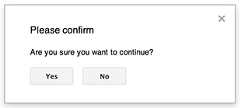
An alert is a prebuilt dialog that opens inside a Google Docs,Sheets, Slides, or Forms editor. Itdisplays a message and an "OK" button; a title and alternative buttons areoptional. It is similar to callingwindow.alert()in client-side JavaScript within a web browser.
Alerts suspend the server-side script while the dialog is open. The scriptresumes after the user closes the dialog, butJDBCconnections do not persist across the suspension.
As shown in the following example, Google Docs, Forms,Slides, and Sheets all use the methodUi.alert(), which is availablein three variants. To override the default "OK" button, pass a value from theUi.ButtonSet enum as thebuttonsargument. To evaluate which button the user clicked, compare the return valueforalert() to theUi.Button enum.
functiononOpen(){SpreadsheetApp.getUi()// Or DocumentApp or SlidesApp or FormApp..createMenu("Custom Menu").addItem("Show alert","showAlert").addToUi();}functionshowAlert(){varui=SpreadsheetApp.getUi();// Same variations.varresult=ui.alert("Please confirm","Are you sure you want to continue?",ui.ButtonSet.YES_NO,);// Process the user's response.if(result==ui.Button.YES){// User clicked "Yes".ui.alert("Confirmation received.");}else{// User clicked "No" or X in the title bar.ui.alert("Permission denied.");}}Prompt dialogs
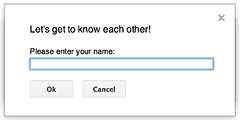
A prompt is a prebuilt dialog that opens inside a Google Docs,Sheets, Slides, or Forms editor. Itdisplays a message, a text-input field, and an "OK" button; a title andalternative buttons are optional. It is similar to callingwindow.prompt()in client-side JavaScript within a web browser.
Prompts suspend the server-side script while the dialog is open. The scriptresumes after the user closes the dialog, butJDBCconnections do not persist across the suspension.
As shown in the following example, Google Docs¸ Forms,Slides, and Sheets all use the methodUi.prompt(), which isavailable in three variants. To override the default "OK" button, pass a valuefrom theUi.ButtonSet enum as thebuttons argument. To evaluate the user's response, capture the return valueforprompt(), then callPromptResponse.getResponseText()to retrieve the user's input, and compare the return value forPromptResponse.getSelectedButton()to theUi.Button enum.
functiononOpen(){SpreadsheetApp.getUi()// Or DocumentApp or SlidesApp or FormApp..createMenu("Custom Menu").addItem("Show prompt","showPrompt").addToUi();}functionshowPrompt(){varui=SpreadsheetApp.getUi();// Same variations.varresult=ui.prompt("Let's get to know each other!","Please enter your name:",ui.ButtonSet.OK_CANCEL,);// Process the user's response.varbutton=result.getSelectedButton();vartext=result.getResponseText();if(button==ui.Button.OK){// User clicked "OK".ui.alert("Your name is "+text+".");}elseif(button==ui.Button.CANCEL){// User clicked "Cancel".ui.alert("I didn't get your name.");}elseif(button==ui.Button.CLOSE){// User clicked X in the title bar.ui.alert("You closed the dialog.");}}Custom dialogs
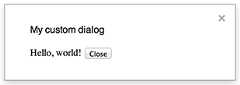
A custom dialog can display anHTML service userinterface inside a Google Docs, Sheets, Slides,or Forms editor.
Custom dialogs donot suspend the server-side script while the dialog is open.The client-side component can make asynchronous calls to the server-side scriptusing thegoogle.script API forHTML-service interfaces.
The dialog can close itself by callinggoogle.script.host.close()in the client side of an HTML-service interface. The dialog cannot be closed byother interfaces, only by the user or itself.
As shown in the following example, Google Docs, Forms,Slides, and Sheets all use the methodUi.showModalDialog()to open the dialog.
Code.gs
functiononOpen(){SpreadsheetApp.getUi()//OrDocumentApporSlidesApporFormApp..createMenu('Custom Menu').addItem('Show dialog','showDialog').addToUi();}functionshowDialog(){varhtml=HtmlService.createHtmlOutputFromFile('Page').setWidth(400).setHeight(300);SpreadsheetApp.getUi()//OrDocumentApporSlidesApporFormApp..showModalDialog(html,'My custom dialog');}
Page.html
Hello, world! <input type="button" value="Close" />
Custom sidebars

A sidebar can display anHTML service userinterface inside a Google Docs, Forms, Slides,and Sheets editor.
Sidebars donot suspend the server-side script while the dialog is open. Theclient-side component can make asynchronous calls to the server-side scriptusing thegoogle.script API forHTML-service interfaces.
The sidebar can close itself by callinggoogle.script.host.close()in the client side of an HTML-service interface. The sidebar cannot be closed byother interfaces, only by the user or itself.
As shown in the following example, Google Docs, Forms,Slides, and Sheets all use the methodUi.showSidebar() to openthe sidebar.
Code.gs
functiononOpen(){SpreadsheetApp.getUi()//OrDocumentApporSlidesApporFormApp..createMenu('Custom Menu').addItem('Show sidebar','showSidebar').addToUi();}functionshowSidebar(){varhtml=HtmlService.createHtmlOutputFromFile('Page').setTitle('My custom sidebar');SpreadsheetApp.getUi()//OrDocumentApporSlidesApporFormApp..showSidebar(html);}
Page.html
Hello, world! <input type="button" value="Close" />
File-open dialogs
Google Picker is a JavaScript API to let users select or uploadGoogle Drive files. The Google Picker library can be used inHTMLservice to create a custom dialog that lets usersselect existing files or upload new ones, then pass that selection back to yourscript for further use.
Requirements
There are several requirements for usingGoogle Picker withApps Script.
Set up your environmentfor Google Picker.
Your script project must use astandardGoogle Cloud project.
Note: The same Cloud project number should be passed toPickerBuilder.setAppId()if using thedrive.filescope.The Apps Scriptprojectmanifest must specify the authorizationscopes required by the Google Picker API so that
ScriptApp.getOAuthToken()returns the correct token forPickerBuilder.setOauthtoken().The API key set in
PickerBuilder.setDeveloperKey()can be restricted to Apps Script. UnderApplicationrestrictions, complete the following steps:- SelectHTTP referrers (web sites).
- UnderWebsite restrictions, clickAdd an item.
- ClickReferrer and enter
*.google.com. - Add another item and enter
*.googleusercontent.comas the referrer. - ClickDone.
You must call
PickerBuilder.setOrigin(google.script.host.origin).
Example
The following example shows Google Picker in Apps Script.
code.gs
/** * Creates a custom menu in Google Sheets when the spreadsheet opens. */functiononOpen(){SpreadsheetApp.getUi().createMenu("Picker").addItem("Start","showPicker").addToUi();}/** * Displays an HTML-service dialog in Google Sheets that contains client-side * JavaScript code for the Google Picker API. */functionshowPicker(){consthtml=HtmlService.createHtmlOutputFromFile("dialog.html").setWidth(800).setHeight(600).setSandboxMode(HtmlService.SandboxMode.IFRAME);SpreadsheetApp.getUi().showModalDialog(html,"Select a file");}// Ensure the Drive API is enabled.if(!Drive){thrownewError("Please enable the Drive advanced service.");}/** * Checks that the file can be accessed. * @param {string} fileId The ID of the file. * @return {Object} The file resource. */functiongetFile(fileId){returnDrive.Files.get(fileId,{fields:"*"});}/** * Gets the user's OAuth 2.0 access token so that it can be passed to Picker. * This technique keeps Picker from needing to show its own authorization * dialog, but is only possible if the OAuth scope that Picker needs is * available in Apps Script. In this case, the function includes an unused call * to a DriveApp method to ensure that Apps Script requests access to all files * in the user's Drive. * * @return {string} The user's OAuth 2.0 access token. */functiongetOAuthToken(){returnScriptApp.getOAuthToken();}
dialog.html
<!DOCTYPE html><html> <head> <link rel="stylesheet" href="https://ssl.gstatic.com/docs/script/css/add-ons.css" /> <style> #result { display: flex; flex-direction: column; gap: 0.25em; } pre { font-size: x-small; max-height: 25vh; overflow-y: scroll; background: #eeeeee; padding: 1em; border: 1px solid #cccccc; } </style> <script> // TODO: Replace the value for DEVELOPER_KEY with the API key obtained // from the Google Developers Console. const DEVELOPER_KEY = "AIza..."; // TODO: Replace the value for CLOUD_PROJECT_NUMBER with the project // number obtained from the Google Developers Console. const CLOUD_PROJECT_NUMBER = "1234567890"; let pickerApiLoaded = false; let oauthToken; /** * Loads the Google Picker API. */ function onApiLoad() { gapi.load("picker", { callback: function () { pickerApiLoaded = true; }, }); } /** * Gets the user's OAuth 2.0 access token from the server-side script so that * it can be passed to Picker. This technique keeps Picker from needing to * show its own authorization dialog, but is only possible if the OAuth scope * that Picker needs is available in Apps Script. Otherwise, your Picker code * will need to declare its own OAuth scopes. */ function getOAuthToken() { google.script.run .withSuccessHandler((token) => { oauthToken = token; createPicker(token); }) .withFailureHandler(showError) .getOAuthToken(); } /** * Creates a Picker that can access the user's spreadsheets. This function * uses advanced options to hide the Picker's left navigation panel and * default title bar. * * @param {string} token An OAuth 2.0 access token that lets Picker access the * file type specified in the addView call. */ function createPicker(token) { document.getElementById("result").innerHTML = ""; if (pickerApiLoaded && token) { const picker = new google.picker.PickerBuilder() // Instruct Picker to display only spreadsheets in Drive. For other // views, see https://developers.google.com/picker/reference/picker.viewid .addView( new google.picker.DocsView( google.picker.ViewId.SPREADSHEETS ).setOwnedByMe(true) ) // Hide the navigation panel so that Picker fills more of the dialog. .enableFeature(google.picker.Feature.NAV_HIDDEN) // Hide the title bar since an Apps Script dialog already has a title. .hideTitleBar() .setOAuthToken(token) .setDeveloperKey(DEVELOPER_KEY) .setAppId(CLOUD_PROJECT_NUMBER) .setCallback(pickerCallback) .setOrigin(google.script.host.origin) .build(); picker.setVisible(true); } else { showError("Unable to load the file picker."); } } /** * @typedef {Object} PickerResponse * @property {string} action * @property {PickerDocument[]} docs */ /** * @typedef {Object} PickerDocument * @property {string} id * @property {string} name * @property {string} mimeType * @property {string} url * @property {string} lastEditedUtc */ /** * A callback function that extracts the chosen document's metadata from the * response object. For details on the response object, see * https://developers.google.com/picker/reference/picker.responseobject * * @param {PickerResponse} data The response object. */ function pickerCallback(data) { const action = data[google.picker.Response.ACTION]; if (action == google.picker.Action.PICKED) { handlePicked(data); } else if (action == google.picker.Action.CANCEL) { document.getElementById("result").innerHTML = "Picker canceled."; } } /** * Handles `"PICKED"` responsed from the Google Picker. * * @param {PickerResponse} data The response object. */ function handlePicked(data) { const doc = data[google.picker.Response.DOCUMENTS][0]; const id = doc[google.picker.Document.ID]; google.script.run .withSuccessHandler((driveFilesGetResponse) => { // Render the response from Picker and the Drive.Files.Get API. const resultElement = document.getElementById("result"); resultElement.innerHTML = ""; for (const response of [ { title: "Picker response", content: JSON.stringify(data, null, 2), }, { title: "Drive.Files.Get response", content: JSON.stringify(driveFilesGetResponse, null, 2), }, ]) { const titleElement = document.createElement("h3"); titleElement.appendChild(document.createTextNode(response.title)); resultElement.appendChild(titleElement); const contentElement = document.createElement("pre"); contentElement.appendChild( document.createTextNode(response.content) ); resultElement.appendChild(contentElement); } }) .withFailureHandler(showError) .getFile(data[google.picker.Response.DOCUMENTS][0].id); } /** * Displays an error message within the #result element. * * @param {string} message The error message to display. */ function showError(message) { document.getElementById("result").innerHTML = "Error: " + message; } </script> </head> <body> <div> <button>Select a file</button> <div></div> </div> <script src="https://apis.google.com/js/api.js?onload=onApiLoad"></script> </body></html>appsscript.json
{"timeZone":"America/Los_Angeles","exceptionLogging":"STACKDRIVER","runtimeVersion":"V8","oauthScopes":["https://www.googleapis.com/auth/script.container.ui","https://www.googleapis.com/auth/drive.file"],"dependencies":{"enabledAdvancedServices":[{"userSymbol":"Drive","version":"v3","serviceId":"drive"}]}}
Except as otherwise noted, the content of this page is licensed under theCreative Commons Attribution 4.0 License, and code samples are licensed under theApache 2.0 License. For details, see theGoogle Developers Site Policies. Java is a registered trademark of Oracle and/or its affiliates.
Last updated 2025-12-11 UTC.