
OAuth Client Verification

Page Summary
Google requires verification for Google OAuth clients requesting certain sensitive OAuth scopes, though Apps Script projects within the same Google Workspace domain or customer are exempt.
Unverified Apps Script projects using sensitive scopes and accessed by users outside the domain will display an "unverified app" screen and have a cap on the number of unverified users.
Verifying your app with Google removes the unverified app screen and the user cap, building user confidence.
To request verification, you need a website on a verified domain hosting publicly-accessible information about your app and privacy policy, along with a standard Google Cloud project you have edit access for.
The verification process involves completing the OAuth consent screen in your app's Google Cloud project with details like application name, logo, support email, scopes, authorized domains, and homepage and privacy policy URLs.
Google OAuth clients that request certain sensitive OAuth scopes aresubject to verification by Google.
Note: Verification isnot required for Apps Script projectswhose owner and users belong to the same Google Workspace domain or customer.If you don't verify your script project's OAuth client, users outside yourdomain see anunverified app screen when they try to authorize your script.Anunverified authorization flow allows these users to authorize unverifiedapps and use them, but only after confirming they understand the risks. Thetotal number of unverified app users is also capped.
For more information, see the following articles:
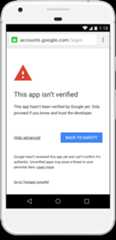
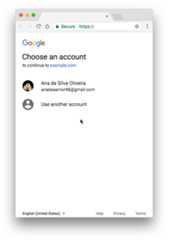
This change applies to Google OAuth web clients, including those used by allApps Script projects. Byverifying your app with Google,you can remove the unverified app screen from your authorization flow andgive your users confidence that your app is non-malicious.
Unverified apps
Add-ons, web apps, and other deployments (such as apps that use theApps Script API) may need verification.
Note: Add-ons are no longer verified as part of theadd-on review process, andmust be verified prior to publishing an add-on.Applicability
If the app uses sensitive OAuth scopes, the unverified app screen may appearas part of the authorization flow. Its presence (and the resulting unverifiedapp authorization flow) depends on what account the app is published from andwhat account is attempting to use the app. For example, apps publishedinternally within a specific Google Workspace organization don't result in theunverified app authorization flow for accounts in that domain, even if the apphasn't been verified.
The following table illustrates what situations result in the unverified appauthorization flow:
| Client is verified | Publisher is a Google Workspace account of customer A | Script is in a shared drive of customer A | Publisher is a Gmail account | |
|---|---|---|---|---|
| User is a Google Workspace account of customer A | Normal auth flow | Normal auth flow | Normal auth flow | Unverified auth flow |
| User is a Google Workspace accountnot of customer A | Normal auth flow | Unverified auth flow | Unverified auth flow | Unverified auth flow |
| User is a Gmail account1 | Normal auth flow | Unverified auth flow | Unverified auth flow | Unverified auth flow |
1Any Gmail account, including the account used topublish the app.
User cap
The number of users who can authorize an app via the unverified app flow iscapped to limit possible abuse. SeeOAuth application user limitsfor details.
Requesting verification
You can request a verification of the OAuth client used by your app and itsassociatedCloud Platform (GCP) project.Once your app is verified, your users will no longer see the unverified appscreen. In addition, your app will no longer be subject to theuser cap.
Requirements
In order to submit your OAuth client for verification, you must satisfy thefollowing requirements:
You must own a web site on a domain. The site must host publicly-accessiblepages that describe your app and its privacy policy. You must alsoverify your ownership of the site with Google.
Note: You do not need to publish your app from an account in thisdomain, but the domain owner must be an editor or owner of the scriptproject.TheGoogle Cloud projectyour script project uses must be astandard Google Cloud projectthat you have edit access for. If your script is using its default Google Cloud project, you mustswitch to a standard Google Cloud project.
In addition, you must have the followingrequired assets:
- Application name. The name of the app; this is displayed on the consentscreen. It should match the name used for the app in other locations, suchas theGoogle Workspace Marketplacelisting for published apps.
- Application logo. A app logo JPEG, PNG, or BMP image to use in theconsent screen. Its file size must be 1MB or less.
- Support email. This is an email displayed on the consent screen forusers to contact if they need app support. It can be your email address ora Google Group that you own or manage.
- Scopes. The list of all thescopes yourapp uses. You canview your scopesin the Apps Script editor.
- Authorized domains. This is a list of domains containing informationabout your app. All your application's links (such as its required privacypolicy page) must be hosted on authorized domains.
- Application homepage URL. The location of a homepage describing yourapp. This location must hosted on an authorized domain.
- Application privacy policy URL. The location of a page describing yourapp's privacy policy. This location must be hosted on an authorized domain.
In addition to the above required assets, you can optionally provide anApplication terms of service URL that points to a page describing yourapp's terms of service. If provided, this location must be in an authorizeddomain.
Steps
- If you have not done so already,verify ownership of all the authorized domains you use to host your script project's privacy policy and other information. The verified owners of the domains must be editors or the owner of the script project.
- In the Apps Script project, clickOverview. UnderProject OAuth Scopes, copy the scopes that your script project uses.
Complete the OAuth consent screen for your application'sGoogle Cloud project using the text and URL assets you collected.
- List theAuthorized domains where your app'sinformation (such as its privacy policy) are hosted.
To add your application scopes, clickAdd or Remove Scopes. The resulting dialog attempts to autodetect scopes for APIs you've enabled in the Google Cloud console (such asadvanced services). You can select scopes from this list by checking the corresponding boxes.
This autodetected list doesn't always include scopes used by Apps Scriptbuilt-in services. You must enter these scopes underManually add scopes.
When you're done, clickUpdate.
When you've entered all the required information, clickSave.
ClickSubmit for verification to start a verification request.
Most verification requests receive a response within 24 to 72 hours.You can check theVerification status at the top of the OAuth consentscreen form. When verification of your OAuth client is confirmed, your app isverified.
Note: If your app is verified and later you decide toswitch to another Google Cloud project,you must repeat these steps to keep the app verified.Except as otherwise noted, the content of this page is licensed under theCreative Commons Attribution 4.0 License, and code samples are licensed under theApache 2.0 License. For details, see theGoogle Developers Site Policies. Java is a registered trademark of Oracle and/or its affiliates.
Last updated 2025-12-11 UTC.