
Enroll and provision a device

Page Summary
Provisioning sets up a device for management using policies by an enterprise, installing Android Device Policy, and creates a device object binding it to an enterprise.
Enrollment tokens trigger the provisioning process and determine device ownership and management mode (work profile or fully managed).
Personally-owned devices use a work profile to separate work and personal data and apps, with management policies primarily applying to the work profile.
Company-owned devices can be set up with a work profile for mixed use or fully managed for work-only use, including the option for dedicated devices locked to specific apps.
Various provisioning methods are available depending on device ownership and management intent, including adding a work profile from settings, using enrollment token links, QR codes, NFC, DPC identifiers, and zero-touch enrollment.
Provisioning is the process of setting up a device to be managed usingpolicies by anenterprise. During the process a device installsAndroid Device Policy, which is used to receive and enforcepolicies. Ifprovisioning is successful, the API creates adevices object, binding thedevice to an enterprise.
Android Management API uses enrollment tokens to trigger the provisioningprocess. The enrollment token and provisioning method you use establishes adevice's ownership (personally-owned or company-owned) and management mode (workprofile or fully managed device).
Aquota system controls how many devices each project canmanage. You mustrequest initial device quota before you can provisionyour first device.
Personally-owned devices
Android 5.1+
Devices owned by employees can be set up with awork profile. A work profileprovides a self-contained space for work apps and data, separate from personalapps and data. Most app, data, and other managementpolicies apply to thework profile only, while the employee's personal apps and data remain private.
To set up a work profile on a personally-owned device,create an enrollmenttoken (ensureallowPersonalUsage is set toPERSONAL_USAGE_ALLOWED) and use one of the following provisioning methods:
Company-owned devices for work and personal use
Android 8+
Setting up a company-owned device with awork profile enables the device forboth work and personal use. On company-owned devices with work profiles:
- Most app, data, and other management
policiesapply to the work profileonly. - The employee's personal profile remains private. However, enterprises canenforce certaindevice-wide policies andpersonal usage policies.
- Enterprises can use
blockScopeto enforce compliance actions on anentire device or only its work profile. devices.deleteanddevice commands apply to an entire device.
To set up a company-owned device with a work profile,create an enrollmenttoken (ensureallowPersonalUsage is set toPERSONAL_USAGE_ALLOWED) and use one of thefollowing provisioning methods:
Company-owned devices for work use only
Android 5.1+
Full device management is suitable for company-owned devices intendedexclusively for work purposes. Enterprises can manage all apps on the device andcan enforce the full spectrum of Android Management API policies and commands.
It's also possible to lock a device down (via policy) to a single app orsmall set of apps to serve a dedicated purpose or use case. This subset of fullymanaged devices is referred to asdedicated devices. Enrollment tokens forthese devices must haveallowPersonalUsage set toPERSONAL_USAGE_DISALLOWED_USERLESS.
To set up full management on a company-owned device, create an enrollment token,ensuringallowPersonalUsage is set toPERSONAL_USAGE_DISALLOWEDorPERSONAL_USAGE_DISALLOWED_USERLESS,and use one of the following provisioning methods.
- Zero-touch enrollment
- QR code
- Sign-in URL (not suitable for dedicated devices)
- NFC
- DPC identifier
Policies can impact the generation of the UI during device provisioning.Such policies are:
PasswordPolicyScope:This determines password requirements.PermittedInputMethods:This determines package input methods.PermittedAccessibilityServices:This determines which accessibility services are permitted for fully manageddevices and work profile.SetupActions:This determines what actions are executed during setup.ApplicationsPolicy:This determines the policy for an individual app.
If you want for password steps to be shown alongside installation of work appsand device register cards during device provisioning, we suggest updating yourpolicies to delay initiation of the UI generation by keeping the device in aquarantine state, which occurs if enrolled without an associated policy,until specifying the final selected policy for device setup populated with itemsrelevant to your setup needs. Once provisioning of the device has beencompleted, you canchange the policy asrequired.
Create an enrollment token
Note: If you're provisioning a device from a sign-in URL, you need to create anenrollment token differently. SeeSign-in URL for details.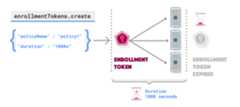
You need an enrollment token for each device that you want to enroll (you canuse the same token for multiple devices). To request an enrollment token, callenterprises.enrollmentTokens.create. Enrollment tokens expire after onehour by default, but you can specify acustom expiration time (duration)up to approximately 10,000 years.
A successful request returns anenrollmentToken object containing anenrollmentTokenId and aqrcode that IT admins and end users can use toprovision devices.
Specify a policy
You might also want to specify apolicyName in the request to apply a policyat the same time a device is enrolled. If you don't specify apolicyName, seeEnroll a device without a policy.
Specify personal usage
allowPersonalUsage determines if a work profile can be added to the deviceduring provisioning. Set toPERSONAL_USAGE_ALLOWED to allow a user to create awork profile (required for personally-owned devices, optional for company-owneddevices).
About QR Codes
QR codes work as an efficient device provisioning method for enterprises thatmaintain many different policies. The QR Code returned fromenterprises.enrollmentTokens.create is made up of a payload of key-value pairscontaining an enrollment token and all the information that's needed for AndroidDevice Policy to provision a device.
Example QR Code bundle
Note: When pasting theqrCode string, make sure to remove all escape '\'characters.The bundle includes the download location of Android Device Policy and anenrollment token.
{"android.app.extra.PROVISIONING_DEVICE_ADMIN_COMPONENT_NAME":"com.google.android.apps.work.clouddpc/.receivers.CloudDeviceAdminReceiver","android.app.extra.PROVISIONING_DEVICE_ADMIN_SIGNATURE_CHECKSUM":"I5YvS0O5hXY46mb01BlRjq4oJJGs2kuUcHvVkAPEXlg","android.app.extra.PROVISIONING_DEVICE_ADMIN_PACKAGE_DOWNLOAD_LOCATION":"https://play.google.com/managed/downloadManagingApp?identifier=setup","android.app.extra.PROVISIONING_ADMIN_EXTRAS_BUNDLE":{"com.google.android.apps.work.clouddpc.EXTRA_ENROLLMENT_TOKEN":"{enrollment-token}"}}You can use the QR Code returned fromenterprises.enrollmentTokens.createdirectly or customize it. For a full list of properties that you can include ina QR Code bundle, seeCreate a QR Code.
To convert theqrcode string into a scannable QR Code, use a QR Code generatorsuch asZXing.
Provisioning methods
This section describes different methods for provisioning a device.
Add work profile from "Settings"
Android 5.1+
Note: This method requires Google Play services to be up-to-date; if a devicehas just been reset, the user may need to update Google Play services beforetrying to add a work profile.To set up a work profile on their device, a user can:
- Go toSettings >Google >Set up & restore.
- TapSet up your work profile.
These steps initiate a setup wizard that downloads Android Device Policy on thedevice. Next, the user will be prompted to scan aQR code ormanually enter an enrollment token to complete the work profile setup.
Download Android Device Policy
Android 5.1+
To set up a work profile on their device, a user can downloadAndroid DevicePolicy from the Google Play Store. After the app is installed,the user will be prompted toQR code or manually enter anenrollment token to complete the work profile setup.
Enrollment token link
Android 5.1+
Note: This method requires Google Play services to be up-to-date; if a devicehas just been reset, the user may need to update Google Play services beforetrying to add a work profile.Using the enrollment token returned fromenrollmentTokens.create or theenterprise'ssigninEnrollmentToken,generate a URL with the following format:
https://enterprise.google.com/android/enroll?et=<enrollmentToken>You can provide this URL to IT admins, who can provide it to their end users.When an end user opens the link from their device, they will be guided throughthe work profile setup.
Sign-in URL
With this method, users are directed to a page to enter any additionalinformation required to complete provisioning. Based on the information the userenters, you can calculate the appropriate policy for the user before proceedingwith device provisioning. For example:
Specify your sign-in URL in
enterprises.signInDetails[]. SetallowPersonalUsagetoPERSONAL_USAGE_ALLOWEDif you want to allow a userto create a work profile (required for personally-owned devices, optionalfor company-owned devices).Add the resulting
signinEnrollmentTokenas provisioning extra to aQRcode,NFC payload, orZero-touchconfiguration. Alternatively, you can provide thesigninEnrollmentTokento users directly.Choose an option:
- Company-owned devices: After turning on a new or factory-resetdevice, pass the
signinEnrollmentTokento the device (via QR Code, NFCbump, etc.) or ask users need to enter the token manually. The device willopen the sign-in URL specified in Step 1. - Personally-owned devices: Ask users toadd a work profile from"Settings". When prompted, the userscans a QR Code containing the
signinEnrollmentTokenor enters thetoken manually. The device will open the sign-in URL specified in Step1. - Personally-owned devices: Provide users with anenrollment tokenlink, where the enrollment token is the
signinEnrollmentToken. The device will open the sign-in URL specifiedin Step 1.
- Company-owned devices: After turning on a new or factory-resetdevice, pass the
Check whether Google has already authenticated the user. Get the deviceprovisioning information (during device enrollment) using the GET parameter
provisioningInfoand check for a value for the fieldauthenticatedUserEmail. If there is a value in this field, the user wasalready successfully authenticated by Google and you can use this identitywithout further authentication.If Google has not already authenticated the user then your sign-in URLshould prompt users to enter their credentials. Based on their identity, youcan determine the appropriate policy and get the device provisioninginformation (during device enrollment) using the GET parameter
Best practice: Use the organization's SSOprovider to authenticate the credentials your users enter in thesign-in URL (or any subsequent redirects). Sign-in URLs are opened in aChrome Custom Tab, and users' SSO are saved for future app sign-in usingApp Auth.provisioningInfo.Call
Note: TheenrollmentTokens.create, specifying the appropriatepolicyIdbased on the user's credentials.allowPersonalUsagefield is ignored because the value wasalready specified inenterprises.signInDetails[]. It isn't possibleto change the personal usage value during enrollment.Return the enrollment token generated in Step 5 using URL redirect, in theform
Note: If a user isn't permitted to complete the provisioning process, youcan display custom error screens and redirect tohttps://enterprise.google.com/android/enroll?et=<token>.https://enterprise.google.com/android/enroll/invalidto help the userreset their device.
QR Code method
Android 7.0+
To provision a company-owned device, you cangenerate a QRcode and display it in your EMM console:
- On a new or factory-reset device, the user (typically an IT admin) taps thescreen six times in the same spot. This triggers the device to prompt theuser to scan a QR Code.
- The user scans the QR Code that you display in your management console (orsimilar application) to enroll and provision the device.
NFC method
Android 6.0+
Note: Devices must have NFC enabled. The NFC provisioning method only supportsfull device management provisioning and cannot be used for company-owned,personally enabled (COPE) provisioning on Android 11 devices.This method requires you to create an NFC programmer app that contains theenrollment token, initial policies and Wi-Fi configuration, settings, and allother provisioning details required by your customer to provision a fullymanaged or dedicated device. When you or your customer installs the NFCprogrammer app on an Android-powered device, that device becomes the programmerdevice.
Detailed guidance on how to support the NFC method is available in thePlay EMMAPI developerdocumentation. The site also includessample code of the defaultparameters pushedto a device on an NFC bump. To install Android Device Policy, set the downloadlocation of the device admin package to:
https://play.google.com/managed/downloadManagingApp?identifier=setupDPC identifier method
If Android Device Policy can't be added using QR Code or NFC, a user or IT admincan follow these steps to provision a company-owned device:
- Follow the setup wizard on a new or factory-reset device.
- Enter Wifi login details to connect the device to the internet.
- When prompted to sign in, enterafw#setup, which downloads AndroidDevice Policy.
- Scan aQR code or manually enter an enrollment token toprovision the device.
Zero-touch enrollment
Android 8.0+ (Pixel 7.1+)
Devices purchased from anauthorized zero-touch reseller are eligible forzero-touch enrollment, a streamlined method for preconfiguring devices toprovision themselves automatically on first boot.
Organizations can create configurations containing provisioning details fortheir zero-touch devices, either through thezero-touch enrollment portalor using your EMM console (see thezero-touch customer API). On firstboot, a zero-touch device checks if it's been assigned a configuration. If so,the device downloads Android Device Policy, which then completes setup of thedevice using the provisioning extras specified in its assigned configuration.
If your customers use thezero-touch enrollment portal, they need toselectAndroid Device Policy as the EMM DPC for each configuration theycreate. Detailed instructions on how to use the portal, including how to createand assign configurations to devices, are available in theAndroid Enterprisehelp center.
If you prefer your customers to set and assign configurations directly from yourEMM console, you need to integrate with thezero-touch customer API. Whencreating a configuration, you specify provisioning extras in thedpcExtras field. The following JSON snippet shows a basic example of what toinclude indpcExtras, with an added sign-in token.
{"android.app.extra.PROVISIONING_DEVICE_ADMIN_COMPONENT_NAME":"com.google.android.apps.work.clouddpc/.receivers.CloudDeviceAdminReceiver","android.app.extra.PROVISIONING_DEVICE_ADMIN_SIGNATURE_CHECKSUM":"I5YvS0O5hXY46mb01BlRjq4oJJGs2kuUcHvVkAPEXlg","android.app.extra.PROVISIONING_ADMIN_EXTRAS_BUNDLE":{"com.google.android.apps.work.clouddpc.EXTRA_ENROLLMENT_TOKEN":"{Sign In URL token}"}}Launch an app during setup
setupActions to launch an app during setup.Inpolicies, you can specify one app for Android Device Policy to launchduring device or work profile setup. For example, you could launch a VPN app sousers can configure VPN settings as part of the setup process. The app mustreturnRESULT_OK to signal completion and allow Android Device Policy tocomplete device or work profile provisioning. To launch an app during setup:
Ensure the app'sinstallType isREQUIRED_FOR_SETUP. If the app can't beinstalled or launched on the device, provisioning will fail.
{"applications":[{"packageName":"com.my.vpnapp.","installType":"REQUIRED_FOR_SETUP"}]}Add the app's package name tosetupActions. Usetitle anddescription tospecify user-facing instructions.
{"setupActions":[{"title":{"defaultMessage":"Configure VPN"},"description":{"defaultMessage":"Enable your VPN client to access corporate resources."},"launchApp":{"packageName":"com.my.vpnapp."}}]}To distinguish that an app is launched fromlaunchApp, the activity that'sfirst launched as part of the app contains the boolean intent extracom.google.android.apps.work.clouddpc.EXTRA_LAUNCHED_AS_SETUP_ACTION (set totrue). This extra lets you customize your app based on whether it'slaunched fromsetupActions or by a user.
After the app returnsRESULT_OK, Android Device Policy completes any remainingsteps required to provision the device or work profile.
Cancel enrollment during setup
The app launched asSetupAction can cancel enrollment returningRESULT_FIRST_USER.
Canceling the enrollment resets a company-owned device or deletes the workprofile on a personally-owned device.
Note: Canceling the enrollment triggers the action without a userconfirmation dialog. It is the responsibility of the app to show an appropriateerror dialog to the user prior to returningRESULT_FIRST_USER.
Apply a policy to newly enrolled devices
The method you use to apply policies to newly enrolled devices is up to you andthe requirements of your customers. Here are the different approaches you canuse:
(Recommended) Whencreating an enrollment token, you can specifythe name of the policy (
policyName) that will be initially linked to thedevice. When you enroll a device with the token, the policy is automaticallyapplied to the device.Set a policy as the default policy for an enterprise. If no policy name isspecified in the enrollment token and there is a policy with the name
enterprises/<enterprise_id>/policies/default, each new device isautomatically linked to the default policy at the time of enrollment.Subscribe to a Cloud Pub/Sub topic toreceive notifications about newly enrolled devices. In response to an
ENROLLMENTnotification, callenterprises.devices.patchtolink the device with a policy.
Enroll a device without a policy
If a device is enrolled without a valid policy, then the device is placed intoquarantine. Quarantined devices are blocked from all device functions untilthe device is linked to a policy.
If a device is not linked to a policy in five minutes, then device enrollmentfails and the device is factory reset. The quarantine device state gives you theopportunity to implement licensing checks or other enrollment validationprocesses as part of your solution.
Example licensing check workflow
- A device is enrolled without a default policy or specific policy.
- Check how many licenses the enterprise has remaining.
- If there are licenses available, use
devices.patchto attach apolicy to the device, and then decrement your license count. If there are nolicenses available, usedevices.patchto disable the device.Alternatively, the API factory resets any device that is not attached to apolicy within five minutes of enrollment.
Except as otherwise noted, the content of this page is licensed under theCreative Commons Attribution 4.0 License, and code samples are licensed under theApache 2.0 License. For details, see theGoogle Developers Site Policies. Java is a registered trademark of Oracle and/or its affiliates.
Last updated 2025-10-29 UTC.