
Lost Mode

Page Summary
Lost mode allows employers to remotely lock and secure company-owned devices and display contact information to aid recovery.
Lost mode is recommended for potential device recovery, while wiping the device is recommended if recovery is unlikely after 24 hours in lost mode.
To start lost mode, issue a
START_LOST_MODEcommand providing at least a lost message, phone number, email, or street address.Lost mode has two states: an initial "Alert State" where the device rings, followed by a "Lost State" where the device stops ringing and sends location updates.
To stop lost mode, issue a
STOP_LOST_MODEcommand or enter the device password manually.
Lost mode is a feature available on company-owned devices, allowing employers toremotely lock and secure a lost device and optionally to display a message onthe device screen with contact information for the employee or IT department.This helps protect organization and employee data while attempting to recoverthe device, and may improve the likelihood of recovery.
Note: Lost mode is helpful when there is the chance the device may berecovered, because when recovered the device can be used for work immediately,with no loss of data and no need to re-provision the device. While we recommendthat you first use lost mode to try to recover the device, if after activatinglost mode for at least 24 hours you still haven't recovered the device, werecommend remotely wiping the device to provide the strongest protections forwork data.
Prerequisites
A device must be company-owned; work profile issupported on Android 13 and above, and fully managed devices on Android 11 andabove.
Start Lost Mode
To put a device into lost mode, issue a command to a device with the commandtypeSTART_LOST_MODE.At least one of the following details must be provided with the command:
- Lost message
- Phone number
- Email address
- Street address
Optionally, the IT admin can choose to provide the following:
- Organization name
Example:
command_body='''{ "type": "START_LOST_MODE", "startLostModeParams": { "lostOrganization": { "defaultMessage": "Example Organisation", "localizedMessages":{ "en-US": "Example Organisation" } }, "lostStreetAddress": { "defaultMessage": "1800 Amphibious Blvd. Mountain View, CA 94045", "localizedMessages":{ "en-US": "1800 Amphibious Blvd. Mountain View, CA 94045" } } }}'''androidmanagement.enterprises().devices().issueCommand(name='enterprises/{}/devices/{}'.format(enterprise_id,device_id),body=json.loads(command_body)).execute()
Once successfully placed into lost mode, the device is locked, all apps areblocked, and the device'sDeviceState is changed toLOST.
A device cannot be placed into lost mode if:
- The device is not anorganization-owned device
- The device is already in lost mode
- The device password has been reset by an IT admin in the last 12 hours
- The employee manually exited lost mode in the last 12 hours
- It is awork profile on a company-owned deviceand the work profile is paused
Note: Lost mode is supported in direct boot mode.
Alert State
This is the first state a device enters when put into lost mode. In this state,the device rings for up to 5 minutes, giving the user an opportunity to findtheir device and take the device out of lost mode. The location of the device isnot reported during this time.
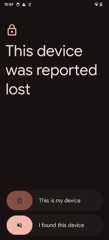
If the device is accessed in the alert state, two options are presented:
- This is my device - allows the employee to enter their password and takethe device out of lost mode. If this occurs before the 5 minute period ends,no location data is sent from the device to the admin.
- I found this device - enables someone other than the employee to stopthe device ringing. This moves the device into the lost state.
Note: The device location is only shared with the admin after the 5 minuteshas elapsed.
Lost State
In this state the device stops ringing and sends location updates every minute.Location updates are sent asusagelogs,to which an EMM can subscribe usingpub/subnotifications.
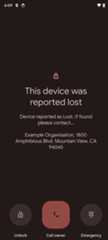
If the device is accessed in the lost state, up to three options are shown:
- Unlock - allows the employee to enter their passcode and take the deviceout of lost mode.
- Call owner - starts a phone call to the number provided in the startlost mode parameters. This option is hidden if no phone number is provided.
- Emergency - allows access to the emergency dialer.
Stop Lost Mode
To take a device out of lost mode, issue a command to a device with the commandtypeSTOP_LOST_MODE.Unlike the start lost mode command, no additional information needs to beprovided. The device can also be taken out of lost mode manually by providingthe device password.
Example:
command_body='''{ "type": "STOP_LOST_MODE", "stopLostModeParams": {}}'''androidmanagement.enterprises().devices().issueCommand(name='enterprises/{}/devices/{}'.format(enterprise_id,device_id),body=json.loads(command_body)).execute()
When the device is successfully taken out of lost mode, all apps on the deviceare unblocked and the employee can use the device as normal. The device'sapplied state resets to the state the device was in before lost mode.
Pub/sub notifications
To receive lost mode messages, like confirmation of a device entering or exitinglost mode, you must enable and subscribe an enterprise to theCOMMAND andUSAGE_LOGSnotification types.
TheCOMMAND pub/sub provides information on the following events:
StartLostModeStatus-indicates that the admin has successfully put the device into lost mode.StopLostModeStatus-indicates that the admin has successfully taken the device out of lost mode.
TheUSAGE_LOGS pub/sub provides information on the following events:
LostModeLocationEvent-there is a location and battery update.StopLostModeUserAttemptEvent-if someone tries to take a device out of lost mode, either successfully or unsuccessfully.LostModeOutgoingPhoneCallEvent-if someone makes an outgoing phone call.
Note: Actions executed by the admin trigger notifications in theCOMMANDpub/sub. Actions executed by the employee trigger notifications in theUSAGE_LOGS pub/sub.
Except as otherwise noted, the content of this page is licensed under theCreative Commons Attribution 4.0 License, and code samples are licensed under theApache 2.0 License. For details, see theGoogle Developers Site Policies. Java is a registered trademark of Oracle and/or its affiliates.
Last updated 2024-10-31 UTC.