
Distribute Apps

Page Summary
Managed Google Play Store allows installing Android apps on devices via policy using the app's package name.
Closed testing enables organizations to test pre-release app versions with targeted enterprises before wider distribution.
The managed Google Play iframe can be embedded in an EMM console to provide a unified interface for managing apps, including searching, publishing private and web apps, and organizing apps into collections.
The iframe supports various features like searching for apps, managing private apps, publishing website shortcuts as web apps, and organizing apps into collections displayed in the user's Play Store.
You can upload your own apps to the Google Play Store and restrict their availability to a single enterprise if desired.
The following sections will provide you useful information about thedistribution of apps in the managed Google Play Store.
Install apps
You can install Android apps from the Google Play Store on devices usingthe policy. To use this feature, you need to know the package name of theapp you want to install. To find the app's package name you havetwo options:
The app's package name is in the URL of the Google Play Store page.For example, the URL of the Google Chrome app page is
https://play.google.com/store/apps/details?id=com.android.chrome
com.android.chrome.You can embed themanaged Google Play iframein your EMM console to allow your customers to browse theGoogle Play Store. When your customer selects an app in the iframe yourEMM console receives the package name in the event.
You can then add the app in thedevice's policy:
"applications":[{"installType":"FORCE_INSTALLED","packageName":"com.android.chrome",},],When you apply the policy to a device, the app will either be installed on thedevice or added to the managed Google Play Store on the device.
Distribute apps for closed testing
In the Play Console, app developers can create a closed release (closed track)to test pre-release versions of their app with a set of testers. This is calledclosed testing. Supporting closed track distribution lets organizations testthird-party apps, as well as any private apps they develop in-house.
Whensetting up a closed test in the Play Console, app developerscan target up to 100 organizations(enterprises).You can use the Android Management API to retrieve the closed trackstargeted to an enterprise, and distribute these closed tracks to devicesusing thepolicy.
Apps eligible for closed testing
Before setting up a closed test, app developers must ensure that their app meetsthe following requirements:
- A production version of the app is published on Google Play (or managed GooglePlay, for private apps)
- In the Google Play Console,Managed Google Play is enabled in the app'sAdvanced Settings page.
- Any closed versions of the app meetversion code requirements.
Add an enterprise to closed tests
Whensetting up a closed test, app developers can grant anorganization access to closed tests by adding their Organization ID. Yourcustomers can locate their Organization ID using these instructions:
- Sign in tomanaged Google Play using anadministrator account.
- ClickAdmin Settings.
- Copy the Organization ID string from the Organization information box andsend it to the developer.
For private apps, the developer also needs to add the Organization ID of eachparticipating enterprise in theManaged Google Play tab of the app'sAdvanced Settings page. For instructions, seePublish private apps from the Play Console.
Distribute closed tracks to users
To retrieve a list of tracks available to an enterprise for a specified app,callenterprises.applications.TheappTrackInfo[] list included in the response contains the following forgiven apps:
trackId: The track’s unique identifier, taken from thereleaseTrackIdinthe URL of the page in the Play Console that displays the app's trackinformation.trackAlias: The human-readable name for the track, which is modifiable inthe Play Console.
To install a closed track on a user's device, specify theaccessibleTrackIdsin theirdevice's policy:
"applications":[{"installType":"AVAILABLE","packageName":"com.google.android.gm","accessibleTrackIds":["123456","789101"]},],If a policy contains multiple tracks from the same app (as in the exampleabove), then the policy installs the track with the highest version code.
The trackIds will be automatically removed fromenterprises.applications call in certain scenariossuch as the following:
- Track's app is promoted to another track or to the production.
- The production version is updated with a higher version than the track.
- A developer stops the track.
Managed Google Play iframe
With themanaged Google Play iframe, you can embed managed Google Playdirectly in your EMM console to offer customers a unified mobility managementexperience.

The iframe contains a title bar and an expandable side menu. From the menu,users can navigate to different pages:
- Search apps: Allows IT admins to search for and browse GooglePlay apps, view app details, and select apps.
- Private apps: Allows IT admins to publish and manage privateapps for their enterprise.
- Web apps: Allows IT admins to publish and distribute websiteshortcuts as apps.
- Organize apps: Allows IT admins to configure how apps areorganized in the Play Store app on their user’s devices.
Features
This section describes the features available in the managed Google Play iframe.For information on how to embed the iframe and implement these features, seeAdd the iframe to your console.
Search apps
The Search apps page (shown inFigure 1.) lets IT admins search for, browse, and select Google Play apps.
Search box
A search box in the title bar is enabled on the page by default. The search box supports featuressuch as auto-suggest and returns results from apps listed publicly on Google Play. The searchresults are displayed within the iframe.
Note: If you already have a search feature built into your console, you can disable the search box and pass search queries in the iframe's URL instead. SeeURL parameters inStep 2: Render the iframe for more details.Note: If you are searching for private or web apps, use your enterprise ID in order to better find these apps. To see your enterprise ID, click on the person-gear icon at the top right corner of the iFrame and copy the text from the ID field.Private apps
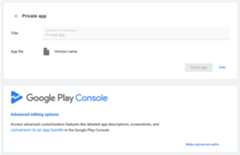
The Private apps page allows IT admins to publish and manage private apps directly from your EMM console. To streamline private app publishing for IT admins, the page:
- Silently creates a Play Console account on behalf of the enterprise and grants admin access to IT admins.
- Waives the $25 USD Play Console registration fee previously required to publish apps.
- Requires only an app'sAAB or APK and title.
- Publishes apps in as little as 10 minutes (compared to 2 hours in the Play Console).
Note: apps published from the Private apps page can never be made public.
The first time an IT admin publishes an app in the iframe, the iframe silently creates a Play Console account on behalf of the enterprise. If theymake advanced edits, they're prompted to sign in with a Google Account—this can be any Google Account (e.g. Gmail, Cloud Identity). This Google Account is added as an admin of the enterprise's Play Console account. Afterwards, an IT admin can use their Google Account to sign into the Play Console directly, where they can:
- Add and manage admin accounts.
- Add advanced app details, including descriptions, screenshots, and more.
- Unpublish apps.
Instructions for IT admins on how to use the Private apps page is available in themanaged Google Play Help Center.
Select button
After an app is published, an IT admin can edit its title and APK in the app details page. The app details page also displays aSELECT button (seeFigure 2). You need to specify the action that takes place when the IT admin clicks this button (seeonproductselect inStep 3. Handle iframe events).
Web apps
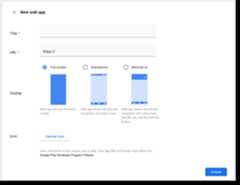
The Web apps page lets IT admins publish website shortcuts as private apps to managed Google Play.Web apps are identifiable by their package name (productId) and typically take 10minutes to publish. After publishing, they're automatically approved for their enterprise can bedistributed to users just like any other approved app. Web apps are compatible with other managedPlay iframe features: they're searchable in the Play Search page and can be added tocollections.
The web app creation form requires a title, HTTPS or HTTP URL, and icon image (512 x 512 JPG or 32-bit PNG). Additionally, IT admins can choose from the three display options:
- Full screen: The app opens in full screen mode, hiding the device's status bar and navigation bar.
- Standalone (default): The app shows the device's status bar and navigation bar.
- Minimal UI: The app shows the device's status bar and navigation bar, the app's URL, and a refresh option. For HTTP URLs, this is the only available option.
The Web apps page also lets IT admins edit and delete web apps. Deleting a web app removes it from a user's managed Google Play store, but the user may still have access to it if the app is already installed on their device. To delete a web app from a user's device, seedelete apps. Instructions for users on how to create and edit web apps are available in themanaged Google Play Help Center.
Select button
After a web app is published, its details page includes a SELECT button. You need to specify theaction (for example, distribute the app) that takes place when the IT admin clicks on this button(seeonproductselect inStep 3. Handleiframe events).
Organize apps
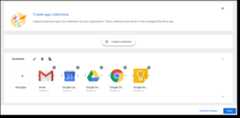
The Organize apps page lets IT admins organize apps into collections (also calledclusters). For example, an IT admin can create anEssentials collection for frequently used apps or anExpenses collection for apps related to tracking expenses, logging travel, etc. Collections are displayed in the Play Store homepage on user's devices.
EMM's must utilize theSELECT mode in the iframe URL's parameters to allow searching and adding of apps to collections.
On user's devices, the Play Store app only displays apps from a collection that are available for the user (or device). If a collection doesn't include any apps that are available to the user (or device), the collection won't appear in the Play Store.
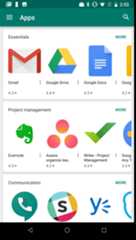
on a device.
IT admins can also edit, delete, and copy existing collections in the organize apps page. User instructions for how to perform these tasks are available in theManaged Google Play Help Center.
Add the iframe to your console
Step 1. Generate a web token
Callenterprises.webTokens.create to generate a web tokenthat identifies the enterprise. The response contains the token'svalue.
- Set
parentFrameUrlto the URL of the parent frame hostingthe iframe. - Use
iframeFeatureto specify whichfeaturesto enable in the iframe:PLAY_SEARCH,PRIVATE_APPS,WEB_APPS,STORE_BUILDER(organize apps). IfiframeFeatureis not set, then theiframe enables allfeatures by default.
Step 2. Render the iframe
Here's an example of how to render the managed Google Play iframe:
<script src="https://apis.google.com/js/api.js"></script><div></div><script> gapi.load('gapi.iframes', function() { var options = { 'url': 'https://play.google.com/work/embedded/search?token=web_token&mode=SELECT', 'where': document.getElementById('container'), 'attributes': { style: 'width: 600px; height:1000px', scrolling: 'yes'} } var iframe = gapi.iframes.getContext().openChild(options); });</script>This code generates an iframe inside the containerdiv. Attributes to beapplied to the iframe tag can be set with the 'attributes' option, as previouslymentioned.
URL parameters
The table below lists all the available parameters for the iframe that can be added to the URL as URL parameters, e.g:
'url': 'https://play.google.com/work/embedded/search?token=web_token&mode=SELECT&showsearchbox=TRUE',
| Parameter | Page | Required | Description |
|---|---|---|---|
token | N/A | Yes | The token returned fromStep 1. |
iframehomepage | N/A | No | The initial page displayed when the iframe is rendered. Possible values arePLAY_SEARCH,WEB_APPS,PRIVATE_APPS, andSTORE_BUILDER (organize apps). If not specified, the following order of precedence determines which page is displayed: 1.PLAY_SEARCH, 2.PRIVATE_APPS, 3.WEB_APPS, 4.STORE_BUILDER. |
locale | N/A | No | A well-formedBCP 47 language tag that is used to localize the content in the iframe. If not specified, the default value isen_US. |
mode | Search apps | No | SELECT: lets IT admins select apps.APPROVE (default): lets IT admins select, approve, and un-approve apps.Deprecated:This mode is deprecated, useSELECT instead.This method will no longer be accessible by anyone after September 30, 2025. APPROVE mode only works ifPlaySearch.ApproveApps is set totrue in the web token. |
showsearchbox | Search apps | No | TRUE (default): displays the search box and initiates the search query from within the iframe.FALSE: the search box is not displayed. |
search | Search apps | No | Search string. If specified, the iframe directs the IT admin to search results with the specified string. Note:Only include this parameter when the search box is located outside of the iframe ( showsearchbox = FALSE). |
Step 3. Handle iframe events
You should also handle the following events as part of your integration.
| Event | Description |
|---|---|
onproductselect | The user selects or approves an app. This returns an object containing:{ "packageName": The package name of the app, e.g. "com.google.android.gm", "productId": The product ID of the app, e.g. "app:com.google.android.gm", "action": The type of action performed on the document. Possible values are: "approved", "unapproved" or "selected." If you implement the iframe in |
onproductselect:iframe.register('onproductselect',function(event){console.log(event);},gapi.iframes.CROSS_ORIGIN_IFRAMES_FILTER);
Upload your own app to the Google Play Store
If you or your customer develop an Android app, you can upload it on the PlayStore using theGoogle Play Console.
If you don't want the app to be publicly available on the Play Store, you canrestrict your app to a single enterprise using Google PlayConsole. Another option is to publish a private app programmatically usingtheGoogle Play Custom App Publishing API.Private apps are only available to the enterprise they are restricted to. Theycan still be installed using a policy, but are not be visible to users outsideyour enterprise.
Except as otherwise noted, the content of this page is licensed under theCreative Commons Attribution 4.0 License, and code samples are licensed under theApache 2.0 License. For details, see theGoogle Developers Site Policies. Java is a registered trademark of Oracle and/or its affiliates.
Last updated 2025-08-28 UTC.