Integrate Google Pay with JS SDK for direct merchants
Last updated: May 9th, 9:27am
Google Pay integration
Google Pay is a mobile payment and digital wallet service provided by Alphabet Inc.
Buyers can use Google Pay on PayPal to make payments on the web using a web browser.
Sellers can use PayPal with Google Pay to sell physical goods, such as clothes and electronics, and intangible professional services, such as concerts or gym memberships.
Supported countries and currencies
Google Pay supports payments in 36 countries and 22 currencies:
- Countries: Australia, Austria, Belgium, Bulgaria, Canada, China, Cyprus, Czech Republic, Denmark, Estonia, Finland, France, Germany, Greece, Hong Kong, Hungary, Ireland, Italy, Japan, Latvia, Liechtenstein, Lithuania, Luxembourg, Malta, Netherlands, Norway, Poland, Portugal, Romania, Singapore, Slovakia, Slovenia, Spain, Sweden, United States, United Kingdom
- Currencies:
AUD,BRL,CAD,CHF,CZK,DKK,EUR,GBP,HKD,HUF,ILS,JPY,MXN,NOK,NZD,PHP,PLN,SEK,SGD,THB,TWD,USD
Note: TPAN is not supported by local processors (NTTD) and acquirers in Japan for Visa, Mastercard, JCB, or Diners Club cards.
Tip: If you want to integrate additional methods of accepting payment beyond Google Pay, visit our Expanded Checkout guide for additional integration choices.
How it works
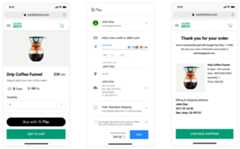
- The Google Pay button shows up on your website when a customer uses a web browser.
- The buyer selects the Google Pay button on your website.
- Your website shows the buyer a payment sheet.
- The buyer can choose a different shipping address and payment method.
- The buyer authorizes the payment.
Know before you code
RequiredGoogle Pay works on most web browsers, including:
- Google Chrome.
- Mozilla Firefox.
- Apple Safari.
- Microsoft Edge.
RequiredCurrently supports Google Pay one-time payments with the buyer present.
Review Google's Google Pay API Terms of Service and Acceptable Use Policy for more information.
Get up and running in GitHub Codespaces
GitHub Codespaces are cloud-based development environments where you can code and test your PayPal integrations.Learn more
Set up your sandbox account to accept Google Pay
Before you can accept Google Pay on your website, verify that your sandbox business account supports Google Pay.
Direct merchants can use the PayPal Developer Dashboard to set up their sandbox accounts to accept Google Pay.
- Log into the PayPal Developer Dashboard and go to your sandbox account.
- Go to Apps & Credentials.
- Make sure you are in the PayPal sandbox environment by selecting Sandbox at the top.
- Select or create an app.
- Scroll down to Features and check if Google Pay is enabled. If Google Pay isn't enabled, select the Google Pay checkbox and select the "Save" link to enable Google Pay.
If you created a sandbox business account through sandbox.paypal.com, and the Google Pay status for the account shows as disabled, complete the sandbox onboarding steps to enable Google Pay.
Tip: When your integration is ready to go live, read the Go live section for details about the additional steps needed for Google Pay onboarding.
This screenshot shows the Google Pay sandbox settings in the mobile and digital payments section of the PayPal Developer Dashboard. This only applies to direct merchant integrations:

Getting started in your testing environment
Before you develop your Google Pay on the Web integration, you need to complete Get started to set up your PayPal account, client ID, and sandbox emails for testing.
Integrate Google Pay checkout
Follow this integration process to add Google Pay as a checkout option, customize the payment experience, and process payments.
Call the Orders API
To accept Google Pay directly on your website, create API endpoints on your server that communicate with the PayPal Orders V2 API. These endpoints can create an order, authorize payment, and capture payment for an order.
Server-side example (Node.js)
This code demonstrates using the PayPal Orders V2 API to add routes to an Express server for creating orders and capturing payments.
Find the complete sample code in the GitHub repo.
- server.js
- paypal-api.js
1import*asPayPalfrom"./paypal-api.js";23/* Create Order route Handler */4app.post("/api/orders",async(req, res)=>{5const order=awaitPayPal.createOrder();6 res.json(order);7});89/* Capture Order route Handler */10app.post("/api/orders/:orderID/capture",async(req, res)=>{11const{12 orderID13}= req.params;14const captureData=awaitPayPal.capturePayment(orderID);15 res.json(captureData);16});
Set up your Google Pay button
You need to integrate with the Google Pay JavaScript SDK and PayPal JavaScript SDK to add Google Pay to your site.
Integrate PayPal JavaScript SDK
Use this script to integrate with the PayPal JavaScript SDK:
1<scriptsrc="https://www.paypal.com/sdk/js?client-id=YOUR_CLIENT_ID¤cy=USD&buyer-country=US&merchant-id=SUB_MERCHANT_ID&components=googlepay"></script>
Include googlepay in the components list.
Integrate Google JavaScript SDK
Use this script to integrate with the Google Pay JavaScript SDK:
1<scriptasyncsrc="https://pay.google.com/gp/p/js/pay.js"onload="onGooglePayLoaded()"></script>
PayPal's Google Pay component interacts with your JavaScript code in 2 areas:
- Checking merchant eligibility and providing
PaymentDataRequestparameters for Google Pay:paypal.Googlepay().config(). - Handling the
onPaymentAuthorized()callback:paypal.Googlepay().confirmOrder().
Check for device and merchant eligibility before setting up the GooglePay Button.
The PayPal JavaScript SDK API paypal.Googlepay().config() response object provides the allowedPaymentMethods parameter, which is part of the" "} Google API's isReadyToPayRequest object.
Check whether the Google Pay API supports a device, browser, and payment method:
- Add
allowedPaymentMethodsto theisReadyToPayRequest. - Call the
isReadyToPay()method to check compatibility and render the Google Pay Button.
1/**2 * Initialize Google PaymentsClient after Google-hosted JavaScript has loaded3 *4 * Display a Google Pay payment button after confirmation of the viewer's5 * ability to pay.6 */7functiononGooglePayLoaded(){8const paymentsClient=getGooglePaymentsClient();9 paymentsClient.isReadyToPay(isReadyToPayRequest)10.then(function(response){11if(response.result){12addGooglePayButton();13}14})15.catch(function(err){16console.error(err);17});18}19/**20 * Add a Google Pay purchase button21 */22functionaddGooglePayButton(){23const paymentsClient=getGooglePaymentsClient();24const button=25 paymentsClient.createButton({26onClick: onGooglePaymentButtonClicked/* To be defined later */,27allowedPaymentMethods:[baseCardPaymentMethod]28});29document.getElementById('container').appendChild(button);30}
Tip: For more information refer to steps 6 and 7 in Google's developer documentation.
Create PaymentDataRequest
The PaymentDataRequest object manages the Google Pay payment process on the web. Create a new PaymentDataRequest each time a buyer explicitly requests a payment, such as inside the onclick handler for the Google Pay Button.
For each checkout session, create a `PaymentDataRequest` object, which includes information about payment processing capabilities, the payment amount, and shipping information.
The response object of the PayPal JavaScript SDK API paypal.Googlepay().config() provides the following parameters in the PaymentDataRequest object:
allowedPaymentMethodsmerchantInfo
Note: For integrations in Japan, you'll need to override the allowedAuthMethods as allowedPaymentMethods[0].parameters.allowedAuthMethods = ['PAN_ONLY'].
1/* Note: the `googlePayConfig` object in this request is the response from `paypal.Googlepay().config()` */2asyncfunctiongetGooglePaymentDataRequest(){3const googlePayConfig=await paypal.Googlepay().config();4const paymentDataRequest=Object.assign({}, baseRequest);5 paymentDataRequest.allowedPaymentMethods= googlePayConfig.allowedPaymentMethods;6// Uncomment for Japan integrations only7// paymentDataRequest.allowedPaymentMethods[0].parameters.allowedAuthMethods = ['PAN_ONLY'];8 paymentDataRequest.transactionInfo=getGoogleTransactionInfo();9 paymentDataRequest.merchantInfo= googlePayConfig.merchantInfo;10 paymentDataRequest.callbackIntents=["PAYMENT_AUTHORIZATION"];11return paymentDataRequest;12}13functiongetGoogleTransactionInfo(){14return{15currencyCode:'USD',16totalPriceStatus:'FINAL',17totalPrice:'100.00'// Your amount18}19}
For more details about the response parameters, see the ConfigResponse section.
For more details about how Google Pay handles paymentDataRequest, refer to steps 8, 9, and 10 in Google's developer documentation.
Tip: See the Google Pay PaymentDataRequest Object API reference for the complete list of properties available for the PaymentDataRequest object.
Register click handler
Register a click event handler for the Google Pay purchase button. Call loadPaymentData() in the event handler when the user interacts with the purchase button and pass the PaymentDataRequest object.
1/* Show Google Pay payment sheet when Google Pay payment button is clicked */2asyncfunctiononGooglePaymentButtonClicked(){3const paymentDataRequest=awaitgetGooglePaymentDataRequest();4const paymentsClient=getGooglePaymentsClient();5 paymentsClient.loadPaymentData(paymentDataRequest);6}
Add the click handler onGooglePaymentButtonClicked to the Button defined in Set up your Google Pay button.
For more details about paymentDataRequest refer to step 9 in Google's developer documentation.
onpaymentauthorized callback
Google calls the onPaymentAuthorized() callback with a PaymentData object when a customer consents to your site collecting their payment information and optional contact details.
Register the onPaymentAuthorized() callback as part of the PaymentClient initialization as shown in Google Pay's Client Reference page.
Create an order by using the PayPal Orders V2 API. Use paypal.Googlepay().confirmOrder() to send the orderID, the Google Pay Payment Data, and optional contact details, and confirm the order.
Confirm the order using the paypal.Googlepay().confirmOrder() method in the API SDK Reference.
If the order confirmation status is APPROVED, capture the order using the Capture payment for order endpoint of the PayPal Orders V2 API.
For more details, see step 11 of Google's developer documentation.
Tip: You can see an example of an Authorize Payments call in the Put it all together section of Google's developer documentation.
1asyncfunctionprocessPayment(paymentData){2returnnewPromise(asyncfunction(resolve, reject){3try{4// Create the order on your server5const{id}=awaitfetch(`/orders`,{6method:"POST",7body:8// You can use the "body" parameter to pass optional, additional order information, such as:9// amount, and amount breakdown elements like tax, shipping, and handling10// item data, such as sku, name, unit_amount, and quantity11// shipping information, like name, address, and address type12});13const confirmOrderResponse=await paypal.Googlepay().confirmOrder({14orderId: id,15paymentMethodData: paymentData.paymentMethodData16});17/** Capture the Order on your Server */18if(confirmOrderResponse.status==="APPROVED"){19const response=awaitfetch(`/capture/${id}`,{20method:'POST',21}).then(res=> res.json());22if(response.capture.status==="COMPLETED")23resolve({transactionState:'SUCCESS'});24else25resolve({26transactionState:'ERROR',27error:{28intent:'PAYMENT_AUTHORIZATION',29message:'TRANSACTION FAILED',30}31})32}else{33resolve({34transactionState:'ERROR',35error:{36intent:'PAYMENT_AUTHORIZATION',37message:'TRANSACTION FAILED',38}39})40}41}catch(err){42resolve({43transactionState:'ERROR',44error:{45intent:'PAYMENT_AUTHORIZATION',46message: err.message,47}48})49}50});51}
Customize payment experience
Customize the payment experience using the Google Pay JavaScript SDK. The following table shows the 2 most popular Google Pay customizations:
| Customization | Details |
|---|---|
PaymentDataChange | This method is used to handle payment data changes in the payment sheet such as shipping address and shipping options. |
PaymentDataRequest | Provides optional properties to collect details, such as shipping address and email. |
Put it all together
The following code samples show a Google Pay integration:
- HTML
- JavaScript
1<!DOCTYPEhtml>2<htmllang="en">3<head>4<metacharset="UTF-8"/>5<metaname="viewport"content="width=device-width, initial-scale=1.0"/>6<metahttp-equiv="X-UA-Compatible"content="ie=edge"/>7<title>Googlepay Example</title>8<scriptsrc="./script.js"></script>9<scriptsrc="https://www.paypal.com/sdk/js?client-id=<client_id>&components=googlepay"></script>10<linkrel="stylesheet"type="text/css"href="styles.css"/>11</head>12<body>13<main>14<section>15<divid="button-container"></div>16</section>17</main>18<scriptsrc="https://pay.google.com/gp/p/js/pay.js"></script>19<script>20document.addEventListener("DOMContentLoaded",(event)=>{21if(google&& paypal.Googlepay){22onGooglePayLoaded().catch(console.log);23}24});25</script>26</body>27</html>
Strong Customer Authentication (SCA)
When the ConfirmOrder status is PAYER_ACTION_REQUIRED, the order requires additional authentication from the payer, such as 3D Secure.
The PayPal JavaScript SDK Client provides an API to handle 3DS Secure authentication. Pass the orderId to initiatePayerAction.
Tip: Refer to initiatePayerAction for more details.
When the payer completes authentication, confirm that the liability_shift status has shifted:
- Make a call to the Show order details endpoint of the Orders v2 API, using the
idof the order. - Check the
liability_shiftstatus in theauthentication_response.
1...2const{ status}=await paypal.Googlepay().confirmOrder({3orderId: id,4paymentMethodData: paymentData.paymentMethodData,5});6if(status==="PAYER_ACTION_REQUIRED"){7console.log("==== Confirm Payment Completed Payer Action Required =====");8 paypal9.Googlepay()10.initiatePayerAction({orderId: id})11.then(async()=>{12console.log("===== Payer Action Completed =====");13/** GET Order */14const orderResponse=awaitfetch(`/orders/${id}`,{15method:"GET",16}).then((res)=> res.json());17console.log("===== 3DS Contingency Result Fetched =====");18console.log(19 orderResponse?.payment_source?.google_pay?.card?.authentication_result20);21/* CAPTURE THE ORDER*/22const captureResponse=awaitfetch(`/orders/${id}/capture`,{23method:"POST",24}).then((res)=> res.json());25console.log(" ===== Order Capture Completed ===== ");26});27}28...
Test your integration
Test your Google Pay integration in the PayPal sandbox and production environments to ensure that your app works correctly.
Sandbox
Use your personal sandbox login information during checkout to complete a payment using Google Pay. Then, log into the sandbox site sandbox.paypal.com to see that the money has moved into your account.
- Open your test page with a supported web browser on any supported device.
- Add a test card to your Google Wallet on your device. Google provides test cards through their Test card suite.
- Tap the Google Pay button to open a pop-up with the Google Pay payment sheet.
- Make a payment using the Google Pay payment sheet.
- If you have an additional confirmation page on your merchant website, continue to confirm the payment.
- Log in to your merchant account and continue to your confirmation page to confirm that the money you used for payment showed up in the account.
Google Pay test card suite
Use Google Pay test card numbers to test your Google Pay integration.
Go live
Make Google Pay available to buyers using your website or app.
Tip: Before going live, complete production onboarding to process Google Pay payments with your live PayPal account.
Live environment
If you're a new merchant, sign up for a PayPal business account.
Use your personal production login information during checkout to complete a Google Pay transaction. Then log into paypal.com to see the money move out of your account.
Testing in your live environment
When testing a purchase in production, consider:
- The business account receiving money can't also make the purchase.
- If you create a personal account with the same information as the business account, those accounts might experience restrictions.
How to test Google Pay payments in a live environment:
- Open your test page with a supported browser.
- Select the Google Pay button to open a pop-up with the Google Pay payment sheet.
- Proceed with the Google Pay checkout transaction.
- If you have an additional confirmation page on your merchant website, continue to confirm the payment.
- Log in to your merchant account and confirm that the money has moved into that account.
Troubleshoot your integration
Make sure that there are no browser console warnings or errors. The JavaScript SDK configuration attributes have distinct validation checks for input formatting and values.
If the validation fails, the web browser's developer console shows warning messages that say which property is incorrect and what you need to do to address the issue. The library generally attempts to revert to the safe default values if missing or incorrect inputs exist.
Next steps & customizations
Get started testing, add security to your checkout experience or create customizations for your audience.
Optional
Advanced credit and debit card payments
Add PayPal payment buttons and customized card fields.
SDK/API reference
This section provides details about functions, objects, and parameters in the SDK API.
Initialize payment with paypal.Googlepay()
Creates an instance of a PayPal Google Pay SDK Client.
Arguments
None
Returns
JavaScript SDK client methods
Use the JavaScript SDK client methods to start a Google Pay payment and confirm an order.
config()
Use config() to fetch the PaymentMethod data needed to start the payment.
Arguments
None
Returns
| Type | Description |
|---|---|
Promise | Resolved: An object that contains the payment data needed to create a Rejected: An error object that passes information about why the call wasn't successful. |
confirmOrder(confirmOrderParams)
Use confirmOrder() to confirm that the buyer intends to pay for the order using the payment source.
Arguments
| Name | Description |
|---|---|
confirmOrderParams | For details on the different properties you can configure, see ConfirmOrderParams. |
Returns
| Name | Description |
|---|---|
Promise | Resolved: An object that returns the response of a successful Rejected: An error object that passes information about why the call wasn't successful. |
initiatePayerAction(initiatePayerActionParams)
Arguments
| Name | Description |
|---|---|
initiatePayerActionParams | For details on the different properties you can configure, see |
Returns
| Type | Description |
|---|---|
Promise | Resolved: An object that passes information about 3D Secure liability shift. See Rejected: An error object that passes information about why the call wasn't successful. |
Request objects
Use the following JavaScript SDK request objects in a Google Pay payment:
ConfirmOrderParams
| Property | Type | Required | Description |
|---|---|---|---|
paymentMethodData | object | Yes | Details about a selected payment method. When a buyer approves payment, the For more details about this object, see the Google Pay documentation. |
orderId | string | Yes | The PayPal order ID. |
shippingAddress | object | No | Passes the shipping address when For more details about this object, see the Google Pay documentation. |
billingAddress | object | No | The default billing address is part of the For more details about this object, see the Google Pay documentation. |
email | string | No | Passes the email address when emailRequired in the PaymentDataRequest is set to true. |
InitiatePayerActionParams
| Property | Type | Required | Description |
|---|---|---|---|
orderId | string | Yes | PayPal OrderID |
Response objects
Google Pay responses include the following objects:
JSSDKClientObject
| Property | Type | Always exists | Description |
|---|---|---|---|
config | function | Yes | API for PaymentData. |
confirmOrder | function | Yes | API for confirmOrder. |
initiatePayerAction | function | Yes | API for 3D Secure handling. |
ConfigResponse
| Property | Type | Always exists | Description |
|---|---|---|---|
allowedPaymentMethods | object | Yes | Passes the payment methods supported by the Google Pay API. For more details about this object, see the Google Pay documentation. |
merchantInfo | object | Yes | Passes information about the seller requesting payment data. For more details about this object, see the Google Pay documentation. |
ConfirmOrderResponse
| Property | Type | Always exists | Description |
|---|---|---|---|
id | string | Yes | The ID of the order. |
status | string | Yes | The order status. For a list of supported values for this property, see the Orders API documentation. |
payment_source | object | Yes | The payment source used to fund the payment. For more details about this object, see the Orders API documentation. |
links | array of objects | Yes | The request-related HATEOAS link information. For more details about this property, see the Orders API documentation. |
InitiatePayerActionResponse
| Property | Type | Always exists | Description |
|---|---|---|---|
liabilityShift | string | Yes | The liability shift indicator shows the outcome of the issuer's authentication. For a list of supported values for this property, see the Orders API documentation. |