The results area of the screen shows the results from executed statements. If the script contains multiple statements, a result subtab will be generated for each statemented that returned results. The following figure shows a single subtab and highlights the main features of the result grid.
MySQL Workbench handles quoting and escaping for strings entered into the result grid, so adding quotes and proper escaping here is optional.
It is possible to enter a function, or other expression, into a field. Use the prefix\func to prevent MySQL Workbench from escaping quotation marks. For example, for the expressionmd5('fred'), MySQL Workbench normally would generate the codemd5(\'fred\'). To prevent this, enter the expression as\func md5('fred') to ensure that the quoting is not escaped.
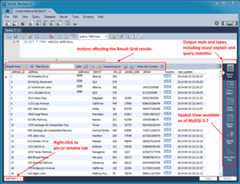
Elements of the result grid toolbar include:
Reset: Resets all sorted columns.
Refresh: Refreshes all data by re-executing the original statement.
Filter Rows: performs a search of all cells (not case-sensitive). It automatically refreshes, and there is also the refresh button to perform this action manually.
Edit Current Row: Edit the current row.
Add New Row: Adds a new empty row, and highlights it in edit mode. ClickApply to execute (and review) the insert row query.
Delete Selected Rows: Deletes the selected rows. ClickApply to execute (and review) the delete query.
Export: Writes a result set to a CSV, HTML, JSON, SQL INSERT, Excel, XML, or Tab separated file as required.
NoteThis exports a result set. To export an entire table or schema, seeData Export.
Import: Import records from an external CSV file.
Wrap Cell Content: If the contents of a cell exceeds the cell width, then the data will be cut off with an ellipses. This option will instead wrap the contents within the cell, and adjust the cell height accordingly.
NoteThe "Refresh" button automatically adjusts the column width to match the longest string one of its cells. You may also manually adjust the column width.
Right-click a result grid subtab to open the context menu, which appears in the figure that follows.
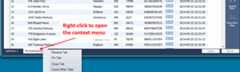
The result grid context menu includes:
Rename Tab: Customize the name (title) of this tab.
Pin Tab: Pin the results tab to the result grid. Executing additional SQL statements will create new result grid tabs.
Close Tab: Close this tab.
Close Other Tabs: Close all tabs except this one.
Right-click any field in the result grid to open the context menu for that field type. An example field with an open menu is shown in the figure that follows.
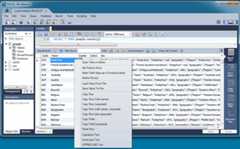
The result grid field-context menu includes:
Open Value in Editor: Opens a new editor window that specializes in editing Binary and JSON data, but can edit text.
Show point in browser: Evaluates whether the field is a geometry point and then opens the point in a browser using
openstreetmap.orgby default. An alternative online service can be configured (seeSection 3.2.7, “Other Preferences”). This option is available for columns with valid point-location types only.Set Field to NULL: Sets the field value to NULL.
Mark Field Value as a Function/Literal: Marks as a function, by prepending \func.
Delete Row(s): Deletes the entire row.
Load Value from File: Opens a file dialog to insert a value from a file. The entire file contents are inserted into the field.
Save Value to File: Saves the value of a field to a file.
Copy Row: Copy the row in escaped CSV format, in a form such as: 'a', 'b','c'. Alternatively, there isCopy Row (tab separated) to use tabs instead of commas as the separator, andCopy Row (unquoted) to not escape the values.
Copy Row (with names): Copy an escaped row like "Copy Row", but also adds a #comment containing column names. Alternatively, there isCopy Row (with names, unquoted).
Copy Field: Copies the field name, such as: 'a', or useCopy Field (unquoted) to not use single quotes.
Paste Row: Pastes the row over the currently selected row.
Capitalize Text: Capitalizes text in the current row, such as: Hello World.
lowercase Text: Lowercases text in the current row, such as: hello world.
UPPERCASE Text: Alters row to use all capitals, such as: HELLO WORLD.