MySQL Workbench represents each active data model as an icon in the models view of the home screen tab. The following figure shows thesakila_full andworld database models. Both models derive from MySQL database samples (seehttps://dev.mysql.com/doc/index-other.html), which you can download and use to explore the MySQL Workbench modeling interface.
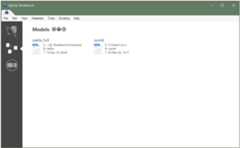
Thesakila database sample includes a model file (sakila.mwb) in the product package. After you set up the database using the instructions provided on the download page, MySQL Workbench adds thesakila_full icon to the models view automatically. For all of the other database samples, such asworld oremployee data, you must create the MySQL Workbench (.mwb) file first before you can view the database objects in a model or add an EER diagram for it.
To create a MySQL Workbench model file for MySQL database samples:
Download the MySQL database you intend to use as a model. Each database has a setup guide (seehttps://dev.mysql.com/doc/index-other.html).
Start MySQL Workbench and select the models view (
 ) from the side panel of the home screen tab.
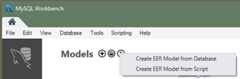
Click the arrow icon and selectCreate EER Model from Database as shown in the figure that follows.
A wizard-like dialog presents the following steps: Connection Options, Connect to DBMS, Select Schemas, Retrieve Objects, Select Objects, Reverse Engineer, and Results. ClickShow Logs to assist with the operations.
Modify the default values as needed, select a schema (and objects), and then clickFinish to close the wizard. MySQL Workbench adds an icon for each model you create.
Modeling concepts and interface elements are described in the next sections.