The package is located inside a disk image (.dmg) file that you first need to mount by double-clicking its icon in the Finder. It should then mount the image and display its contents.
Before proceeding with the installation, be sure to stop all running MySQL server instances by using either the MySQL Manager Application (on macOS Server), the preference pane, ormysqladmin shutdown on the command line.
To install MySQL using the package installer:
Download the disk image (
.dmg) file (the community version is availablehere) that contains the MySQL package installer. Double-click the file to mount the disk image and see its contents.Double-click the MySQL installer package from the disk. It is named according to the version of MySQL you have downloaded. For example, for MySQL server 8.0.44 it might be named
mysql-8.0.44-macos-.10.13-x86_64.pkgThe initial wizard introduction screen references the MySQL server version to install. ClickContinue to begin the installation.
The MySQL community edition shows a copy of the relevant GNU General Public License. ClickContinue and thenAgree to continue.
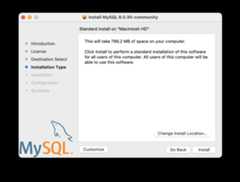
From theInstallation Type page you can either clickInstall to execute the installation wizard using all defaults, clickCustomize to alter which components to install (MySQL server, MySQL Test, Preference Pane, Launchd Support -- all but MySQL Test are enabled by default).
NoteAlthough theChange Install Location option is visible, the installation location cannot be changed.
ClickInstall to install MySQL Server. The installation process ends here if upgrading a current MySQL Server installation, otherwise follow the wizard's additional configuration steps for your new MySQL Server installation.
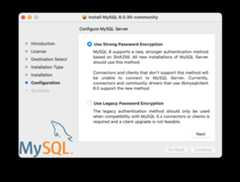
After a successful new MySQL Server installation, complete the configuration steps by choosing the default encryption type for passwords, define the root password, and also enable (or disable) MySQL server at startup.
The default MySQL 8.0 password mechanism is
caching_sha2_password(Strong), and this step allows you to change it tomysql_native_password(Legacy).Choosing the legacy password mechanism alters the generated launchd file to set
--default_authentication_plugin=mysql_native_passwordunderProgramArguments. Choosing strong password encryption does not set--default_authentication_pluginbecause the default MySQL Server value is used, which iscaching_sha2_password.Define a password for the root user, and also toggle whether MySQL Server should start after the configuration step is complete.
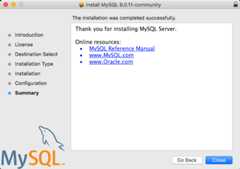
Summary is the final step and references a successful and complete MySQL Server installation.Close the wizard.


MySQL server is now installed. If you chose to not start MySQL, then use either launchctl from the command line or start MySQL by clicking "Start" using the MySQL preference pane. For additional information, seeChapter 3,Installing and Using the MySQL Launch Daemon, andChapter 4,Installing and Using the MySQL Preference Pane. Use the MySQL Preference Pane or launchd to configure MySQL to automatically start at bootup.
When installing using the package installer, the files are installed into a directory within/usr/local matching the name of the installation version and platform. For example, the installer filemysql-8.0.44- installs MySQL intomacos10.15-x86_64.dmg/usr/local/mysql-8.0.44-macos10.15-x86_64/ with a symlink to/usr/local/mysql. The following table shows the layout of this MySQL installation directory.
The macOS installation process does not create nor install a samplemy.cnf MySQL configuration file.
Table 2.1 MySQL Installation Layout on macOS
| Directory | Contents of Directory |
|---|---|
bin | mysqld server, client and utility programs |
data | Log files, databases, where/usr/local/mysql/data/mysqld.local.err is the default error log |
docs | Helper documents, like the Release Notes and build information |
include | Include (header) files |
lib | Libraries |
man | Unix manual pages |
mysql-test | MySQL test suite ('MySQL Test' is disabled by default during the installation process when using the installer package (DMG)) |
share | Miscellaneous support files, including error messages,dictionary.txt, and rewriter SQL |
support-files | Support scripts, such asmysqld_multi.server,mysql.server, andmysql-log-rotate. |
/tmp/mysql.sock | Location of the MySQL Unix socket |