


Workspace Scheduling
Scheduling helps minimize cloud costs without sacrificing the availability ofyour workspaces.
You can configure each workspace to automatically start in the morning, andautomatically stop once you log off. Coder also features an inactivity timeout,configured by your template admin, which will stop a workspace when a user'sabsence is detected.
To learn more workspace states and schedule, read theworkspace lifecycle documentation.
Where to find the schedule settings
Click on any workspace theWorkspaces tab of the dashboard, then go toWorkspace settings in the top right.

Then open theSchedule tab to see your workspace scheduling options.

Autostart
Autostart must be enabled in the template settings by your administrator.
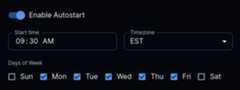
Use autostart to start a workspace at a specified time and which days of theweek. Also, you can choose your preferred timezone. Admins may restrict whichdays of the week your workspace is allowed to autostart.
Autostop
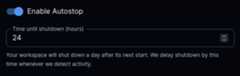
Use autostop to stop a workspace after a number of hours. Autostop won't stop aworkspace if you're still using it. It will wait for the user to become inactivebefore checking connections again (1 hour by default). Template admins canmodify this duration with theactivity bump template setting.
Note
Autostop must be enabled on the template prior to workspace creation, it is not applied to existing running workspaces.
Activity detection
Workspaces automatically shut down after a period of inactivity. Theactivity bumpduration can be configured at the template level and is visible in the autostop descriptionfor your workspace.
What counts as workspace activity?
A workspace is considered "active" when Coder detects one or more active sessions with your workspace. Coder specifically tracks these session types:
- VSCode sessions: Using code-server or VS Code with a remote extension
- JetBrains IDE sessions: Using JetBrains Gateway or remote IDE plugins
- Terminal sessions: Using the web terminal (including reconnecting to the web terminal)
- SSH sessions: Connecting via
coder sshor SSH config integration
Activity is only detected when there is at least one active session. An open session will keep your workspace marked as active and prevent automatic shutdown.
The following actions donot count as workspace activity:
- Viewing workspace details in the dashboard
- Viewing or editing workspace settings
- Viewing build logs or audit logs
- Accessing ports through direct URLs without an active session
- Background agent statistics reporting
To avoid unexpected cloud costs, close your connections, this includes IDE windows, SSH sessions, and others, when you finish using your workspace.
Autostop requirement
Note
Autostop requirement is a Premium feature.Learn more.
Licensed template admins may enforce a required stop for workspaces to applyupdates or undergo maintenance. These stops ignore any active connections orinactivity bumps. Rather than being specified with a CRON, admins set afrequency for updates, either indays orweeks. Workspaces will applythe template autostop requirement on the given dayin the user's timezoneand specified quiet hours (see below).
Admins: See the template schedule settings for more information on configuringAutostop Requirement.
User quiet hours
Note
User quiet hours are a Premium feature.Learn more.
User quiet hours can be configured in the user's schedule settings page.Workspaces on templates with an autostop requirement will only be forciblystopped due to the policy at thestart of the user's quiet hours.

Scheduling configuration examples
The combination of autostart, autostop, and the activity bump create apowerful system for scheduling your workspace. However, synchronizing all ofthem simultaneously can be somewhat challenging, here are a few exampleconfigurations to better understand how they interact.
Note
The activity bump must be configured by your template admin.
Working hours
The intended configuration for autostop is to combine it with autostart, and seta "working schedule" for your workspace. It's pretty intuitive:
If I want to use my workspace from 9 to 5 on weekdays, I would set my autostartto 9:00 AM every day with an autostop of 9 hours. My workspace will always beavailable during these hours, regardless of how long I spend away from mylaptop. If I end up working overtime and log off at 6:00 PM, the activity bumpwill kick in, postponing the shutdown until 7:00 PM.
Basing solely on activity detection
If you'd like to ignore the TTL from autostop and have your workspace solelyfunction on activity detection, you can set your autostop equal to activitybump duration.
Let's say that both are set to 5 hours. When either your workspace autostarts oryou sign in, you will have confidence that the only condition for shutdown is 5hours of inactivity.
Dormancy
Note
Dormancy is a Premium feature.Learn more.
Dormancy automatically deletes workspaces that remain unused for longdurations. Template admins configure a dormancy threshold that determines how longa workspace can be inactive before it is marked asdormant. A separate settingdetermines how long workspaces will remain in the dormant state before automatic deletion.
Licensed admins may also configure failure cleanup, which will automaticallydelete workspaces that remain in afailed state for too long.