


Working with dev containers
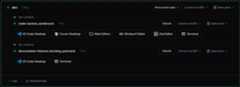
The dev container integration appears in your Coder dashboard, providing avisual representation of the running environment:
SSH access
Each dev container has its own agent name, derived from the workspace folder(e.g.,/home/coder/my-project becomesmy-project). You can find agent namesin your workspace dashboard, or seeAgent naming for details on how names are generated.
Using the Coder CLI
The simplest way to SSH into a dev container is usingcoder ssh with theworkspace and agent name:
coder ssh <workspace>.<agent>For example, to connect to a dev container with agent namemy-project inworkspacemy-workspace:
coder ssh my-workspace.my-projectTo SSH into the main workspace agent instead of the dev container:
coder ssh my-workspaceUsing OpenSSH (config-ssh)
You can also use standard OpenSSH tools after generating SSH config entries withcoder config-ssh:
coder config-sshThis creates a wildcard SSH host entry that matches all your workspaces andtheir agents, including dev container sub-agents. You can then connect using:
ssh my-project.my-workspace.me.coderThe default hostname suffix is.coder. If your organization uses a differentsuffix, adjust the hostname accordingly. The suffix can be configured viacoder config-ssh --hostname-suffix orby your deployment administrator.
This method works with any SSH client, IDE remote extensions,rsync,scp,and other tools that use SSH.
Web terminal access
Once your workspace and dev container are running, you can use the web terminalin the Coder interface to execute commands directly inside the dev container.

IDE integration (VS Code)
You can open your dev container directly in VS Code by:
SelectingOpen in VS Code Desktop from the dev container agent in theCoder web interface.
Using the Coder CLI:
coder open vscode <workspace>.<agent>For example:
coder open vscode my-workspace.my-project
VS Code will automatically detect the dev container environment and connectappropriately.
While optimized for VS Code, other IDEs with dev container support may alsowork.
Port forwarding
Since dev containers run as sub-agents, you can forward ports directly to themusing standard Coder port forwarding:
coder port-forward <workspace>.<agent> --tcp 8080For example, to forward port 8080 from a dev container with agent namemy-project:
coder port-forward my-workspace.my-project --tcp 8080This forwards port 8080 on your local machine directly to port 8080 in the devcontainer. Coder also automatically detects ports opened inside the container.
Exposing ports on the parent workspace
If you need to expose dev container ports through the parent workspace agent(rather than the sub-agent), you can use theappPortproperty in yourdevcontainer.json:
{ "appPort": ["8080:8080", "4000:3000"]}This maps container ports to the parent workspace, which can then be forwardedusing the main workspace agent.
Dev container features
You can use standarddev container featuresin yourdevcontainer.json file. Coder also maintains arepository of features toenhance your development experience.
For example, thecode-serverfeature from theCoder features repository:
{ "features": { "ghcr.io/coder/devcontainer-features/code-server:1": { "port": 13337, "host": "0.0.0.0" } }}Rebuilding dev containers
When you modify yourdevcontainer.json, you need to rebuild the container forchanges to take effect. Coder detects changes and shows anOutdated statusnext to the dev container.
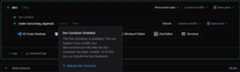
ClickRebuild to recreate your dev container with the updated configuration.