


Access Workspaces
There are many ways to connect to your workspace, the options are only limitedby the template configuration.
Deployment operators can learn more about different types of workspaceconnections and performance in ournetworking docs.
You can see the primary methods of connecting to your workspace in the workspacedashboard.
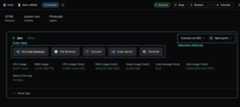
Web Terminal
The Web Terminal is a browser-based terminal that provides instant access toyour workspace's shell environment. It usesxterm.jsand WebSocket technology for a responsive terminal experience with featureslike persistent sessions, Unicode support, and clickable URLs.
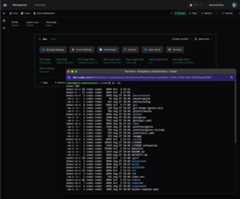
Read the completeWeb Terminal documentation forcustomization options, keyboard shortcuts, and troubleshooting guides.
SSH
Through with the CLI
Coder will use the optimal path for an SSH connection (determined by yourdeployment'snetworking configuration)when using the CLI:
coder ssh my-workspaceOr, you can configure plain SSH on your client below.
Note
Thecoder ssh command does not have full parity with the standardSSH command. For users who need the full functionality of SSH, use theconfiguration method below.
Configure SSH
Coder generatesSSH key pairs foreach user to simplify the setup process.
Use your terminal to authenticate the CLI with Coder web UI and your workspaces:
coder login <accessURL>Access Coder via SSH:
coder config-sshRun
coder config-ssh --dry-runif you'd like to see the changes that will bebefore you proceed:coder config-ssh --dry-runConfirm that you want to continue by typingyes and pressing enter. If
successful, you'll see the following message:
You should now be able to ssh into your workspace.For example, try running:$ ssh coder.<workspaceName>Your workspace is now accessible viassh coder.<workspace_name>(for example,ssh coder.myEnv if your workspace is namedmyEnv).
Visual Studio Code
You can develop in your Coder workspace remotely withVS Code.We support connecting with the desktop client and VS Code in the browser withcode-server.

Read more details onusing VS Code in your workspace.
Cursor
Cursor is an IDE built on VS Code with enhanced AI capabilities.Cursor connects using the Coder extension.
Read more aboutusing Cursor with your workspace.
Windsurf
Windsurf is Codeium's code editor designed for AI-assisted development.Windsurf connects using the Coder extension.
JetBrains IDEs
We support JetBrains IDEs usingGateway. The followingIDEs are supported for remote development:
- IntelliJ IDEA
- CLion
- GoLand
- PyCharm
- Rider
- RubyMine
- WebStorm
- JetBrains Fleet
Read ourdocs on JetBrains for more informationon connecting your JetBrains IDEs.
code-server
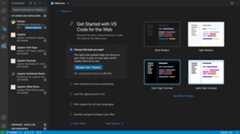
code-server is our supported method ofrunning VS Code in the web browser.Learn more aboutwhat makes code-server different from VS Code web or visit thedocumentation for code-server.
Other Web IDEs
We support a variety of other browser IDEs and tools to interact with yourworkspace. Each of these can be configured by your template admin using ourWeb IDE guides.
Supported IDEs:
- VS Code Web
- JupyterLab
- RStudio
- Airflow
- File Browser
OurModule Registry also hosts a varietyof tools for extending the capability of your workspace. If you have a requestfor a new IDE or tool, please file an issue in ourModules repo.
Ports and Port forwarding
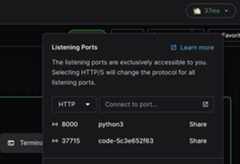
You can manage listening ports on your workspace page through with the listeningports window in the dashboard. These ports are often used to run internalservices or preview environments.
You can alsoshare ports with other users,orport-forward throughthe CLI withcoder port forward. Read more in thedocs on workspace ports.
Remote Desktops
Coder also supports connecting with an RDP solution, see ourRDP guide for details.