
Adding AdMob ads to a Flutter app
1. Introduction
What you'll build
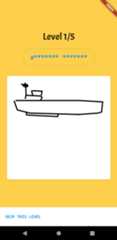
This codelab guides you through adding a banner, interstitial, and a rewarded ad to an app calledAwesome Drawing Quiz, a game that lets players guess the name of the drawing.
|
|

If you run into any issues (code bugs, grammatical errors, unclear wording) as you work through this codelab, please report the issue by clicking theReport a mistake link in the lower, left corner of the codelab.
Tip: To learn how to implement a banner and native inline ads, check out theAdding an AdMob banner and native inline ads to a Flutter app codelab.
What you'll learn
- How to configure the Google Mobile Ads AdMob plugin
- How to implement a banner, interstitial and rewarded ads in a Flutter app
What you'll need
- Android Studio 4.1 or later
- Xcode 12 or later (for iOS development)
How would you rate your level of experience with AdMob?
How would you rate your level of experience with Flutter?
2. Set up your Flutter development environment
You need two pieces of software to complete this lab—theFlutter SDK andan editor.
You can run the codelab using any of these devices:
- A physicalAndroid oriOS device connected to your computer and set to Developer mode.
- The iOS simulator (requires installing Xcode tools).
- TheAndroid Emulator (requires setup in Android Studio).
- A browser (Chrome is required for debugging).
- As aWindows,Linux, ormacOS desktop application. You must develop on the platform where you plan to deploy. So, if you want to develop a Windows desktop app, you must develop on Windows to access the appropriate build chain. There are operating system-specific requirements that are covered in detail ondocs.flutter.dev/desktop.
Download the code
After you download the zip file, extract its contents. You will have a folder namedadmob-ads-in-flutter-master.
Alternatively, you can clone the GitHub repository from the command line:
$ git clone https://github.com/googlecodelabs/admob-ads-in-flutter
The repository contains two folders:
 starter — Starting code that you will build in this codelab.
- complete — Completed code for this codelab.
3. Set up the AdMob app and ad units
Because Flutter is a multi-platform SDK, you need to add an app and ad units for both Android and iOS in AdMob.
Note: If you want to follow the codelab instead of creating a new application and ad units on your own, go to theUse the test AdMob app and ad units section.
Set up for Android
To set up for Android, you need to add an Android app and create ad units.
Add an Android app
- In theAdMob console, clickADD APP from theApps menu.
- When you're askedHave you published your app on Google Play or the App Store?, clickNO.
- Enter
Awesome Drawing Quizin the app name field, and selectAndroid as the platform.

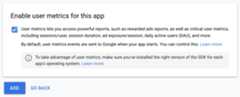
- Enabling user metrics is not necessary to complete this codelab. However, we recommend that you do because it allows you to understand user behavior in more detail. ClickADD to complete the process.
Create ad units
To start adding ad units to AdMob:
- SelectAwesome Drawing Quiz from theApps menu in theAdMob console.
- Click theAd units menu.
Banner
|
|

Interstitial
|
|
Rewarded
|
|

Important: When building and testing your apps, make sure that youuse test ads, rather than live, production ads. Failure to do so can lead to suspension of your account. For more information about how the Mobile Ads SDK's test ads work, seeTest Ads.
It usually takes a few hours for a new ad unit to be able to serve ads.
If you want to test the ad's behavior immediately, then use the test app ID and ad unit IDs listed in the Android app ID/ad unit ID and iOS app ID/ad unit ID tables.
Set up for iOS
To set up for iOS, you need to add an iOS app and create ad units.
Add an iOS app
- In theAdMob console, clickADD APP from theApps menu.
- When you're askedHave you published your app on Google Play or the App Store?, clickNO.
- Enter
Awesome Drawing Quizin the app name field, and selectiOS as the platform.

- Enabling user metrics is not necessary to complete this codelab. However, we recommend that you do because it allows you to understand user behavior in more detail. ClickADD to complete the process.
Create ad units
To add ad units:
- SelectAwesome Drawing Quiz app fromApps menu in theAdMob console.
- Click theAd units menu.
Banner
|
|
Interstitial
|
|
Rewarded
|
|
Important: When building and testing your apps, make sure that youuse test ads, rather than live, production ads. Failure to do so can lead to suspension of your account. For more information about how the Mobile Ads SDK's test ads work, seeTest Ads.
It usually takes a few hours for a new ad unit to be able to serve ads.
If you want to test the ad's behavior immediately, then use the test app ID and ad unit IDs listed in the following table.
Optional:Use the test AdMob app and ad units
If you want to follow the codelab instead of creating a new application and ad units on your own, you can use the test AdMob app ID and ad unit IDs listed in the following tables.
Android app ID/ad unit ID
Item | app ID/ad unit ID |
AdMob app ID |
|
Banner |
|
Interstitial |
|
Rewarded |
|
iOS app ID/ad unit ID
Item | app ID/ad unit ID |
AdMob app ID |
|
Banner |
|
Interstitial |
|
Rewarded |
|
For more information about the test ads, see theAndroid test ads and theiOS test ads developer documentation.
4. Add the Google Mobile Ads Flutter plugin
Flutter uses plugins to provide access to a wide range of platform-specific services. Plugins enable you to access services and APIs on each platform.
Thegoogle_mobile_ads plugin supports loading and displaying banner, interstitial, rewarded, and native ads using the AdMob API.
Because Flutter is a multi-platform SDK, the google_mobile_ads plugin is applicable for both iOS and Android. So, if you add the plugin to your Flutter app, it's used by both Android and iOS versions of the AdMob inline ads app.
Add the Google Mobile Ads plugin as a dependency
To access the AdMob APIs from theAdMob inline ads project, addgoogle_mobile_ads as a dependency to thepubspec.yaml file located at the root of the project.
pubspec.yaml
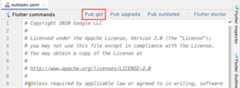
...environment: # TODO: Update the minimum sdk version to 2.12.0 to support null safety. sdk: ">=2.17.0 <3.0.0"dependencies: flutter: sdk: flutter google_fonts: ^3.0.1 # TODO: Add google_mobile_ads as a dependency google_mobile_ads: ^1.2.0...ClickPub get to install the plugin in theAwesome Drawing Quiz project.
Update AndroidManifest.xml (Android)
- Open the
android/app/src/main/AndroidManifest.xmlfile in Android Studio. - Add your AdMob app ID by adding a
<meta-data>tag with the namecom.google.android.gms.ads.APPLICATION_ID. For example, if your AdMob app ID isca-app-pub-3940256099942544~3347511713, then you need to add the following lines to theAndroidManifest.xmlfile.
AndroidManifest.xml
<manifest> ... <application> ... <meta-data android:name="com.google.android.gms.ads.APPLICATION_ID" android:value="ca-app-pub-3940256099942544~3347511713"/> </application></manifest>Update Info.plist (iOS)
- Open the
ios/Runner/Info.plistfile in Android Studio. - Add a
GADApplicationIdentifierkey with the string value of your AdMob app ID. For example, if your AdMob app ID isca-app-pub-3940256099942544~1458002511, then you need to add the following lines to theInfo.plistfile.
ios/Runner/Info.plist
...<key>GADApplicationIdentifier</key><string>ca-app-pub-3940256099942544~1458002511</string>...5. Add a helper class for ads
Create a new file namedad_helper.dart under thelib directory. Then, implement theAdHelper class, which provides an AdMob app ID and ad unit IDs for Android and iOS.
Make sure that you replace the AdMob app ID (ca-app-pub-xxxxxx~yyyyy) and the ad unit ID (ca-app-pub-xxxxxxx/yyyyyyyy) with the IDs you created in the previous step.
lib/ad_helper.dart
import'dart:io';classAdHelper{staticStringgetbannerAdUnitId{if(Platform.isAndroid){return'<YOUR_ANDROID_BANNER_AD_UNIT_ID>';}elseif(Platform.isIOS){return'<YOUR_IOS_BANNER_AD_UNIT_ID>';}else{throwUnsupportedError('Unsupported platform');}}staticStringgetinterstitialAdUnitId{if(Platform.isAndroid){return'<YOUR_ANDROID_INTERSTITIAL_AD_UNIT_ID>';}elseif(Platform.isIOS){return'<YOUR_IOS_INTERSTITIAL_AD_UNIT_ID>';}else{throwUnsupportedError('Unsupported platform');}}staticStringgetrewardedAdUnitId{if(Platform.isAndroid){return'<YOUR_ANDROID_REWARDED_AD_UNIT_ID>';}elseif(Platform.isIOS){return'<YOUR_IOS_REWARDED_AD_UNIT_ID>';}else{throwUnsupportedError('Unsupported platform');}}}Use the following code snippet if you want to use the test AdMob app ID and test ad unit IDs.
lib/ad_helper.dart
import'dart:io';classAdHelper{staticStringgetbannerAdUnitId{if(Platform.isAndroid){return'ca-app-pub-3940256099942544/6300978111';}elseif(Platform.isIOS){return'ca-app-pub-3940256099942544/2934735716';}else{thrownewUnsupportedError('Unsupported platform');}}staticStringgetinterstitialAdUnitId{if(Platform.isAndroid){return"ca-app-pub-3940256099942544/1033173712";}elseif(Platform.isIOS){return"ca-app-pub-3940256099942544/4411468910";}else{thrownewUnsupportedError("Unsupported platform");}}staticStringgetrewardedAdUnitId{if(Platform.isAndroid){return"ca-app-pub-3940256099942544/5224354917";}elseif(Platform.isIOS){return"ca-app-pub-3940256099942544/1712485313";}else{thrownewUnsupportedError("Unsupported platform");}}}6. Initialize the Google Mobile Ads SDK
Before loading ads, you need to initialize the Google Mobile Ads SDK. Open thelib/home_route.dart file, and modify_initGoogleMobileAds() to initialize the SDK before the home page is loaded.
Note that you need to change the return type of the_initGoogleMobileAds() method fromFuture<dynamic> toFuture<InitializationStatus> to get the SDK initialization result after it completes.
home_route.dart
//TODO:Importgoogle_mobile_ads.dartimport'package:google_mobile_ads/google_mobile_ads.dart';import'package:flutter/material.dart';...classHomeRouteextendsStatelessWidget{...Future<InitializationStatus>_initGoogleMobileAds(){//TODO:InitializeGoogleMobileAdsSDKreturnMobileAds.instance.initialize();}}7. Add a banner ad
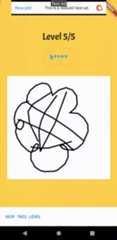
In this section, you display a banner ad at the top of the game screen, as shown in the following screenshot.

- Open the
lib/game_route.dartfile, and importad_manager.dart - Import the
ad_helper.dartandgoogle_mobile_ads.dartby adding the following lines:
lib/game_route.dart
...//TODO:Importad_helper.dartimport'package:awesome_drawing_quiz/ad_helper.dart';//TODO:Importgoogle_mobile_ads.dartimport'package:google_mobile_ads/google_mobile_ads.dart';classGameRouteextendsStatefulWidget{...}- In the
_GameRouteStateclass, add the following members for a banner ad.
lib/game_route.dart
class_GameRouteStateextendsState<GameRoute>implementsQuizEventListener{...//TODO:Add_bannerAdBannerAd?_bannerAd;...}- In the
initState()method, create and load aBannerAdfor the 320x50 banner (AdSize.banner). Note that an ad event listener is configured to update the UI (setState()) when an ad is loaded .
lib/game_route.dart
@overridevoidinitState(){...//TODO:LoadabanneradBannerAd(adUnitId:AdHelper.bannerAdUnitId,request:AdRequest(),size:AdSize.banner,listener:BannerAdListener(onAdLoaded:(ad){setState((){_bannerAd=adasBannerAd;});},onAdFailedToLoad:(ad,err){print('Failed to load a banner ad: ${err.message}');ad.dispose();},),).load();}- Modify the
build()method to display a banner ad when available.
lib/game_route.dart
@overrideWidgetbuild(BuildContextcontext){returnScaffold(...body:SafeArea(child:Stack(children:[ Center( ... ), // TODO: Display a banner when ready if (_bannerAd != null) Align( alignment: Alignment.topCenter, child: Container( width: _bannerAd!.size.width.toDouble(), height: _bannerAd!.size.height.toDouble(), child: AdWidget(ad: _bannerAd!), ), ),],),),...);}- Release the resource associated with the
BannerAdobject by calling theBannerAd.dispose()method in thedispose()callback method.
lib/game_route.dart
@overridevoiddispose(){//TODO:DisposeaBannerAdobject_bannerAd?.dispose();...super.dispose();}That's it! Run the project, and start a new game. After an ad is loaded, you'll see a banner ad at the top of the screen.
8. Add an interstitial ad
In this section, you display an interstitial ad after the game (5 levels in total) finishes.
- Open the
lib/game_route.dartfile - In the
_GameRouteStateclass, add the following members and methods for an interstitial ad.
Note that an ad event listener is configured to check whether the ad is ready (onAdLoaded() andonAdFailedToLoad()) and to display the app's home screen when the ad is closed (onAdDismissedFullScreenContent())
lib/game_route.dart
class_GameRouteStateextendsState<GameRoute>implementsQuizEventListener{...//TODO:Add_interstitialAdInterstitialAd?_interstitialAd;//TODO:Implement_loadInterstitialAd()void_loadInterstitialAd(){InterstitialAd.load(adUnitId:AdHelper.interstitialAdUnitId,request:AdRequest(),adLoadCallback:InterstitialAdLoadCallback(onAdLoaded:(ad){ad.fullScreenContentCallback=FullScreenContentCallback(onAdDismissedFullScreenContent:(ad){_moveToHome();},);setState((){_interstitialAd=ad;});},onAdFailedToLoad:(err){print('Failed to load an interstitial ad: ${err.message}');},),);}...}- In this codelab, an interstitial ad is displayed after a user completes 5 levels. To minimize unnecessary ad requests, request an ad when a user reaches level 3.
In theonNewLevel() method, add the following lines.
lib/game_route.dart
@overridevoidonNewLevel(intlevel,Drawingdrawing,Stringclue){...//TODO:LoadanInterstitialAdif(level>=3 &&_interstitialAd==null){_loadInterstitialAd();}}- When a game finishes, the game score dialog is displayed. When a user closes the dialog, it routes a user to the home screen of theAwesome Drawing Quiz.
Because interstitial ads should be displayed between screen transitions, we show the interstitial ad when a user clicks theCLOSE button.
Modify theonGameOver() method as follows.
lib/game_route.dart
@overridevoidonGameOver(intcorrectAnswers){showDialog(context:_scaffoldKey.currentContext,builder:(context){returnAlertDialog(title:Text('Game over!'),content:Text('Score: $correctAnswers/5'),actions:[ FlatButton( child: Text('close'.toUpperCase()), onPressed: () { // TODO: Display an Interstitial Ad if (_interstitialAd != null) { _interstitialAd?.show(); } else { _moveToHome(); } }, ),],);},);}- Release the resource associated with the
InterstitialAdobject by calling theInterstitialAd.dispose()method in thedispose()callback method.
lib/game_route.dart
@overridevoiddispose(){...//TODO:DisposeanInterstitialAdobject_interstitialAd?.dispose();...super.dispose();}That's it! Run the project and complete the game. If an interstitial ad is loaded, you'll see an interstitial ad once you clickCLOSE button from the score dialog.
9. Add a rewarded ad
In this section, you add a rewarded ad which gives a user an additional hint as a reward.
- Open the
lib/game_route.dartfile - In the
_GameRouteStateclass, add members for a rewarded ad, and implement_loadRewardedAd()method. Note that it loads another rewarded ad when the ad is closed (onAdDismissedFullScreenContent) to cache the ad as early as possible.
lib/game_route.dart
class_GameRouteStateextendsState<GameRoute>implementsQuizEventListener{...//TODO:Add_rewardedAdRewardedAd?_rewardedAd;//TODO:Implement_loadRewardedAd()void_loadRewardedAd(){RewardedAd.load(adUnitId:AdHelper.rewardedAdUnitId,request:AdRequest(),rewardedAdLoadCallback:RewardedAdLoadCallback(onAdLoaded:(ad){ad.fullScreenContentCallback=FullScreenContentCallback(onAdDismissedFullScreenContent:(ad){setState((){ad.dispose();_rewardedAd=null;});_loadRewardedAd();},);setState((){_rewardedAd=ad;});},onAdFailedToLoad:(err){print('Failed to load a rewarded ad: ${err.message}');},),);}...}- Call
_loadRewardedAd()frominitState()method to request a rewarded ad when the game starts.
lib/game_route.dart
class_GameRouteStateextendsState<GameRoute>implementsQuizEventListener{...@overridevoidinitState(){...//COMPLETE:LoadaRewardedAd_loadRewardedAd();}...}- Allow users to watch a rewarded ad by clicking the floating action button. The button shows only if a user hasn't used a hint at the current level and a rewarded ad is loaded.
Modify the_buildFloatingActionButton() method, as follows, to display the floating action button. Note that returningnull hides the button from the screen.
Note thatonUserEarnedReward is the most important ad event in a rewarded ad. It's triggered when a user becomes eligible to receive a reward (for example., finished watching a video).
In this codelab, theQuizManager.instance.useHint() method is called from the callback, which reveals one more character in the hint string. The app reloads a rewarded ad in theonAdClosed callback to make sure the ad is ready as early as possible.
lib/game_route.dart
Widget?_buildFloatingActionButton(){//TODO:ReturnaFloatingActionButtonifarewardedadisavailablereturn(!QuizManager.instance.isHintUsed &&_rewardedAd!=null)?FloatingActionButton.extended(onPressed:(){showDialog(context:context,builder:(context){returnAlertDialog(title:Text('Need a hint?'),content:Text('Watch an Ad to get a hint!'),actions:[TextButton(child:Text('cancel'.toUpperCase()),onPressed:(){Navigator.pop(context);},),TextButton(child:Text('ok'.toUpperCase()),onPressed:(){Navigator.pop(context);_rewardedAd?.show(onUserEarnedReward:(_,reward){QuizManager.instance.useHint();},);},),],);},);},label:Text('Hint'),icon:Icon(Icons.card_giftcard),):null;}- Release the resource associated with the
RewardedAdobject by calling theRewardedAd.dispose()method in thedispose()callback method.
lib/game_route.dart
@overridevoiddispose(){...//TODO:DisposeaRewardedAdobject_rewardedAd?.dispose();...super.dispose();}That's it! Run the project and play the game. Once a rewarded ad is loaded, you'll see a hint button at the bottom of the screen. ClickHint button to get an additional hint.

10. All done!
You have completed the codelab. You can find the completed code for this codelab in thecomplete folder.
To learn how to implement a banner and native inline ads, check out theAdding an AdMob banner and native inline ads to a Flutter app codelab.
To learn more, try the otherFlutter codelabs.
Except as otherwise noted, the content of this page is licensed under theCreative Commons Attribution 4.0 License, and code samples are licensed under theApache 2.0 License. For details, see theGoogle Developers Site Policies. Java is a registered trademark of Oracle and/or its affiliates.