Enterprise support
Visual Studio Code can be used as a development tool for enterprise teams of all sizes. As an IT admin, you can configure VS Code to achieve consistency and compatibility across your organization.
Private marketplace for extensions
The private marketplace enables enterprises to self-host and distribute extensions within their organization to meet organizational security and compliance requirements. The private marketplace integrates seamlessly with the VS Code extensions experience, giving users easy discovery and automatic updates of private extensions. Common use cases include:
- Hosting internal extensions privately to protect intellectual property.
- Providing developers with access to selected or all extensions from theVisual Studio Marketplace, even in environments with restricted internet connectivity.
- Downloading and rehosting extensions from external sources to apply enterprise-specific verification and security standards. See howMicrosoft protects your software supply chain.
Key features
- Self-hosting: Host internal and downloaded extensions on your own infrastructure, such as Azure or Kubernetes.
- Simple deployment: Deploy the private marketplace as a stateless Docker container, no external database required.
- Flexible storage: Publish and manage extensions using any file system or Azure Artifacts.
- Upstreaming: Choose to automatically include public extensions from the Visual Studio Marketplace. Allow or deny select extensions by setting up anallow list.
- Rehosting: Choose to download and host public extensions for enhanced security and support for environments without public internet connectivity (air-gapped).
- Centralized rollout: Deploy the private marketplace to your team using group policy on Windows and macOS.
- Integrated installation and updates: Search for and install extensions directly from VS Code, with automatic updates for new versions in the private marketplace.
- Cross-platform support: Compatible with VS Code desktop on Windows, macOS, and Linux.
Connecting from VS Code Server or VS Code for the Web is not supported.
Availability
Private marketplace is currently available to GitHub Enterprise customers. VS Code users must sign in with a GitHub Enterprise or Copilot Enterprise/Business account to access the private marketplace.
Getting started
Refer to thedeployment and feature guide for deployment instructions, scripts, and development environment configuration. If you have questions or need assistance, contactprivate marketplace support.
Network: Common hostnames
A handful of features within VS Code require network communication to work, such as the auto-update mechanism, querying and installing extensions, and telemetry. For these features to work properly in a proxy environment, you must have the product correctly configured.
Refer to thenetwork common hostnames list for the required domains.
Configure allowed extensions
Support for allowed extensions is available starting from VS Code version 1.96.
Theextensions.allowed application-wide setting in VS Code enables you to control which extensions can be installed on the user's machine. If the setting is not configured, all extensions are allowed. If the setting is configured, all extensions not listed are blocked from installing. If you block an extension or version that is already installed, the extension is disabled.
Tocentrally manage allowed extensions for your organization, configure theAllowedExtensions policy using your device management solution. This policy overrides theextensions.allowed setting on users' devices. The value of this policy is a JSON string that contains the allowed extensions:
{ "github":true, "microsoft":true}This is how an administrator may locally configure theAllowedExtensions policy using theLocal Group Policy Editor:
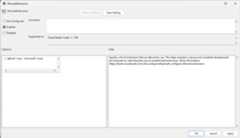
If there's a syntax error in the policy value, theextensions.allowed setting is not applied. You can check the Window log in VS Code for errors (press⇧⌘P (Windows, LinuxCtrl+Shift+P) and enterShow Window Log).
Allowed extensions setting values
Theextensions.allowed setting contains a list of extension selectors that determine which extensions are allowed or blocked. You can specify the following types of extension selectors:
- Allow or block all extensions from a publisher
- Allow or block specific extensions
- Allow specific extension versions
- Allow specific extension versions and platforms
- Allow only stable versions of an extension
- Allow only stable extension versions from a publisher
The following JSON snippet shows examples of the differentextensions.allowed setting values:
"extensions.allowed": { // Allow all extensions from the 'microsoft' publisher. If the key does not have a '.', it means it is a publisher ID. "microsoft":true, // Allow all extensions from the 'github' publisher "github":true, // Allow prettier extension "esbenp.prettier-vscode":true, // Do not allow container tools extension "ms-azuretools.vscode-containers":false, // Allow only version 3.0.0 of the eslint extension "dbaeumer.vscode-eslint": ["3.0.0"], // Allow multiple versions of the figma extension "figma.figma-vscode-extension": ["3.0.0","4.2.3","4.1.2"], // Allow version 5.0.0 of the rust extension on Windows and macOS "rust-lang.rust-analyzer": ["5.0.0@win32-x64","5.0.0@darwin-x64"], // Allow only stable versions of the GitHub Pull Requests extension "github.vscode-pull-request-github":"stable", // Allow only stable versions from redhat publisher "redhat":"stable",}Specify publishers by their publisher ID. If a key does not have a period (.), it is considered a publisher ID. If a key has a period, it is considered an extension ID. The use of wildcards is currently not supported.
You can usemicrosoft as the publisher ID to refer to all extensions published by Microsoft, even though they might have different publisher IDs.
Version ranges are not supported. If you want to allow multiple versions of an extension, you must specify each version individually. To further restrict versions by platform, use the@ symbol to specify the platform. For example,"rust-lang.rust-analyzer": ["5.0.0@win32-x64", "5.0.0@darwin-x64"].
The more specific the selector, the higher the precedence. For example,"microsoft": true and"microsoft.cplusplus": false allows all Microsoft extensions, except for the C++ extension.
Duplicate key values are not supported. For example, including both"microsoft": true and"microsoft": false results in an invalid policy.
If you want to learn more about extensions in VS Code, refer to theextensions documentation.
Configure MCP server access
By default, VS Code allows developers toadd any MCP server to their environment. Organizations can restrict which MCP servers are allowed to be used by developers in VS Code. The following configuration options are available in theirGitHub Copilot settings:
Configure from which source MCP servers are enabled to run (controls thechat.mcp.access VS Code setting)
- All: developers can run MCP servers from any source
- Registry: developers can only run MCP servers from the MCP registry, other MCP servers are blocked from running
- None: MCP server support is disabled
Configure a custom MCP registry URL
When thechat.mcp.gallery.enabled VS Code setting is enabled, developers can view the list of MCP servers in the Extensions view. By default, VS Code fetches the list of MCP servers from theGitHub MCP registry. Organizations can configure a custom MCP registry URL to fetch the list of MCP servers from a different source.
Learn how toconfigure MCP server access in the GitHub Copilot documentation.
Configure automatic updates
Theupdate.mode VS Code setting controls whether VS Code automatically updates when a new version is released. The updates are fetched from a Microsoft online service.
The setting has the following options:
none- updates are disabledmanual- automatic checking for updates is disabled, but users can manually check for updatesstart- only check for updates when VS Code starts, automatic checking for updates is disableddefault- automatic checking for updates is enabled and runs in the background periodically
Tocentrally manage automatic updates for your organization, configure theUpdateMode policy using your device management solution. This policy overrides theupdate.mode setting on users' devices. The value of this policy is a string that contains the update mode.
Configure telemetry level
Thetelemetry.telemetryLevel VS Code setting controls VS Code telemetry, first-party extension telemetry, and participating third-party extension telemetry. Some third party extensions might not respect this setting. Read more about thedata we collect.
all- sends usage data, errors, and crash reportserror- sends general error telemetry and crash reportscrash- sends OS level crash reportsoff- disables all product telemetry
Tocentrally manage telemetry for your organization, configure theTelemetryLevel policy using your device management solution. This policy overrides thetelemetry.telemetryLevel setting on users' devices. The value of this policy is a string that contains the telemetry level.
Centrally manage VS Code settings
You can centrally manage specific features of VS Code through device management solutions to ensure it meets the needs of your organization. When you specify a VS Code policy, its value overrides the corresponding VS Code setting on users' devices.

VS Code currently provides policies to control the following admin-controlled features:
| Policy | Description | VS Code setting | Available since |
|---|---|---|---|
AllowedExtensions | Specify which extensions can be installed. | extensions.allowed | 1.96 |
UpdateMode | Enable automatic installation of VS Code updates. | update.mode | 1.67 |
TelemetryLevel | Specify telemetry data level. | telemetry.telemetryLevel | 1.99 |
EnableFeedback | Configure feedback mechanisms (issue reporter and surveys). | telemetry.feedback.enabled | 1.99 |
ChatAgentMode | Enableagent mode. | chat.agent.enabled | 1.99 |
ChatAgentExtensionTools | Enable using tools contributed by third-party extensions. | chat.extensionTools.enabled | 1.99 |
ChatPromptFiles | Enableprompt and instruction files in chat. | chat.promptFiles | 1.99 - 1.105 |
ChatMCP | EnableModel Context Protocol (MCP) servers support and which sources are allowed. | chat.mcp.access | 1.99 |
ChatToolsAutoApprove | Enable global auto-approval for agent mode tools. | chat.tools.global.autoApprove | 1.99 |
ChatToolsEligibleForAutoApproval | Controls which agent tools are eligible forautomatic approval. Tools set tofalse always require user approval and can't be auto-approved. Policy is configured via a JSON object, e.g{"runTask": false, "fetch": false}. | chat.tools.eligibleForAutoApproval | 1.107 |
CopilotReviewSelection | Enable code review for editor selection. | github.copilot.chat.reviewSelection.enabled | 1.104 |
CopilotReviewAgent | Enable Copilot Code Review for pull requests and changed files. | github.copilot.chat.reviewAgent.enabled | 1.104 |
ChatToolsTerminalEnableAutoApprove | Enable the rule-based auto-approval for the terminal tool. | chat.tools.terminal.autoApprove | 1.104 |
McpGalleryServiceUrl | Configure the MCP Gallery service URL to connect to. | chat.mcp.gallery.serviceUrl | 1.101 |
ExtensionGalleryServiceUrl | Configure the Marketplace service URL to connect to. | extensions.gallery.serviceUrl | 1.99 |
Group Policy on Windows
VS Code has support forWindows Registry-based Group Policy. Starting from VS Code version 1.69, each release ships with apolicies directory containing ADMX template files that can be added to the following path:C:\Windows\PolicyDefinitions. Make sure to also copy the correspondingadml file to theC:\Windows\PolicyDefinitions\<your-locale> directory.
The ADMX/ADML files can be found by downloading the appropriateVS Code zip archive.
Once the policy definitions are installed, admins can use theLocal Group Policy Editor to manage the policy values.
Products such asMicrosoft Intune may be used to centrally manage device policy at scale.
Policies can be set both at the Computer level and the User level. If both are set, Computer level will take precedence. When a policy value is set, the value overrides the VS Codesetting value configured at any level (default, user, workspace, etc.).
Configuration profiles on macOS
Configuration profiles manage settings on macOS devices. A profile is an XML file with key/value pairs that correspond to available policy. These profiles can be deployed using Mobile Device Management (MDM) solutions, or installed manually.
Starting from VS Code version 1.99, each release ships with a sample.mobileconfig file. This file is located within the.app bundle underContents/Resources/app/policies. Use a text editor to manually edit or remove policy to match your organization's requirements.
To view the contents of the.app bundle, right-click on the application (for example,/Applications/Visual Studio Code.app) in Finder and selectShow Package Contents.
String policies
The example below demonstrates configuration of theAllowedExtensions policy. The policy value starts empty in the sample file (no extensions are allowed).
<key>AllowedExtensions</key><string></string>Add theappropriate JSON string defining your policy between the<string> tags.
<key>AllowedExtensions</key><string>{"microsoft": true, "github": true}</string>Other policies, likeUpdateMode, accept a string from a set ofpredefined values.
<key>UpdateMode</key><string>start</string>Boolean policies
Boolean policy values are represented with<true/> or<false/>.
<key>EnableFeedback</key><true/>To omit a given policy, remove its key/value pair from the.mobileconfig file. For example, to not enforce an update mode policy, remove theUpdateMode key and the<string></string> tags that follow it.
The provided.mobileconfig file initializesall policies available in that version of VS Code. Delete any policies that are not needed.
If you do not edit or remove a policy from the sample.mobileconfig, that policy will be enforced with its default (restrictive) policy value.
Manually install a configuration profile by double-clicking on the.mobileconfig profile in Finder and then enabling it in System Preferences underGeneral >Device Management. Removing the profile from System Preferences will remove the policies from VS Code.
For more information on configuration profiles, refer toApple's documentation.
JSON policies on Linux
Starting from VS Code version 1.106, you can also configure VS Code setting policies on Linux devices by placing a JSON policy file at/etc/vscode/policy.json.
Each release includes a samplepolicy.json file underresources/app/policies which includes the available policies. You can find this file by either extracting it from the downloaded package or by selecting and extracting thetar.gz file from the Downloads page.
The providedpolicy.json file initializesall policies available in that version of VS Code. Delete any policies that are not needed.
If you do not edit or remove a policy from the samplepolicy.json, that policy will be enforced with its default (restrictive) policy value.
Additional policies
The goal is to promote current VS Code settings as policies and closely follow existing settings, so that the naming and behavior are consistent. If there are requests to enact more policies, please open an issue in the VS CodeGitHub repository. The team will determine if there is already a corresponding setting for the behavior or if a new setting should be created to control the desired behavior.
Set up VS Code with preinstalled extensions
You can set up VS Code with a set of preinstalled extensions (bootstrap). This functionality is useful in cases where you prepare a machine image, virtual machine, or cloud workstation where VS Code is preinstalled and specific extensions are immediately available for users.
Support for preinstalling extensions is currently only available on Windows.
Follow these steps to bootstrap extensions:
Create a folder
bootstrap\extensionsin the VS Code installation directory.Download theVSIX files for the extensions that you want to preinstall and place them in the
bootstrap\extensionsfolder.When a user launches VS Code for the first time, all extensions in the
bootstrap\extensionsfolder are installed silently in the background.
Users can still uninstall extensions that were preinstalled. Restarting VS Code after uninstalling an extension will not reinstall the extension.