Tracing in AI Toolkit
AI Toolkit provides tracing capabilities to help you monitor and analyze the performance of your AI applications. You can trace the execution of your AI applications, including interactions with generative AI models, to gain insights into their behavior and performance.
AI Toolkit hosts a local HTTP and gRPC server to collect trace data. The collector server is compatible with OTLP (OpenTelemetry Protocol) and most language model SDKs either directly support OTLP or have non-Microsoft instrumentation libraries to support it. Use AI Toolkit to visualize the collected instrumentation data.
All frameworks or SDKs that support OTLP and followsemantic conventions for generative AI systems are supported. The following table contains common AI SDKs tested for compatibility.
| Azure AI Inference | Foundry Agent Service | Anthropic | Gemini | LangChain | OpenAI SDK3 | OpenAI Agents SDK | |
|---|---|---|---|---|---|---|---|
| Python | ✅ | ✅ | ✅ (traceloop,monocle)1,2 | ✅ (monocle) | ✅ (LangSmith,monocle)1,2 | ✅ (opentelemetry-python-contrib,monocle)1 | ✅ (Logfire,monocle)1,2 |
| TS/JS | ✅ | ✅ | ✅ (traceloop)1,2 | ❌ | ✅ (traceloop)1,2 | ✅ (traceloop)1,2 | ❌ |
- The SDKs in brackets are non-Microsoft tools that add OTLP support because the official SDKs do not support OTLP.
- These tools do not fully follow the OpenTelemetry rules for generative AI systems.
- For OpenAI SDK, only theChat Completions API is supported. TheResponses API is not supported yet.
How to get started with tracing
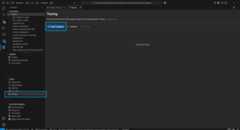
Open the tracing webview by selectingTracing in the tree view.
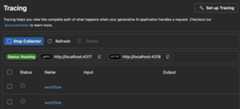
Select theStart Collector button to start the local OTLP trace collector server.
Enable instrumentation with a code snippet. See theSet up instrumentation section for code snippets for different languages and SDKs.
Generate trace data by running your app.
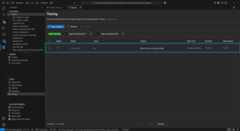
In the tracing webview, select theRefresh button to see new trace data.
Set up instrumentation
Set up tracing in your AI application to collect trace data. The following code snippets show how to set up tracing for different SDKs and languages:
The process is similar for all SDKs:
- Add tracing to your LLM or agent app.
- Set up the OTLP trace exporter to use the AITK local collector.
Azure AI Inference SDK - Python
Installation:
pip install opentelemetry-sdk opentelemetry-exporter-otlp-proto-http azure-ai-inference[opentelemetry]Setup:
import osos.environ["AZURE_TRACING_GEN_AI_CONTENT_RECORDING_ENABLED"] ="true"os.environ["AZURE_SDK_TRACING_IMPLEMENTATION"] ="opentelemetry"from opentelemetryimport trace, _eventsfrom opentelemetry.sdk.resourcesimport Resourcefrom opentelemetry.sdk.traceimport TracerProviderfrom opentelemetry.sdk.trace.exportimport BatchSpanProcessorfrom opentelemetry.sdk._logsimport LoggerProviderfrom opentelemetry.sdk._logs.exportimport BatchLogRecordProcessorfrom opentelemetry.exporter.otlp.proto.http.trace_exporterimport OTLPSpanExporterfrom opentelemetry.sdk._eventsimport EventLoggerProviderfrom opentelemetry.exporter.otlp.proto.http._log_exporterimport OTLPLogExporterresource = Resource(attributes={ "service.name":"opentelemetry-instrumentation-azure-ai-agents"})provider = TracerProvider(resource=resource)otlp_exporter = OTLPSpanExporter( endpoint="http://localhost:4318/v1/traces",)processor = BatchSpanProcessor(otlp_exporter)provider.add_span_processor(processor)trace.set_tracer_provider(provider)logger_provider = LoggerProvider(resource=resource)logger_provider.add_log_record_processor( BatchLogRecordProcessor(OTLPLogExporter(endpoint="http://localhost:4318/v1/logs")))_events.set_event_logger_provider(EventLoggerProvider(logger_provider))from azure.ai.inference.tracingimport AIInferenceInstrumentorAIInferenceInstrumentor().instrument(True)Azure AI Inference SDK - TypeScript/JavaScript
Installation:
npm install @azure/opentelemetry-instrumentation-azure-sdk @opentelemetry/api @opentelemetry/exporter-trace-otlp-proto @opentelemetry/instrumentation @opentelemetry/resources @opentelemetry/sdk-trace-nodeSetup:
const {context } =require('@opentelemetry/api');const {resourceFromAttributes } =require('@opentelemetry/resources');const { NodeTracerProvider, SimpleSpanProcessor} =require('@opentelemetry/sdk-trace-node');const {OTLPTraceExporter } =require('@opentelemetry/exporter-trace-otlp-proto');const exporter =new OTLPTraceExporter({ url: 'http://localhost:4318/v1/traces'});const provider =new NodeTracerProvider({ resource: resourceFromAttributes({ 'service.name': 'opentelemetry-instrumentation-azure-ai-inference' }), spanProcessors: [new SimpleSpanProcessor(exporter)]});provider.register();const {registerInstrumentations } =require('@opentelemetry/instrumentation');const { createAzureSdkInstrumentation} =require('@azure/opentelemetry-instrumentation-azure-sdk');registerInstrumentations({ instrumentations: [createAzureSdkInstrumentation()]});Foundry Agent Service - Python
Installation:
pip install opentelemetry-sdk opentelemetry-exporter-otlp-proto-http azure-ai-inference[opentelemetry]Setup:
import osos.environ["AZURE_TRACING_GEN_AI_CONTENT_RECORDING_ENABLED"] ="true"os.environ["AZURE_SDK_TRACING_IMPLEMENTATION"] ="opentelemetry"from opentelemetryimport trace, _eventsfrom opentelemetry.sdk.resourcesimport Resourcefrom opentelemetry.sdk.traceimport TracerProviderfrom opentelemetry.sdk.trace.exportimport BatchSpanProcessorfrom opentelemetry.sdk._logsimport LoggerProviderfrom opentelemetry.sdk._logs.exportimport BatchLogRecordProcessorfrom opentelemetry.exporter.otlp.proto.http.trace_exporterimport OTLPSpanExporterfrom opentelemetry.sdk._eventsimport EventLoggerProviderfrom opentelemetry.exporter.otlp.proto.http._log_exporterimport OTLPLogExporterresource = Resource(attributes={ "service.name":"opentelemetry-instrumentation-azure-ai-agents"})provider = TracerProvider(resource=resource)otlp_exporter = OTLPSpanExporter( endpoint="http://localhost:4318/v1/traces",)processor = BatchSpanProcessor(otlp_exporter)provider.add_span_processor(processor)trace.set_tracer_provider(provider)logger_provider = LoggerProvider(resource=resource)logger_provider.add_log_record_processor( BatchLogRecordProcessor(OTLPLogExporter(endpoint="http://localhost:4318/v1/logs")))_events.set_event_logger_provider(EventLoggerProvider(logger_provider))from azure.ai.agents.telemetryimport AIAgentsInstrumentorAIAgentsInstrumentor().instrument(True)Foundry Agent Service - TypeScript/JavaScript
Installation:
npm install @azure/opentelemetry-instrumentation-azure-sdk @opentelemetry/api @opentelemetry/exporter-trace-otlp-proto @opentelemetry/instrumentation @opentelemetry/resources @opentelemetry/sdk-trace-nodeSetup:
const {context } =require('@opentelemetry/api');const {resourceFromAttributes } =require('@opentelemetry/resources');const { NodeTracerProvider, SimpleSpanProcessor} =require('@opentelemetry/sdk-trace-node');const {OTLPTraceExporter } =require('@opentelemetry/exporter-trace-otlp-proto');const exporter =new OTLPTraceExporter({ url: 'http://localhost:4318/v1/traces'});const provider =new NodeTracerProvider({ resource: resourceFromAttributes({ 'service.name': 'opentelemetry-instrumentation-azure-ai-inference' }), spanProcessors: [new SimpleSpanProcessor(exporter)]});provider.register();const {registerInstrumentations } =require('@opentelemetry/instrumentation');const { createAzureSdkInstrumentation} =require('@azure/opentelemetry-instrumentation-azure-sdk');registerInstrumentations({ instrumentations: [createAzureSdkInstrumentation()]});Anthropic - Python
OpenTelemetry
Installation:
pip install opentelemetry-sdk opentelemetry-exporter-otlp-proto-http opentelemetry-instrumentation-anthropicSetup:
from opentelemetryimport trace, _eventsfrom opentelemetry.sdk.resourcesimport Resourcefrom opentelemetry.sdk.traceimport TracerProviderfrom opentelemetry.sdk.trace.exportimport BatchSpanProcessorfrom opentelemetry.sdk._logsimport LoggerProviderfrom opentelemetry.sdk._logs.exportimport BatchLogRecordProcessorfrom opentelemetry.exporter.otlp.proto.http.trace_exporterimport OTLPSpanExporterfrom opentelemetry.sdk._eventsimport EventLoggerProviderfrom opentelemetry.exporter.otlp.proto.http._log_exporterimport OTLPLogExporterresource = Resource(attributes={ "service.name":"opentelemetry-instrumentation-anthropic-traceloop"})provider = TracerProvider(resource=resource)otlp_exporter = OTLPSpanExporter( endpoint="http://localhost:4318/v1/traces",)processor = BatchSpanProcessor(otlp_exporter)provider.add_span_processor(processor)trace.set_tracer_provider(provider)logger_provider = LoggerProvider(resource=resource)logger_provider.add_log_record_processor( BatchLogRecordProcessor(OTLPLogExporter(endpoint="http://localhost:4318/v1/logs")))_events.set_event_logger_provider(EventLoggerProvider(logger_provider))from opentelemetry.instrumentation.anthropicimport AnthropicInstrumentorAnthropicInstrumentor().instrument()Monocle
Installation:
pip install opentelemetry-sdk opentelemetry-exporter-otlp-proto-http monocle_apptraceSetup:
from opentelemetry.sdk.trace.exportimport BatchSpanProcessorfrom opentelemetry.exporter.otlp.proto.http.trace_exporterimport OTLPSpanExporter# Import monocle_apptracefrom monocle_apptraceimport setup_monocle_telemetry# Setup Monocle telemetry with OTLP span exporter for tracessetup_monocle_telemetry( workflow_name="opentelemetry-instrumentation-anthropic", span_processors=[ BatchSpanProcessor( OTLPSpanExporter(endpoint="http://localhost:4318/v1/traces") ) ])Anthropic - TypeScript/JavaScript
Installation:
npm install @traceloop/node-server-sdkSetup:
const {initialize } =require('@traceloop/node-server-sdk');const {trace } =require('@opentelemetry/api');initialize({ appName: 'opentelemetry-instrumentation-anthropic-traceloop', baseUrl: 'http://localhost:4318', disableBatch: true});Google Gemini - Python
OpenTelemetry
Installation:
pip install opentelemetry-sdk opentelemetry-exporter-otlp-proto-http opentelemetry-instrumentation-google-genaiSetup:
from opentelemetryimport trace, _eventsfrom opentelemetry.sdk.resourcesimport Resourcefrom opentelemetry.sdk.traceimport TracerProviderfrom opentelemetry.sdk.trace.exportimport BatchSpanProcessorfrom opentelemetry.sdk._logsimport LoggerProviderfrom opentelemetry.sdk._logs.exportimport BatchLogRecordProcessorfrom opentelemetry.exporter.otlp.proto.http.trace_exporterimport OTLPSpanExporterfrom opentelemetry.sdk._eventsimport EventLoggerProviderfrom opentelemetry.exporter.otlp.proto.http._log_exporterimport OTLPLogExporterresource = Resource(attributes={ "service.name":"opentelemetry-instrumentation-google-genai"})provider = TracerProvider(resource=resource)otlp_exporter = OTLPSpanExporter( endpoint="http://localhost:4318/v1/traces",)processor = BatchSpanProcessor(otlp_exporter)provider.add_span_processor(processor)trace.set_tracer_provider(provider)logger_provider = LoggerProvider(resource=resource)logger_provider.add_log_record_processor( BatchLogRecordProcessor(OTLPLogExporter(endpoint="http://localhost:4318/v1/logs")))_events.set_event_logger_provider(EventLoggerProvider(logger_provider))from opentelemetry.instrumentation.google_genaiimport GoogleGenAiSdkInstrumentorGoogleGenAiSdkInstrumentor().instrument(enable_content_recording=True)Monocle
Installation:
pip install opentelemetry-sdk opentelemetry-exporter-otlp-proto-http monocle_apptraceSetup:
from opentelemetry.sdk.trace.exportimport BatchSpanProcessorfrom opentelemetry.exporter.otlp.proto.http.trace_exporterimport OTLPSpanExporter# Import monocle_apptracefrom monocle_apptraceimport setup_monocle_telemetry# Setup Monocle telemetry with OTLP span exporter for tracessetup_monocle_telemetry( workflow_name="opentelemetry-instrumentation-google-genai", span_processors=[ BatchSpanProcessor( OTLPSpanExporter(endpoint="http://localhost:4318/v1/traces") ) ])LangChain - Python
LangSmith
Installation:
pip install langsmith[otel]Setup:
import osos.environ["LANGSMITH_OTEL_ENABLED"] ="true"os.environ["LANGSMITH_TRACING"] ="true"os.environ["OTEL_EXPORTER_OTLP_ENDPOINT"] ="http://localhost:4318"Monocle
Installation:
pip install opentelemetry-sdk opentelemetry-exporter-otlp-proto-http monocle_apptraceSetup:
from opentelemetry.sdk.trace.exportimport BatchSpanProcessorfrom opentelemetry.exporter.otlp.proto.http.trace_exporterimport OTLPSpanExporter# Import monocle_apptracefrom monocle_apptraceimport setup_monocle_telemetry# Setup Monocle telemetry with OTLP span exporter for tracessetup_monocle_telemetry( workflow_name="opentelemetry-instrumentation-langchain", span_processors=[ BatchSpanProcessor( OTLPSpanExporter(endpoint="http://localhost:4318/v1/traces") ) ])LangChain - TypeScript/JavaScript
Installation:
npm install @traceloop/node-server-sdkSetup:
const {initialize } =require('@traceloop/node-server-sdk');initialize({ appName: 'opentelemetry-instrumentation-langchain-traceloop', baseUrl: 'http://localhost:4318', disableBatch: true});OpenAI - Python
OpenTelemetry
Installation:
pip install opentelemetry-sdk opentelemetry-exporter-otlp-proto-http opentelemetry-instrumentation-openai-v2Setup:
from opentelemetryimport trace, _eventsfrom opentelemetry.sdk.resourcesimport Resourcefrom opentelemetry.sdk.traceimport TracerProviderfrom opentelemetry.sdk.trace.exportimport BatchSpanProcessorfrom opentelemetry.sdk._logsimport LoggerProviderfrom opentelemetry.sdk._logs.exportimport BatchLogRecordProcessorfrom opentelemetry.exporter.otlp.proto.http.trace_exporterimport OTLPSpanExporterfrom opentelemetry.sdk._eventsimport EventLoggerProviderfrom opentelemetry.exporter.otlp.proto.http._log_exporterimport OTLPLogExporterfrom opentelemetry.instrumentation.openai_v2import OpenAIInstrumentorimport osos.environ["OTEL_INSTRUMENTATION_GENAI_CAPTURE_MESSAGE_CONTENT"] ="true"# Set up resourceresource = Resource(attributes={ "service.name":"opentelemetry-instrumentation-openai"})# Create tracer providertrace.set_tracer_provider(TracerProvider(resource=resource))# Configure OTLP exporterotlp_exporter = OTLPSpanExporter( endpoint="http://localhost:4318/v1/traces")# Add span processortrace.get_tracer_provider().add_span_processor( BatchSpanProcessor(otlp_exporter))# Set up logger providerlogger_provider = LoggerProvider(resource=resource)logger_provider.add_log_record_processor( BatchLogRecordProcessor(OTLPLogExporter(endpoint="http://localhost:4318/v1/logs")))_events.set_event_logger_provider(EventLoggerProvider(logger_provider))# Enable OpenAI instrumentationOpenAIInstrumentor().instrument()Monocle
Installation:
pip install opentelemetry-sdk opentelemetry-exporter-otlp-proto-http monocle_apptraceSetup:
from opentelemetry.sdk.trace.exportimport BatchSpanProcessorfrom opentelemetry.exporter.otlp.proto.http.trace_exporterimport OTLPSpanExporter# Import monocle_apptracefrom monocle_apptraceimport setup_monocle_telemetry# Setup Monocle telemetry with OTLP span exporter for tracessetup_monocle_telemetry( workflow_name="opentelemetry-instrumentation-openai", span_processors=[ BatchSpanProcessor( OTLPSpanExporter(endpoint="http://localhost:4318/v1/traces") ) ])OpenAI - TypeScript/JavaScript
Installation:
npm install @traceloop/instrumentation-openai @traceloop/node-server-sdkSetup:
const {initialize } =require('@traceloop/node-server-sdk');initialize({ appName: 'opentelemetry-instrumentation-openai-traceloop', baseUrl: 'http://localhost:4318', disableBatch: true});OpenAI Agents SDK - Python
Logfire
Installation:
pip install logfireSetup:
import logfireimport osos.environ["OTEL_EXPORTER_OTLP_TRACES_ENDPOINT"] ="http://localhost:4318/v1/traces"logfire.configure( service_name="opentelemetry-instrumentation-openai-agents-logfire", send_to_logfire=False,)logfire.instrument_openai_agents()Monocle
Installation:
pip install opentelemetry-sdk opentelemetry-exporter-otlp-proto-http monocle_apptraceSetup:
from opentelemetry.sdk.trace.exportimport BatchSpanProcessorfrom opentelemetry.exporter.otlp.proto.http.trace_exporterimport OTLPSpanExporter# Import monocle_apptracefrom monocle_apptraceimport setup_monocle_telemetry# Setup Monocle telemetry with OTLP span exporter for tracessetup_monocle_telemetry( workflow_name="opentelemetry-instrumentation-openai-agents", span_processors=[ BatchSpanProcessor( OTLPSpanExporter(endpoint="http://localhost:4318/v1/traces") ) ])Example 1: set up tracing with the Azure AI Inference SDK using Opentelemetry
The following end-to-end example uses the Azure AI Inference SDK in Python and shows how to set up the tracing provider and instrumentation.
Prerequisites
To run this example, you need the following prerequisites:
- Visual Studio Code
- AI Toolkit extension
- Azure AI Inference SDK
- OpenTelemetry
- Python latest version
- GitHub account
Set up your development environment
Use the following instructions to deploy a preconfigured development environment containing all required dependencies to run this example.
Setup GitHub Personal Access Token
Use the freeGitHub Models as an example model.
OpenGitHub Developer Settings and selectGenerate new token.
Importantmodels:readpermissions are required for the token or it will return unauthorized. The token is sent to a Microsoft service.Create environment variable
Create an environment variable to set your token as the key for the client code using one of the following code snippets. Replace
<your-github-token-goes-here>with your actual GitHub token.bash:
export GITHUB_TOKEN="<your-github-token-goes-here>"powershell:
$Env:GITHUB_TOKEN="<your-github-token-goes-here>"Windows command prompt:
setGITHUB_TOKEN=<your-github-token-goes-here>Install Python packages
The following command installs the required Python packages for tracing with Azure AI Inference SDK:
pip install opentelemetry-sdk opentelemetry-exporter-otlp-proto-http azure-ai-inference[opentelemetry]Set up tracing
Create a new local directory on your computer for the project.
mkdir my-tracing-appNavigate to the directory you created.
cd my-tracing-appOpen Visual Studio Code in that directory:
code .
Create the Python file
In the
my-tracing-appdirectory, create a Python file namedmain.py.You'll add the code to set up tracing and interact with the Azure AI Inference SDK.
Add the following code to
main.pyand save the file:import os### Set up for OpenTelemetry tracing ###os.environ["AZURE_TRACING_GEN_AI_CONTENT_RECORDING_ENABLED"] ="true"os.environ["AZURE_SDK_TRACING_IMPLEMENTATION"] ="opentelemetry"from opentelemetryimport trace, _eventsfrom opentelemetry.sdk.resourcesimport Resourcefrom opentelemetry.sdk.traceimport TracerProviderfrom opentelemetry.sdk.trace.exportimport BatchSpanProcessorfrom opentelemetry.sdk._logsimport LoggerProviderfrom opentelemetry.sdk._logs.exportimport BatchLogRecordProcessorfrom opentelemetry.exporter.otlp.proto.http.trace_exporterimport OTLPSpanExporterfrom opentelemetry.sdk._eventsimport EventLoggerProviderfrom opentelemetry.exporter.otlp.proto.http._log_exporterimport OTLPLogExportergithub_token = os.environ["GITHUB_TOKEN"]resource = Resource(attributes={ "service.name":"opentelemetry-instrumentation-azure-ai-inference"})provider = TracerProvider(resource=resource)otlp_exporter = OTLPSpanExporter( endpoint="http://localhost:4318/v1/traces",)processor = BatchSpanProcessor(otlp_exporter)provider.add_span_processor(processor)trace.set_tracer_provider(provider)logger_provider = LoggerProvider(resource=resource)logger_provider.add_log_record_processor( BatchLogRecordProcessor(OTLPLogExporter(endpoint="http://localhost:4318/v1/logs")))_events.set_event_logger_provider(EventLoggerProvider(logger_provider))from azure.ai.inference.tracingimport AIInferenceInstrumentorAIInferenceInstrumentor().instrument()### Set up for OpenTelemetry tracing ###from azure.ai.inferenceimport ChatCompletionsClientfrom azure.ai.inference.modelsimport UserMessagefrom azure.ai.inference.modelsimport TextContentItemfrom azure.core.credentialsimport AzureKeyCredentialclient = ChatCompletionsClient( endpoint ="https://models.inference.ai.azure.com", credential = AzureKeyCredential(github_token), api_version ="2024-08-01-preview",)response = client.complete( messages = [ UserMessage(content = [ TextContentItem(text ="hi"), ]), ], model ="gpt-4.1", tools = [], response_format ="text", temperature =1, top_p =1,)print(response.choices[0].message.content)
Run the code
Open a new terminal in Visual Studio Code.
In the terminal, run the code using the command
python main.py.
Check the trace data in AI Toolkit
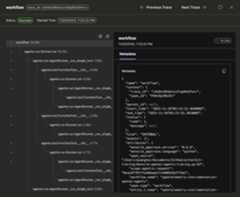
After you run the code and refresh the tracing webview, there's a new trace in the list.
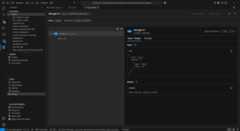
Select the trace to open the trace details webview.
Check the complete execution flow of your app in the left span tree view.
Select a span in the right span details view to see generative AI messages in theInput + Output tab.
Select theMetadata tab to view the raw metadata.
Example 2: set up tracing with the OpenAI Agents SDK using Monocle
The following end-to-end example uses the OpenAI Agents SDK in Python with Monocle and shows how to set up tracing for a multi-agent travel booking system.
Prerequisites
To run this example, you need the following prerequisites:
- Visual Studio Code
- AI Toolkit extension
- Okahu Trace Visualizer
- OpenAI Agents SDK
- OpenTelemetry
- Monocle
- Python latest version
- OpenAI API key
Set up your development environment
Use the following instructions to deploy a preconfigured development environment containing all required dependencies to run this example.
Create environment variable
Create an environment variable for your OpenAI API key using one of the following code snippets. Replace
<your-openai-api-key>with your actual OpenAI API key.bash:
export OPENAI_API_KEY="<your-openai-api-key>"powershell:
$Env:OPENAI_API_KEY="<your-openai-api-key>"Windows command prompt:
setOPENAI_API_KEY=<your-openai-api-key>Alternatively, create a
.envfile in your project directory:OPENAI_API_KEY=<your-openai-api-key>Install Python packages
Create a
requirements.txtfile with the following content:opentelemetry-sdkopentelemetry-exporter-otlp-proto-httpmonocle_apptraceopenai-agentspython-dotenvInstall the packages using:
pip install -r requirements.txtSet up tracing
Create a new local directory on your computer for the project.
mkdir my-agents-tracing-appNavigate to the directory you created.
cd my-agents-tracing-appOpen Visual Studio Code in that directory:
code .
Create the Python file
In the
my-agents-tracing-appdirectory, create a Python file namedmain.py.You'll add the code to set up tracing with Monocle and interact with the OpenAI Agents SDK.
Add the following code to
main.pyand save the file:import osfrom dotenvimport load_dotenv# Load environment variables from .env fileload_dotenv()from opentelemetry.sdk.trace.exportimport BatchSpanProcessorfrom opentelemetry.exporter.otlp.proto.http.trace_exporterimport OTLPSpanExporter# Import monocle_apptracefrom monocle_apptraceimport setup_monocle_telemetry# Setup Monocle telemetry with OTLP span exporter for tracessetup_monocle_telemetry( workflow_name="opentelemetry-instrumentation-openai-agents", span_processors=[ BatchSpanProcessor( OTLPSpanExporter(endpoint="http://localhost:4318/v1/traces") ) ])from agentsimport Agent, Runner, function_tool# Define tool functions@function_tooldef book_flight(from_airport:str,to_airport:str) ->str: """Book a flight between airports.""" return f"Successfully booked a flight from{from_airport} to{to_airport} for 100 USD."@function_tooldef book_hotel(hotel_name:str,city:str) ->str: """Book a hotel reservation.""" return f"Successfully booked a stay at{hotel_name} in{city} for 50 USD."@function_tooldef get_weather(city:str) ->str: """Get weather information for a city.""" return f"The weather in{city} is sunny and 75°F."# Create specialized agentsflight_agent = Agent( name="Flight Agent", instructions="You are a flight booking specialist. Use the book_flight tool to book flights.", tools=[book_flight],)hotel_agent = Agent( name="Hotel Agent", instructions="You are a hotel booking specialist. Use the book_hotel tool to book hotels.", tools=[book_hotel],)weather_agent = Agent( name="Weather Agent", instructions="You are a weather information specialist. Use the get_weather tool to provide weather information.", tools=[get_weather],)# Create a coordinator agent with toolscoordinator = Agent( name="Travel Coordinator", instructions="You are a travel coordinator. Delegate flight bookings to the Flight Agent, hotel bookings to the Hotel Agent, and weather queries to the Weather Agent.", tools=[ flight_agent.as_tool( tool_name="flight_expert", tool_description="Handles flight booking questions and requests.", ), hotel_agent.as_tool( tool_name="hotel_expert", tool_description="Handles hotel booking questions and requests.", ), weather_agent.as_tool( tool_name="weather_expert", tool_description="Handles weather information questions and requests.", ), ],)# Run the multi-agent workflowif __name__ =="__main__": import asyncio result = asyncio.run( Runner.run( coordinator, "Book me a flight today from SEA to SFO, then book the best hotel there and tell me the weather.", ) ) print(result.final_output)
Run the code
Open a new terminal in Visual Studio Code.
In the terminal, run the code using the command
python main.py.
Check the trace data in AI Toolkit
After you run the code and refresh the tracing webview, there's a new trace in the list.
Select the trace to open the trace details webview.
Check the complete execution flow of your app in the left span tree view, including agent invocations, tool calls, and agent delegations.
Select a span in the right span details view to see generative AI messages in theInput + Output tab.
Select theMetadata tab to view the raw metadata.
What you learned
In this article, you learned how to:
- Set up tracing in your AI application using the Azure AI Inference SDK and OpenTelemetry.
- Configure the OTLP trace exporter to send trace data to the local collector server.
- Run your application to generate trace data and view traces in the AI Toolkit webview.
- Use the tracing feature with multiple SDKs and languages, including Python and TypeScript/JavaScript, and non-Microsoft tools via OTLP.
- Instrument various AI frameworks (Anthropic, Gemini, LangChain, OpenAI, and more) using provided code snippets.
- Use the tracing webview UI, including theStart Collector andRefresh buttons, to manage trace data.
- Set up your development environment, including environment variables and package installation, to enable tracing.
- Analyze the execution flow of your app using the span tree and details view, including generative AI message flow and metadata.