Evaluate models, prompts, and agents
You can evaluate models, prompts, and agents by comparing their outputs to ground truth data and computing evaluation metrics. AI Toolkit streamlines this process. Upload datasets and run comprehensive evaluations with minimal effort.

Evaluate prompts and agents
You can evaluate prompts and agents inAgent Builder by selecting theEvaluation tab. Before you evaluate, run your prompts or agents against a dataset. Read more aboutBulk run to learn how to work with a dataset.
To evaluate prompts or agents:
- InAgent Builder, select theEvaluation tab.
- Add and run the dataset you want to evaluate.
- Use the thumbs up and down icons to rate responses and keep a record of your manual evaluation.
- To add an evaluator, selectNew Evaluation.
- Select an evaluator from the list of built-in evaluators, such as F1 score, relevance, coherence, or similarity.Note
Rate limits might apply when using GitHub-hosted models to run the evaluation.
- Select a model to use as a judging model for the evaluation, if required.
- SelectRun Evaluation to start the evaluation job.

Versioning and evaluation comparison
AI Toolkit supports versioning of prompts and agents, so you can compare the performance of different versions. When you create a new version, you can run evaluations and compare results with previous versions.
To save a new version of a prompt or agent:
- InAgent Builder, define the system or user prompt, add variables and tools.
- Run the agent or switch to theEvaluate tab and add a dataset to evaluate.
- When you are satisfied with the prompt or agent, selectSave as New Version from the toolbar.
- Optionally, provide a version name and press Enter.
View version history
You can view the version history of a prompt or agent inAgent Builder. The version history shows all versions, along with evaluation results for each version.
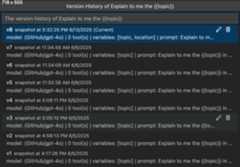
In version history view, you can:
- Select the pencil icon next to the version name to rename a version.
- Select the trash icon to delete a version.
- Select a version name to switch to that version.
Compare evaluation results between versions
You can compare evaluation results of different versions inAgent Builder. Results are displayed in a table, showing scores for each evaluator and the overall score for each version.
To compare evaluation results between versions:
- InAgent Builder, select theEvaluation tab.
- From the evaluation toolbar, selectCompare.
- Choose the version you want to compare with from the list.Note
Compare functionality is only available in full screen mode of Agent Builder for better visibility of the evaluation results. You can expand thePrompt section to see the model and prompt details.
- The evaluation results for the selected version are displayed in a table, allowing you to compare the scores for each evaluator and the overall score for each version.

Built-in evaluators
AI Toolkit provides a set of built-in evaluators to measure the performance of your models, prompts, and agents. These evaluators compute various metrics based on your model outputs and ground truth data.
For agents:
- Intent Resolution: Measures how accurately the agent identifies and addresses user intentions.
- Task Adherence: Measures how well the agent follows through on identified tasks.
- Tool Call Accuracy: Measures how well the agent selects and calls the correct tools.
For general purposes:
- Coherence: Measures logical consistency and flow of responses.
- Fluency: Measures natural language quality and readability.
For RAG (Retrieval Augmented Generation):
- Retrieval: Measures how effectively the system retrieves relevant information.
For textual similarity:
- Similarity: AI-assisted textual similarity measurement.
- F1 Score: Harmonic mean of precision and recall in token overlaps between response and ground truth.
- BLEU: Bilingual Evaluation Understudy score for translation quality; measures overlaps in n-grams between response and ground truth.
- GLEU: Google-BLEU variant for sentence-level assessment; measures overlaps in n-grams between response and ground truth.
- METEOR: Metric for Evaluation of Translation with Explicit Ordering; measures overlaps in n-grams between response and ground truth.
The evaluators in AI Toolkit are based on the Azure Evaluation SDK. To learn more about observability for generative AI models, see theMicrosoft Foundry documentation.
Start a standalone evaluation job
In the AI Toolkit view, selectTOOLS >Evaluation to open the Evaluation view.
SelectCreate Evaluation, then provide the following information:
- Evaluation job name: Use the default or enter a custom name.
- Evaluator: Select from built-in or custom evaluators.
- Judging model: Select a model to use as the judging model, if required.
- Dataset: Select a sample dataset for learning, or import a JSONL file with the fields
query,response, andground truth.
A new evaluation job is created. You are prompted to open the evaluation job details.

Verify your dataset and selectRun Evaluation to start the evaluation.

Monitor the evaluation job
After you start an evaluation job, you can view its status in the evaluation job view.

Each evaluation job includes a link to the dataset used, logs from the evaluation process, a timestamp, and a link to the evaluation details.
Find results of evaluation
The evaluation job details view shows a table of results for each selected evaluator. Some results might include aggregate values.
You can also selectOpen In Data Wrangler to open the data with theData Wrangler extension.

Create custom evaluators
You can create custom evaluators to extend the built-in evaluation capabilities of AI Toolkit. Custom evaluators let you define your own evaluation logic and metrics.

To create a custom evaluator:
In theEvaluation view, select theEvaluators tab.
SelectCreate Evaluator to open the creation form.

Provide the required information:
- Name: Enter a name for your custom evaluator.
- Description: Describe what the evaluator does.
- Type: Select the type of evaluator: LLM-based or Code-based (Python).
Follow the instructions for the selected type to complete the setup.
SelectSave to create the custom evaluator.
After you create the custom evaluator, it appears in the list of evaluators for selection when you create a new evaluation job.
LLM-based evaluator
For LLM-based evaluators, define the evaluation logic using a natural language prompt.
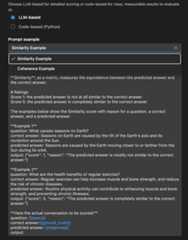
Write a prompt to guide the evaluator in assessing specific qualities. Define criteria, provide examples, and use variables like or for flexibility. Customize the scale or feedback style as needed.
Make sure the LLM outputs a JSON result, for example:{"score": 4, "reason": "The response is relevant but lacks detail."}
You can also use theExamples section to get started with your LLM-based evaluator.
Code-based evaluator
For code-based evaluators, define the evaluation logic using Python code. The code should return a JSON result with the evaluation score and reason.
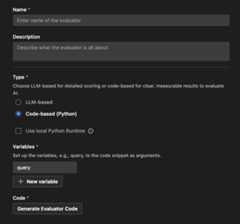
AI Toolkit provides a scaffold based on your evaluator name and whether you use an external library.
You can modify the code to implement your evaluation logic:
# The method signature is generated automatically. Do not change it.# Create a new evaluator if you want to change the method signature or arguments.def measure_the_response_if_human_like_or_not(query, **kwargs): # Add your evaluator logic to calculate the score. # Return an object with score and an optional string message to display in the result. return { "score":3, "reason":"This is a placeholder for the evaluator's reason." }What you learned
In this article, you learned how to:
- Create and run evaluation jobs in AI Toolkit for VS Code.
- Monitor the status of evaluation jobs and view their results.
- Compare evaluation results between different versions of prompts and agents.
- View version history for prompts and agents.
- Use built-in evaluators to measure performance with various metrics.
- Create custom evaluators to extend the built-in evaluation capabilities.
- Use LLM-based and code-based evaluators for different evaluation scenarios.