Inline chat
With inline chat in Visual Studio Code, you can ask for generating code or making edits directly in the editor or get help with shell commands within the integrated terminal. Inline chat allows you to stay in the flow of your work without having to switch to a separate Chat view.
Prerequisites
- Install the latest version ofVisual Studio Code
- Access toGitHub Copilot
Use editor inline chat
When you use editor inline chat, your prompt is scoped to the code in the active editor. Inline chat might use the content from other files in your workspace as context for your prompt.
To use editor inline chat:
Open a file in the editor.
Open editor inline chat by using the⌘I (Windows, LinuxCtrl+I) keyboard shortcut or by selectingOpen Inline Chat from the Chat menu in the title bar.
Type your prompt in the chat input field and pressEnter.
TipSelect a block of code in the editor to scope the prompt to that code.
VS Code shows a diff with the code suggestion inline in the editor. Accept or reject the changes.
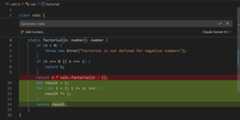
Optionally, ask a follow-up question to get other suggestions or refine the results.
Attach context to your inline chat prompt to include relevant files, code symbols, or other context. Learn more aboutadding context to your chat prompt.
Use terminal inline chat
You can bring up terminal inline chat in theintegrated terminal to get help with shell commands or ask terminal-related questions.
To use terminal inline chat:
Open the terminal in VS Code by selecting theView >Terminal menu item or using the⌃` (Windows, LinuxCtrl+`) keyboard shortcut.
Start terminal inline chat by using the⌘I (Windows, LinuxCtrl+I) keyboard shortcut or running theTerminal Inline Chat command in the Command Palette.
Type your prompt in the chat input field and pressEnter.

Review the response and select theRun (⌘Enter (Windows, LinuxCtrl+Enter)) to run the command in the terminal
Alternatively, selectInsert (⌥Enter (Windows, LinuxAlt+Enter)) to insert the command into the terminal and modify it before running.