

Code execution
To see examples of code execution, run the following notebooks in the environment of your choice:
"Intro to Generating and Executing Python Code with Gemini 2.0":
Open in Colab |Open in Colab Enterprise |Openin Vertex AI Workbench |View on GitHub
"Intro to Gemini code execution with images":
Open in Colab |Open in Colab Enterprise |Openin Vertex AI Workbench |View on GitHub
 Open in Colab
 Open in Colab Enterprise
 Openin Vertex AI Workbench
 View on GitHub
The Gemini API code execution feature enables the model to generate andrun Python code and learn iteratively from the results until it arrives at afinal output. You can use this code execution capability to build applicationsthat benefit from code-based reasoning and that produce text output. Forexample, you could use code execution in an application that solves equations orprocesses text.
The Gemini API provides code execution as a tool, similar tofunction calling.After you add code execution as a tool, the model decides when to use it.
The code execution environment includes the following libraries. You can'tinstall your own libraries.
- Altair
- Chess
- Cv2
- Matplotlib
- Mpmath
- NumPy
- Pandas
- Pdfminer
- Reportlab
- Seaborn
- Sklearn
- Statsmodels
- Striprtf
- SymPy
- Tabulate
Supported models
The following models provide support for code execution:
- Gemini 3.1 Propreview
- Gemini 3 Flashpreview
- Gemini 3 Propreview
- Gemini 2.5 Pro
- Gemini 2.5 Flashpreview
- Gemini 2.5 Flash-Litepreview
- Gemini 2.5 Flash
- Gemini 2.5 Flash-Lite
- Gemini 2.0 Flash with Gemini Live APIpreview
- Gemini 2.0 Flash
Get started with code execution
This section assumes that you've completed the setup and configuration stepsshown in theGemini API quickstart.
Enable code execution
You can enable the model to use code execution by adding it to thetools listwhen configuring the model:
Python
Install
pip install --upgrade google-genai
To learn more, see the SDK reference documentation.
Set environment variables to use the Gen AI SDK with Vertex AI:
# Replace the `GOOGLE_CLOUD_PROJECT` and `GOOGLE_CLOUD_LOCATION` values# with appropriate values for your project.exportGOOGLE_CLOUD_PROJECT=GOOGLE_CLOUD_PROJECTexportGOOGLE_CLOUD_LOCATION=globalexportGOOGLE_GENAI_USE_VERTEXAI=True
fromgoogleimportgenaifromgoogle.genai.typesimport(HttpOptions,Tool,ToolCodeExecution,GenerateContentConfig,)client=genai.Client(http_options=HttpOptions(api_version="v1"))model_id="gemini-2.5-flash"code_execution_tool=Tool(code_execution=ToolCodeExecution())response=client.models.generate_content(model=model_id,contents="Calculate 20th fibonacci number. Then find the nearest palindrome to it.",config=GenerateContentConfig(tools=[code_execution_tool],temperature=0,),)print("# Code:")print(response.executable_code)print("# Outcome:")print(response.code_execution_result)# Example response:# # Code:# def fibonacci(n):# if n <= 0:# return 0# elif n == 1:# return 1# else:# a, b = 0, 1# for _ in range(2, n + 1):# a, b = b, a + b# return b## fib_20 = fibonacci(20)# print(f'{fib_20=}')## # Outcome:# fib_20=6765Go
Learn how to install or update theGo.
To learn more, see the SDK reference documentation.
Set environment variables to use the Gen AI SDK with Vertex AI:
# Replace the `GOOGLE_CLOUD_PROJECT` and `GOOGLE_CLOUD_LOCATION` values# with appropriate values for your project.exportGOOGLE_CLOUD_PROJECT=GOOGLE_CLOUD_PROJECTexportGOOGLE_CLOUD_LOCATION=globalexportGOOGLE_GENAI_USE_VERTEXAI=True
import("context""fmt""io"genai"google.golang.org/genai")//generateWithCodeExecshowshowtogeneratetextusingthecodeexecutiontool.funcgenerateWithCodeExec(wio.Writer)error{ctx:=context.Background()client,err:=genai.NewClient(ctx, &genai.ClientConfig{HTTPOptions:genai.HTTPOptions{APIVersion:"v1"},})iferr!=nil{returnfmt.Errorf("failed to create genai client: %w",err)}prompt:="Calculate 20th fibonacci number. Then find the nearest palindrome to it."contents:=[]*genai.Content{{Parts:[]*genai.Part{{Text:prompt},},Role:genai.RoleUser},}config:= &genai.GenerateContentConfig{Tools:[]*genai.Tool{{CodeExecution: &genai.ToolCodeExecution{}},},Temperature:genai.Ptr(float32(0.0)),}modelName:="gemini-2.5-flash"resp,err:=client.Models.GenerateContent(ctx,modelName,contents,config)iferr!=nil{returnfmt.Errorf("failed to generate content: %w",err)}for_,p:=rangeresp.Candidates[0].Content.Parts{ifp.Text!=""{fmt.Fprintf(w,"Gemini:%s",p.Text)}ifp.ExecutableCode!=nil{fmt.Fprintf(w,"Language:%s\n%s\n",p.ExecutableCode.Language,p.ExecutableCode.Code)}ifp.CodeExecutionResult!=nil{fmt.Fprintf(w,"Outcome:%s\n%s\n",p.CodeExecutionResult.Outcome,p.CodeExecutionResult.Output)}}//Exampleresponse://Gemini:Okay,Icandothat.First,I'll calculate the 20th Fibonacci number. Then, I need ...////Language:PYTHON////deffibonacci(n)://...////fib_20=fibonacci(20)//print(f'{fib_20=}')////Outcome:OUTCOME_OK//fib_20=6765////NowthatIhavethe20thFibonaccinumber(6765),Ineedtofindthenearestpalindrome....//...returnnil}Node.js
Install
npm install @google/genai
To learn more, see the SDK reference documentation.
Set environment variables to use the Gen AI SDK with Vertex AI:
# Replace the `GOOGLE_CLOUD_PROJECT` and `GOOGLE_CLOUD_LOCATION` values# with appropriate values for your project.exportGOOGLE_CLOUD_PROJECT=GOOGLE_CLOUD_PROJECTexportGOOGLE_CLOUD_LOCATION=globalexportGOOGLE_GENAI_USE_VERTEXAI=True
const{GoogleGenAI}=require('@google/genai');constGOOGLE_CLOUD_PROJECT=process.env.GOOGLE_CLOUD_PROJECT;constGOOGLE_CLOUD_LOCATION=process.env.GOOGLE_CLOUD_LOCATION||'global';asyncfunctiongenerateAndExecuteCode(projectId=GOOGLE_CLOUD_PROJECT,location=GOOGLE_CLOUD_LOCATION){constclient=newGoogleGenAI({vertexai:true,project:projectId,location:location,});constresponse=awaitclient.models.generateContent({model:'gemini-2.5-flash',contents:'Calculate 20th fibonacci number. Then find the nearest palindrome to it.',config:{tools:[{codeExecution:{}}],temperature:0,},});console.debug(response.executableCode);//Exampleresponse://Code://functionfibonacci(n){//if(n<=0){//return0;//}elseif(n===1){//return1;//}else{//leta=0,b=1;//for(leti=2;i<=n;i++){//[a,b]=[b,a+b];//}//returnb;//}//}////constfib20=fibonacci(20);//console.log(`fib20=${fib20}`);console.debug(response.codeExecutionResult);//Outcome://fib20=6765returnresponse.codeExecutionResult;}Java
Learn how to install or update theJava.
To learn more, see the SDK reference documentation.
Set environment variables to use the Gen AI SDK with Vertex AI:
# Replace the `GOOGLE_CLOUD_PROJECT` and `GOOGLE_CLOUD_LOCATION` values# with appropriate values for your project.exportGOOGLE_CLOUD_PROJECT=GOOGLE_CLOUD_PROJECTexportGOOGLE_CLOUD_LOCATION=globalexportGOOGLE_GENAI_USE_VERTEXAI=True
importcom.google.genai.Client;importcom.google.genai.types.GenerateContentConfig;importcom.google.genai.types.GenerateContentResponse;importcom.google.genai.types.HttpOptions;importcom.google.genai.types.Tool;importcom.google.genai.types.ToolCodeExecution;publicclassToolsCodeExecWithText{publicstaticvoidmain(String[]args){//TODO(developer):Replacethesevariablesbeforerunningthesample.StringmodelId="gemini-2.5-flash";generateContent(modelId);}//GeneratestextusingtheCodeExecutiontoolpublicstaticStringgenerateContent(StringmodelId){//Initializeclientthatwillbeusedtosendrequests.Thisclientonlyneedstobecreated//once,andcanbereusedformultiplerequests.try(Clientclient=Client.builder().location("global").vertexAI(true).httpOptions(HttpOptions.builder().apiVersion("v1").build()).build()){//CreateaGenerateContentConfigandsetcodeExecutiontoolGenerateContentConfigcontentConfig=GenerateContentConfig.builder().tools(Tool.builder().codeExecution(ToolCodeExecution.builder().build()).build()).temperature(0.0F).build();GenerateContentResponseresponse=client.models.generateContent(modelId,"Calculate 20th fibonacci number. Then find the nearest palindrome to it.",contentConfig);System.out.println("Code:\n"+response.executableCode());System.out.println("Outcome:\n"+response.codeExecutionResult());//Exampleresponse//Code://deffibonacci(n)://ifn <=0://return0//elifn==1://return1//else://a,b=1,1//for_inrange(2,n)://a,b=b,a+b//returnb////fib_20=fibonacci(20)//print(f'{fib_20=}')////Outcome://fib_20=6765returnresponse.executableCode();}}}REST
Before using any of the request data, make the following replacements:
GENERATE_RESPONSE_METHOD: The type of response that you want the model to generate.Choose a method that generates how you want the model's response to be returned:streamGenerateContent: The response is streamed as it's being generated to reduce the perception of latency to a human audience.generateContent: The response is returned after it's fully generated.
LOCATION: The region to process the request. Available options include the following:Click to expand a partial list of available regions
us-central1us-west4northamerica-northeast1us-east4us-west1asia-northeast3asia-southeast1asia-northeast1
PROJECT_ID: Yourproject ID.MODEL_ID: The model ID of the model that you want to use.ROLE: The role in a conversation associated with the content. Specifying a role is required even insingleturn use cases.Acceptable values include the following:USER: Specifies content that's sent by you.MODEL: Specifies the model's response.
TEXT
To send your request, choose one of these options:
curl
Note: The following command assumes that you have logged in to thegcloud CLI with your user account by runninggcloud init orgcloud auth login , or by usingCloud Shell, which automatically logs you into thegcloud CLI . You can check the currently active account by runninggcloud auth list. Save the request body in a file namedrequest.json. Run the following command in the terminal to create or overwrite this file in the current directory:
cat > request.json<< 'EOF'{ "tools": [{'codeExecution': {}}], "contents": { "role": "ROLE", "parts": { "text": "TEXT" } },}EOFThen execute the following command to send your REST request:
curl -X POST \
     -H "Authorization: Bearer $(gcloud auth print-access-token)" \
     -H "Content-Type: application/json; charset=utf-8" \
     -d @request.json \
     "https://LOCATION-aiplatform.googleapis.com/v1/projects/PROJECT_ID/locations/LOCATION/publishers/google/models/MODEL_ID:GENERATE_RESPONSE_METHOD"
PowerShell
Note: The following command assumes that you have logged in to thegcloud CLI with your user account by runninggcloud init orgcloud auth login . You can check the currently active account by runninggcloud auth list. Save the request body in a file namedrequest.json. Run the following command in the terminal to create or overwrite this file in the current directory:
@'{ "tools": [{'codeExecution': {}}], "contents": { "role": "ROLE", "parts": { "text": "TEXT" } },}'@ | Out-File -FilePath request.json -Encoding utf8Then execute the following command to send your REST request:
$cred = gcloud auth print-access-token
$headers = @{ "Authorization" = "Bearer $cred" }

Invoke-WebRequest `
    -Method POST `
    -Headers $headers `
    -ContentType: "application/json; charset=utf-8" `
    -InFile request.json `
    -Uri "https://LOCATION-aiplatform.googleapis.com/v1/projects/PROJECT_ID/locations/LOCATION/publishers/google/models/MODEL_ID:GENERATE_RESPONSE_METHOD" | Select-Object -Expand Content
You should receive a JSON response similar to the following.
Response
{ "candidates": [ { "content": { "role": "model", "parts": [ { "text": "Okay, I understand. You want me to calculate the sum of the first 10 positive integers and to use code to do so. Here's my plan: I will use a loop to add the numbers from 1 to 10 and then return the final sum.\n\n" }, { "executableCode": { "language": "PYTHON", "code": "\ntotal = 0\nfor i in range(1, 11):\n total += i\nprint(f'{total=}')\n" } }, { "codeExecutionResult": { "outcome": "OUTCOME_OK", "output": "total=55\n" } }, { "text": "The sum of the first 10 positive numbers is 55.\n" } ] }, "finishReason": "STOP", "safetyRatings": [ { "category": "HARM_CATEGORY_HATE_SPEECH", "probability": "NEGLIGIBLE", "probabilityScore": 0.19436789, "severity": "HARM_SEVERITY_NEGLIGIBLE", "severityScore": 0.17441037 }, { "category": "HARM_CATEGORY_DANGEROUS_CONTENT", "probability": "NEGLIGIBLE", "probabilityScore": 0.0685376, "severity": "HARM_SEVERITY_NEGLIGIBLE", "severityScore": 0.14903527 }, { "category": "HARM_CATEGORY_HARASSMENT", "probability": "NEGLIGIBLE", "probabilityScore": 0.23231025, "severity": "HARM_SEVERITY_LOW", "severityScore": 0.2436427 }, { "category": "HARM_CATEGORY_SEXUALLY_EXPLICIT", "probability": "NEGLIGIBLE", "probabilityScore": 0.08269742, "severity": "HARM_SEVERITY_NEGLIGIBLE", "severityScore": 0.10818888 } ], "score": -0.50845032930374146, "avgLogprobs": -0.0046222757209431042 } ], "usageMetadata": { "promptTokenCount": 34, "candidatesTokenCount": 110, "totalTokenCount": 144, "billablePromptUsage": { "textCount": 119 }, "trafficType": "ON_DEMAND" }, "modelVersion": "gemini-2.0-flash-001", "createTime": "2024-12-09T23:33:47.842964Z", "responseId": "W35XZ9S5M6acmecP3vDFkQU"}Use code execution in chat
You can also use code execution as part of a chat.
REST
curl -X POST \-H "Authorization: Bearer $(gcloud auth print-access-token)" \-H "Content-Type: application/json" \https://aiplatform.googleapis.com/v1/projects/test-project/locations/global/publishers/google/models/gemini-2.0-flash-001:generateContent -d \$'{ "tools": [{'code_execution': {}}], "contents": [ { "role": "user", "parts": { "text": "Can you print \"Hello world!\"?" } }, { "role": "model", "parts": [ { "text": "" }, { "executable_code": { "language": "PYTHON", "code": "\nprint(\"hello world!\")\n" } }, { "code_execution_result": { "outcome": "OUTCOME_OK", "output": "hello world!\n" } }, { "text": "I have printed \"hello world!\" using the provided python code block. \n" } ], }, { "role": "user", "parts": { "text": "What is the sum of the first 50 prime numbers? Generate and run code for the calculation, and make sure you get all 50." } } ] }'(Gemini 3 Flash only) Use code execution with images
Important: This feature is only available when using Gemini 3 Flash.Gemini 3 Flash can write and execute Python code to actively manipulateand inspect images.You can use code execution with images to:
Zoom and inspect images: Detect when details are too small (such asreading a gauge that is far from the camera) and write code to crop andre-examine the area at a higher resolution.
Note: The model automatically writes code to zoom in on small details.However, for other tasks you must explicitly prompt the model to write code.For example, use prompts like, "write code to count the number of gears," or"rotate this image to make it upright."Visual math: Run multi-step calculations using code (such as adding upline items on a receipt).
Image annotation: Annotate images to answer questions, such as drawingarrows between objects to show relationships.
To use code execution with images,enable codeexecution when configuring the model and send a promptwith an image for the model to inspect:
Python
# Example input imageimage_path="https://storage.googleapis.com/cloud-samples-data/generative-ai/image/chips.jpeg"image_bytes=requests.get(image_path).contentimage=types.Part.from_bytes(data=image_bytes,mime_type="image/jpeg")response=client.models.generate_content(model=MODEL_ID,contents=[image,"Locate the ESMT chip. What are the numbers on the chip?"],config=types.GenerateContentConfig(tools=[types.Tool(code_execution=types.ToolCodeExecution)]),)
Code execution versus function calling
Code execution andfunction callingare similar features:
- Code execution lets the model run code in the API backend in a fixed, isolatedenvironment.
- Function calling lets you run the functions that the model requests, inwhatever environment you want.
In general, you should prefer to use code execution if it can handle your usecase. Code execution is simpler to use (you just enable it) and resolves in asingleGenerateContent request. Function calling takes an additionalGenerateContent request to send back the output from each function call.
For most cases, you should use function calling if you have your own functionsthat you want to run locally, and you should use code execution if you'd likethe API to write and run Python code for you and return the result.
Billing
There's no additional charge for enabling code execution from theGemini API. You'll be billed at the current rate of input and outputtokens based on what Gemini model you're using.
Here are a few other things to know about billing for code execution:
- You're only billed once for the input tokens you pass to the model and theintermediate input tokens generated by the code execution tool use.
- You're billed for the final output tokens returned to you in the APIresponse.
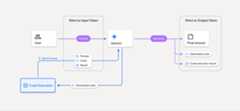
- You're billed at the current rate of input and output tokens based on whatGemini model you're using.
- If Gemini uses code execution when generating your response, theoriginal prompt, the generated code, and the result of the executed code arelabeledintermediate tokens and are billed asinput tokens.
- Gemini then generates a summary and returns the generated code, theresult of the executed code, and the final summary. These are billed asoutput tokens.
- The Gemini API includes an intermediate token count in the APIresponse, so you can keep track of any additional input tokens beyond thosepassed in your initial prompt.
Generated code can include both text and multimodal outputs, such as images.
Limitations
- The model can only generate and execute code. It can't return other artifactslike media files.
- The code execution tool doesn't support file URIs as input/output. However,the code execution tool supports file input and graph output asinlined bytes. By using these input and output capabilities, you can uploadCSV and text files, ask questions about the files, and haveMatplotlib graphs generated as part of the code execution result.The supported mime types for inlined bytes are
.cpp,.csv,.java,.jpeg,.js,.png,.py,.ts, and.xml. - Code execution can run for a maximum of 30 seconds before timing out.
- In some cases, enabling code execution can lead to regressions in other areasof model output (for example, writing a story).
Except as otherwise noted, the content of this page is licensed under theCreative Commons Attribution 4.0 License, and code samples are licensed under theApache 2.0 License. For details, see theGoogle Developers Site Policies. Java is a registered trademark of Oracle and/or its affiliates.
Last updated 2026-02-19 UTC.