

Connect from Cloud Run
This page contains information and examples for connecting to aCloud SQL instance from a service running in Cloud Run.
For step-by-step instructions on running a Cloud Run sample web application connected to Cloud SQL, see thequickstart for connecting from Cloud Run.
Cloud SQL is a fully-managed database service that helps you set up, maintain, manage, and administer your relational databases in the cloud.
Cloud Run is a managed compute platform that lets you run containers directly on top of Google Cloud infrastructure.
Set up a Cloud SQL instance
- Enable the Cloud SQL Admin API in the Google Cloud project that you are connecting from, if you haven't already done so:
Roles required to enable APIs
To enable APIs, you need the Service Usage Admin IAM role (
roles/serviceusage.serviceUsageAdmin), which contains theserviceusage.services.enablepermission.Learn how to grant roles. - Create a Cloud SQL for SQL Server instance. We recommend that you choose a Cloud SQL instance location in the same region as your Cloud Run service for better latency, to avoid some networking costs, and to reduce cross region failure risks.
By default, Cloud SQL assigns a public IP address to a new instance. You also have the option to assign a private IP address. For more information about the connectivity options for both, see the Connecting Overview page.
- When you create the instance, you can choose the server certificate (CA) hierarchy for the instance and then configure the hierarchy as the
serverCaModefor the instance. You must select the per-instance CA option (GOOGLE_MANAGED_INTERNAL_CA) as the server CA mode for instances that you want to connect to from web applications.
Configure Cloud Run
The steps to configure Cloud Run depend on the type of IP address thatyou assigned to your Cloud SQL instance. If you route all egress trafficthrough Direct VPC egress or a Serverless VPC Access connector, use aprivate IP address.Compare the two network egress methods.Public IP (default)
Cloud Run supports connecting to Cloud SQL forSQL Server over public IP using theGo, Java and Python connectors.
- Make sure that the instance has a public IP address. You can verify this on theOverview page for your instance in theGoogle Cloud console. If you need to add one, see theConfiguring public IP page for instructions.
- Get theINSTANCE_CONNECTION_NAME for your instance. You can find this value on theOverview page for your instance in theGoogle Cloud console or by running the following
gcloud sql instances describecommand:gcloudsqlinstancesdescribeINSTANCE_NAME
- Get theCLOUD_RUN_SERVICE_ACCOUNT_NAME for your Cloud Run service. You can find this value on theIAM page of the project that's hosting the Cloud Run service in theGoogle Cloud console or by running the following
gcloud run services describecommand in the project that's hosting the Cloud Run service:gcloudrunservicesdescribeCLOUD_RUN_SERVICE_NAME--regionCLOUD_RUN_SERVICE_REGION --format="value(spec.template.spec.serviceAccountName)"
- CLOUD_RUN_SERVICE_NAME: the name of your Cloud Run service
- CLOUD_RUN_SERVICE_REGION: the region of your Cloud Run service
- Configure the service account for your Cloud Run service. To connect to Cloud SQL, make sure that the service account has the
Cloud SQL ClientIAM role. Note: If the authorizing service account belongs to a different project than the one containing the Cloud SQL instance, you must - Enable the Cloud SQL Admin API in both the projects.
- Add the IAM permissions for the service account in the project containing the Cloud SQL instance.
- If you're adding a Cloud SQL connection to a new service, you need to have your servicecontainerized and uploaded to the Container Registry or Artifact Registry. If you don't already have a connection, then see these instructions aboutbuilding and deploying a container image.
If you're connecting to instances that are configured with the shared certificate authority (CA) (
GOOGLE_MANAGED_CAS_CA) option or the customer-managed CA (CUSTOMER_MANAGED_CAS_CA) option as theserver CA mode, then select the second generation execution environment when youselect the execution environment for the service. Both server CA mode options require you to connect to the instance with the Cloud SQL Auth Proxy v2.If your service runs in a first generation execution environment, then you can connect only to Cloud SQL instances that are configured with the per-instance certificate authority (CA) option (
GOOGLE_MANAGED_INTERNAL_CA) as the server CA mode. The first generation execution environment of Cloud Run embeds the Cloud SQL Auth Proxy v1. For more information about connection requirements to Cloud SQL for the Cloud SQL Auth Proxy, seeRequirements for using the Cloud SQL Auth Proxy.
Like any configuration change, setting a new configuration for the Cloud SQL connection leads to the creation of a new Cloud Run revision. Subsequent revisions will also automatically get this Cloud SQL connection unless you make explicit updates to change it.
Console
Start configuring the service. To add Cloud SQL connections to an existing service, do the following:
- From theServices list, click the service name you want.
- ClickEdit & deploy new revision.
- Enable connecting to a Cloud SQL instance:Note: If your application is written in Java you can skip this step, since you do this in the Java Cloud SQL Connector.
- ClickContainer(s) and thenSettings.
- Scroll toCloud SQL connections.
- ClickAdd connection.
- ClickEnable the Cloud SQL Admin button if you haven't enabled the Cloud SQL Admin API yet.
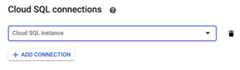
- If you're adding a connection to a Cloud SQL instance in your project, then select the Cloud SQL instance you want from the menu.
- If you're using a Cloud SQL instance from another project, then selectcustom connection string in the menu and enter the full instance connection name in the formatPROJECT-ID:REGION:INSTANCE-ID.
- To delete a connection, hold your cursor to the right of the connection to display theDelete icon, and click it.
ClickCreate orDeploy.
Command line
Before using any of the following commands, make the following replacements:
- IMAGE with the image you're deploying
- SERVICE_NAME with the name of your Cloud Run service
INSTANCE_CONNECTION_NAME with the instance connection name of your Cloud SQL instance, or a comma delimited list of connection names.
If you're deploying a new container, use the following command:
gcloudrundeploy\--image=IMAGE\--add-cloudsql-instances=INSTANCE_CONNECTION_NAME
gcloudrunservicesupdateSERVICE_NAME\--add-cloudsql-instances=INSTANCE_CONNECTION_NAME
Terraform
The following code creates a base Cloud Run container, with a connected Cloud SQL instance.
resource"google_cloud_run_v2_service""default"{name="cloudrun-service"location="us-central1"deletion_protection=false # set to "true" in productiontemplate{containers{image="us-docker.pkg.dev/cloudrun/container/hello:latest" # Image to deployvolume_mounts{name="cloudsql"mount_path="/cloudsql"}}volumes{name="cloudsql"cloud_sql_instance{instances=[google_sql_database_instance.default.connection_name]}}}client="terraform"depends_on=[google_project_service.secretmanager_api,google_project_service.cloudrun_api,google_project_service.sqladmin_api]}- Apply the changes by entering
terraform apply. - Verify the changes by checking theCloud Run service, clicking theRevisions tab, and then theConnections tab.
Private IP
If the authorizing service account belongs to a different project than theone containing the Cloud SQL instance, do the following:
- In both projects, enable the Cloud SQL Admin API.
- For the service account in the project that contains the Cloud SQL instance, add theIAM permissions.
- Make sure that the Cloud SQL instance created previously has a private IP address. To add an internal IP address, seeConfigure private IP.
- Configure your egress method to connect to the same VPC network as your Cloud SQL instance. Note the following conditions:
- Direct VPC egress and Serverless VPC Access both support communication to VPC networks connected usingCloud VPN andVPC Network Peering.
- Direct VPC egress and Serverless VPC Access don't supportlegacy networks.
- Unless you're using Shared VPC, a connector must share the same project and region as the resource that uses it, although the connector can send traffic to resources in different regions.
- Connect using your instance's private IP address and port
1433.
Connect to Cloud SQL
After you configure Cloud Run, you can connect to yourCloud SQL instance.
Public IP (default)
Warning: If you're using a first generation execution environment for your Cloud Run service, then you can connect only to a Cloud SQL instance that's configured with theper-instance certificate authority (CA) option (GOOGLE_MANAGED_INTERNAL_CA) as its server CA mode. The first generation execution environment of Cloud Run embeds the Cloud SQL Auth Proxy v1. For more information about connection requirements to Cloud SQL for the Cloud SQL Auth Proxy, seeRequirements for using the Cloud SQL Auth Proxy.
For public IP paths, Cloud Run provides encryption and connects using the Cloud SQL connectors.
Connect with Cloud SQL connectors
TheCloud SQL connectors are language specific libraries that provide encryption and IAM-based authorization when connecting to a Cloud SQL instance.
Python
To see this snippet in the context of a web application, viewthe README on GitHub.
importosfromgoogle.cloud.sql.connectorimportConnector,IPTypesimportpytdsimportsqlalchemydefconnect_with_connector()->sqlalchemy.engine.base.Engine:""" Initializes a connection pool for a Cloud SQL instance of SQL Server. Uses the Cloud SQL Python Connector package. """# Note: Saving credentials in environment variables is convenient, but not# secure - consider a more secure solution such as# Cloud Secret Manager (https://cloud.google.com/secret-manager) to help# keep secrets safe.instance_connection_name=os.environ["INSTANCE_CONNECTION_NAME"]# e.g. 'project:region:instance'db_user=os.environ.get("DB_USER","")# e.g. 'my-db-user'db_pass=os.environ["DB_PASS"]# e.g. 'my-db-password'db_name=os.environ["DB_NAME"]# e.g. 'my-database'ip_type=IPTypes.PRIVATEifos.environ.get("PRIVATE_IP")elseIPTypes.PUBLIC# initialize Cloud SQL Python Connector objectconnector=Connector(ip_type=ip_type,refresh_strategy="LAZY")connect_args={}# If your SQL Server instance requires SSL, you need to download the CA# certificate for your instance and include cafile={path to downloaded# certificate} and validate_host=False. This is a workaround for a known issue.ifos.environ.get("DB_ROOT_CERT"):# e.g. '/path/to/my/server-ca.pem'connect_args={"cafile":os.environ["DB_ROOT_CERT"],"validate_host":False,}defgetconn()->pytds.Connection:conn=connector.connect(instance_connection_name,"pytds",user=db_user,password=db_pass,db=db_name,**connect_args)returnconnpool=sqlalchemy.create_engine("mssql+pytds://",creator=getconn,# ...)returnpoolJava
To see this snippet in the context of a web application, viewthe README on GitHub.
Note:
- CLOUD_SQL_CONNECTION_NAME should be represented as <MY-PROJECT>:<INSTANCE-REGION>:<INSTANCE-NAME>
- See the JDBC socket factory version requirements for the pom.xml file here.
importcom.zaxxer.hikari.HikariConfig;importcom.zaxxer.hikari.HikariDataSource;importjavax.sql.DataSource;publicclassConnectorConnectionPoolFactoryextendsConnectionPoolFactory{// Note: Saving credentials in environment variables is convenient, but not// secure - consider a more secure solution such as// Cloud Secret Manager (https://cloud.google.com/secret-manager) to help// keep secrets safe.privatestaticfinalStringINSTANCE_CONNECTION_NAME=System.getenv("INSTANCE_CONNECTION_NAME");privatestaticfinalStringDB_USER=System.getenv("DB_USER");privatestaticfinalStringDB_PASS=System.getenv("DB_PASS");privatestaticfinalStringDB_NAME=System.getenv("DB_NAME");publicstaticDataSourcecreateConnectionPool(){// The configuration object specifies behaviors for the connection pool.HikariConfigconfig=newHikariConfig();// The following is equivalent to setting the config options below:// jdbc:sqlserver://;user=<DB_USER>;password=<DB_PASS>;databaseName=<DB_NAME>;// socketFactoryClass=com.google.cloud.sql.sqlserver.SocketFactory;// socketFactoryConstructorArg=<INSTANCE_CONNECTION_NAME>// See the link below for more info on building a JDBC URL for the Cloud SQL JDBC Socket Factory// https://github.com/GoogleCloudPlatform/cloud-sql-jdbc-socket-factory#creating-the-jdbc-url// Configure which instance and what database user to connect with.config.setDataSourceClassName("com.microsoft.sqlserver.jdbc.SQLServerDataSource");config.setUsername(DB_USER);// e.g. "root", "sqlserver"config.setPassword(DB_PASS);// e.g. "my-password"config.addDataSourceProperty("databaseName",DB_NAME);config.addDataSourceProperty("socketFactoryClass","com.google.cloud.sql.sqlserver.SocketFactory");config.addDataSourceProperty("socketFactoryConstructorArg",INSTANCE_CONNECTION_NAME);// The Java Connector provides SSL encryption, so it should be disabled// at the driver level.config.addDataSourceProperty("encrypt","false");// cloudSqlRefreshStrategy set to "lazy" is used to perform a// refresh when needed, rather than on a scheduled interval.// This is recommended for serverless environments to// avoid background refreshes from throttling CPU.config.addDataSourceProperty("cloudSqlRefreshStrategy","lazy");// ... Specify additional connection properties here.// ...// Initialize the connection pool using the configuration object.returnnewHikariDataSource(config);}}Go
To see this snippet in the context of a web application, viewthe README on GitHub.
packagecloudsqlimport("context""database/sql""fmt""log""net""os""cloud.google.com/go/cloudsqlconn"mssql"github.com/denisenkom/go-mssqldb")typecsqlDialerstruct{dialer*cloudsqlconn.DialerconnNamestringusePrivatebool}// DialContext adheres to the mssql.Dialer interface.func(c*csqlDialer)DialContext(ctxcontext.Context,network,addrstring)(net.Conn,error){varopts[]cloudsqlconn.DialOptionifc.usePrivate{opts=append(opts,cloudsqlconn.WithPrivateIP())}returnc.dialer.Dial(ctx,c.connName,opts...)}funcconnectWithConnector()(*sql.DB,error){mustGetenv:=func(kstring)string{v:=os.Getenv(k)ifv==""{log.Fatalf("Fatal Error in connect_connector.go: %s environment variable not set.\n",k)}returnv}// Note: Saving credentials in environment variables is convenient, but not// secure - consider a more secure solution such as// Cloud Secret Manager (https://cloud.google.com/secret-manager) to help// keep secrets safe.var(dbUser=mustGetenv("DB_USER")// e.g. 'my-db-user'dbPwd=mustGetenv("DB_PASS")// e.g. 'my-db-password'dbName=mustGetenv("DB_NAME")// e.g. 'my-database'instanceConnectionName=mustGetenv("INSTANCE_CONNECTION_NAME")// e.g. 'project:region:instance'usePrivate=os.Getenv("PRIVATE_IP"))dbURI:=fmt.Sprintf("user id=%s;password=%s;database=%s;",dbUser,dbPwd,dbName)c,err:=mssql.NewConnector(dbURI)iferr!=nil{returnnil,fmt.Errorf("mssql.NewConnector: %w",err)}// WithLazyRefresh() Option is used to perform refresh// when needed, rather than on a scheduled interval.// This is recommended for serverless environments to// avoid background refreshes from throttling CPU.dialer,err:=cloudsqlconn.NewDialer(context.Background(),cloudsqlconn.WithLazyRefresh())iferr!=nil{returnnil,fmt.Errorf("cloudsqlconn.NewDailer: %w",err)}c.Dialer=&csqlDialer{dialer:dialer,connName:instanceConnectionName,usePrivate:usePrivate!="",}dbPool:=sql.OpenDB(c)iferr!=nil{returnnil,fmt.Errorf("sql.Open: %w",err)}returndbPool,nil}Node.js
To see this snippet in the context of a web application, viewthe README on GitHub.
const{Connection}=require('tedious');const{Connector}=require('@google-cloud/cloud-sql-connector');// In case the PRIVATE_IP environment variable is defined then we set// the ipType=PRIVATE for the new connector instance, otherwise defaults// to public ip type.constgetIpType=()=>process.env.PRIVATE_IP==='1'||process.env.PRIVATE_IP==='true'?'PRIVATE':'PUBLIC';// connectWithConnector initializes a TCP connection// to a Cloud SQL instance of SQL Server.constconnectWithConnector=asyncconfig=>{// Note: Saving credentials in environment variables is convenient, but not// secure - consider a more secure solution such as// Cloud Secret Manager (https://cloud.google.com/secret-manager) to help// keep secrets safe.constconnector=newConnector();constclientOpts=awaitconnector.getTediousOptions({instanceConnectionName:process.env.INSTANCE_CONNECTION_NAME,ipType:getIpType(),});constdbConfig={// Please note that the `server` property here is not used and is only// defined due to a bug in the tedious driver// (ref: https://github.com/tediousjs/tedious/issues/1541)// With that in mind, do not try to change this value since it will have no// impact in how the connector works, this sample will be updated to remove// this property declaration as soon as the tedious driver bug is fixedserver:'0.0.0.0',// e.g. '127.0.0.1'authentication:{type:'default',options:{userName:process.env.DB_USER,// e.g. 'my-db-user'password:process.env.DB_PASS,// e.g. 'my-db-password'},},options:{...clientOpts,// Please note that the `port` property here is not used and is only// defined due to a bug in the tedious driver// (ref: https://github.com/tediousjs/tedious/issues/1541)// With that in mind, do not try to change this value since it will have// no impact in how the connector works, this sample will be updated to// remove this property declaration as soon as the tedious driver bug is// fixedport:9999,database:process.env.DB_NAME,// e.g. 'my-database'useColumnNames:true,},// ... Specify additional properties here....config,};// Establish a connection to the database.returnnewConnection(dbConfig);};Use Secret Manager
Google recommends that you useSecret Manager to store sensitive information such as SQL credentials. You canpass secrets as environment variables or mount as a volume with Cloud Run.
Aftercreating a secret in Secret Manager, update an existing service, with the following command:
Command line
gcloudrunservicesupdateSERVICE_NAME\--add-cloudsql-instances=INSTANCE_CONNECTION_NAME--update-env-vars=INSTANCE_CONNECTION_NAME=INSTANCE_CONNECTION_NAME_SECRET\--update-secrets=DB_USER=DB_USER_SECRET:latest\--update-secrets=DB_PASS=DB_PASS_SECRET:latest\--update-secrets=DB_NAME=DB_NAME_SECRET:latest
Terraform
The following creates secret resources to securely hold the database user, password, and name values usinggoogle_secret_manager_secret andgoogle_secret_manager_secret_version. Note that you must update the project compute service account to have access to each secret.
# Create dbuser secretresource"google_secret_manager_secret""dbuser"{secret_id="dbusersecret"replication{auto{}}depends_on=[google_project_service.secretmanager_api]}# Attaches secret data for dbuser secretresource"google_secret_manager_secret_version""dbuser_data"{secret=google_secret_manager_secret.dbuser.idsecret_data="secret-data" # Stores secret as a plain txt in state}# Update service account for dbuser secretresource"google_secret_manager_secret_iam_member""secretaccess_compute_dbuser"{secret_id=google_secret_manager_secret.dbuser.idrole="roles/secretmanager.secretAccessor"member="serviceAccount:${data.google_project.project.number}-compute@developer.gserviceaccount.com" # Project's compute service account}# Create dbpass secretresource"google_secret_manager_secret""dbpass"{secret_id="dbpasssecret"replication{auto{}}depends_on=[google_project_service.secretmanager_api]}# Attaches secret data for dbpass secretresource"google_secret_manager_secret_version""dbpass_data"{secret=google_secret_manager_secret.dbpass.idsecret_data="secret-data" # Stores secret as a plain txt in state}# Update service account for dbpass secretresource"google_secret_manager_secret_iam_member""secretaccess_compute_dbpass"{secret_id=google_secret_manager_secret.dbpass.idrole="roles/secretmanager.secretAccessor"member="serviceAccount:${data.google_project.project.number}-compute@developer.gserviceaccount.com" # Project's compute service account}# Create dbname secretresource"google_secret_manager_secret""dbname"{secret_id="dbnamesecret"replication{auto{}}depends_on=[google_project_service.secretmanager_api]}# Attaches secret data for dbname secretresource"google_secret_manager_secret_version""dbname_data"{secret=google_secret_manager_secret.dbname.idsecret_data="secret-data" # Stores secret as a plain txt in state}# Update service account for dbname secretresource"google_secret_manager_secret_iam_member""secretaccess_compute_dbname"{secret_id=google_secret_manager_secret.dbname.idrole="roles/secretmanager.secretAccessor"member="serviceAccount:${data.google_project.project.number}-compute@developer.gserviceaccount.com" # Project's compute service account}Update the main Cloud Run resource to include the new secrets.
resource"google_cloud_run_v2_service""default"{name="cloudrun-service"location="us-central1"deletion_protection=false # set to "true" in productiontemplate{containers{image="us-docker.pkg.dev/cloudrun/container/hello:latest" # Image to deploy # Sets a environment variable for instance connection nameenv{name="INSTANCE_CONNECTION_NAME"value=google_sql_database_instance.default.connection_name} # Sets a secret environment variable for database user secretenv{name="DB_USER"value_source{secret_key_ref{secret=google_secret_manager_secret.dbuser.secret_id # secret nameversion="latest" # secret version number or 'latest'}}} # Sets a secret environment variable for database password secretenv{name="DB_PASS"value_source{secret_key_ref{secret=google_secret_manager_secret.dbpass.secret_id # secret nameversion="latest" # secret version number or 'latest'}}} # Sets a secret environment variable for database name secretenv{name="DB_NAME"value_source{secret_key_ref{secret=google_secret_manager_secret.dbname.secret_id # secret nameversion="latest" # secret version number or 'latest'}}}volume_mounts{name="cloudsql"mount_path="/cloudsql"}}volumes{name="cloudsql"cloud_sql_instance{instances=[google_sql_database_instance.default.connection_name]}}}client="terraform"depends_on=[google_project_service.secretmanager_api,google_project_service.cloudrun_api,google_project_service.sqladmin_api]}Apply the changes by enteringterraform apply.
The example command uses the secret version,latest; however, Google recommendspinning the secret to a specific version,SECRET_NAME:v1.
Private IP
For private IP paths, your application connects directly to yourinstance through a VPC network.This method uses TCP to connect directly to the Cloud SQLinstance without using the Cloud SQL Auth Proxy.
Connect with TCP
Connect using the private IP address of your Cloud SQL instance as the host and port1433.
Python
To see this snippet in the context of a web application, viewthe README on GitHub.
importosimportsqlalchemydefconnect_tcp_socket()->sqlalchemy.engine.base.Engine:"""Initializes a TCP connection pool for a Cloud SQL instance of SQL Server."""# Note: Saving credentials in environment variables is convenient, but not# secure - consider a more secure solution such as# Cloud Secret Manager (https://cloud.google.com/secret-manager) to help# keep secrets safe.db_host=os.environ["INSTANCE_HOST"]# e.g. '127.0.0.1' ('172.17.0.1' if deployed to GAE Flex)db_user=os.environ["DB_USER"]# e.g. 'my-db-user'db_pass=os.environ["DB_PASS"]# e.g. 'my-db-password'db_name=os.environ["DB_NAME"]# e.g. 'my-database'db_port=os.environ["DB_PORT"]# e.g. 1433pool=sqlalchemy.create_engine(# Equivalent URL:# mssql+pytds://<db_user>:<db_pass>@<db_host>:<db_port>/<db_name>sqlalchemy.engine.url.URL.create(drivername="mssql+pytds",username=db_user,password=db_pass,database=db_name,host=db_host,port=db_port,),# ...)returnpoolJava
To see this snippet in the context of a web application, viewthe README on GitHub.
Note:
- CLOUD_SQL_CONNECTION_NAME should be represented as <MY-PROJECT>:<INSTANCE-REGION>:<INSTANCE-NAME>
- Using the argument ipTypes=PRIVATE will force the SocketFactory to connect with an instance's associated private IP
- See theJDBC socket factory version requirements for the pom.xml file.
importcom.zaxxer.hikari.HikariConfig;importcom.zaxxer.hikari.HikariDataSource;importjavax.sql.DataSource;publicclassTcpConnectionPoolFactoryextendsConnectionPoolFactory{// Note: Saving credentials in environment variables is convenient, but not// secure - consider a more secure solution such as// Cloud Secret Manager (https://cloud.google.com/secret-manager) to help// keep secrets safe.privatestaticfinalStringDB_USER=System.getenv("DB_USER");privatestaticfinalStringDB_PASS=System.getenv("DB_PASS");privatestaticfinalStringDB_NAME=System.getenv("DB_NAME");privatestaticfinalStringINSTANCE_HOST=System.getenv("INSTANCE_HOST");privatestaticfinalStringDB_PORT=System.getenv("DB_PORT");publicstaticDataSourcecreateConnectionPool(){// The configuration object specifies behaviors for the connection pool.HikariConfigconfig=newHikariConfig();// Configure which instance and what database user to connect with.config.setJdbcUrl(String.format("jdbc:sqlserver://%s:%s;databaseName=%s",INSTANCE_HOST,DB_PORT,DB_NAME));config.setUsername(DB_USER);// e.g. "root", "sqlserver"config.setPassword(DB_PASS);// e.g. "my-password"// ... Specify additional connection properties here.// ...// Initialize the connection pool using the configuration object.returnnewHikariDataSource(config);}}Node.js
To see this snippet in the context of a web application, viewthe README on GitHub.
constmssql=require('mssql');// createTcpPool initializes a TCP connection pool for a Cloud SQL// instance of SQL Server.constcreateTcpPool=asyncconfig=>{// Note: Saving credentials in environment variables is convenient, but not// secure - consider a more secure solution such as// Cloud Secret Manager (https://cloud.google.com/secret-manager) to help// keep secrets safe.constdbConfig={server:process.env.INSTANCE_HOST,// e.g. '127.0.0.1'port:parseInt(process.env.DB_PORT),// e.g. 1433user:process.env.DB_USER,// e.g. 'my-db-user'password:process.env.DB_PASS,// e.g. 'my-db-password'database:process.env.DB_NAME,// e.g. 'my-database'options:{trustServerCertificate:true,},// ... Specify additional properties here....config,};// Establish a connection to the database.returnmssql.connect(dbConfig);};Go
To see this snippet in the context of a web application, viewthe README on GitHub.
packagecloudsqlimport("database/sql""fmt""log""os""strings"_"github.com/denisenkom/go-mssqldb")// connectTCPSocket initializes a TCP connection pool for a Cloud SQL// instance of SQL Server.funcconnectTCPSocket()(*sql.DB,error){mustGetenv:=func(kstring)string{v:=os.Getenv(k)ifv==""{log.Fatalf("Fatal Error in connect_tcp.go: %s environment variable not set.\n",k)}returnv}// Note: Saving credentials in environment variables is convenient, but not// secure - consider a more secure solution such as// Cloud Secret Manager (https://cloud.google.com/secret-manager) to help// keep secrets safe.var(dbUser=mustGetenv("DB_USER")// e.g. 'my-db-user'dbPwd=mustGetenv("DB_PASS")// e.g. 'my-db-password'dbTCPHost=mustGetenv("INSTANCE_HOST")// e.g. '127.0.0.1' ('172.17.0.1' if deployed to GAE Flex)dbPort=mustGetenv("DB_PORT")// e.g. '1433'dbName=mustGetenv("DB_NAME")// e.g. 'my-database')dbURI:=fmt.Sprintf("server=%s;user id=%s;password=%s;port=%s;database=%s;",dbTCPHost,dbUser,dbPwd,dbPort,dbName)// dbPool is the pool of database connections.dbPool,err:=sql.Open("sqlserver",dbURI)iferr!=nil{returnnil,fmt.Errorf("sql.Open: %w",err)}// ...returndbPool,nil}Ruby
To see this snippet in the context of a web application, viewthe README on GitHub.
tcp:&tcpadapter:sqlserver# Configure additional properties here.# Note: Saving credentials in environment variables is convenient, but not# secure - consider a more secure solution such as# Cloud Secret Manager (https://cloud.google.com/secret-manager) to help# keep secrets safe.username:<%= ENV["DB_USER"] %> # e.g. "my-database-user" password: <%=ENV["DB_PASS"]%># e.g. "my-database-password"database:<%= ENV.fetch("DB_NAME") { "vote_development" } %> host: <%=ENV.fetch("INSTANCE_HOST"){"127.0.0.1"}%># '172.17.0.1' if deployed to GAE Flexport:<%=ENV.fetch("DB_PORT"){1433}%>PHP
To see this snippet in the context of a web application, viewthe README on GitHub.
namespace Google\Cloud\Samples\CloudSQL\SQLServer;use PDO;use PDOException;use RuntimeException;use TypeError;class DatabaseTcp{ public static function initTcpDatabaseConnection(): PDO { try { // Note: Saving credentials in environment variables is convenient, but not // secure - consider a more secure solution such as // Cloud Secret Manager (https://cloud.google.com/secret-manager) to help // keep secrets safe. $username = getenv('DB_USER'); // e.g. 'your_db_user' $password = getenv('DB_PASS'); // e.g. 'your_db_password' $dbName = getenv('DB_NAME'); // e.g. 'your_db_name' $instanceHost = getenv('INSTANCE_HOST'); // e.g. '127.0.0.1' ('172.17.0.1' for GAE Flex) // Connect using TCP $dsn = sprintf( 'sqlsrv:server=%s;Database=%s', $instanceHost, $dbName ); // Connect to the database $conn = new PDO( $dsn, $username, $password, # ... ); } catch (TypeError $e) { throw new RuntimeException( sprintf( 'Invalid or missing configuration! Make sure you have set ' . '$username, $password, $dbName, and $instanceHost (for TCP mode). ' . 'The PHP error was %s', $e->getMessage() ), $e->getCode(), $e ); } catch (PDOException $e) { throw new RuntimeException( sprintf( 'Could not connect to the Cloud SQL Database. Check that ' . 'your username and password are correct, that the Cloud SQL ' . 'proxy is running, and that the database exists and is ready ' . 'for use. For more assistance, refer to %s. The PDO error was %s', 'https://cloud.google.com/sql/docs/sqlserver/connect-external-app', $e->getMessage() ), (int) $e->getCode(), $e ); } return $conn; }}Best practices and other information
You can use theCloud SQL Auth Proxy when testingyour application locally. See thequickstart for using the Cloud SQL Auth Proxyfor detailed instructions.
You can also test using theCloud SQL Proxy via a docker container.
Connection Pools
Connections to underlying databases may be dropped, either by the databaseserver itself, or by the platform infrastructure. We recommend using a clientlibrary that supports connection pools thatautomatically reconnect broken client connections.You can use Managed Connection Pooling with your Cloud SQLinstances, which lets you scale your workloads by optimizing resourceutilization and connection latency for your Cloud SQL instances usingpooling. For detailed information about Managed Connection Pooling, seeManaged Connection Pooling overview.
For more detailed examples on how to use connection pools, see theManaging database connections page.Connection Limits
Both the MySQL and PostgreSQL editions of Cloud SQL impose a maximum limit onconcurrent connections, and these limits may vary depending on the databaseengine chosen (see theCloud SQL Quotas and Limits page).Cloud Run container instances are limited to 100 connections to aCloud SQL database.Each instance of a Cloud Run service or job can have100 connections to the database, and as this service or job scales, the total number ofconnections per deployment can grow.
You can limit the maximum number of connections used per instance by using aconnection pool. For more detailed examples on how to limit the number ofconnections, see the Managing database connections page.
API Quota Limits
Cloud Run provides a mechanism that connects using the Cloud SQL Auth Proxy, which uses theCloud SQL Admin API.API quota limits apply to the Cloud SQL Auth Proxy. The Cloud SQL Admin API quotaused is approximately two times the number of Cloud SQL instancesconfigured by the number of Cloud Run instances of a particularservice deployed at any one time.You cancap or increase the numberof Cloud Run instances to modify the expected API quotaconsumed.What's next
- Learn more aboutCloud Run.
- Learn more aboutbuilding and deploying container images.
Except as otherwise noted, the content of this page is licensed under theCreative Commons Attribution 4.0 License, and code samples are licensed under theApache 2.0 License. For details, see theGoogle Developers Site Policies. Java is a registered trademark of Oracle and/or its affiliates.
Last updated 2026-02-19 UTC.