

Restore an instance overview
Cloud SQL lets you restore your instances from a backup, or byperforming point-in-time recovery (PITR). This lets you recover an instanceto a specific period or time by either restoring the back to an existinginstance, or restoring the backup to a new instance. To restore, you can usethe backup of a live or deleted instance. The restore operation takes the sourceinstance's settings, databases, and users, and sets them in the target instanceyou choose.
When you restore to a new instance, the target instance can be in a differentregion or project from the source instance. The target instance can also use adifferent number of cores or amount of memory than the source instance.
Cloud SQL always sets the storage capacity of the target instance to themaximum value of the size of both the configured disk and the backup disk. Thebackup disk is the size of the disk when the backup is taken.
When performing a restore on an instance, consider the following:
- The restore operation overwrites all data on the target instance.
- The flags from the source instance aren't restored. Any flags previouslyset on the target instance are retained after the restore.
- The target instance is unavailable for connections during the restoreoperation; existing connections are lost.
- If you are restoring to an instance with read replicas, then you must deleteall replicas and recreate them after the restore operation completes.
- The restore operation restarts the instance.
- After you restore from a backup, the target instance's backup configurationsare set to default values. If your source instance had custom backupconfigurations or was using enhanced backups, then you'll need to updatethe backup configurations after restore is complete.
Restore using a backup
Cloud SQL lets you restore an instance using a backup. You can use abackup from a live or deleted instance, and use it to restore to a new orexisting instance. You can useany available backupto restore the instance. To learn more about how backups work at Cloud SQL,seeBackups overview.
When you restore an instance using a backup, you can do the following:
- Restore to a new instance
- Restore to an existing instance
- Restore to an instance in another project or region
In the event of an outage, you can still retrieve alist of backupsin a particular project to restore from.
To restore your instance using a backup, seeRestore an instance using a backup.
Point-in-time recovery (PITR)
PITR lets you restore your instance to a specific time of the database. Forexample, if an error causes a loss of data, thenyou can recover a database to its state before the error occurred. Unlikerestore using a backup, PITR always create a new instance. You can'tperform a PITR to an existing instance. The new instance inherits the settingsof the source instance, similar to when youcreate a clone.
If you create a Cloud SQL Enterprise Plus edition instance, then PITR is enabled by default.You have to manuallydisable the feature.
If you create a Cloud SQL Enterprise edition instance in the Google Cloud console, then PITR isenabled by default. If you create a Cloud SQL for MySQLinstance with High availability enabled, then PITR is also enabled by default.Otherwise, if you create the instance by using thegcloud CLI, Terraform, or the Cloud SQL Admin API, then PITR isdisabled by default. To enable PITR for these instances, you have to manuallyenable it.
For step-by-step instructions for performing PITR, seeUse point-in-time recovery (PITR).
Log storage for PITR
PITR usesbinary loggingto archive logs. When you restore an existing instance using abackup, these archive logs are deleted and won't be available to perform aPITR. Only new logs generated after the restore is complete can be used forPITR.
OnAugust 11, 2023, we launched storingtransaction logs for PITR inCloud Storage. Since thislaunch, the following conditions apply:
All Cloud SQL Enterprise Plus edition instances store their binary logsused for PITR in Cloud Storage. Only Cloud SQL Enterprise Plus edition instances that youupgraded from Cloud SQL Enterprise edition before April 1, 2024 and had PITR enabledbefore August 11, 2023 continue to store their logsfor PITRon disk.
Cloud SQL Enterprise edition instances created with PITR enabled beforeAugust 11, 2023continue to store their logs for PITRon disk.
Note: For instances that were created beforeAugust 11, 2023, Cloud SQLswitches the location of the transaction logs used for PITR automatically foryou. You can usegcloud CLI or the Cloud SQL Admin API tocheck where transaction logs are stored for your instance.If you upgrade a Cloud SQL Enterprise edition instance afterAugust 11, 2023 that storestransaction logs for PITR on disk to Cloud SQL Enterprise Plus edition, then the upgradeprocess switches the storage location of the transaction logs used for PITR toCloud Storage foryou. For more information, seeUpgrade an instance to Cloud SQL Enterprise Plus edition by using in-place upgrade.
All Cloud SQL Enterprise edition instances that you create with PITR enabled afterAugust 11, 2023 store logs used for PITRin Cloud Storage.
If your instance uses Cloud Storage to store binary logs,then the logs are stored in the same region as the primary instance. These logsare stored for up to 35 days for Cloud SQL Enterprise Plus edition and 7 days forCloud SQL Enterprise edition and generate no additional cost per instance.
For more information about how to check the storage location of the transactionlogs used for PITR, seecheck where transaction logs are stored for your instance.
For instances that store binary logs only on disk, you canswitch the storage location of the transaction logs used for PITR from disk toCloud Storage by usinggcloud CLI or the Cloud SQL Admin API. For moreinformation, seeSwitch transaction log storage to Cloud Storage.
Caution: Moving transaction logs from disk to Cloud Storage results inboth several minutes of downtime and a loss of the previous logs for PITR. Thedowntime is because the instances must be restarted, and the logs are clearedwhen you deactivate PITR.To ensure that logs for your instance are stored in Cloud Storage instead ofon disk, complete the following actions:
- Check the network architecture of the instance.If the instance is on the old network architecture, thenupgrade it to the new network architecture.
If the size of your logs on disk is causingperformance issues for your instance, then deactivate PITR and re-enable it.This action ensures that new logs are stored in Cloud Storage instead of ondisk.
Caution: If you deactivate and re-enable PITR, then any existing logs aredeleted, and you won't be able to perform PITR earlier than the time thatyou re-enabled it. Enabling and deactivating PITR requires restarting thedatabase.
Log retention period
Cloud SQL retains transaction logs in Cloud Storage for up to thevalue set in thetransactionLogRetentionDaysPITR configuration setting. This value can range from 1 to 35 days forCloud SQL Enterprise Plus edition and 1 to 7 days for Cloud SQL Enterprise edition. If a value for this parameterisn't set, then the default transaction log retention period is 14 days forCloud SQL Enterprise Plus edition instances and 7 days for Cloud SQL Enterprise edition instances. For moreinformation on how to set the transaction log retention days,seeSet transaction log retention.
Although an instance stores the binary logs used forPITR in Cloud Storage, the instance also keeps a smaller number of duplicatebinary logs on disk to allow for replication of thelogs to Cloud Storage. By default, when you create an instance with PITRenabled, the instance stores its binary logs for PITRin Cloud Storage. Cloud SQL also sets the value oftheexpire_logs_days andbinlog_expire_logs_seconds flags to the equivalentof one day automatically. This translates to one day of logs on disk.
For PITR binary logs that are storedon disk, thatare being switched to Cloud Storage, or that are already switchedto Cloud Storage, Cloud SQL retains the logs for theminimum value set for one of the following configurations:
- The
transactionLogRetentionDaysbackup configuration setting - The
expire_logs_daysor thebinlog_expire_logs_secondsflag
Cloud SQL doesn't set any values for these flags if thebinary logs are stored on disk, are being switched toCloud Storage, or have already been switchedto Cloud Storage. When logs are stored on disk, modifying the values ofthese flags can affect the behavior of PITR recovery and how many daysworth of logs are stored on disk. While the log storage location is beingswitched to Cloud Storage, you can't modify the flag values.We also don't recommend that you configure either flag value to0. For moreinformation, seeConfigure database flags.
transactionLogRetentionDaysconfiguration settingexpire_logs_daysdatabase flagbinlog_expire_logs_secondsdatabase flag
For example, to prevent performance issues, reduce the value of theflags by one day, each day, over several days. As a result, Cloud SQLdoesn't purge all of the binary logs simultaneously.
Forcustomer-managed encryption key (CMEK)-enabled instances,binary logs are encrypted using the latest version of theCMEK. To perform a restore, the latest key version is required for all daysretained as part of theretained-transaction-log-days parameter.
Logs and disk usage
Logs are generated regularly and use storage space. The binarylogs are deleted automatically with their associated automatic backup, whichhappens after the value that's set fortransactionLogRetentionDaysis met.
To find out how much disk is being used by the binary logs,check thebytes_used_by_data_typemetric for the instance. The value for thebinlog data type returnsthe size of the binlogs on the disk. For instances that store transaction logsused for PITR on disk,Cloud SQL purges data from the disk daily to meet thetransactionLogRetentionDays PITR setting,as described inAutomatic backup and transaction log retention.However, if you set theexpire_logs_days orbinlog_expire_logs_seconds flagto a value that's lower than transaction log retention days,then Cloud SQL can purge the binary logs sooner.
If the size of your binary logs are causing an issue foryour instance:
- Check whether your instance is storing logs on disk.You canswitch the storage locationof the logs that Cloud SQL uses for PITR from disk toCloud Storage without downtime by using gcloud CLI or theCloud SQL Admin API. If you're using Cloud SQL Enterprise edition, then you can alsoupgrade to Cloud SQL Enterprise Plus editionto switch the storage location of your PITR logs.
You can increase the instance storage size. However, the binarylog size increase in disk usage might be temporary.
We recommend enablingautomatic storage increase to avoid unexpected storage issues.
For more information about PITR,seePoint-in-time recovery (PITR).
After you complete theswitch of the storage location of transaction logs to Cloud Storage,you can free up disk space by reducing the values of theexpire_logs_days orbinlog_expire_logs_secondsflags. To check the status of the switch, seeCheck the storage location of transaction logs used for PITR.If you want additional logs to be availableon disk — for example, tobrowse the binary logswith themysqlbinlog utility —then increase the values of these flags. Cloud SQL retainsbinary logs on disk for the minimum of the transaction logretention days or the values set for the flags. For more information onhow logs for PITR are stored after the switch and how to free up disk space,seeLogs after the switch to Cloud Storage.
expire_logs_days orbinlog_expire_logs_secondsflags set automatically to the equivalent of 7 days.PITR limitations
The following limitations are associated with your instance having PITR enabledand the size of your transaction logs on disk causing an issue for your instance:
- You can deactivate PITR and re-enable it to ensure that Cloud SQLstores logs in Cloud Storage in the same region as the instance. However,Cloud SQL deletes any existing logs so you can't perform a PITRoperation earlier than the time that you re-enabled PITR.
- You can increase the instance storage size, but the transaction log sizeincrease in disk usage might be temporary.
- To avoid unexpected storage issues, we recommend enablingautomatic storage increases.This recommendation applies only if your instance has PITR enabled and yourlogs are stored on disk.
- If you want to delete logs and recover storage, then you can deactivate PITRwithout re-enabling it. However, decreasing the storage used doesn't shrink thesize of the disk provisioned for the instance.
Logs are purged once daily, not continuously. Setting the log retention to twodays means that at least two days of logs, and at most three days of logs, areretained. We recommend setting the number of backups to one more than the daysof log retention.
For example, if you specify
7for the value of thetransactionLogRetentionDaysparameter, then for thebackupRetentionSettingsparameter, set the number ofretainedBackupsto8.
For step-by-step instructions for performing PITR, see [Use point-in-time recovery (PITR)][perform-pitr].
Restore an unavailable instance
You can use PITR to restore a Cloud SQL instance that isn't available.PITR typically offers a recovery point objective (RPO) of five minutes or less.
If the instance is unavailable, then you can use the API to get theearliest and latest recovery timeto which you can restore the instance and perform the recovery to that time. Ifthe zone in which the instance is configured isn't accessible, then youcanrestorethe instance to a different primary or secondary zone by providing valuesfor the preferred zones.
Suppose a Cloud SQL instance becomes unavailable at 4 PM EST. If thelatest recovery time is at 3:55 PM EST, then you can recover the instance up tothis time.
Restore a deleted instance using PITR
You can use PITR to restore a Cloud SQL instance after deletion. Touse this feature, your instance must havePITR andretained backsenabled before the instance is deleted. When enabled, PITR logs are retainedafter you delete the instance.
After an instance is deleted, the PITR logs continue to follow the retentionsettings defined by the instance when it was live. The PITR logs expire basedon the retention settings on a rolling basis after the instance is deleted.The rolling period is defined based on thePITR retention periodset on the instance prior to deletion. For example, if your Cloud SQL Enterprise Plus editioninstance has PITR retention set to 14 days, then the latest PITR log will bedeleted 14 days after instance deletion. When a PITR log expires, it can'tbe recovered.
Since instance names can be reused after an instance is deleted in Cloud SQL,retained PITR logs can be identified in Google Cloud with the following fields:
instance_deletion_timelog_retention_days
These fields allow you to identify if a PITR log belongs to a deleted instance.
The PITR recovery window is defined as the earliest and latest recovery timesavailable to restore your instance using PITR. To find your deleted instance'searliest and latest recovery times, seeGet the earliest and latest recovery time.
To restore an instance using PITR after instance deletion, seePerform PITR on a deleted instance.
Requirements for restoring to a new instance
When you restore your instance to a new instance, note the followingrequirements:
The target instance must have the same database version as the instance fromwhich the backup was taken.
The storage capacity of the target instance must be at least as large as thecapacity of the instance being backed up. The amount of storage used doesnot matter. You can see the storage capacity of the instance in the consoleCloud SQLinstances page.
The target instance must be in the
RUNNABLEstate.
Restore rate limitations
You are allowed a maximum of three restore operations every 30 minutes perinstance per region per project. If a restore operation fails, then it isn'tcounted towards this quota. If you reach the limit, then the operation failswith an error message that tells you when you can run the operation again.
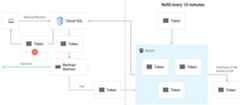
Cloud SQL uses tokens from a bucket to determine how many restore operationsare available at any one time. For each backup, there's a bucket for each targetproject and target region. The target instances from the same project share onebucket if they are in the same region. There's a maximum of three tokens in eachbucket that you can use for restore operations. Every 10 minutes, a new token isadded to the bucket. If the bucket is full, then the token overflows.
Each time you issue a restore operation, a token is granted from the bucket. Ifthe operation succeeds, the token is removed from the bucket. If it fails, thetoken is returned to the bucket. The following diagram shows how this works:
For example, in the following figure, Backup1, Backup2, and Backup3 are thebackups from the same source instance.
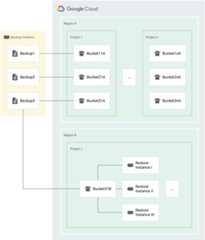
- Each backup (Backup1, Backup2, and Backup3) has its own bucket of tokens forrestore operations that target different instances in Project 1 in Region A(Bucket11A, Bucket21A, and Bucket31A). Because each backup has its own bucket,you can restore each backup to the same instance three times every thirty minutes.
- Each backup has a bucket for a separate project and for a separate region.For example, if there are five projects in a region, there are fivebuckets for that backup in that region, one in each project. In the previousfigure, we have two projects in region A: Project 1 and Project n.
- Backup1 has two buckets of tokens for restore operations in Region A. Onebucket for Project 1 (Bucket11A), and one bucket for Project n (Bucket1nA).
- Similarly, Backup3 has two buckets for restore operations in Region A. Onefor Project 1 (Bucket31A) and one for Project n (Bucket3nA).
- Backup3 has one bucket in Region B, for Project1, because all instances inthe same target project and the same target region share one bucket.
What's next
Except as otherwise noted, the content of this page is licensed under theCreative Commons Attribution 4.0 License, and code samples are licensed under theApache 2.0 License. For details, see theGoogle Developers Site Policies. Java is a registered trademark of Oracle and/or its affiliates.
Last updated 2026-02-19 UTC.