

Tune a query using the query plan visualizer
The query plan visualizer lets you quickly understand the structure of thequery plan chosen bySpanner to evaluate a query. This guide describes how you can usea query plan to help you understand the execution of your queries.
Before you begin
Note: Spanner Studio (formerly labeledQuery in the Google Cloud console)supports SQL, DML, and DDL operations in a single editor. For more information,seeManage your data using the Google Cloud console.To familiarize yourself with the parts of the Google Cloud console userinterface mentioned in this guide, read the following:
Run a query in Google Cloud console
- Go to the SpannerInstances page in Google Cloud console.
Select the name of the instance containing the database you want to query.
Google Cloud console displays the instance'sOverview page.
Select the name of the database you want to query.
Google Cloud console displays the database'sOverview page.
- In the side menu, clickSpanner Studio.
Google Cloud console displays the database'sSpanner Studio page.
- Enter the SQL query in the editor pane.
- ClickRun.
Spanner runs the query.
- Click theExplanation tab to see the query plan visualization.
A tour of the query editor
The Spanner Studio page provides query tabs that let you type or paste SQL query and DML statements, run them against your database, and view their results and query execution plans. The key components of the Spanner Studio page are numbered in the following screenshot.
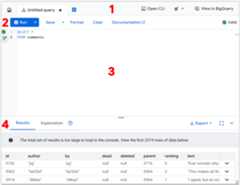
- Thetab bar shows the query tabs you have open. To create a new tab, clickNew tab.
You can also use Gemini Code Assist to get AI-powered assistance. For more information, seeWrite SQL with Gemini assistance.
- Theeditor commands bar provides these options:
- TheRun command executes the statements entered in the editing pane, producing query results in theResults tab and query execution plans in theExplanation tab. Change the default behavior using the drop-down to produceResults only orExplanation only.
Highlighting something in the editor changes theRun command toRun selected, allowing you to execute what you have selected.
- TheSave command lets you create, save, and manage SQL scripts as saved queries. For more information, seeSaved queries overview.
- TheFormat command formats statements in the editor so that they are easier to read.
- TheClear command deletes all text in the editor and clears theResults andExplanation subtabs.
- TheDocumentation link opens a browser tab to Spanner documentation about SQL query syntax.
Queries are validated automatically any time they are updated in the editor. If the statements are valid, the editor commands bar displays a confirmation check mark and the messageValid. If there are any issues, it displays an error message with details.
- TheRun command executes the statements entered in the editing pane, producing query results in theResults tab and query execution plans in theExplanation tab. Change the default behavior using the drop-down to produceResults only orExplanation only.
- Theeditor is where you enter SQL query and DML statements. Inputs are color-coded and line numbers are automatically added for multi-line statements.
If you enter more than one statement in the editor, you must use aterminating semicolon after each statement except the last one.
- Thebottom pane of a query tab provides the following subtabs:
- TheResults subtab shows the results when you run the statements in the editor. For queries it shows a results table, and for DML statements like
INSERTandUPDATEit shows a message about how many rows were affected.Optionally, clickExport to export your query results. It provides the following options:
- Download CSV
- Download JSON
- Export to Google Sheets
- Copy to clipboard (CSV)
- Copy to clipboard (TSV)
- Copy to clipboard (JSON)
- TheExplanation subtab shows visual graphs of the query plans created when you run the statements in the editor.
- TheResults subtab shows the results when you run the statements in the editor. For queries it shows a results table, and for DML statements like
View sampled query plans
- Go to the SpannerInstances page in Google Cloud console.
Click the name of the instance with the queries that you want to investigate.
Google Cloud console displays the instance'sOverview page.
In theNavigation menu and under the Observability heading, clickQuery insights.
Google Cloud console displays the Instance'sQuery insights page.
In theDatabase drop-down menu, select the database with the queries you want to investigate.
Google Cloud console displays the query load information for the database. The TopN queries and tags table displays the list of top queries and request tags sorted by CPU utilization.
Find the query with high CPU utilization for which you want to view sampled query plans. Click theFPRINT value of that query.
TheQuery details page shows aQuery plans samples graph for your query over time. You can zoom out to a maximum of seven days prior to the current time. Note: Query plans are not supported for queries with partitionTokens obtained from the PartitionQuery API andPartitioned DML queries.
Click one of the dots in the graph to see an older query plan and visualize the steps taken during the query execution. You can also click any operator to see expanded information about the operator.
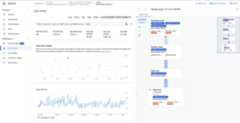
Figure 8. Query plan samples graph.
In some cases, you might want to viewsampled query plans and compare the performance of a query over time. For queries that consume higher CPU, Spanner retains sampled query plans for 30 days on theQuery insights page of the Google Cloud console. To view sampled query plans:
Take a tour of the query plan visualizer
The key components of the visualizer are annotated in the following screenshot and described in more detail. After running a query in a query tab, select theEXPLANATION tab below the query editor to open the query execution plan visualizer.
The data flow in the following diagram is bottom-up, that is, all the tables and indexes are at the bottom of the diagram and the final output is at the top.
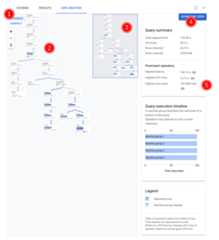
- The visualization of your plan can be large, depending on the query you executed. To hide and show details toggle theEXPANDED/COMPACT view selector. You can customize how much of the plan you see at any one time using the zoom control.
- The algebra that explains how Spanner runs the query is drawn as an acyclic graph, where each node corresponds to an iterator that consumes rows from its inputs and produces rows to its parent. A sample plan is shown inFigure 9. Click the diagram to see an expanded view of some of the details of the plan.
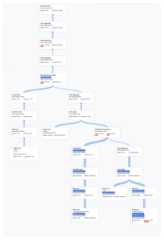
Figure 9. Sample visual plan (Click to zoom in). 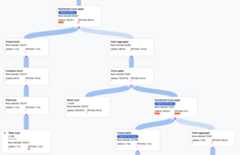
Each node, orcard, on the graph represents an iterator and contains the following information:
- The iterator name. An iterator consumes rows from its input and produces rows.
- Runtime statistics telling you how many rows were returned, what the latency was, and how much CPU was consumed.
- We provide the followingvisual cues to help you identify potential issues within the query execution plan.
- Red bars in a node are visual indicators of the percentage of latency or CPU time for this iterator compared to the total for the query.
- The thickness of lines connecting each node represents the row count. The thicker the line, the larger the number of rows passed to the next node. The actual number of rows is displayed in each card and when you hold the pointer over a connector.
- A warning triangle is displayed on a node where a full table scan was performed. More details in the information panel include recommendations such as adding an index, or revising the query or schema in other ways if possible in order to avoid a full scan.
- Select a card in the plan to see details in the information panel on the right (5).
- The execution plan mini-map shows a zoomed-out view of the full plan and is useful for determining the overall shape of the execution plan and for navigating to different parts of the plan quickly. Drag directly on the mini-map or click where you'd like to focus, in order to go to another part of the visual plan.
SelectDOWNLOAD JSON to download a JSON version of the execution plan, which is useful for troubleshooting. You can also share it when contacting the Spanner team forsupport. Saving the JSON doesn't save the result of the query.
To download and save a JSON version of the execution plan to visualize later:
- In Spanner Studio, run a query.
- Select theExplanation tab.
- ClickDOWNLOAD JSON to download the JSON version of the execution plan.
- Save and copy the content of the JSON file.
- Open a new query editor tab.
- In the editor tab, enter:
PROTO:CONTENT_OF_JSON
- ClickRun.
- Select theExplanation tab below the query editor to view a visual representation of the downloaded execution plan.
- The information panel shows detailed contextual information about the selected node in the query plan diagram. The information is organized into the following categories.
- Iterator information provides details, as well as runtime statistics, for the iterator card you selected in the graph.
- Query summary provides details about the number of rows returned and the time it took to run the query. Prominent operators are those that exhibit significant latency, consume significant CPU relative to other operators, and return significant numbers of data rows.
- Query execution timeline is a time-based graph that shows how long each machine group was running its portion of the query. A machine group might not necessarily be running for the entire duration of the query's running time. It's also possible that a machine group ran multiple times during the course of running the query, but the timeline here only represents the start of the first time it ran and the end of the last time it ran.
Tune a query that exhibits poor performance
Imagine your company runs an online movie database that contains informationabout movies such as cast, production companies, movie details, and more. Theservice runs on Spanner, but has been experiencing someperformance issues lately.
As lead developer for the service, you are asked to investigate theseperformance issues because they are causing poor ratings for the service. Youopen the Google Cloud console, go to your database instance and thenopen thequery editor. You enter the following query intothe editor and run it.
SELECTt.title,MIN(t.production_year)ASyear,ANY_VALUE(mc.noteHAVINGMINt.production_year)ASnoteFROMtitleAStJOINmovie_companiesASmcONt.id=mc.movie_idWHEREt.titleLIKE'% the %'GROUPBYtitle;The result of running this query is shown in the following screenshot. Weformatted the query in the editor by selectingFORMAT QUERY. There is also anote in the top right of the screen telling us that the query is valid.
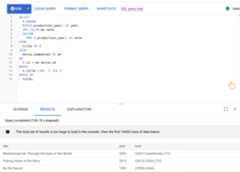
TheRESULTS tab below the query editor shows that the query completed injust over two minutes. You decide to look closer at the query to see whether thequery is efficient.
Analyze slow query with the query plan visualizer
At this point, we know that the query in the preceding step takes over twominutes, but we don't know whether the query is as efficient as possible and,therefore, whether this duration is expected.
You select theEXPLANATION tab just below the query editor to view a visualrepresentation of the execution plan that Spanner created to runthe query and return results.
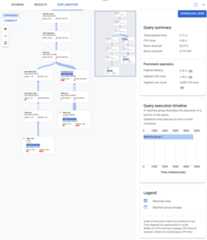
The plan shown in the following screenshot is relatively large but, even at thiszoom level, you can make the following observations.
Based on theQuery summary in the information panel on the right, we learnthat nearly 3 million rows were scanned and under 64K were ultimately returned.
We can also see from theQuery execution timeline panel that 4 machinegroups were involved in the query. A machine group is responsible for theexecution of a portion of the query. Operators may execute on one or moremachines. Selecting a machine group in the timeline highlights on the visualplan what part of the query was executed on that group.

Because of these factors, you decide that an improvement in performance may bepossible by changing the join from an apply join, which Spannerchose by default, to ahash join.
Improve the query
To improve the performance of the query, you use ajoin hint tochange the join method to a hash join. This join implementation executesset-based processing.
Here's the updated query:
SELECTt.title,MIN(t.production_year)ASyear,ANY_VALUE(mc.noteHAVINGMINt.production_year)ASnoteFROMtitleAStJOIN@{join_method=hash_join}movie_companiesASmcONt.id=mc.movie_idWHEREt.titleLIKE'% the %'GROUPBYtitle;The following screenshot illustrates the updated query. As shown in thescreenshot, the query completed in less than 5 seconds, a significantimprovement over 120 seconds runtime before this change.

Examine the new visual plan, shown in the following diagram, to see whatit tells us about this improvement.
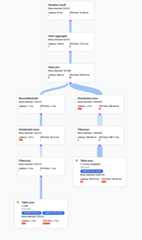
Immediately, you notice some differences:
Only one machine group was involved in this query execution.
The number of aggregations has been reduced dramatically.
Conclusion
In this scenario, we ran a slow query and looked at its visual plan to look forinefficiencies. The following is a summary of the queries and plans before andafter any changes were made. Each tab shows the query that was run and a compactview of the full query execution plan visualization.
Before
SELECTt.title,MIN(t.production_year)ASyear,ANY_VALUE(mc.noteHAVINGMINt.production_year)ASnoteFROMtitleAStJOINmovie_companiesASmcONt.id=mc.movie_idWHEREt.titleLIKE'% the %'GROUPBYtitle;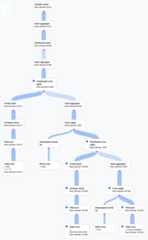
After
SELECTt.title,MIN(t.production_year)ASyear,ANY_VALUE(mc.noteHAVINGMINt.production_year)ASnoteFROMtitleAStJOIN@{join_method=hash_join}movie_companiesASmcONt.id=mc.movie_idWHEREt.titleLIKE'% the %'GROUPBYtitle;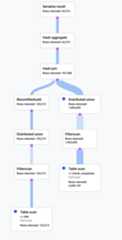
An indicator that something could be improved in this scenario was that a largeproportion of the rows from the tabletitle qualified the filterLIKE'% the %'. Seeking into another table with so many rows is likely tobe expensive. Changing our join implementation to a hash join improvedperformance significantly.
What's next
For the complete query plan reference, refer toQuery executionplans.
For the complete operator reference, refer toQuery executionoperators.
Except as otherwise noted, the content of this page is licensed under theCreative Commons Attribution 4.0 License, and code samples are licensed under theApache 2.0 License. For details, see theGoogle Developers Site Policies. Java is a registered trademark of Oracle and/or its affiliates.
Last updated 2025-12-17 UTC.