

Configure NFS volume mounts for jobs
This page shows how to mount an NFS file share as a volume in Cloud Run.You can use any NFS server, including your own NFS server hostedon-premises, or on a Compute Engine VM. If you don't already have an NFSserver, we recommendFilestore, which is a fullymanaged NFS offering from Google Cloud.
Mounting the NFS file share as a volume in Cloud Run presents the fileshare as files in the container file system. After you mount the fileshare as a volume, you access it as if it were a directory on your local filesystem, using your programming language's file system operations and libraries.
Disallowed paths
Cloud Run does not allow you to mount a volume at/dev,/proc, or/sys, or on their subdirectories.
Limitations
- Cloud Run does not support NFS locking. NFS volumes are automaticallymounted in no-lock mode.
Before you begin
To mount an NFS server as a volume in Cloud Run, make sure you have thefollowing:
- AVPC Network where your NFS server or Filestoreinstance is running.
- An NFS server running in a VPC network, with your Cloud Run jobconnected to that VPC network. If you don't already have an NFS server, create one bycreating a Filestore instance.
- Your Cloud Run job is attached to the VPC network where your NFSserver is running. For best performance, useDirect VPC rather than VPC Connectors.
- If you're using an existing project, make sure that your VPC Firewall configurationallows Cloud Run to reach your NFS server. (If you're starting from anew project, this is true by default.) If you're usingFilestore as your NFS server, follow the Filestoredocumentation to create aFirewall egress ruleto enable Cloud Run to reach Filestore.
- Set the permissions on your remote NFS file share to allow access for thecontainer's user. By default, Filestore provides read access to allusers but restricts write access to the root user (
uid 0). If your containerrequires write access and does not run as the root user, you must use aconnected client (running as root) to modify the share permissions. Forexample, you can use thechowncommand to change the ownership of the filesor directories to the specific user ID your container runs as.
Required roles
To get the permissions that you need to configure Cloud Run jobs, ask your administrator to grant you the following IAM roles on job:
- Cloud Run Developer (
roles/run.developer) - the Cloud Run job - Service Account User (
roles/iam.serviceAccountUser) - the service identity
For a list of IAM roles and permissions that are associated withCloud Run, seeCloud Run IAM rolesandCloud Run IAM permissions.If your Cloud Run job interfaces withGoogle Cloud APIs, such as Cloud Client Libraries, see theservice identity configuration guide.For more information about granting roles, seedeployment permissionsandmanage access.
Mount an NFS volume
You can mount multiple NFS servers, Filestore instances, or othervolume types at different mount paths.
If you are using multiple containers, first specify the volume(s), then specifythe volume mount(s) for each container.
Console
In the Google Cloud console, go to the Cloud RunJobs page:
ClickDeploy container to fill outthe initial job settings page. If you are configuring an existing job,select the job, then clickView and edit job configuration.
ClickContainer(s), Volumes, Connections, Security to expand the job properties page.
Click theVolumes tab.
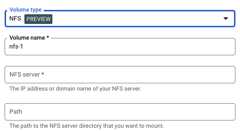
- UnderVolumes:
- ClickAdd volume.
- In theVolume type drop-down, selectNFS as the volume type.
- In theVolume name field, enter the name you want to use for the volume.
- In theNFS server field, enter the domain name or location (in theform
IP_ADDRESS) of the NFS file share. - In thePath field, enter the path to the NFS server directory thatyou want to mount.
- ClickDone.
- Click the Container tab, then expand the container you are mountingthe volume to, to edit the container.
- Click theVolume Mounts tab.
- ClickMount volume.
- Select the NFS volume from the menu.
- Specify the path where you want to mount the volume.
- ClickMount Volume
- UnderVolumes:
ClickCreate orUpdate.
gcloud
Note: We show thegcloud run jobs update command but you can also usethegcloud run jobs deploy command with the same parameters as shown.To add a volume and mount it:
gcloudrunjobsupdateJOB\--add-volumename=VOLUME_NAME,type=nfs,location=IP_ADDRESS:NFS_PATH\--add-volume-mountvolume=VOLUME_NAME,mount-path=MOUNT_PATH
Replace:
- JOB with the name of your job.
- VOLUME_NAME with the name you want to give your volume.
- IP_ADDRESS with the location of the NFS file share.
- NFS_PATH with the path to the NFS file share.
- MOUNT_PATH with the path within the containerfile system where you want to mount this volume.
To mount your volume as a read-only volume:
--add-volumenameVOLUME_NAME,type=nfs,location=IP_ADDRESS:NFS_PATH,readonly=true
If you are using multiple containers, first specify the volumes, thenspecify the volume mounts for each container:
gcloudrunjobsupdateJOB\--add-volumename=VOLUME_NAME,type=nfs,location=IP_ADDRESS:NFS_PATH\--containerCONTAINER_1\--add-volume-mountvolume=VOLUME_NAME,mount-path=MOUNT_PATH\--containerCONTAINER_2\--add-volume-mountvolume=VOLUME_NAME,mount-path=MOUNT_PATH2
YAML
If you are creating a new job, skip this step.If you are updating an existing job, download itsYAML configuration:
gcloudrunjobsdescribeJOB_NAME--formatexport>job.yaml
Update theMOUNT_PATH,VOLUME_NAME,IP_ADDRESS, andNFS_PATH as needed. If you havemultiple volume mounts, you will have multiples of these attributes.
apiVersion:run.googleapis.com/v1kind:Jobmetadata:name:JOB_NAMEspec:metadata:template:metadata:annotations:run.googleapis.com/execution-environment:gen2spec:template:spec:containers:-image:IMAGE_URLvolumeMounts:-name:VOLUME_NAMEmountPath:MOUNT_PATHvolumes:-name:VOLUME_NAMEnfs:server:IP_ADDRESSpath:NFS_PATHreadonly:IS_READ_ONLY
Replace
- JOB with the name of your Cloud Run job
- MOUNT_PATH with the relative path where you are mounting the volume, for example,
/mnt/my-volume. - VOLUME_NAME with any name you want for your volume. TheVOLUME_NAME value is used to map the volume to the volume mount.
- IP_ADDRESS with the address of the NFS file share.
- NFS_PATH with the path to the NFS file share.
- IS_READ_ONLY with
Trueto make the volume read-only, orFalseto allow writes.
Create or update the job using the following command:
gcloudrunjobsreplacejob.yaml
Terraform
To learn how to apply or remove a Terraform configuration, seeBasic Terraform commands.
Add the following to agoogle_cloud_run_v2_job resource in your Terraform configuration:resource"google_cloud_run_v2_job""default"{name="JOB_NAME"location="REGION"template{template{containers{image="us-docker.pkg.dev/cloudrun/container/hello"volume_mounts{name="VOLUME_NAME"mount_path="MOUNT_PATH"}}vpc_access{network_interfaces{network="default"subnetwork="default"}}volumes{name="VOLUME_NAME"nfs{server=google_filestore_instance.default.networks[0].ip_addresses[0]path="NFS_PATH"read_only=IS_READ_ONLY}}}}}resource"google_filestore_instance""default"{name="cloudrun-job"location="REGION"tier="BASIC_HDD"file_shares{capacity_gb=1024name="share1"}networks{network="default"modes=["MODE_IPV4"]}}Replace:
- JOB_NAME with the name of your Cloud Run job.
- REGION with the Google Cloud region. For example,
europe-west1. - MOUNT_PATH with the relative path where you are mounting thevolume, for example,
/mnt/nfs/filestore. - VOLUME_NAME with any name you want for your volume. TheVOLUME_NAME value is used to map the volume to the volume mount.
- NFS_PATH with the path to the NFS file share starting with aforward slash, for example,
/share1. - IS_READ_ONLY with
Trueto make the volume read-only, orFalseto allow writes.
Reading and writing to a volume
If you use the Cloud Run volume mount feature, you access a mountedvolume using the same libraries in your programming language that you use toread and write files on your local file system.
This is especially useful if you're using an existing container that expectsdata to be stored on the local file system and uses regular file systemoperations to access it.
The following snippets assume a volume mount with amountPath set to/mnt/my-volume.
Nodejs
Use the File System module to create a new file or append to an existing filein the volume,/mnt/my-volume:
var fs = require('fs');fs.appendFileSync('/mnt/my-volume/sample-logfile.txt', 'Hello logs!', { flag: 'a+' });Python
Write to a file kept in the volume,/mnt/my-volume:
f = open("/mnt/my-volume/sample-logfile.txt", "a")Go
Use theos package to create a new file kept in the volume,/mnt/my-volume:
f, err := os.Create("/mnt/my-volume/sample-logfile.txt")Java
Use theJava.io.File class to create a log file in the volume,/mnt/my-volume:
import java.io.File;File f = new File("/mnt/my-volume/sample-logfile.txt");Troubleshooting NFS
If you experience problems, check the following:
- Your Cloud Run service is connected to the VPC network that the NFSserver is on.
- There are no firewall rules preventing Cloud Run from reaching theNFS server.
- If your container needs to write data, ensure the NFS share permissionsare configured toallow writes from your container's user.
Container startup time and NFS volume mounts
Using NFS volume mounts can slightly increase your Cloud Run containercold start time because the volume mount is started prior to starting the container(s).Your container will start only if NFS is successfully mounted.
Note that NFS successfully mounts a volume only after establishing a connection to the server and fetching a file handle. If Cloud Run fails to establish a connection to the server, the Cloud Run job will fail to start.
Also, any networking delays can have an impact on container startup time since Cloud Run has a total 30-second timeout for all mounts. If NFS takes longer than 30 seconds to mount, then Cloud Run job will fail to start.
NFS performance characteristics
If you create more than one NFS volume, all volumes are mounted in parallel.
Because NFS is a network file system, it is subject to bandwidth limits andaccess to the file system can be impacted by limited bandwidth.
When you write to your NFS volume, the write is stored in Cloud Runmemory until the data is flushed. Data is flushed in the following circumstances:
- Your application flushes file data explicitly using sync(2), msync(2), or fsync(3).
- Your application closes a file with close(2).
- Memory pressure forces reclamation of system memory resources.
For more information, see theLinux documentation on NFS.
Clear and remove volumes and volume mounts
You can clear all volumes and mounts or you can remove individual volumesand volume mounts.
Clear all volumes and volume mounts
To clear all volumes and volume mounts from your single-container job, run the following command:
gcloudrunjobsupdateJOB\--clear-volumes--clear-volume-mounts
If you have multiple containers, follow the sidecars CLI conventions to clearvolumes and volume mounts:
gcloudrunjobsupdateJOB\--clear-volumes\--clear-volume-mounts\--container=container1\--clear-volumes\-–clear-volume-mounts\--container=container2\--clear-volumes\-–clear-volume-mounts
Remove individual volumes and volume mounts
In order to remove a volume, you must also remove all volume mounts using thatvolume.
To remove individual volumes or volume mounts, use theremove-volume andremove-volume-mount flags:
gcloudrunjobsupdateJOB\--remove-volumeVOLUME_NAME--container=container1\--remove-volume-mountMOUNT_PATH\--container=container2\--remove-volume-mountMOUNT_PATH
Except as otherwise noted, the content of this page is licensed under theCreative Commons Attribution 4.0 License, and code samples are licensed under theApache 2.0 License. For details, see theGoogle Developers Site Policies. Java is a registered trademark of Oracle and/or its affiliates.
Last updated 2025-12-17 UTC.