

Write OTLP metrics by using an OpenTelemetry Collector sidecar
This tutorial shows how to write, deploy, and call a Cloud Runservice that reports customOTLP metricstoGoogle Cloud Managed Service For Prometheusby using the Google-Built OpenTelemetry Collector as a sidecar. For informationabout the Google-built Collector, seeOverview of the Google-Built OpenTelemetry Collector.
If you have a Cloud Run service that reportsPrometheus metrics,then use thePrometheus sidecar forCloud Run instead.
Objectives
- Write, build, and deploy a service to Cloud Run with theGoogle-Built OpenTelemetry Collector as a sidecar.
- Generate custom metrics and report them to Google Cloud Managed Service For Prometheus.
Costs
In this document, you use the following billable components of Google Cloud:
To generate a cost estimate based on your projected usage, use thepricing calculator.
Before you begin
- Sign in to your Google Cloud account. If you're new to Google Cloud, create an account to evaluate how our products perform in real-world scenarios. New customers also get $300 in free credits to run, test, and deploy workloads.
In the Google Cloud console, on the project selector page, select or create a Google Cloud project.
Roles required to select or create a project
- Select a project: Selecting a project doesn't require a specific IAM role—you can select any project that you've been granted a role on.
- Create a project: To create a project, you need the Project Creator role (
roles/resourcemanager.projectCreator), which contains theresourcemanager.projects.createpermission.Learn how to grant roles.
Verify that billing is enabled for your Google Cloud project.
In the Google Cloud console, on the project selector page, select or create a Google Cloud project.
Roles required to select or create a project
- Select a project: Selecting a project doesn't require a specific IAM role—you can select any project that you've been granted a role on.
- Create a project: To create a project, you need the Project Creator role (
roles/resourcemanager.projectCreator), which contains theresourcemanager.projects.createpermission.Learn how to grant roles.
Verify that billing is enabled for your Google Cloud project.
Enable the Cloud Run, Cloud Monitoring, Artifact Registry, and Cloud Build APIs.
Roles required to enable APIs
To enable APIs, you need the Service Usage Admin IAM role (
roles/serviceusage.serviceUsageAdmin), which contains theserviceusage.services.enablepermission.Learn how to grant roles.- Install and initialize the gcloud CLI.
- Update Google Cloud CLI:
gcloud components update
Required roles
To get the permissions that you need to complete the tutorial, ask your administrator to grant you the following IAM roles on your project:
- Cloud Build Editor (
roles/cloudbuild.builds.editor) - Cloud Run Admin (
roles/run.admin) - Create Service Accounts (
roles/iam.serviceAccountCreator) - Project IAM Admin (
roles/resourcemanager.projectIamAdmin) - Monitoring Metric Writer (
roles/monitoring.metricWriter) - Service Account User (
roles/iam.serviceAccountUser) - Service Usage Consumer (
roles/serviceusage.serviceUsageConsumer) - Storage Admin (
roles/storage.admin)
For more information about granting roles, seeManage access to projects, folders, and organizations.
You might also be able to get the required permissions throughcustom roles or otherpredefined roles.
Note:IAM basic roles might also contain permissions to complete the tutorial. You shouldn't grant basic roles in a production environment, but you can grant them in a development or test environment.Also note that the Cloud Run service identity needs theMonitoring Metric Writer (roles/monitoring.metricWriter) role. TheCompute Engine default service accountmight have this role by default, but you might need to add it if you have changedits permissions or are using a different service account.
Setting up gcloud defaults
To configure gcloud with defaults for your Cloud Run service:
Set your default project:
gcloudconfigsetprojectPROJECT_IDReplacePROJECT_ID with the name of the project you created forthis tutorial.
Configure gcloud for your chosen region:
gcloudconfigsetrun/regionREGIONReplaceREGION with the supported Cloud Runregionof your choice.
Cloud Run locations
Cloud Run is regional, which means the infrastructure thatruns your Cloud Run services is located in a specific region and ismanaged by Google to be redundantly available acrossall the zones within that region.
Meeting your latency, availability, or durability requirements are primaryfactors for selecting the region where your Cloud Run services are run.You can generally select the region nearest to your users but you should considerthe location of theother Google Cloudproducts that are used by your Cloud Run service.Using Google Cloud products together across multiple locations can affectyour service's latency as well as cost.
Cloud Run is available in the following regions:
Subject toTier 1 pricing
asia-east1(Taiwan)asia-northeast1(Tokyo)asia-northeast2(Osaka)asia-south1(Mumbai, India)asia-southeast3(Bangkok)europe-north1(Finland) Low CO2
europe-north2(Stockholm)Low CO2europe-southwest1(Madrid)Low CO2europe-west1(Belgium)Low CO2europe-west4(Netherlands)Low CO2europe-west8(Milan)europe-west9(Paris)Low CO2me-west1(Tel Aviv)northamerica-south1(Mexico)us-central1(Iowa)Low CO2us-east1(South Carolina)us-east4(Northern Virginia)us-east5(Columbus)us-south1(Dallas)Low CO2us-west1(Oregon)Low CO2
Subject toTier 2 pricing
africa-south1(Johannesburg)asia-east2(Hong Kong)asia-northeast3(Seoul, South Korea)asia-southeast1(Singapore)asia-southeast2(Jakarta)asia-south2(Delhi, India)australia-southeast1(Sydney)australia-southeast2(Melbourne)europe-central2(Warsaw, Poland)europe-west10(Berlin)europe-west12(Turin)europe-west2(London, UK)Low CO2europe-west3(Frankfurt, Germany)europe-west6(Zurich, Switzerland)Low CO2me-central1(Doha)me-central2(Dammam)northamerica-northeast1(Montreal)Low CO2northamerica-northeast2(Toronto)Low CO2southamerica-east1(Sao Paulo, Brazil)Low CO2southamerica-west1(Santiago, Chile)Low CO2us-west2(Los Angeles)us-west3(Salt Lake City)us-west4(Las Vegas)
If you already created a Cloud Run service, you can view theregion in the Cloud Run dashboard in theGoogle Cloud console.
Creating a Artifact Registry image repository
Create an Artifact Registry Docker repository to host the sample service image:
gcloud artifacts repositories create run-otel \ --repository-format=docker \ --location=REGION \ --project=PROJECT_ID
Replace the following:
- PROJECT_ID with the name of the project you created for this tutorial.
- REGION REGION with the supportedCloud Run region of your choice.
Retrieving the code sample
To retrieve the code sample for use:
Clone the sample app repository to your local machine:
Go
gitclonehttps://github.com/GoogleCloudPlatform/golang-samples.git
Alternatively, you can download the sample as a zip file and extract it.
Change to the directory that contains the Cloud Run samplecode:
Go
cdgolang-samples/run/custom-metrics/
Reviewing the code
The code for this tutorial consists of the following:
- A server that handles incoming requests and generates a metric named
sidecar_sample_counter_total.
packagemainimport("context""fmt""log""net/http""os""go.opentelemetry.io/otel/exporters/otlp/otlpmetric/otlpmetricgrpc""go.opentelemetry.io/otel/metric"sdkmetric"go.opentelemetry.io/otel/sdk/metric""go.opentelemetry.io/otel/sdk/resource"semconv"go.opentelemetry.io/otel/semconv/v1.24.0")varcountermetric.Int64Counterfuncmain(){ctx:=context.Background()shutdown:=setupCounter(ctx)defershutdown(ctx)port:=os.Getenv("PORT")ifport==""{port="8080"log.Printf("defaulting to port %s",port)}http.HandleFunc("/",handler)log.Fatal(http.ListenAndServe(":"+port,nil))}funchandler(whttp.ResponseWriter,r*http.Request){counter.Add(context.Background(),100)fmt.Fprintln(w,"Incremented sidecar_sample_counter_total metric!")}funcsetupCounter(ctxcontext.Context)func(context.Context)error{serviceName:=os.Getenv("K_SERVICE")ifserviceName==""{serviceName="sample-cloud-run-app"}r,err:=resource.Merge(resource.Default(),resource.NewWithAttributes(resource.Default().SchemaURL(),semconv.ServiceName(serviceName),),)iferr!=nil{log.Fatalf("Error creating resource: %v",err)}exporter,err:=otlpmetricgrpc.New(ctx,otlpmetricgrpc.WithInsecure(),)iferr!=nil{log.Fatalf("Error creating exporter: %s",err)}provider:=sdkmetric.NewMeterProvider(sdkmetric.WithReader(sdkmetric.NewPeriodicReader(exporter)),sdkmetric.WithResource(r),)meter:=provider.Meter("example.com/metrics")counter,err=meter.Int64Counter("sidecar-sample-counter")iferr!=nil{log.Fatalf("Error creating counter: %s",err)}returnprovider.Shutdown}- A
Dockerfilethat defines the operating environment for the service.
FROMgolang:1.24asbuilderWORKDIR/appCOPY..RUNCGO_ENABLED=0GOOS=linuxgobuild-osample-appFROMalpine:3RUNapkadd--no-cacheca-certificatesCOPY--from=builder/app/sample-app/sample-appCMD["/sample-app"]The sample also includes files under thecollector subdirectory for building a custom collector:
A config file for the collector.
receivers:otlp:protocols:grpc:http:processors:batch:#batchmetricsbeforesendingtoreduceAPIusagesend_batch_max_size:200send_batch_size:200timeout:5smemory_limiter:#dropmetricsifmemoryusagegetstoohighcheck_interval:1slimit_percentage:65spike_limit_percentage:20#automaticallydetectCloudRunresourcemetadataresourcedetection:detectors:[env,gcp]timeout:2soverride:falseresource:attributes:#addinstance_idasaresourceattribute-key:service.instance.idfrom_attribute:faas.idaction:upsert#parseservicenamefromK_SERVICECloudRunvariable-key:service.namevalue:${env:K_SERVICE}action:insertexporters:googlemanagedprometheus:#Note:thisisintentionallyleftblankextensions:health_check:endpoint:0.0.0.0:13133service:extensions:[health_check]pipelines:metrics:receivers:[otlp]processors:[batch,memory_limiter,resourcedetection,resource]exporters:[googlemanagedprometheus]A
Dockerfilethat bundles the provided config into an upstream Collectorimage.FROMus-docker.pkg.dev/cloud-ops-agents-artifacts/google-cloud-opentelemetry-collector/otelcol-google:0.121.0COPYcollector-config.yaml/etc/otelcol-google/config.yaml
Shipping the code
Shipping code consists of three steps: building a container image withCloud Build, uploading the container image to Artifact Registry, anddeploying the container image to Cloud Run.
To ship your code:
Build your sample service container and publish on Artifact Registry:
gcloudbuildssubmit--tagREGION-docker.pkg.dev/PROJECT_ID/run-otel/sample-metrics-app
Upon success, you should see a SUCCESS message containing the ID, creation time, and image name. The image is stored in Artifact Registry and can be re-used if desired.
Build your Collector container and publish on Artifact Registry:
gcloudbuildssubmitcollector--tagREGION-docker.pkg.dev/PROJECT_ID/run-otel/otel-collector-metrics
Upon success, you should see a SUCCESS message containing the ID, creation time, and image name. The image is stored in Artifact Registry and can be re-used if desired.
Deploy your application:
YAML
Create a new file called
service.yamlwith the following:apiVersion: serving.knative.dev/v1kind: Servicemetadata: name:SERVICE-NAME annotations: run.googleapis.com/launch-stage: BETAspec: template: metadata: annotations: run.googleapis.com/container-dependencies: "{app:[collector]}" spec: containers: - image:REGION-docker.pkg.dev/PROJECT_ID/run-otel/sample-metrics-app name: app ports: - containerPort:CONTAINER_PORT env: - name: "OTEL_EXPORTER_OTLP_ENDPOINT" value: "http://localhost:4317" - image:REGION-docker.pkg.dev/PROJECT_ID/run-otel/otel-collector-metrics name: collector startupProbe: httpGet: path: / port: 13133- Replace the following:
- CONTAINER_PORT with theport your service's ingress container listens on. By default, this is
8080. - SERVICE-NAME with any name for your service, such as
custom-metrics-sample-service.
- CONTAINER_PORT with theport your service's ingress container listens on. By default, this is
Create the new service with the following command:
gcloud run services replace service.yaml
This command returns a service URL. Use this URL to try out the sample application inTrying it out.
Trying it out
Using the URL from thegcloud run command inShipping the code,connect to the service to generate some sample metrics (you can run thiscommand several times to generate more interesting data):
curl -H \"Authorization: Bearer $(gcloud auth print-identity-token)" \SERVICE_URL
ReplaceSERVICE_URL with the URL of your service.
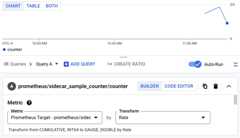
Next, navigate to theMetrics Explorerwithin the Cloud Monitoring section of the Google Cloud console and select thesidecar_sample_counter_total metric.
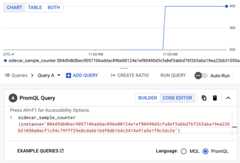
You can also query the metrics withPromQL. For example, the query below will filter metrics based on the Cloud Run instance ID:
sidecar_sample_counter_total{instance="INSTANCE_ID"}ReplaceINSTANCE_ID with the ID of any instance for your service (available in the instance logs or from themetadata server).
This query produces a chart like the one below:
Clean up
To avoid additional charges to your Google Cloud account, delete all the resourcesyou deployed with this tutorial.
Delete the project
If you created a new project for this tutorial, delete the project.If you used an existing project and need to keep it without the changes you addedin this tutorial,delete resources that you created for the tutorial.
The easiest way to eliminate billing is to delete the project that you created for the tutorial.
To delete the project:
Delete tutorial resources
Delete the Cloud Run service you deployed in this tutorial.Cloud Run services don't incur costs until they receive requests.
To delete your Cloud Run service, run the following command:
gcloudrunservicesdeleteSERVICE-NAME
ReplaceSERVICE-NAME with the name of your service.
You can also delete Cloud Run services from theGoogle Cloud console.
Remove the
gclouddefault region configuration you added during tutorialsetup:gcloudconfigunsetrun/regionRemove the project configuration:
gcloud config unset projectDelete other Google Cloud resources created in this tutorial:
What's next
More examples, including examples for traces and logs, are available onGitHub.
Except as otherwise noted, the content of this page is licensed under theCreative Commons Attribution 4.0 License, and code samples are licensed under theApache 2.0 License. For details, see theGoogle Developers Site Policies. Java is a registered trademark of Oracle and/or its affiliates.
Last updated 2026-02-18 UTC.