

Configure environment variables for worker pools
Preview — Cloud Run worker pools
This feature is subject to the "Pre-GA Offerings Terms" in the General Service Terms section of theService Specific Terms. Pre-GA features are available "as is" and might have limited support. For more information, see thelaunch stage descriptions.
This page describes how to configure environment variables for your Cloud Runworker pool.
Any configuration change leads to thecreation of a new revision. Subsequent revisions will also automatically getthis configuration setting unless you make explicit updates to change it.
Required roles
To get the permissions that you need to configure and deploy Cloud Run worker pools, ask your administrator to grant you the following IAM roles:
- Cloud Run Developer (
roles/run.developer) on the Cloud Run worker pool - Service Account User (
roles/iam.serviceAccountUser) on the service identity
For a list of IAM roles and permissions that are associated withCloud Run, seeCloud Run IAM rolesandCloud Run IAM permissions.If your Cloud Run worker pool interfaces withGoogle Cloud APIs, such as Cloud Client Libraries, see theservice identity configuration guide.For more information about granting roles, seedeployment permissionsandmanage access.
Warning: If your Cloud Run worker pool usesservice identity to authenticate accessto Google Cloud APIs, never setGOOGLE_APPLICATION_CREDENTIALS as anenvironment variable on a Cloud Run worker pool. Alwaysconfigure auser-managed service account instead.Set environment variables
You can set environment variables for a Cloud Run worker pool using theGoogle Cloud console, the Google Cloud CLI, YAML, or Terraform:
Console
In the Google Cloud console, go to Cloud Run:
SelectWorker pools from the menu, and clickDeploy container toconfigure a new worker pool.If you are configuring an existing worker pool, click theworker pool, then clickEdit and deploy new revision.
If you are configuring a new worker pool, fill out the initial workerpool page, then clickContainer(s), Volumes, Networking, Security to expand theworker pools configuration page.
Click theContainer tab.
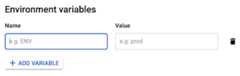
- In the Variables & Secrets tab, clickAdd Variable to add a new environment variable, then specify the name you want for the variable in theName andValue fields. For more information on how to set multiple environment variables or escape special characters, seeSet multiple environment variables.
ClickCreate orDeploy.
gcloud
To specify environment variables while deploying your worker pool, use the--set-env-vars flag:
gcloud beta run worker-pools deployWORKER_POOL --imageIMAGE_URL --set-env-varsKEY1=VALUE1,KEY2=VALUE2Replace the following:
- WORKER_POOL: the name of your worker pool
- KEY1=VALUE1,KEY2=VALUE2: the comma-separated list of variablenames and values
- IMAGE_URL: a reference to the container image thatcontains the worker pool, such as
us-docker.pkg.dev/cloudrun/container/worker-pool:latest
For more information on how to set multiple environment variables or escapespecial characters, seeSet multiple environment variables.
YAML
If you are creating a new worker pool, skip this step.If you are updating an existing worker pool, download itsYAML configuration:
gcloudbetarunworker-poolsdescribeWORKER_POOL--formatexport>workerpool.yamlThe following example contains the YAML configuration:
apiVersion:run.googleapis.com/v1kind:WorkerPoolmetadata:name:WORKER_POOLannotations:run.googleapis.com/launch-stage:BETAspec:template:spec:containers:-name:image:IMAGE_URLenv:-name:NAMEvalue:VALUE-name:NAME2value:VALUE2
Replace the following:
- WORKER_POOL: the name of your Cloud Run worker pool.
- IMAGE_URL: a reference to the container image thatcontains the worker pool, such as
us-docker.pkg.dev/cloudrun/container/worker-pool:latest - NAME andVALUE: the name and values of the environmentvariables.
Create or update the worker pool using the following command:
gcloudbetarunworker-poolsreplaceworkerpool.yaml
Terraform
To learn how to apply or remove a Terraform configuration, seeBasic Terraform commands.
resource"google_cloud_run_v2_worker_pool""default"{name="WORKER_POOL"location="REGION"launch_stage="BETA"template{containers{image="IMAGE_URL"env{name="KEY1"value="VALUE1"}env{name="KEY2"value="VALUE2"}}}}Replace the following:
- WORKER_POOL: the name of the worker pool.
- REGION: the Google Cloud region—for example,
europe-west1 - IMAGE_URL: a reference to the container image thatcontains the worker pool, such as
us-docker.pkg.dev/cloudrun/container/worker-pool:latest - KEY1 andVALUE1: the environment variable andvalue. Optionally add more variables and values as needed.
Set default environment variables in the container
You can use theENVstatement in a Dockerfile to set default values for environment variables:
ENVKEY1=VALUE1,KEY2=VALUE2
Order of precedence: container versus worker pool variables
If youset a default environment variable in the container and alsoset an environment variable with the same name on theCloud Run worker pool, the value set on the worker pool takesprecedence.
Set multiple environment variables
You can set multiple environment variables by using the.env file or the--set-env-vars flag.
Set multiple environment variables using the.env file
Console
In the Google Cloud console, go to Cloud Run:
SelectWorker pools from the menu, and clickDeploy container toconfigure a new worker pool.If you are configuring an existing worker pool, click theworker pool, then clickEdit and deploy new revision.
If you are configuring a new worker pool, fill out the initial workerpool page, then clickContainer(s), Volumes, Networking, Security to expand theworker pools configuration page.
Click theContainer tab.
- In the Variables & Secrets tab, clickAdd Variable and paste the contents ofyour
.envfile into theName field. Cloud Run automaticallypopulates theValue field and creates new variables for each key-value pairyou define in the.envfile.
- In the Variables & Secrets tab, clickAdd Variable and paste the contents ofyour
ClickCreate orDeploy.
gcloud
To specify multiple environment variables from the.env file, run the followingcommand:
gcloud beta run worker-pools deployWORKER_POOL --imageIMAGE_URL --env-vars-file=ENV_FILE_PATHReplace the following:
- WORKER_POOL: the name of the worker pool.
- IMAGE_URL: a reference to the container image thatcontains the worker pool, such as
us-docker.pkg.dev/cloudrun/container/worker-pool:latest - ENV_FILE_PATH: path to the
.envfile.
Set multiple environment variables using the--set-env-vars flag
If you have multiple environment variables that cannot be listed inKEY1=VALUE1,KEY2=VALUE2format, you can repeat the--set-env-vars flag multiple times:[...]--set-env-vars"KEY1=VALUE1"\--set-env-vars"KEY2=VALUE2"\--set-env-vars"KEY3=VALUE3"
Escape comma characters
Because the comma character, is used to split environment variables, if yourenvironment variable contains comma characters as values, you need toescape those delimiters by specifying a differentdelimiter character, for example,@:--set-env-vars"^@^KEY1=value1,value2,value3@KEY2=..."Update environment variables
You can update runtime environment variables for existing worker pools. This is anon-destructive approach that changes or adds runtime environment variables,but doesn't delete them.
You can update environment variables in Google Cloud console, the Google Cloud CLI,YAML, or Terraform:
Console
In the Google Cloud console, go to Cloud Run:
SelectWorker pools from the menu, and click theworker pool you are updating, then clickEdit and deploy new revision.
ClickContainer(s), Volumes, Networking, Security to expand theworker pools configuration page.
Click theVariables & Secrets tab.
Locate the environment variable you want to update, then specify a different name forthe variable, or a different value in theName andValue fields.
ClickDeploy.
gcloud
To update environment variables of an existing worker pool, use the--update-env-vars flag:
gcloud beta run worker-pools updateWORKER_POOL --update-env-varsKEY1=VALUE1,KEY2=VALUE2Replace the following:
- WORKER_POOL: the name of your worker pool
- KEY1=VALUE1,KEY2=VALUE2: the comma-separated list of variablenames and values
YAML
Download the worker poolYAML configuration:
gcloudbetarunworker-poolsdescribeWORKER_POOL--formatexport>workerpool.yamlEdit the name and value variables.
Update the worker pool using the following command:
gcloudbetarunworker-poolsreplaceworkerpool.yaml
Terraform
To update environment variables of an existing worker pool, open themain.tffile corresponding to the worker pool and edit the name and value variables.Then, run the command to apply the Terraform configuration.
To learn how to apply or remove a Terraform configuration, seeBasic Terraform commands.
Delete environment variables
Console
In the Google Cloud console, go to Cloud Run:
SelectWorker pools from the menu, and click theworker pool you are updating, then clickEdit and deploy new revision.
ClickContainer(s), Volumes, Networking, Security to expand theworker pools configuration page.
Click theVariables & Secrets tab.
Locate the environment variable you want to delete and click the trash icon at theright of theValue field to delete the environment variable.
ClickDeploy.
gcloud
To selectively remove environment variables from an existing worker pool, usethe--remove-env-varsflag:
gcloud beta run worker-pools updateWORKER_POOL --remove-env-varsKEY1,KEY2Replace the following:
- WORKER_POOL: the name of your worker pool
- KEY1,KEY2: the comma-separated list of variable names
Alternatively, clear all previously set environment variableswith the--clear-env-varsflag:
gcloud beta run worker-pools updateWORKER_POOL --clear-env-varsReplaceWORKER_POOL with the name of your worker pool.
View environment variable configuration for the worker pool
In the Google Cloud console, go to Cloud Run:
ClickWorker pools to display the list of deployed worker pools.
Click the worker pool you want to examine to display its details pane.
Click theContainers tab to display worker pool container configuration.
Sample code
For a code sample that shows how to access environment variables in your code,refer toHandling sensitive configuration with Secret Managerin the End user authentication tutorial.
What's next
You can use environment variables to set abuildpacksconfiguration. For language-specific details, see the buildpacks documentationfor:
Except as otherwise noted, the content of this page is licensed under theCreative Commons Attribution 4.0 License, and code samples are licensed under theApache 2.0 License. For details, see theGoogle Developers Site Policies. Java is a registered trademark of Oracle and/or its affiliates.
Last updated 2026-02-19 UTC.