

Direct VPC with a VPC network
You can enable your Cloud Run service, function, job, or workerpool to send traffic to a VPC network by using Direct VPCegresswith no Serverless VPC Access connector required.
Cloud Run services and jobs don't support Direct VPCingress.To configure Direct VPC ingress for worker pools only, seeCloud Run worker pools ingress.
Before you begin
If you don't already have a VPC network in your project,create one.
If you use Shared VPC with Cloud Run services or jobs, seeConnecting to a Shared VPC network.
Review the following IP address configuration sections:
IP address allocationfor guidance with allocating IP addresses from your subnet.
IP address exhaustion strategiesfor using alternative IP address ranges.
Limitations
The following limitations apply to Cloud Run services, functions, jobs, and workerpools:
- You might experience connection establishment delays of a minute or more on instance startup when using Direct VPC egress. We recommend configuring aHTTP startup probe that tests a connection to an egress destination used by the application before the application accepts requests. This egress connectivity test should either implement retries or the startup probe should be set with appropriate period and threshold configurations to act as a retry.
- Cloud Run supports throughput of up to 1 Gbps per individual instance. Exceeding this amount results in performance throttling.
ACloud Run usage quota limits the maximum number of instances you can configure to use Direct VPC egress. The maximum number is configured per Cloud Run revision or job execution. To increase the default limits, seehow to increase quotas.
- Cloud Run services, jobs, and worker pools might experience connection breaks during networking infrastructure maintenance events. We recommend that you use client libraries that can handle occasional connection resets.
- Network Intelligence Center supports onlyConnectivity Tests andFlow Analyzer for IPv4 and IPv6 subnet ranges.
- Cloud Run services and jobs don't support direct VPC ingress. Worker pools support both Direct VPC egress and Direct VPC ingress.
- Even if worker pools support Direct VPC ingress, you can't use network tags to define the target of an ingress firewall rule.
The following items are not supported by Direct VPC egress:
- VPC Flow Logs doesn't provide the name of the Cloud Run revision.
- Firewall Rules Logging
- Packet Mirroring
- Network tags orservice identity in ingress firewall rules.
- Firewall rules cannot use Resource Manager tags attached to Cloud Run workloads.
- Cloud Run jobs that run for more than 1 hour might experience connection breaks. These can occur duringmaintenance events that migrate the job from one machine to another. The container receives a
SIGTSTPsignal 10 seconds before the event and aSIGCONTsignal after the event. After the container receives theSIGCONTsignal, retry the connection.
IP address allocation
To place your Cloud Run service, job, or worker pool on aVPC network, specify either a VPC network or asubnet, or both. If you specify only a network, the subnet uses the same name asthe network. Cloud Run allocates IP addresses from your subnet.
IP addresses are ephemeral, so don't create policies based on individual IPs.If you need to create a policy based on IPs, such as in firewall rules, you mustuse the IP address range of the entire subnet.
To change the network or subnet that your service, job, or worker pool uses,deploy a new revision or execute a new job task that uses the new network and subnetvalues.
Scale up and scale down
For faster scale up during a traffic surge, Cloud Run reserves IPaddresses in blocks of 16 (28 subnet mask) at a time.See which IP addresses Cloud Run has allocated.To ensure that you have enough IPv4 addresses available for use acrossCloud Run, your subnet's IPv4 address range must be/26 orlarger.
For IP allocation efficiency and ease of management, place multiple resources onthe same subnet. If your IPv4 address space is limited, seeSupported IPv4 ranges for more options.
To delete the subnet, you must first delete or redeploy your Cloud Runservices, jobs,or worker pools to stop using the subnet, and then wait 1-2hours.
IP address consumption for services and worker pools
At steady state, Cloud Run uses 2 times (2X) as many IP addressesas the number of instances. When a revision scales down, Cloud Runretains its IP addresses for up to 20 minutes. In total, reserve at least 2X thenumber of IP addresses, plus a buffer to account for revision updates.
For example, if you upgrade revisions so thatrevision 1 scales from 100instances down to zero whilerevision 2 scales from zero up to 100,Cloud Run retains therevision 1 IP addresses for up to 20minutes after scaling down. During the 20-minute retention window, you mustreserve at least 400 IP addresses ((100 + 100) * 2).
IP consumption for jobs
For Cloud Run jobs, each task consumes 1 IP address for theduration of its execution plus 7 minutes after it completes. Ensure that yoursubnet is large enough to accommodate all concurrent job task executions, witha minimum reservation/26 subnet required.
For example:
- A single-task job that runs daily and always completes at least 7 minutesbefore the next execution consumes a maximum of 1 IP address on the subnet.
- A 10-task job running every 10 minutes, with each task running for 15 minutes,consumes 1 IP address for 22 minutes per task (3 executions consume IP addressesat the same time), as shown in the following example. The job therefore consumes30 IP addresses at steady state.
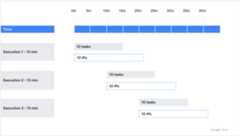
- A single-task job that takes 1 minute to run and executes 100 times perminute requires roughly 800 IP addresses depending on the exact time of execution.

Supported IPv4 ranges
Cloud Run supports the following IPv4 ranges for your subnet:
Note: Test non-RFC 1918 setups to identify possible compatibility issues withnon-Google Cloud resources or hardware. Learn more aboutcreating subnets with non-RFC 1918 IP ranges.Set up IAM permissions
Ensure that Cloud Run has access to the VPC network byusing one of the following methods:
Cloud Run Service Agent role: By default, theCloud Run service agent has theCloud Run Service Agent role (
roles/run.serviceAgent)that contains the necessary permissions.Custom permissions: For more granular control, grant the Cloud Runservice agent with the following additional permissions on the project:
compute.networks.getcompute.subnetworks.getcompute.subnetworks.useon the project or the specific subnetcompute.addresses.getcompute.addresses.listcompute.addresses.create(required only fordual-stack subnets with external IPv6)compute.addresses.delete(required only for dual-stack subnets with external IPv6)compute.addresses.createInternalcompute.addresses.deleteInternalcompute.regionOperations.get
Compute Network User role: If you don't use the defaultCloud Run Service Agent role or the custom permissions, grant theCompute Network User role (
roles/compute.networkUser)on the Cloud Run Service Agent service account. Subnets withexternal IPv6 also require theCompute Public IP Admin role (roles/compute.publicIpAdmin).For example, to grant the Compute Network User role, run the followingcommand:
gcloudprojectsadd-iam-policy-bindingPROJECT_ID\--member"serviceAccount:service-PROJECT_NUMBER@serverless-robot-prod.iam.gserviceaccount.com"\--role"roles/compute.networkUser"
Replace the following:
- PROJECT_ID: the ID of your project.
- PROJECT_NUMBER: the project number where youdeploy your Cloud Run resource.
Connect Cloud Run resources to a VPC network
Depending on the Cloud Run resource that you have, see the instructionsin one of the following sections:
Connect a service to a VPC network
Direct VPC egress allows your Cloud Run service to send trafficto a VPC network without a Serverless VPC Accessconnector. Network costs scale to zero just like the service itself. You canalsoadd network tags directly onCloud Run service revisions for more granular network security, such asapplyingVPC firewall rules.
You can configure Direct VPC egress with a service by using theGoogle Cloud console, Google Cloud CLI, YAML, or Terraform.
Console
ClickCreate Service if you are configuring anew service you are deploying to. If you are configuring and deploying anexisting service, click the service, then clickEdit and deploy new revision.
If you are configuring a new service, fill out the initial servicesettings page as needed, then clickContainer(s), Volumes, Networking, Security toexpand the service configuration page.
Click theNetworking tab.
ClickConnect to a VPC for outbound traffic.
ClickSend traffic directly to a VPC.
In theNetwork field, select the VPCnetwork that you want to send traffic to.
In theSubnet field, select the subnet where your service receives IPaddresses from. You can deploy multiple services on the same subnet.
Optional: Enter the names of thenetwork tagsthat you want to associate with your service or services. Network tags arespecified at the revision-level. Each service revision can have differentnetwork tags, such as
network-tag-2.ForTraffic routing, select one of the following:
- Route only requests to private IPs to the VPC to send onlytraffic to internal addresses through the VPC network.
- Route all traffic to the VPC to send all outbound trafficthrough the VPC network.
ClickCreate orDeploy.
To verify that your service is on your VPC network, clickthe service, then click theNetworking tab. The network and subnetare listed in theVPC card.
You can now send requests from your Cloud Run service to anyresource on the VPC network, as allowed by your firewallrules.
gcloud
To deploy a Cloud Run service without a connector from the Google Cloud CLI:
Update
gcloudcomponents to the latest version:gcloudcomponentsupdate
Ensure that the Compute Engine API is enabled for your project:
gcloud services enable compute.googleapis.com
Deploy your Cloud Run service with the following command:
gcloudrundeploySERVICE_NAME\--image=IMAGE_URL\--network=NETWORK\--subnet=SUBNET\--network-tags=NETWORK_TAG_NAMES\--vpc-egress=EGRESS_SETTING\--region=REGION
Replace:
- SERVICE_NAME with the name of your Cloud Runservice.
- IMAGE_URL: a reference to the container image, forexample,
us-docker.pkg.dev/cloudrun/container/hello:latest. If you use Artifact Registry,therepositoryREPO_NAME mustalready be created. The URL follows the format ofLOCATION-docker.pkg.dev/PROJECT_ID/REPO_NAME/PATH:TAG - Optional:NETWORK with the name of your VPCnetwork. Specify either a VPC network or a subnet, orboth. If you specify only a network, the subnet uses the same name asthe network.
- Optional:SUBNET with the name of your subnet. Specify either a VPCnetwork or a subnet, or both. If you specify only a network, the subnet usesthe same name as the network. You can deploy or execute multiple services, jobs, or worker pools on the same subnet.
- Optional:NETWORK_TAG_NAMES with the comma-separated namesof thenetwork tagsyou want to associate with a service. For services, network tags arespecified at the revision-level. Each service revision can havedifferent network tags, such as
network-tag-2. - EGRESS_SETTING with anegress setting value:
all-traffic: Sends all outbound traffic through the VPCnetwork.private-ranges-only: Sends only traffic to internal addressesthrough the VPC network.
- REGION with a region for your service.
To verify that your service is on your VPC network, runthe following command:
gcloudrunservicesdescribeSERVICE_NAME\--region=REGION
Replace:
SERVICE_NAMEwith the name of your service.REGIONwith the region for your service that youspecified in the previous step.
The output should contain the name of your network, subnet, and egresssetting, for example:
VPC access: Network: default Subnet: subnet Egress: private-ranges-only
You can now send requests from your Cloud Run service to anyresource on the VPC network, as allowed by your firewallrules.
YAML
If you are creating a new service, skip this step.If you are updating an existing service, download itsYAML configuration:
gcloudrunservicesdescribeSERVICE--formatexport>service.yamlUpdate the following attributes:
apiVersion:serving.knative.dev/v1kind:Servicemetadata:name:SERVICE_NAMElabels:cloud.googleapis.com/location:REGIONspec:template:metadata:annotations:run.googleapis.com/network-interfaces:'[{"network":"NETWORK","subnetwork":"SUBNET","tags":"NETWORK_TAG_NAMES"}]'run.googleapis.com/vpc-access-egress:EGRESS_SETTINGspec:containers:-image:IMAGE
Replace:
- SERVICE_NAME with the name of your Cloud Runservice. Service names must be 49 characters or less and must be uniqueper region and project.
- REGION with the region for your Cloud Run service,which must match the region of your subnet.
- Optional:NETWORK with the name of your VPCnetwork. Specify either a VPC network or a subnet, orboth. If you specify only a network, the subnet uses the same name asthe network.
- Optional:SUBNET with the name of your subnet. Specify either a VPCnetwork or a subnet, or both. If you specify only a network, the subnet usesthe same name as the network. You can deploy or execute multiple services, jobs, or worker pools on the same subnet.
- Optional:NETWORK_TAG_NAMES with the names of thenetwork tagsyou want to associate with a service. For services, network tags arespecified at the revision-level. Each service revision can havedifferent network tags, such as
network-tag-2. - EGRESS_SETTING with anegress setting value:
all-traffic: Sends all outbound traffic through the VPCnetwork.private-ranges-only: Sends only traffic to internal addressesthrough the VPC network.
- IMAGE with the URL of your service container image.
You can alsospecify more configuration,such as environment variables or memory limits.
Create or update the service using the following command:
gcloudrunservicesreplaceservice.yaml
Terraform
To learn how to apply or remove a Terraform configuration, seeBasic Terraform commands.
Add the following to your
main.tffile:/** * Copyright 2024 Google LLC * * Licensed under the Apache License, Version 2.0 (the "License"); * you may not use this file except in compliance with the License. * You may obtain a copy of the License at * * http://www.apache.org/licenses/LICENSE-2.0 * * Unless required by applicable law or agreed to in writing, software * distributed under the License is distributed on an "AS IS" BASIS, * WITHOUT WARRANTIES OR CONDITIONS OF ANY KIND, either express or implied. * See the License for the specific language governing permissions and * limitations under the License. */# Example configuration of a Cloud Run service with direct VPCresource"google_cloud_run_v2_service""default"{name="cloudrun-service"location="us-central1"deletion_protection=false # set to "true" in productiontemplate{containers{image="us-docker.pkg.dev/cloudrun/container/hello"}vpc_access{network_interfaces{network="default"subnetwork="default"tags=["tag1", "tag2", "tag3"]}}}}
run.allowedVPCEgressorganization policy.Optionally,make your service public if youwant to allow unauthenticated access to the service.
Connect a job to a VPC network
Direct VPC egress allows your Cloud Run job to send traffic to aVPC network without a Serverless VPC Accessconnector. You can alsoadd network tagsdirectly on Cloud Run jobs for more granular network security, such asapplyingVPC firewall rules.
You can configure Direct VPC egress with a job by using theGoogle Cloud console, Google Cloud CLI, or YAML.
Console
If you are configuring a new job, click theJobs tab and fill outthe initial job settings page as needed. If you are configuring anexisting job, click the job, then clickEdit.
ClickContainer, Variables & Secrets, Connections, Security toexpand the job properties page.
Click theConnections tab.
ClickConnect to a VPC for outbound traffic.
ClickSend traffic directly to a VPC.
In theNetwork field, select the VPC network that youwant to send traffic to.
In theSubnet field, select the subnet where your job receives IPaddresses from. You can execute multiple jobs on the same subnet.
ForTraffic routing, select one of the following:
- Route only requests to private IPs to the VPC to send onlytraffic to internal addresses through the VPC network.
- Route all traffic to the VPC to send all outbound trafficthrough the VPC network.
Optional: Enter the names of thenetwork tagsthat you want to associate with your service or services. Network tags arespecified at the revision-level. Each service revision can have differentnetwork tags, such as
network-tag-2.Optional: Enter the names of thenetwork tagsthat you want to associate with your job or jobs. For jobs, network tags arespecified at the execution level. Each job execution can have differentnetwork tags, such as
network-tag-2.ClickCreate orUpdate.
To verify that your job is on your VPC network, clickthe job, then click theConfiguration tab. The network and subnet arelisted in theVPC card.
You can now execute your Cloud Run job and send requests from thejob to any resource on the VPC network, as allowed by yourfirewall rules.
gcloud
To create a Cloud Run job without a connector from the Google Cloud CLI:
Update
gcloudcomponents to the latest version:gcloudcomponentsupdate
Ensure that the Compute Engine API is enabled for your project:
gcloud services enable compute.googleapis.com
Create a Cloud Run job with the following command:
gcloudrunjobscreateJOB_NAME\--image=IMAGE_URL\--network=NETWORK\--subnet=SUBNET\--network-tags=NETWORK_TAG_NAMES\--vpc-egress=EGRESS_SETTING\--region=REGION
Replace:
- JOB_NAME with the name of your Cloud Runjob.
- IMAGE_URL: a reference to thecontainer image—forexample,
us-docker.pkg.dev/cloudrun/container/job:latest - Optional:NETWORK with the name of your VPCnetwork. Specify either a VPC network or asubnet, or both. If you specify only a network, the subnet uses the samename as the network.
- Optional:SUBNET with the name of your subnet. Specify either a VPCnetwork or a subnet, or both. If you specify only a network, the subnet usesthe same name as the network. You can deploy or execute multiple services, jobs, or worker pools on the same subnet.
- Optional:NETWORK_TAG_NAMES with the names of thenetwork tagsyou want to associate with a job. For jobs, network tags are specifiedat the execution-level. Each job execution can have different networktags, such as
network-tag-2. - EGRESS_SETTING with anegress setting value:
all-traffic: Sends all outbound traffic through the VPCnetwork.private-ranges-only: Sends only traffic to internal addressesthrough the VPC network.
- REGION with a region for your job.
To verify that the job is on your VPC network, run thefollowing command:
gcloudrunjobsdescribeJOB_NAME\--region=REGION
Replace:
JOB_NAMEwith the name of your job.REGIONwith the region for your job that youspecified in the previous step.
The output should contain the name of your network and subnet, forexample:
VPC network: Network: default Subnet: default
You can now execute your Cloud Run job and send requests from thejob to any resource on the VPC network, as allowed by yourfirewall rules.
YAML
If you are creating a new job, skip this step.If you are updating an existing job, download itsYAML configuration:
gcloudrunjobsdescribeJOB_NAME--formatexport>job.yaml
Update the following attributes:
apiVersion:run.googleapis.com/v1kind:Jobmetadata:name:JOB_NAMElabels:cloud.googleapis.com/location:REGIONspec:template:metadata:annotations:run.googleapis.com/network-interfaces:'[{"network":"NETWORK","subnetwork":"SUBNET","tags":"NETWORK_TAG_NAMES"}]'run.googleapis.com/vpc-access-egress:EGRESS_SETTINGspec:containers:-image:IMAGE
Replace:
- JOB_NAME with the name of your Cloud Runjob. Job names must be 49 characters or less and must be unique perregion and project.
- REGION with the region for your Cloud Run job,which must match the region of your subnet.
- Optional:NETWORK with the name of your VPCnetwork. Specify either a VPC network or a subnet, orboth. If you specify only a network, the subnet uses the same name asthe network.
- Optional:SUBNET with the name of your subnet. Specify either a VPCnetwork or a subnet, or both. If you specify only a network, the subnet usesthe same name as the network. You can deploy or execute multiple services, jobs, or worker pools on the same subnet.
- Optional:NETWORK_TAG_NAMES with the names of thenetwork tagsyou want to associate with a job. For jobs, network tags are specifiedat the execution-level. Each job execution can have different networktags, such as
network-tag-2. - EGRESS_SETTING with anegress setting value:
all-traffic: Sends all outbound traffic through the VPCnetwork.private-ranges-only: Sends only traffic to internal addressesthrough the VPC network.
- IMAGE with the URL of your job container image.
Create or update the job using the following command:
gcloudrunjobsreplacejob.yaml
run.allowedVPCEgressorganization policy.Connect a worker pool to a VPC network
Preview — Cloud Run worker pools
This feature is subject to the "Pre-GA Offerings Terms" in the General Service Terms section of theService Specific Terms. Pre-GA features are available "as is" and might have limited support. For more information, see thelaunch stage descriptions.
Direct VPC allows your Cloud Run worker pool to send or receive trafficto or from a VPC, each worker pool instance receives a private IPaddress on the configured network and subnet.
Contrary to services or jobs, Direct VPC connectivity for worker pools allowsegress and ingress. This means that worker pool instances can reachresources on the VPC network, and resources on theVPC network can also reach a worker pool instance using its IPaddress.See how an instance canretrieve its private IP addresses using the metadata server.
You can alsoadd network tags directly onCloud Run worker pool revisions for more granular network security, such asapplyingVPC firewall rules.
You can configure Direct VPC and if egress traffic should go through the VPC networkby using the Google Cloud console,the Google Cloud CLI, or YAML.
Console
SelectWorker pools from the menu, and clickDeploy container toconfigure a new worker pool. If you are configuring an existing worker pool,click the worker pool, then clickEdit and deploy new revision.
If you are configuring a new worker pool, fill out the initial workerpool page, then clickContainer(s), Volumes, Networking, Security toexpand the worker pools configuration page.
Click theNetworking tab.
SelectConnect to a VPC.
ClickCreate orDeploy.
You can now send requests from your Cloud Run worker pool to anyresource on the VPC network, as allowed by your firewallrules.
gcloud
To deploy a Cloud Run worker pool without a connector from the Google Cloud CLI:
Update
gcloudcomponents to the latest version:gcloudcomponentsupdate
Ensure that the Compute Engine API is enabled for your project:
gcloud services enable compute.googleapis.com
Deploy your Cloud Run worker pool with the following command:
gcloudbetarunworker-poolsdeployWORKER_POOL\--image=IMAGE_URL\--network=NETWORK\--subnet=SUBNET\--network-tags=NETWORK_TAG_NAMES\--vpc-egress=EGRESS_SETTING\--region=REGION
Replace:
- WORKER_POOL with the name of your Cloud Runworker pool. Worker pool names must be 49 characters or less, use a unique name per region and project, and must not share the same name as an existing service name from your project. If the worker pool does not exist yet, this command creates the worker pool during the deployment. You can omit this parameter entirely, but you will be prompted for the worker pool name if you omit it.
- IMAGE_URL: a reference to the container image thatcontains the worker pool, such as
us-docker.pkg.dev/cloudrun/container/worker-pool:latest - Optional:NETWORK with the name of your VPCnetwork. Specify either a VPC network or a subnet, orboth. If you specify only a network, the subnet uses the same name asthe network.
- Optional:SUBNET with the name of your subnet. Specify either a VPCnetwork or a subnet, or both. If you specify only a network, the subnet usesthe same name as the network. You can deploy or execute multiple services, jobs, or worker pools on the same subnet.
- Optional:NETWORK_TAG_NAMES with the comma-separated namesof thenetwork tagsyou want to associate with a worker pool. For services, network tags arespecified at the revision-level. Each worker pool revision can havedifferent network tags, such as
network-tag-2. - EGRESS_SETTING with anegress setting value:
all-traffic: Sends all outbound traffic through the VPCnetwork.private-ranges-only: Sends only traffic to internal addressesthrough the VPC network.
- REGION with a region for your worker pool.
To verify that your worker pool is on your VPC network, runthe following command:
gcloudbetarunworker-poolsdescribeWORKER_POOL\--region=REGION
Replace:
WORKER_POOLwith the name of your worker pool.REGIONwith the region for your worker pool that youspecified in the previous step.
The output should contain the name of your network, subnet, and egresssetting, for example:
VPC access: Network: default Subnet: subnet Egress: private-ranges-only
You can now send requests from your Cloud Run worker pool to anyresource on the VPC network, as allowed by your firewallrules.
YAML
If you are creating a new worker pool, skip this step.If you are updating an existing worker pool, download itsYAML configuration:
gcloudbetarunworker-poolsdescribeWORKER_POOL--formatexport>workerpool.yamlUpdate the following attributes:
apiVersion:run.googleapis.com/v1kind:WorkerPoolmetadata:name:WORKER_POOLlabels:cloud.googleapis.com/location:REGIONannotations:run.googleapis.com/launch-stage:BETAspec:template:metadata:annotations:run.googleapis.com/network-interfaces:'[{"network":"NETWORK","subnetwork":"SUBNET","tags":"NETWORK_TAG_NAMES"}]'run.googleapis.com/vpc-access-egress:EGRESS_SETTINGspec:containers:-image:IMAGE_URL
Replace the following:
- WORKER_POOL: the name of your Cloud Runworker pool.
- REGION: the region for your Cloud Run worker pool,which must match the region of your subnet.
- Optional.NETWORK: the name of your VPCnetwork. Specify either a VPC network or a subnet, orboth. If you specify only a network, the subnet uses the same name asthe network.
- Optional.SUBNET with the name of your subnet. Specify either a VPCnetwork or a subnet, or both. If you specify only a network, the subnet usesthe same name as the network. You can deploy or execute multiple services, jobs, or worker pools on the same subnet.
- Optional.NETWORK_TAG_NAMES: the names of thenetwork tagsyou want to associate with the worker pool. For worker pools, networktags are specified at the revision-level. Each worker pool revisioncan have different network tags, such as
network-tag-2. - EGRESS_SETTING: anegress setting value.
all-traffic: Sends all outbound traffic through the VPCnetwork.private-ranges-only: Sends only traffic to internal addressesthrough the VPC network.
- IMAGE_URL: a reference to the container image thatcontains the worker pool, such as
us-docker.pkg.dev/cloudrun/container/worker-pool:latest.
You can alsospecify more configuration,such as environment variables or memory limits.
Create or update the worker pool using the following command:
gcloudbetarunworker-poolsreplaceworkerpool.yaml
run.allowedVPCEgressorganization policy.Retrieve the private IP addresses using the metadata server
You can access private IP addresses between instances in your VPCnetwork for secure internal communication. To retrieve a worker pool instance'sprivate IP address from themetadata server, run the followingcommands inside your container:
To get the IPv4 address, send a request to the metadata server at the
/computeMetadata/v1/instance/network-interfaces/0/ipendpoint:curl "http://metadata.google.internal/computeMetadata/v1/instance/network-interfaces/0/ip" -H "Metadata-Flavor: Google"To get the IPv6 address, create your instance with adual-stacksubnet, and send a request to the metadata server at the
/computeMetadata/v1/instance/network-interfaces/0/ipv6endpoint:curl "http://metadata.google.internal/computeMetadata/v1/instance/network-interfaces/0/ipv6" -H "Metadata-Flavor: Google"To verify that your worker pool instance is attached to a VPC network,query the following network interface metadata paths:
#Verifytheexistenceofthenetworkinterfacedirectorycurl "http://metadata.google.internal/computeMetadata/v1/instance/network-interfaces/" -H "Metadata-Flavor: Google"#Verifytheexistenceofthefirstnetworkinterfacecurl "http://metadata.google.internal/computeMetadata/v1/instance/network-interfaces/0/" -H "Metadata-Flavor: Google"
Handle metadata server errors
The metadata server returns a404: Not Found error in the following scenarios:
- If you query for an IPv6 address on an IPv4-only subnet.
If you don't connect your worker pool instance to a VPC network. In this case,the metadata server returns an error for the following paths:
/computeMetadata/v1/instance/network-interfaces/computeMetadata/v1/instance/network-interfaces/0/computeMetadata/v1/instance/network-interfaces/0/ip/computeMetadata/v1/instance/network-interfaces/0/ipv6
Set up dual-stack (IPv4 and IPv6)
To add a dual-stack subnet with an IPv6 range on a Cloud Runresource, seeSet up dual-stack.
Restrict access with firewall rules
Restrict access to resources in a VPC network by usingVPC firewall rules. Add these restrictionsby using one of the following strategies:
- Create an ingress firewall rule that refers to yourservice orjob by using the subnet'sIP range.
Create an egress firewall rule that refers to yourservice orjob.
In the egress firewall rule, refer to your service or job by using the linkedservice accountservice identity,the subnet's IP range, or the associatednetwork tags.
Network tags for egress
Add an additional layer of network security by using network tags in egressfirewall rules.
Console
To associatenetwork tagswith a service or job:
In the Google Cloud console, go to theCloud Run page.
Click the service or job you want to associate network tags with, thenclickEdit and deploy new revision for services orEdit for jobs.
Click theNetworking tab for services, or theConnections tabfor jobs.
Ensure that you have selectedConnect to a VPC for outbound trafficandSend traffic directly to a VPC.
In theSubnet field, select the subnet where your service receivesIP addresses from. You can deploy or execute multiple services or jobs onthe same subnet.
In theNetwork tags field, enter the names of thenetwork tagsthat you want to associate with your service or job.
ClickDeploy orUpdate.
For services, every service revision can have a different set of network tagsbecause network tags are specified at the revision level. For jobs, a jobexecution has the same network tags that the job had when the execution of thejob was created.
gcloud
To associatenetwork tagswith a service or job, use thegcloud run deploy command:
gcloudrundeploySERVICE_JOB_NAME\--image=IMAGE_URL\--network=NETWORK\--subnet=SUBNET\--network-tags=NETWORK_TAG_NAMES\--region=REGION
Replace the following:
- SERVICE_JOB_NAME with the name of your service or job.
- IMAGE_URL with the image URL of the service or job.
- NETWORK with the name of your VPC network.
- SUBNET with the name of your subnet. Specify either a VPCnetwork or a subnet, or both. If you specify only a network, the subnet usesthe same name as the network. You can deploy or execute multiple services, jobs, or worker pools on the same subnet.
- NETWORK_TAG_NAMES with the name of your network tag or acomma-separated list of network tags.
- REGION with the name of your region.
For services, every service revision can have a different set of network tagsbecause network tags are specified at the revision level. For jobs, a jobexecution has the same network tags that the job had when the execution of thejob was created.
Disconnect a Cloud Run resource
Depending on the Cloud Run resource that you have, see the instructionsin one of the following sections:
Disconnect a service
Console
To remove your service from the VPC network:
Click the service you want to remove, then clickEdit and deploy new revision.
Click theNetworking tab.
ClearConnect to a VPC for outbound traffic.
ClickDeploy.
To verify that your service is no longer on your VPCnetwork, click theNetworking tab. The network and subnet are nolonger listed in theVPC card.
To remove only the network tags while keeping the service connected to theVPC network:
Click the service that contains the network tags you want to remove,then clickEdit and deploy new revision.
Click theNetworking tab.
Clear the names of thenetwork tagsthat you no longer want to associate with your service.
ClickDeploy.
gcloud
To remove your service from the VPC network, run thefollowing command:
gcloudrunservicesupdateSERVICE_NAME--region=REGION\--clear-network
To remove only the network tags while keeping the service connected to theVPC network, run the following command:
gcloudrunservicesupdateSERVICE_NAME--region=REGION\--clear-network-tags
Replace the following:
- SERVICE_NAME: the name of your Cloud Runservice.
- REGION: the region for your Cloud Run service.
YAML
To remove your service from the VPC network:
Download the service'sYAML configuration:
gcloudrunservicesdescribeSERVICE_NAME--formatexport>service.yamlRemove the following content from your
service.yamlfile:run.googleapis.com/network-interfaces:'[{"network":"NETWORK","subnetwork":"SUBNET","tags":"NETWORK_TAG_NAMES"}]'Where
- NETWORK: the name of your VPC network.
- SUBNET: the name of your subnet.
- Optional:NETWORK_TAG_NAMES: the names of the networktags if you had associated them with a service.
Deploy the service revision by running the following command:
gcloud run services replace service.yaml
To remove only the network tags while keeping the service connected to theVPC network:
Download the service'sYAML configuration:
gcloudrunservicesdescribeSERVICE_NAME--formatexport>service.yamlRemove the
tagsvariable from the content in yourservice.yamlfile, leaving thenetworkandsubnetworkvariables in place, as shownin the following example:run.googleapis.com/network-interfaces:'[{"network":"NETWORK","subnetwork":"SUBNET"}]'Where
- NETWORK: the name of your VPC network.
- SUBNET: the name of your subnet.
Deploy the service revision by running the following command:
gcloud run services replace service.yaml
Disconnect a job
Console
To remove your job from the VPC network:
Click the job you want to remove, then clickEdit and deploy new revision.
Click theConnections tab.
ClearConnect to a VPC for outbound traffic.
ClickUpdate.
To verify that your job is no longer on your VPCnetwork, click theConfiguration tab. The network and subnet are nolonger listed in theVPC card.
To remove only the network tags while keeping the job connected to theVPC network:
Click the job that contains the network tags you want to remove, thenclickEdit and deploy new revision.
Click theConnections tab.
Clear the names of thenetwork tagsthat you no longer want to associate with your job.
ClickUpdate.
gcloud
To remove your job from the VPC network, run the followingcommand:
gcloudrunjobsupdateJOB_NAME--region=REGION\--clear-network
To remove only the network tags while keeping the job connected to theVPC network, run the following command:
gcloudrunjobsupdateJOB_NAME--region=REGION\--clear-network-tags
Replace the following:
- JOB_NAME: the name of your Cloud Run job.
- REGION: the region for your Cloud Run job.
YAML
To remove your job from the VPC network:
Download the job'sYAML configuration:
gcloudrunjobsdescribeJOB_NAME--formatexport>job.yaml
Remove the following content from your
job.yamlfile:run.googleapis.com/network-interfaces:'[{"network":"NETWORK","subnetwork":"SUBNET","tags":"NETWORK_TAG_NAMES"}]'Replace the following:
- NETWORK: the name of your VPC network.
- SUBNET: the name of your subnet.
- Optional:NETWORK_TAG_NAMES with the names of the networktags if you had associated them with a job.
Update the job by running the following command:
gcloud run jobs replace job.yaml
To remove only the network tags while keeping the job connected to theVPC network:
Download the job'sYAML configuration:
gcloudrunjobsdescribeJOB_NAME--formatexport>job.yaml
Remove the
tagsvariable from the content in yourjob.yamlfile, leaving thenetworkandsubnetworkvariables in place, as shownin the following example:run.googleapis.com/network-interfaces:'[{"network":"NETWORK","subnetwork":"SUBNET"}]'Replace the following:
- NETWORK: the name of your VPC network.
- SUBNET: the name of your subnet.
Update the job by running the following command:
gcloud run jobs replace job.yaml
Disconnect a worker pool
gcloud
To remove your worker pool from the VPC network, run thefollowing command:
gcloudbetarunworker-poolsupdateWORKER_POOL--region=REGION\--clear-network
To remove only the network tags while keeping the worker pool connected to theVPC network, run the following command:
gcloudbetarunworker-poolsupdateWORKER_POOL--region=REGION\--clear-network-tags
Replace the following:
- WORKER_POOL: the name of your Cloud Runworker pool.
- REGION: the region for your Cloud Run worker pool.
Troubleshooting
Cannot delete subnet
To delete a subnet, you must first delete or redeploy all resources that useit. If Cloud Run is using a subnet, disconnect the Cloud Runservice orjobfrom the VPC network or move it to a different subnet beforedeleting the subnet.
Note: After you delete or move your Cloud Run resources, wait1-2 hours for Cloud Run to release the IP addresses before youdelete the subnet.Direct VPC egress subnet runs out of IPv4 addresses
The following error occurs when you try to deploy:
Instance failed to start because of insufficient free IP addresses in thesubnetworkSUBNET_ID when attempting to create an address in thesubnetwork. Please consider moving to a subnetwork with more available IPaddresses.
If the subnet of the VPC network runs out of IPv4 addresses, itis logged by Cloud Logging. When this occurs, Cloud Run cannotstart any more service instances or job tasks until more IPv4 addresses becomeavailable.
To resolve this issue, follow theIP address exhaustion strategies.
View allocated IP addresses
To see which IP addresses Cloud Run has allocated, go to theIP addresses page in the Google Cloud consoleor run the following command from the Google Cloud CLI:
gcloudcomputeaddresseslist
Issues with custom MTU
If you experience issues with a custom MTU, ensure that youuse the default MTU setting for Cloud Run.
Except as otherwise noted, the content of this page is licensed under theCreative Commons Attribution 4.0 License, and code samples are licensed under theApache 2.0 License. For details, see theGoogle Developers Site Policies. Java is a registered trademark of Oracle and/or its affiliates.
Last updated 2026-02-19 UTC.