

Configure connectors in the Shared VPC host project
If your organization uses Shared VPC, you can set up aServerless VPC Access connector in either the service project or thehost project. This guide shows how to set up a connector in the host project.
If you need to set up a connector in a service project, seeConfigure connectors in service projects.To learn about the advantages of each method, seeConnecting to a Shared VPC network.
Before you begin
Check theIdentity and Access Management (IAM) roles forthe account you are currently using. The active account must have thefollowing roles on the host project:
Select the host project in your preferred environment.
Console
Open the Google Cloud console dashboard.
In the menu bar at the top of the dashboard, click the project dropdown menuand select the host project.
gcloud
Set the default project in the gcloud CLI to the host project byrunning the following in your terminal:
gcloud config set projectHOST_PROJECT_ID
Replace the following:
HOST_PROJECT_ID: the ID of the Shared VPChost project
Create a Serverless VPC Access connector
To send requests to your VPC network and receive thecorresponding responses, you must create a Serverless VPC Accessconnector. You can create a connector by using the Google Cloud console,Google Cloud CLI, or Terraform:
Console
Enable the Serverless VPC Access API for your project.
Go to the Serverless VPC Access overview page.
ClickCreate connector.
In theName field, enter a name for your connector. The name mustfollow the Compute Enginenaming conventionand be less than 21 characters. Hyphens (
-) count as two characters.In theRegion field, select a region for your connector.This must match the region of your serverless service.
If your service is in the region
us-centraloreurope-west, useus-central1oreurope-west1.In theNetwork field, select the VPC networkto attach your connector to.
Click theSubnetwork pulldown menu:
Select an unused
/28subnet.- Subnets must be used exclusively by the connector. They cannot be usedby other resources such as VMs, Private Service Connect, orload balancers.
- To confirm that your subnet is not used forPrivate Service Connect or Cloud Load Balancing, check thatthe subnet
purposeisPRIVATEby running the following command in thegcloud CLI:gcloud compute networks subnets describeSUBNET_NAME
SUBNET_NAMEwith the name of your subnet.
(Optional) To set scaling options for additional control overthe connector, clickShow Scaling Settings to display the scalingform.
- Set the minimum and maximum number of instances for your connector,or use the defaults, which are 2 (min) and 10 (max). Theconnector scales out to the maximum specified as traffic increases,butthe connector does not scale back in when traffic decreases. Youmust use values between
2and10, and theMINvalue must be less than theMAXvalue. - In theInstance Type pulldown menu, choose the machine type to be used for theconnector, or use the default
e2-micro. Notice the cost sidebar onthe right when you choose the instance type, which displays bandwidthand cost estimations.
- Set the minimum and maximum number of instances for your connector,or use the defaults, which are 2 (min) and 10 (max). Theconnector scales out to the maximum specified as traffic increases,butthe connector does not scale back in when traffic decreases. Youmust use values between
ClickCreate.
A green check mark will appear next to the connector's name when it isready to use.
gcloud
Update
gcloudcomponents to the latest version:gcloud components update
Enable the Serverless VPC Access API for your project:
gcloud services enable vpcaccess.googleapis.com
Create a Serverless VPC Access connector:
gcloudcomputenetworksvpc-accessconnectorscreateCONNECTOR_NAME\--region=REGION\--subnet=SUBNET\--subnet-project=HOST_PROJECT_ID\# Optional: specify minimum and maximum instance values between 2 and 10, default is 2 min, 10 max.--min-instances=MIN\--max-instances=MAX\# Optional: specify machine type, default is e2-micro--machine-type=MACHINE_TYPE
Replace the following:
CONNECTOR_NAME: a name for your connector. The namemust follow the Compute Enginenaming conventionand be less than 21 characters. Hyphens (-) count as two characters.REGION: a region for your connector;this must match the region of your serverless service. If your serviceis in the regionus-centraloreurope-west, useus-central1oreurope-west1.SUBNET: the name of an unused/28subnet.- Subnets must be used exclusively by the connector. They cannot be usedby other resources such as VMs, Private Service Connect, orload balancers.
- To confirm that your subnet is not used forPrivate Service Connect or Cloud Load Balancing, checkthat the subnet
purposeisPRIVATEby running the following command in thegcloud CLI:gcloud compute networks subnets describeSUBNET_NAME
SUBNET_NAME: the name of your subnet
HOST_PROJECT_ID: the ID of the host projectMIN: the minimum number of instances to use for the connector. Use an integer between2and9. Default is2. To learn about connector scaling, seeThroughput and scaling.MAX: the maximum number of instances to use for the connector. Use an integer between3and10. Default is10. If traffic requires it, the connector scales out to[MAX]instances,but does not scale back in. To learn about connector scaling, seeThroughput and scaling.MACHINE_TYPE:f1-micro,e2-micro, ore2-standard-4. To learn about connector throughput, including machine type and scaling, seeThroughput and scaling.
For more details and optional arguments, see the
gcloudreference.Verify that your connector is in the
READYstate before using it:gcloudcomputenetworksvpc-accessconnectorsdescribeCONNECTOR_NAME\--region=REGION
Replace the following:
CONNECTOR_NAME: the name of your connector; this is the name that you specified in the previous stepREGION: the region of your connector; this is the region that you specified in the previous step
The output should contain the line
state: READY.
Terraform
You can use aTerraform resource to enable thevpcaccess.googleapis.com API.
resource "google_project_service" "vpcaccess-api" { project = var.project_id # Replace this with your project ID in quotes service = "vpcaccess.googleapis.com"}You can useTerraform modules to create a VPC network and subnet and then create theconnector.
module "test-vpc-module" { source = "terraform-google-modules/network/google" version = "~> 13.0" project_id = var.project_id # Replace this with your project ID in quotes network_name = "my-serverless-network" mtu = 1460 subnets = [ { subnet_name = "serverless-subnet" subnet_ip = "10.10.10.0/28" subnet_region = "us-central1" } ]}module "serverless-connector" { source = "terraform-google-modules/network/google//modules/vpc-serverless-connector-beta" version = "~> 13.0" project_id = var.project_id vpc_connectors = [{ name = "central-serverless" region = "us-central1" subnet_name = module.test-vpc-module.subnets["us-central1/serverless-subnet"].name # host_project_id = var.host_project_id # Specify a host_project_id for shared VPC machine_type = "e2-standard-4" min_instances = 2 max_instances = 7 } # Uncomment to specify an ip_cidr_range # , { # name = "central-serverless2" # region = "us-central1" # network = module.test-vpc-module.network_name # ip_cidr_range = "10.10.11.0/28" # subnet_name = null # machine_type = "e2-standard-4" # min_instances = 2 # max_instances = 7 } ] depends_on = [ google_project_service.vpcaccess-api ]}Enable Cloud Run for the service project
Enable the Cloud Run API for the service project. This isnecessary for adding IAM roles in subsequent steps andfor the service project to use Cloud Run.
Console
Open the page for the Cloud Run API.
In the menu bar at the top of the dashboard, click the project dropdownmenu and select the service project.
ClickEnable.
gcloud
Run the following in your terminal:
gcloud services enable run.googleapis.com --project=SERVICE_PROJECT_ID
Replace the following:
SERVICE_PROJECT_ID: the ID of the service project
Provide access to the connector
Provide access to the connector by granting the service projectCloud Run Service AgenttheServerless VPC Access User IAM role on the host project.
Console
Open the IAM page.
Click the project dropdown menu and select the host project.
ClickAdd.
In theNew principals field, enter the email address of theCloud Run Service Agent for the Cloud Runservice:
service-SERVICE_PROJECT_NUMBER@serverless-robot-prod.iam.gserviceaccount.com
Replace the following:
SERVICE_PROJECT_NUMBER: the project numberassociated with the service project. This is different than the projectID. You can find the project number on the service project'sProject Settings page in theGoogle Cloud console.
In theRole field, selectServerless VPC Access User.
ClickSave.
gcloud
Run the following in your terminal:
gcloud projects add-iam-policy-bindingHOST_PROJECT_ID \--member=serviceAccount:service-SERVICE_PROJECT_NUMBER@serverless-robot-prod.iam.gserviceaccount.com \--role=roles/vpcaccess.user
Replace the following:
HOST_PROJECT_ID: the ID of theShared VPC host projectSERVICE_PROJECT_NUMBER: the project numberassociated with the service account. This is different than the projectID. You can find the project number by running the following:gcloud projects describeSERVICE_PROJECT_ID
Make the connector discoverable
On the host project's IAM policy, you must grant the following two predefined rolesto the principals who deploy Cloud Run services:
- Serverless VPC Access Viewer (
vpcaccess.viewer):Required. - Compute Network Viewer (
compute.networkViewer):Optional but recommended. Allows the IAM principal toenumerate subnets in the Shared VPC network.
Alternatively, you can use custom roles or other predefined roles thatinclude all the permissions of the Serverless VPC Access Viewer(vpcaccess.viewer) role.
Console
Open the IAM page.
Click the project dropdown menu and select the host project.
ClickAdd.
In theNew principals field, enter the email address of the principalthat should be able to see the connector from the service project. You canenter multiple emails in this field.
In theRole field, select both of the following roles:
- Serverless VPC Access Viewer
- Compute Network Viewer
ClickSave.
gcloud
Run the following commands in your terminal:
gcloud projects add-iam-policy-bindingHOST_PROJECT_ID \--member=PRINCIPAL \--role=roles/vpcaccess.viewergcloud projects add-iam-policy-bindingHOST_PROJECT_ID \--member=PRINCIPAL \--role=roles/compute.networkViewer
Replace the following:
HOST_PROJECT_ID: the ID of theShared VPC host projectPRINCIPAL: the principal who deploysCloud Run services. Learn more about the--memberflag.
Configure your service to use the connector
For each Cloud Run service that requires access to yourShared VPC, you must specify the connector for the service. You canspecify the connector by using the Google Cloud console, Google Cloud CLI,YAML file or Terraform when deploying a new service or updating an existingservice.
Console
In the Google Cloud console, go to Cloud Run:
SelectServices from the Cloud Run navigation menu, and clickDeploy container to configure a new service.If you are configuring an existing service, click theservice, then clickEdit and deploy new revision.
If you are configuring a new service, fill out the initial servicesettings page, then clickContainer(s), Volumes, Networking, Security to expand theservice configuration page.
Click theConnections tab.
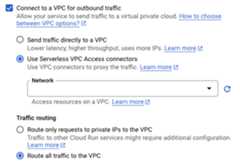
- In theVPC Connector field, select a connector to use or selectNone to disconnect your service from a VPC network.
ClickCreate orDeploy.
gcloud
Set the gcloud CLI to use the project containing theCloud Run resource:
gcloud config set projectPROJECT_ID
PROJECT_ID: the ID of the project containingthe Cloud Run resource that requires access to yourShared VPC. If the Cloud Run resource is in thehost project, this is the host project ID. If theCloud Run resource is in a service project, this is theservice project ID.
Use the
--vpc-connectorflag.
- For existing services:
gcloudrunservicesupdateSERVICE--vpc-connector=CONNECTOR_NAME - For new services:
gcloudrundeploySERVICE--image=IMAGE_URL--vpc-connector=CONNECTOR_NAME
SERVICE: the name of your serviceIMAGE_URL: a reference to the container image, for example,us-docker.pkg.dev/cloudrun/container/hello:latestCONNECTOR_NAME: the name of yourconnector. Use the fully qualified name when deploying from aShared VPC service project (as opposed to the host project), forexample:projects/HOST_PROJECT_ID/locations/CONNECTOR_REGION/connectors/CONNECTOR_NAME
HOST_PROJECT_IDis the ID of the hostproject,CONNECTOR_REGIONis the region of yourconnector, andCONNECTOR_NAMEis the name thatyou gave your connector.
YAML
Set the gcloud CLI to use the project containing theCloud Run resource:
gcloud config set projectPROJECT_ID
Replace the following:
PROJECT_ID: the ID of the project containingthe Cloud Run resource that requires access to yourShared VPC. If the Cloud Run resource is in thehost project, this is the host project ID. If theCloud Run resource is in a service project, this is theservice project ID.
If you are creating a new service, skip this step.If you are updating an existing service, download itsYAML configuration:
gcloudrunservicesdescribeSERVICE--formatexport>service.yamlAdd or update the
run.googleapis.com/vpc-access-connectorattribute undertheannotationsattribute under the top-levelspecattribute:apiVersion:serving.knative.dev/v1kind:Servicemetadata:name:SERVICEspec:template:metadata:annotations:run.googleapis.com/vpc-access-connector:CONNECTOR_NAMEname:REVISION
Replace the following:
- SERVICE: the name of yourCloud Run service.
- CONNECTOR_NAME: the name of yourconnector. Use the fully qualified name when deploying from aShared VPC service project (as opposed to the host project), forexample:
projects/HOST_PROJECT_ID/locations/CONNECTOR_REGION/connectors/CONNECTOR_NAME
HOST_PROJECT_IDis the ID of the hostproject,CONNECTOR_REGIONis the region of yourconnector, andCONNECTOR_NAMEis the name thatyou gave your connector. - REVISION with a new revision name or delete it (if present). If you supply a new revision name, itmust meet the following criteria:
- Starts with
SERVICE- - Contains only lowercase letters, numbers and
- - Does not end with a
- - Does not exceed 63 characters
- Starts with
Replace the service with its new configuration using the following command:
gcloudrunservicesreplaceservice.yaml
Terraform
You can use aTerraform resource to create a service and configure it to use your connector.
# Cloud Run serviceresource "google_cloud_run_v2_service" "gcr_service" { name = "mygcrservice" location = "us-west1" deletion_protection = false # set to "true" in production template { containers { image = "us-docker.pkg.dev/cloudrun/container/hello" resources { limits = { cpu = "1000m" memory = "512Mi" } } # the service uses this SA to call other Google Cloud APIs # service_account_name = myservice_runtime_sa } scaling { # Limit scale up to prevent any cost blow outs! max_instance_count = 5 } vpc_access { # Use the VPC Connector connector = google_vpc_access_connector.connector.id # all egress from the service should go through the VPC Connector egress = "ALL_TRAFFIC" } }}Next steps
- Monitor administrative activities withServerless VPC Access audit logging.
- Protect resources and data bycreating a service perimeterwith VPC Service Controls.
- Use network tags torestrict connector VM access to VPC resources.
- Learn about theIdentity and Access Management (IAM)roles associated with Serverless VPC Access. SeeServerless VPC Accessroles in theIAM documentation for a list of permissions associated witheach role.
- Learn how toconnect to Memorystore.
Except as otherwise noted, the content of this page is licensed under theCreative Commons Attribution 4.0 License, and code samples are licensed under theApache 2.0 License. For details, see theGoogle Developers Site Policies. Java is a registered trademark of Oracle and/or its affiliates.
Last updated 2026-02-19 UTC.