

Configure environment variables for services
This page describes how to configure environment variables for yourCloud Run service by using the Google Cloud console orgcloud.
You can use environment variables for service configuration, but we don'trecommend them as a way to store secrets such as database credentials or API keys.Sensitive values should be stored outside both your source code and outsideenvironment variables. For storing secrets, we recommend that you use Secret Manager.To configure services for accessing secrets stored in Secret Manager,seeConfigure secrets.
Any configuration change leads to thecreation of a new revision. Subsequent revisions will also automatically getthis configuration setting unless you make explicit updates to change it.
Required roles
To get the permissions that you need to configure and deploy Cloud Run services, ask your administrator to grant you the following IAM roles:
- Cloud Run Developer (
roles/run.developer) on the Cloud Run service - Service Account User (
roles/iam.serviceAccountUser) on the service identity
If you are deploying aserviceorfunction from source code, youmust also have additional roles granted to you on your project andCloud Build service account.
For a list of IAM roles and permissions that are associated withCloud Run, seeCloud Run IAM rolesandCloud Run IAM permissions.If your Cloud Run service interfaces withGoogle Cloud APIs, such as Cloud Client Libraries, see theservice identity configuration guide.For more information about granting roles, seedeployment permissionsandmanage access.
Warning: If your Cloud Run service usesservice identity to authenticate accessto Google Cloud APIs, never setGOOGLE_APPLICATION_CREDENTIALS as anenvironment variable on a Cloud Run service. Alwaysconfigure auser-managed service account instead.Maximum number of environment variables and limits
You can set a maximum of 1000 environment variables fora Cloud Run service.
The maximum variable length is 32 Kb.
Set environment variables for services
You can set environment variables for new and existing services. Note that the--set-env-vars flag is a destructive action that deletes previously setenvironment variables not included in the new list of environment variables.
Environment variables are bound to a specific service revision and are notvisible to other services in your Google Cloud project.
You can set environment variables using the Google Cloud console, thegcloud CLI, or a YAML file when youcreate a new service or deploy a new revision:
Console
In the Google Cloud console, go to Cloud Run:
SelectServices from the Cloud Run navigation menu, and clickDeploy container to configure a new service.If you are configuring an existing service, click theservice, then clickEdit and deploy new revision.
If you are configuring a new service, fill out the initial servicesettings page, then clickContainer(s), Volumes, Networking, Security to expand theservice configuration page.
Click theContainer tab.
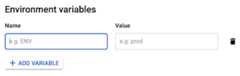
- In the Variables & Secrets tab, clickAdd Variable to add a new variable, and specify the name you want for the variable, and its value in theName andValue fields. For more information on how to set multiple environment variables, or escapespecial characters, seeSet multiple environment variables.
ClickCreate orDeploy.
gcloud
To specify environment variables when you deploy your service, use the--set-env-vars flag:
gcloud run deploySERVICE --imageIMAGE_URL --set-env-varsKEY1=VALUE1,KEY2=VALUE2Replace the following:
- SERVICE: the name of your service.
- KEY1=VALUE1,KEY2=VALUE2: the comma separated list ofvariable names and values.
- IMAGE_URL: a reference to the container image, forexample,
us-docker.pkg.dev/cloudrun/container/hello:latest. If you use Artifact Registry,therepositoryREPO_NAME mustalready be created. The URL follows the format ofLOCATION-docker.pkg.dev/PROJECT_ID/REPO_NAME/PATH:TAG.
For more information on how to set multiple environment variables or escapespecial characters, seeSet multiple environment variables.
YAML
If you are creating a new service, skip this step.If you are updating an existing service, download itsYAML configuration:
gcloudrunservicesdescribeSERVICE--formatexport>service.yamlUpdate the
nameandvalueattributes under theenvattribute undercontainers::apiVersion:serving.knative.dev/v1kind:Servicemetadata:name:SERVICEspec:template:metadata:name:REVISIONspec:containers:-image:IMAGEenv:-name:KEY-1value:VALUE-1-name:KEY-Nvalue:VALUE-N
Replace the following:
- SERVICE: the name of your Cloud Run service.
- IMAGE_URL: a reference to the container image, forexample,
us-docker.pkg.dev/cloudrun/container/hello:latest. If you use Artifact Registry,therepositoryREPO_NAME mustalready be created. The URL follows the format ofLOCATION-docker.pkg.dev/PROJECT_ID/REPO_NAME/PATH:TAG. - KEY-1,VALUE-1: the environment variable andvalue. Optionally, add more variables and values as needed.
- REVISION with a new revision name or delete it (if present). If you supply a new revision name, itmust meet the following criteria:
- Starts with
SERVICE- - Contains only lowercase letters, numbers and
- - Does not end with a
- - Does not exceed 63 characters
- Starts with
Create or update the service using the following command:
gcloudrunservicesreplaceservice.yaml
Terraform
To learn how to apply or remove a Terraform configuration, seeBasic Terraform commands.
Add the following to agoogle_cloud_run_v2_service resource in your Terraform configuration:resource"google_cloud_run_v2_service""default"{name="cloudrun-service-env-var"location="us-central1"deletion_protection=false # set to "true" in productiontemplate{containers{image="us-docker.pkg.dev/cloudrun/container/hello" # Environment variablesenv{name="foo"value="bar"}env{name="baz"value="quux"}}}}The precedinggoogle_cloud_run_v2_service resource specifies setsthefoo environment variable tobar, and thebaz environment variabletoquux. Update the environment variables as necessary.
Set default environment variables in the container
You can use theENVstatement in a Dockerfile to set default values for environment variables:
ENVKEY1=VALUE1,KEY2=VALUE2
Order of precedence: container versus service variables
If youset a default environment variable in the container and alsoset an environment variable with the same name on theCloud Run service, the value set on the service takesprecedence.
Set multiple environment variables for services
You can set multiple environment variables by using a configuration file or the--set-env-vars flag.
Set multiple environment variables using a configuration file
To set multiple environment variables, use an.env file or a YAMLfile. Specify the environment variables in the following format:
.env file
KEY-1=VALUE-1KEY-2=VALUE-2KEY-3=VALUE-3
ReplaceKEY andVALUE with variable names and values.For example,APP_NAME="My app".
YAML file
KEY-1:VALUE-1KEY-2:VALUE-2KEY-3:VALUE-3
ReplaceKEY andVALUE with variable names and values.For example,APP_NAME: "My app".
To set these variables when youcreate a new service ordeploy a new revision, use the Google Cloud console or thegcloud CLI:
Console
In the Google Cloud console, go to Cloud Run:
SelectServices from the Cloud Run navigation menu, and clickDeploy container to configure a new service.If you are configuring an existing service, click theservice, then clickEdit and deploy new revision.
If you are configuring a new service, fill out the initial servicesettings page, then clickContainer(s), Volumes, Networking, Security to expand theservice configuration page.
Click theContainer tab.
- In the Variables & Secrets tab, clickAdd Variable and paste the contents ofyour
.envfile or YAML file into theName field. Cloud Run automatically populates theValue field, and creates new variables for each key-value pair you define in your file.
- In the Variables & Secrets tab, clickAdd Variable and paste the contents ofyour
ClickCreate orDeploy.
gcloud
To specify multiple environment variables from your configuration file, runthe following command:
gcloud run deploySERVICE --image=IMAGE_URL --env-vars-file=ENV_FILE_PATHReplace the following:
- SERVICE: the name of your Cloud Run service.
- IMAGE_URL: a reference to the container image, forexample,
us-docker.pkg.dev/cloudrun/container/hello:latest. If you use Artifact Registry,therepositoryREPO_NAME mustalready be created. The URL follows the format ofLOCATION-docker.pkg.dev/PROJECT_ID/REPO_NAME/PATH:TAG. - ENV_FILE_PATH: path to the
.envfile or the YAML file.For example,production.envorconfig/production-variables.yaml.
Set multiple environment variables using the--set-env-vars flag
If you have multiple environment variables that cannot be listed inKEY1=VALUE1,KEY2=VALUE2format, you can repeat the--set-env-vars flag multiple times:[...]--set-env-vars"KEY1=VALUE1"\--set-env-vars"KEY2=VALUE2"\--set-env-vars"KEY3=VALUE3"
Escape comma characters
Because the comma character, is used to split environment variables, if yourenvironment variable contains comma characters as values, you need toescape those delimiters by specifying a differentdelimiter character, for example,@:--set-env-vars"^@^KEY1=value1,value2,value3@KEY2=..."Update environment variables for services
You can update environment variables for existing services. This is anon-destructive approach that changes or adds environment variables,but doesn't delete previously set environment variables.
Console
To update environment variables using the Google Cloud console:
In the Google Cloud console, go to the Cloud RunServices page:
Select your service from the list, and clickEdit and deploy new revision.
Click theContainer tab.
In theVariables and secrets tab, edit theNameorValue fields, and clickDone.
ClickDeploy.
gcloud
To update environment variables of an existing service, use the--update-env-varsflag:
gcloud run services updateSERVICE --update-env-varsKEY1=VALUE1,KEY2=VALUE2Replace the following:
- SERVICE: the name of your service.
- KEY1=VALUE1,KEY2=VALUE2: the comma separated list of variablenames and values.
To update environment variables of an existing multi-region service, usethegcloud run multi-region-services updatecommand.
View environment variables settings
To view the current environment variables settings for yourCloud Run service:
Console
In the Google Cloud console, go to the Cloud RunServices page:
Click the service you are interested in to open theService detailspage.
Click theRevisions tab.
In the details panel at the right, the environment variables settingis listed under theContainer tab.
gcloud
Use the following command:
gcloudrunservicesdescribeSERVICE
Locate the environment variables setting in the returnedconfiguration.
Delete environment variables
You can delete environment variables for existing services.
Console
To delete environment variables using the Google Cloud console:
In the Google Cloud console, go to the Cloud RunServices page:
Select your service from the list, and clickEdit and deploy new revision.
Click theContainer tab.
In theVariables and secrets tab, move your cursor to the left of theValue field of the environment variable you are removing, to displaytheDelete icon,and click it.
ClickDone.
ClickDeploy.
gcloud
To selectively remove environment variables of an existing service,use the--remove-env-varsflag:
gcloud run services updateSERVICE --remove-env-varsKEY1,KEY2Replace the following:
- SERVICE: the name of your service.
- KEY1,KEY2: the comma separated list of variable names.
Alternatively, clear all previously set environment variableswith the--clear-env-varsflag:
gcloud run services updateSERVICE --clear-env-varsReplaceSERVICE with the name of your service.
Best practices
The following section highlights some of the best practices forconfiguring environment variables.
Reserved environment variables for services
The environment variables defined in thecontainer runtime contractare reserved and cannot be set. In particular, thePORT environment variableis injected inside your container by Cloud Run. You shouldn't set ityourself.
Additional reserved environment variables when deploying functions
Cloud Run sets the following runtime environment variables automaticallywhen deploying functions:
FUNCTION_TARGET: The function to be executed.FUNCTION_SIGNATURE_TYPE: The type of the function:httpfor HTTPfunctions, andeventfor event-driven functions.
Some additional environment variables are automatically set depending on theruntime your function uses. These are based on the runtime's operating system,for example,DEBIAN_FRONTEND,SHLVL, orPATH and the language runtimefor example,NODE_ENV,VIRTUAL_ENV, orGOPATH.
Environment variables that are provided by the environment, other than the onesthat are set automatically, might change in future runtime versions. As a bestpractice, we recommend that you don't depend on or modify any environmentvariables that you haven't set explicitly.
Modifying environment variables that are provided by the environment might leadto unpredictable outcomes. Attempts to modify such environment variables couldbe blocked or, worse, lead to unintended consequences such as functions thatcannot start. As a best practice, consider prefixing any environment variableswith a unique key to avoid conflicts.
Invalid environment variables
You can't use the following environment variables:
| Key | Description |
|---|---|
| Empty ('') | Keys can't be an empty string. |
= | Keys can't contain the '=' character. |
X_GOOGLE_ | Keys can't contain the prefixX_GOOGLE_. |
Sample code
For code sample that show how to access environment variables in your code,refer toHandling sensitive configuration with Secret Managerin the End user authentication tutorial.
What's next
You can use environment variables to setbuildpacksconfiguration. For language-specific details, see the buildpacksdocumentation for:
If you are deploying from source and need to customize variables at build time,seeSet build environment variables.
Except as otherwise noted, the content of this page is licensed under theCreative Commons Attribution 4.0 License, and code samples are licensed under theApache 2.0 License. For details, see theGoogle Developers Site Policies. Java is a registered trademark of Oracle and/or its affiliates.
Last updated 2025-12-15 UTC.