

Set parallelism for jobs
You useparallelism to specify the maximum number of tasks in a job executionthat can run in parallel. By default, tasks will be started as quickly aspossible, up to amaximum that varies depending on how many CPUsyou are using.
Lowering parallelism limits how many tasks run in parallel. This is usefulin cases where one of your backing resources, such as a database, has limitedscaling and cannot handle a large number of parallel requests.
Required roles
To get the permissions that you need to configure Cloud Run jobs, ask your administrator to grant you the following IAM roles:
- Cloud Run Developer (
roles/run.developer) on the Cloud Run job - Service Account User (
roles/iam.serviceAccountUser) on the service identity
For a list of IAM roles and permissions that are associated withCloud Run, seeCloud Run IAM rolesandCloud Run IAM permissions.If your Cloud Run job interfaces withGoogle Cloud APIs, such as Cloud Client Libraries, see theservice identity configuration guide.For more information about granting roles, seedeployment permissionsandmanage access.
Configure parallelism
To specify parallelism for a Cloud Run job:
Console
In the Google Cloud console, go to the Cloud RunJobs page:
ClickDeploy container to fill outthe initial job settings page. If you are configuring an existing job,select the job, then clickView and edit job configuration.
ClickContainer(s), Volumes, Connections, Security to expand the job properties page.
Click theGeneral tab.
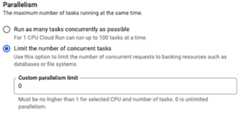
- SelectRun as many tasks concurrently as possiblefor best performance. If you need to lower the number of concurrent tasks, forexample, if your backing resources are limited, selectLimit the number of concurrent tasksand then specify an integer between 0 and themaximum number of tasks running in parallel allowed by quota that don't exceed the number of tasks.
ClickCreate orUpdate.
gcloud
For a job you are creating:
gcloudrunjobscreateJOB_NAME--imageIMAGE_URL--parallelismPARALLELISMReplace
- JOB_NAME with the name of your job.
- IMAGE_URL: a reference to thecontainer image—forexample,
us-docker.pkg.dev/cloudrun/container/job:latest. - PARALLELISM with an integer between 0 and themaximum number of tasks running in parallel, allowed byquota, that don't exceed the number of tasks.
For a job you are updating:
gcloudrunjobsupdateJOB_NAME--parallelismPARALLELISM
YAML
If you are creating a new job, skip this step.If you are updating an existing job, download itsYAML configuration:
gcloudrunjobsdescribeJOB_NAME--formatexport>job.yaml
Update the
parallelism:attribute:apiVersion:run.googleapis.com/v1kind:Jobmetadata:name:JOB_NAMEspec:template:spec:parallelism:PARALLELISMtemplate:spec:containers:-image:IMAGE
ReplacePARALLELISM. Specify an integer between 0 and themaximum number of tasks running in parallel allowed by quota thatdon't exceed the number of tasks.
You can also specify more configuration such as environment variables ormemory limits.
Update the existing job configuration:
gcloudrunjobsreplacejob.yaml
Terraform
To learn how to apply or remove a Terraform configuration, seeBasic Terraform commands.
Add the following to agoogle_cloud_run_v2_job resource in your Terraform configuration:resource"google_cloud_run_v2_job""default"{name="cloud-run-job-parallelism"location="us-central1"deletion_protection=false # set to "true" in productiontemplate{task_count=3parallelism=3template{containers{image="us-docker.pkg.dev/cloudrun/container/job:latest"}}}}View parallelism settings
To view the current parallelism settings for yourCloud Run job:
Console
In the Google Cloud console, go to the Cloud Run jobs page:
Click the job you are interested in to open theJob details page.
ClickView and Edit job configuration.
Locate the parallelism setting in the configurationdetails.
gcloud
Use the following command:
gcloudrunjobsdescribeJOB_NAMELocate the parallelism setting in the returnedconfiguration.
Except as otherwise noted, the content of this page is licensed under theCreative Commons Attribution 4.0 License, and code samples are licensed under theApache 2.0 License. For details, see theGoogle Developers Site Policies. Java is a registered trademark of Oracle and/or its affiliates.
Last updated 2026-02-05 UTC.