

Configure in-memory volume mounts for jobs
This page describes how to configure a dedicated in-memory volume you can usefor file reads and writes using Cloud Run volume mounts. Note that thisfeature differs from the built-inin-memory file system provided byCloud Run.
When you mount the in-memory volume in Cloud Run, the in-memoryvolume shows up as files in the container file system. After you mount the in-memoryvolume, you access it as if it were a directory on your local filesystem, using your programming language's file system operations and libraries.
You can use in-memory volumes to do the following:
- Limit the size of the in-memory volume. When you limit the size of a volume,writes to a full volume will fail, which is preferable to havingCloud Run terminate instances due to the volumeconsuming too much memory.
- Share an in-memory volume between different containers in one Cloud Runinstance. When Cloud Run scales out to multiple instances of ajob task, each task will have its own in-memoryvolume shared by all the containers on that task. This volumeis available to all the containers when Cloud Run scales out to handle traffic.
Behavior
When creating an in-memory volume, we recommend specifying a size limit. If thevolume reaches its size limit, further writes will fail with an out-of-memoryerror. Your instance can handle this error and keep running.
Note that the size limit is just a limit: it does not allocate additional spacefor your in-memory volume. Rather, your in-memory volume consumes the memory youconfigured for your containers. If you deploy multiple containers, the memoryused by each write to the volume counts as memory usage for the container thatwrote the data.
If you don't specify a size limit, it is automatically set to half of thetotal size of all the containers in your job or service. For example,emptyDir volume size = [Memory (Container A) + Memory (Container B) + Memory (Container N)]/2.This default behavior can result in the size limit of the in-memory volume being higher than the memory allocated for some of your containers. This can lead to unexpected crashes if a single container exceeds its own allocated memory while trying to write more data to the volume, even though the volume size limit has not been reached.
Although setting a size limit is optional, we recommend setting one to protectyour containers from running out-of-memory and crashing.
Disallowed paths
Cloud Run does not allow you to mount a volume at/dev,/proc, and/sys, or on their subdirectories.
Required roles
To get the permissions that you need to configure Cloud Run jobs, ask your administrator to grant you the following IAM roles:
- Cloud Run Developer (
roles/run.developer) on the Cloud Run job - Service Account User (
roles/iam.serviceAccountUser) on the service identity
For a list of IAM roles and permissions that are associated withCloud Run, seeCloud Run IAM rolesandCloud Run IAM permissions.If your Cloud Run job interfaces withGoogle Cloud APIs, such as Cloud Client Libraries, see theservice identity configuration guide.For more information about granting roles, seedeployment permissionsandmanage access.
Configure an in-memory volume
Any configuration change leads to thecreation of a new revision. Subsequent revisions will also automatically getthis configuration setting unless you make explicit updates to change it.
After you configure an in-memory volume for your Cloud Run service,an empty volume is created for every Cloud Run instance that is started, andthe volume exists as long as that instance is running. When the instance stops running, thedata in the volume is permanently deleted.
Console
In the Google Cloud console, go to the Cloud RunJobs page:
ClickDeploy container to fill outthe initial job settings page. If you are configuring an existing job,select the job, then clickView and edit job configuration.
ClickContainer(s), Volumes, Connections, Security to expand the job properties page.
Click theVolumes tab.
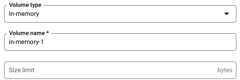
- UnderVolumes:
- ClickAdd volume.
- In theVolume type drop-down, selectIn-memory as the volume type.
- In theVolume name field, enter the name you want to use for the volume.
- In theSize limit field, specify the memory limit you want to assign to the volume. This limit must be less than thetotal memory specified for your containers. Data stored in this volume consumes memory reserved by the container that wrote the data.
- ClickDone.
- Click the Container tab, then expand the container you are mountingthe volume to, to edit the container.
- Click theVolume Mounts tab.
- ClickMount volume.
- Select the in-memory volume from the menu.
- Specify the path where you want to mount the volume.
- ClickMount Volume
- UnderVolumes:
ClickCreate orUpdate.
gcloud
To add a volume and mount it:
gcloudrunjobsupdateJOB\--add-volume=name=VOLUME_NAME,type=in-memory,size-limit=SIZE_LIMIT\--add-volume-mount=volume=VOLUME_NAME,mount-path=MOUNT_PATH
Replace the following:
JOB: the name of your job.- VOLUME_NAME: any name you want for your volume.TheVOLUME_NAME value is used to map the volume to the volume mount.
MOUNT_PATH: the relative path within the containerfile system where you want to mount this volume—for example,/mnt/my-volume.- SIZE_LIMIT: the memory limit you want to assign to the volume, inMiB or GiB (specified as Mi or Gi), for example,
500Mi. This limitmust be less than thetotal memoryspecified for your containers.
If you are using multiple containers, first specify the volumes, thenspecify the volume mounts for each container:
gcloudrunjobsupdateJOB\--add-volume=name=VOLUME_NAME,type=in-memory,size-limit=SIZE_LIMIT\--container=CONTAINER_1\--add-volume-mount=volume=VOLUME_NAME,mount-path=MOUNT_PATH\--container==CONTAINER_2\--add-volume-mount=volume=VOLUME_NAME,mount-path=MOUNT_PATH2
YAML
If you are creating a new job, skip this step.If you are updating an existing job, download itsYAML configuration:
gcloudrunjobsdescribeJOB_NAME--formatexport>job.yaml
Configure the
volumeMountsandvolumesattributes as shown:apiVersion:run.googleapis.com/v1kind:Jobmetadata:name:JOB_NAMEspec:template:spec:containers:-image:IMAGE_URLvolumeMounts:-mountPath:MOUNT_PATHname:VOLUME_NAMEvolumes:-name:VOLUME_NAMEemptyDir:sizeLimit:SIZE_LIMITmedium:Memory
Replace the following:
- IMAGE_URL: a reference to thecontainer image—forexample,
us-docker.pkg.dev/cloudrun/container/job:latest. - VOLUME_NAME: any name you want for your volume.TheVOLUME_NAME value is used to map the volume to the volumemount.
MOUNT_PATH: the relative path within thecontainer file system where you want to mount this volume—for example,/mnt/my-volume.- SIZE_LIMIT: the memory limit you want to assign to thevolume, in MiB or GiB (specified as Mi or Gi), for example,
500Mi. This limitmust be less than thetotal memoryspecified for your containers.
- IMAGE_URL: a reference to thecontainer image—forexample,
Create or update the job using the following command:
gcloudrunjobsreplacejob.yaml
Terraform
To learn how to apply or remove a Terraform configuration, seeBasic Terraform commands.
Add the following to agoogle_cloud_run_v2_job resource in your Terraform configuration:resource"google_cloud_run_v2_job""default"{name="JOB_NAME"location="REGION"template{template{containers{image="IMAGE_URL"volume_mounts{name="VOLUME_NAME"mount_path="MOUNT_PATH"}}volumes{name="VOLUME_NAME"empty_dir{medium="MEMORY"size_limit="SIZE_LIMIT"}}}}}Replace the following:
- JOB_NAME: the name of your Cloud Run job.
- REGION with the Google Cloud region. For example,
europe-west1. - IMAGE_URL: a reference to thecontainer image—forexample,
us-docker.pkg.dev/cloudrun/container/job:latest. - VOLUME_NAME: any name you want for your volume. TheVOLUME_NAME value is used to map the volume to the volume mount.
- MOUNT_PATH: the relative path within the containerfile system where you want to mount this volume—for example,
/mnt. - SIZE_LIMIT: the memory limit you want to assign to thevolume, in MiB or GiB (specified as Mi or Gi)—for example,
128Mi. Thislimit must be less than thetotal memoryspecified for your containers.
Reading and writing to a volume
If you use the Cloud Run volume mount feature, you access a mountedvolume using the same libraries in your programming language that you use toread and write files on your local file system.
This is especially useful if you're using an existing container that expectsdata to be stored on the local file system and uses regular file systemoperations to access it.
The following snippets assume a volume mount with amountPath set to/mnt/my-volume.
Nodejs
Use the File System module to create a new file or append to an existing filein the volume,/mnt/my-volume:
var fs = require('fs');fs.appendFileSync('/mnt/my-volume/sample-logfile.txt', 'Hello logs!', { flag: 'a+' });Python
Write to a file kept in the volume,/mnt/my-volume:
f = open("/mnt/my-volume/sample-logfile.txt", "a")Go
Use theos package to create a new file kept in the volume,/mnt/my-volume:
f, err := os.Create("/mnt/my-volume/sample-logfile.txt")Java
Use theJava.io.File class to create a log file in the volume,/mnt/my-volume:
import java.io.File;File f = new File("/mnt/my-volume/sample-logfile.txt");Clear and remove volumes and volume mounts
You can clear all volumes and mounts or you can remove individual volumesand volume mounts.
Clear all volumes and volume mounts
To clear all volumes and volume mounts from your single-container job, run the following command:
gcloudrunjobsupdateJOB\--clear-volumes--clear-volume-mounts
If you have multiple containers, follow the sidecars CLI conventions to clearvolumes and volume mounts:
gcloudrunjobsupdateJOB\--clear-volumes\--clear-volume-mounts\--container=container1\--clear-volumes\-–clear-volume-mounts\--container=container2\--clear-volumes\-–clear-volume-mounts
Remove individual volumes and volume mounts
In order to remove a volume, you must also remove all volume mounts using thatvolume.
To remove individual volumes or volume mounts, use theremove-volume andremove-volume-mount flags:
gcloudrunjobsupdateJOB\--remove-volumeVOLUME_NAME--container=container1\--remove-volume-mountMOUNT_PATH\--container=container2\--remove-volume-mountMOUNT_PATH
Except as otherwise noted, the content of this page is licensed under theCreative Commons Attribution 4.0 License, and code samples are licensed under theApache 2.0 License. For details, see theGoogle Developers Site Policies. Java is a registered trademark of Oracle and/or its affiliates.
Last updated 2026-02-05 UTC.