

Configure containers for jobs
This page describes how to configure the entrypoint command, and arguments for a Cloud Runjob.
When Cloud Run starts a container, it runs the image's defaultentrypoint command and default command arguments. If you want tooverride the image's default entrypoint and command arguments, you can use thecommand andargs fields in the container configuration. Thecommand fieldspecifies the actual command run by the container. Theargs field specifiesthe arguments passed to that command.
Note that you can have a maximum of1000 arguments per container for eachjob.
This page shows you how to configure the command, arguments, and startorder for containers in yourCloud Run jobs. You can configure these settings through theGoogle Cloud console, the Google Cloud CLI, or YAML.
Required roles
To get the permissions that you need to configure Cloud Run jobs, ask your administrator to grant you the following IAM roles:
- Cloud Run Developer (
roles/run.developer) on the Cloud Run job - Service Account User (
roles/iam.serviceAccountUser) on the service identity
For a list of IAM roles and permissions that are associated withCloud Run, seeCloud Run IAM rolesandCloud Run IAM permissions.If your Cloud Run job interfaces withGoogle Cloud APIs, such as Cloud Client Libraries, see theservice identity configuration guide.For more information about granting roles, seedeployment permissionsandmanage access.
Configure entrypoint and arguments
To configure command entrypoint and arguments for jobs:
Console
In the Google Cloud console, go to the Cloud RunJobs page:
ClickDeploy container to fill outthe initial job settings page. If you are configuring an existing job,select the job, then clickView and edit job configuration.
ClickContainer(s), Volumes, Connections, Security to expand the job properties page.
Click theGeneral tab.
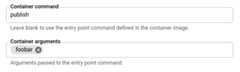
- Specify the command you want the container to run,if not the command defined in your container, and optionally specify thearguments to the entrypoint command.
ClickCreate orUpdate.
gcloud
To set the start command and argumentsfor a new job:
gcloudrunjobscreateJOB_NAME--imageIMAGE_URL--commandCOMMAND--argsARG1,ARG-NReplace
- JOB_NAME with the name of your job.
- COMMAND with the command that the container is to startwith if you are not using the default command.
- ARG1 with the argument you are sending to the containercommand. For more than one argument,use a comma-separated list, for example,
--args="arg1", "arg2", "arg3". If your arguments contain commas or special characters, seeUse equals signs or commas in arguments. - IMAGE_URL: a reference to thecontainer image—forexample,
us-docker.pkg.dev/cloudrun/container/job:latest.
Toupdate command and argsfor an existing job:
gcloudrunjobsupdateJOB_NAME--commandCOMMAND--argsARG1,ARG-NYAML
If you are creating a new job, skip this step.If you are updating an existing job, download itsYAML configuration:
gcloudrunjobsdescribeJOB_NAME--formatexport>job.yaml
Update the
args:andcommandattributes:apiVersion:run.googleapis.com/v1kind:Jobmetadata:name:JOB_NAMEspec:template:spec:template:spec:containers:-args:-'ARG1'-'ARG-N'command:-COMMANDimage:IMAGE
Replace
- COMMAND with the command that the container is to startwith if you are not using the default command.
- ARG1 with the argument you are sending to the containercommand. Optionally specify additional arguments each in a separateline. If your arguments contain commas or special characters, seeUse equals signs or commas in arguments.
You can also specify more configuration such as environment variables ormemory limits.
Update the existing job configuration:
gcloudrunjobsreplacejob.yaml
To clear any entrypoint commands and arguments you have set (restore to containerdefaults), supply empty strings as follows:
gcloudrunjobsupdateJOB_NAME--command""--args""
Terraform
To learn how to apply or remove a Terraform configuration, seeBasic Terraform commands.
Add the following to agoogle_cloud_run_v2_job resource in your Terraform configuration:resource"google_cloud_run_v2_job""default"{name="JOB_NAME"location="REGION"template{template{containers{image="us-docker.pkg.dev/cloudrun/container/job"command=["COMMAND"]args=["ARG1", "ARG-N"]}}}}Replace:
- JOB_NAME with the name of your Cloud Run job.
- REGION with the Google Cloud region. For example,
europe-west1. - COMMAND with the command that the container is to start with ifyou are not using the default command.
- ARG1 with the argument you are sending to the containercommand. Optionally, specify additional arguments. If your arguments contain commas or special characters, seeUse equals signs or commas in arguments.
Use equals signs or commas in arguments
If you use equal signs in your arguments, supply these using the followingformat:
gcloudrundeploy\--args="--repo-allowlist=github.com/example/example_demo"If your arguments use commas, refer toconfiguring environment variablesfor details on escaping those.
View container settings
To view the current container settings for yourCloud Run job:
Console
In the Google Cloud console, go to the Cloud Run jobs page:
Click the job you are interested in to open theJob details page.
ClickView and Edit job configuration.
Locate the container setting in the configurationdetails.
gcloud
Use the following command:
gcloudrunjobsdescribeJOB_NAMELocate the container setting in the returnedconfiguration.
Configure the container start order for sidecar deployments
To specify container start order in asidecar deployment, you use thecontainer dependencies feature. You specify any containers that have dependenciesand list the containers they depend on. Thecontainers that don't have any dependencies are always started first andconcurrently.
You can use the Google Cloud console, the Google Cloud CLI, or YAML to specify thestartup order:
Console
In the Google Cloud console, go to the Cloud RunJobs page:
- For an existing job, click the job in the list and selectView and edit job configuration to display theEdit Job form.
- For a new job, clickDeploy container todisplay theCreate job form.
For a new job, specify the job name, job container URL, region, number oftasks. In theContainer(s), Volumes, Networking, Security tab, do the following:
- Configure the main job container.
- To add each sidecar container you are deploying, clickAdd container.
- If a container depends on other containers, usetheContainer startup order menu to select the containers that Cloud Run must start before the current container.
For an existing job, follow these steps for each container:
- Examine the containers listed in theContainer startup order menu.
- If a container depends on other containers, use theContainer startup ordermenu to select the those containers.
Finish any other required configurations, then clickCreate for a newjob orUpdate for an existing job. Wait for the deployment to finish.
gcloud
In the Google Cloud console, activate Cloud Shell.
At the bottom of the Google Cloud console, aCloud Shell session starts and displays a command-line prompt. Cloud Shell is a shell environment with the Google Cloud CLI already installed and with values already set for your current project. It can take a few seconds for the session to initialize.
To deploy multiple containers to a job with a specified startup order,run the command:
gcloudbetaruncreateJOB\--containerCONTAINER_1_NAME--image='JOB_IMAGE'\--containerCONTAINER_2_NAME--image='SIDECAR_IMAGE'--depends-on=CONTAINER_1_NAME\--containerCONTAINER_3_NAME--image='SIDECAR_IMAGE'--depends-on=CONTAINER_1_NAMECONTAINER_2_NAME
Replace:
- JOB with the name of the job you aredeploying to. You can omit this parameter entirely, but you will beprompted for the job name if you omit it.
- CONTAINER_1_NAME with a name for the main job container.
- JOB_IMAGE with a reference to the main job container image, for example,
us-docker.pkg.dev/cloudrun/container/job:latest. - CONTAINER_2_NAME with a name for the sidecarcontainer, for example
sidecar. - SIDECAR_IMAGE with a reference to the sidecar container image.
If you want to configure each container in the deploy command, supply eachcontainer's configuration after the
containerparameters.
YAML
If you are creating a new job, skip this step.If you are updating an existing job, download itsYAML configuration:
gcloudrunjobsdescribeJOB_NAME--formatexport>job.yaml
Update the
container-dependenciesattribute:apiVersion:run.googleapis.com/v1kind:Jobmetadata:annotations:run.googleapis.com/launch-stage:BETAname:JOBspec:template:metadata:annotations:run.googleapis.com/container-dependencies:'{"CONTAINER1":["CONTAINER2"],"CONTAINER3":["CONTAINER1","CONTAINER2"]}'Replace
- CONTAINER1 with the name of the first container thatdepends on one or more container. Note that you can set thecontainer name in the YAML: Cloud Run will automaticallygenerate a name if one isn't specified.
- CONTAINER2 with the name of the container that must bestarted beforeCONTAINER1.
- CONTAINER3 with the name of the second container thatdepends on one or more containers.
In the example shown in the YAML snippet,CONTAINER2 isstarted first,CONTAINER1 is started second, andCONTAINER3 is started last.
Create or update the job using the following command:
gcloudrunjobsreplacejob.yaml
Except as otherwise noted, the content of this page is licensed under theCreative Commons Attribution 4.0 License, and code samples are licensed under theApache 2.0 License. For details, see theGoogle Developers Site Policies. Java is a registered trademark of Oracle and/or its affiliates.
Last updated 2026-02-05 UTC.