

Configure Cloud Storage volume mounts for jobs
This page shows how to mount a Cloud Storage bucket as a storage volume,using Cloud Run volume mounts.
Mounting the bucket as a volume in Cloud Run presents the bucketcontent as files in the container file system. After you mount the bucketas a volume, you access the bucket as if it were a directory on your local filesystem, using your programming language's file system operations and librariesinstead of using Google API Client Libraries.
You can mount your volume as read-only and you can also specifymount options for your volume.
Important: You don't need to install Cloud Storage FUSE in your container ormodify the container in any way to use this feature.Memory requirements
Cloud Storage volume mounts use the Cloud Runcontainer memory for the followingactivities:For all Cloud Storage FUSE caching, Cloud Run uses the statcache setting with aTime-to-live (TTL)of 60 seconds by default.The default maximum size of the stat cache is 32 MB, the default maximumsize of the type cache is 4 MiB.
When reading from Cloud Storage, Cloud Storage FUSE makes API calls to read anobject directly, without downloading the whole file to a local directory.Cloud Storage FUSE establishes a TCP connection, and reads back the entire Cloud Storageobject, or just portions of the file you specify in your application or the operatingsystem through an offset. When reading,Cloud Storage FUSE also consumes memory other than stat and type caches,such as a 1 MiB array for every file it reads, and for
goroutines.When writing to Cloud Storage, Cloud Storage FUSE supports
streaming-writes, awrite path, by default. Cloud Storage FUSE uploads data directly to Cloud Storagewithout fully staging the file. Each file you open for streaming writesconsumes approximately 64 MiB of memory during the upload process. This reducesboth latency and disk space usage, making it particularly beneficial forlarge, sequential writes.
Limitations
Since Cloud Run usesCloud Storage FUSE forthis volume mount, there are a few things to keep in mind when mounting aCloud Storage bucket as a volume:
- Cloud Storage FUSE does not provide concurrency control for multiple writes(file locking) to the same file. When multiple writes try to replace a file, thelast write wins and all previous writes are lost.
- Cloud Storage FUSE is not a fully POSIX-compliant file system. For moredetails, refer to theCloud Storage FUSE documentation.
Disallowed paths
Cloud Run does not allow you to mount a volume at/dev,/proc, or/sys, or on their subdirectories.
Before you begin
You need aCloud Storage bucket to mount as the volume.
For optimal read/write performance to Cloud Storage, seeOptimizing Cloud Storage FUSE network bandwidth performance.
Required roles
To get the permissions that you need to configure Cloud Storage volume mounts, ask your administrator to grant you the following IAM roles:
- Cloud Run Developer (
roles/run.developer) on the Cloud Run job - Service Account User (
roles/iam.serviceAccountUser) on the service identity
To get the permissions that yourservice identityneeds to access the file and Cloud Storage bucket, ask your administratorto grant the service identity theStorage Object Viewer(roles/storage.objectViewer) role. If the service identity needs to alsoperform write operations in a bucket, grant theStorage Object User(roles/storage.objectUser) role instead.
For more details on Cloud Storage roles and permissions, seeIAM for Cloud Storage.
For a list of IAM roles and permissions that are associated withCloud Run, seeCloud Run IAM rolesandCloud Run IAM permissions.If your Cloud Run job interfaces withGoogle Cloud APIs, such as Cloud Client Libraries, see theservice identity configuration guide.For more information about granting roles, seedeployment permissionsandmanage access.
Mount a Cloud Storage volume
You can mount multiple buckets at different mount paths. Youcan also mount a volume to more than one container using the same or differentmount paths across containers.
If you are using multiple containers, first specify the volumes, then specifythe volume mounts for each container.
Console
In the Google Cloud console, go to the Cloud RunJobs page:
ClickDeploy container to fill outthe initial job settings page. If you are configuring an existing job,select the job, then clickView and edit job configuration.
ClickContainer(s), Volumes, Connections, Security to expand the job properties page.
Click theVolumes tab.
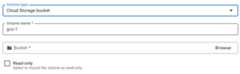
- UnderVolumes:
- ClickAdd volume.
- In theVolume type drop-down, select Cloud Storage bucket as the volume type.
- In theVolume name field, enter the name you want to use for the volume.
- Browse and select the bucket or a specific directory you want to use for the volume. Optionally, create a new bucket.
- Optionally, select theRead only checkbox to make the bucket read-only.
- ClickDone.
- Click the Container tab, then expand the container you are mountingthe volume to, to edit the container.
- Click theVolume Mounts tab.
- ClickMount volume.
- Select the Cloud Storage volume from the menu.
- Specify the path where you want to mount the volume.
- ClickMount Volume
- UnderVolumes:
ClickCreate orUpdate.
gcloud
Note: We show thegcloud run jobs update command but you can also use thegcloud run jobs deploy command with the same parameters as shown.To add a volume and mount it:
gcloudrunjobsupdateJOB\--add-volumename=VOLUME_NAME,type=cloud-storage,bucket=BUCKET_NAME\--add-volume-mountvolume=VOLUME_NAME,mount-path=MOUNT_PATH
Replace the following:
JOB: the name of your job.- MOUNT_PATH: the relative path where you are mounting thevolume—for example,
/mnt/my-volume. - VOLUME_NAME: any name you want for your volume.TheVOLUME_NAME value is used to map the volume to the volume mount.
- BUCKET_NAME: the name of your Cloud Storage bucket.
To mount your volume as a read-only volume:
--add-volume=name=VOLUME_NAME,type=cloud-storage,bucket=BUCKET_NAME,readonly=true
If you are using multiple containers, first specify your volume(s), thenspecify the volume mount(s) for each container:
gcloudrunjobsupdateJOB\--add-volumename=VOLUME_NAME,type=cloud-storage,bucket=BUCKET_NAME\--containerCONTAINER_1\--add-volume-mountvolume=VOLUME_NAME,mount-path=MOUNT_PATH\--containerCONTAINER_2\--add-volume-mountvolume=VOLUME_NAME,mount-path=MOUNT_PATH2
YAML
If you are creating a new job, skip this step.If you are updating an existing job, download itsYAML configuration:
gcloudrunjobsdescribeJOB_NAME--formatexport>job.yaml
Update theMOUNT_PATH,VOLUME_NAME,BUCKET_NAMEandIS_READ_ONLY as needed.
apiVersion:run.googleapis.com/v1kind:Jobmetadata:name:JOB_NAMEspec:template:metadata:annotations:run.googleapis.com/execution-environment:gen2spec:template:spec:containers:-image:IMAGE_URLvolumeMounts:-mountPath:MOUNT_PATHname:VOLUME_NAMEvolumes:-name:VOLUME_NAMEcsi:driver:gcsfuse.run.googleapis.comreadOnly:IS_READ_ONLYvolumeAttributes:bucketName:BUCKET_NAME
Replace the following:
- IMAGE_URL: a reference to thecontainer image—forexample,
us-docker.pkg.dev/cloudrun/container/job:latest. - MOUNT_PATH: the relative path where you are mounting thevolume—for example,
/mnt/my-volume. - VOLUME_NAME: any name you want for your volume. TheVOLUME_NAME value is used to map the volume to the volume mount.
- IS_READ_ONLY:
Trueto make the volume read-only, orFalseto allow writes. - BUCKET_NAME: the name of the Cloud Storage bucket.
- IMAGE_URL: a reference to thecontainer image—forexample,
Create or update the job using the following command:
gcloudrunjobsreplacejob.yaml
Terraform
To learn how to apply or remove a Terraform configuration, seeBasic Terraform commands.
Add the following to agoogle_cloud_run_v2_job resource in your Terraform configuration:resource"google_cloud_run_v2_job""default"{name="JOB_NAME"location="REGION"template{template{containers{image="IMAGE_URL"volume_mounts{name="VOLUME_NAME"mount_path="MOUNT_PATH"}}volumes{name="VOLUME_NAME"gcs{bucket=google_storage_bucket.default.nameread_only=IS_READ_ONLY}}}}}resource"google_storage_bucket""default"{name="BUCKET_NAME"location="REGION"}Replace the following:
- JOB_NAME: the name of your Cloud Run job.
- REGION: the Google Cloud region.
- IMAGE_URL: a reference to thecontainer image—forexample,
us-docker.pkg.dev/cloudrun/container/job:latest. - VOLUME_NAME: any name you want for your volume. TheVOLUME_NAME value is used to map the volume to the volumemount.
- MOUNT_PATH: the relative path where you are mounting thevolume—for example,
/mnt/my-volume. - IS_READ_ONLY:
Trueto make the volume read-only, orFalseto allow writes. - BUCKET_NAME: the name of the Cloud Storage bucket.
Reading and writing to a volume
If you use the Cloud Run volume mount feature, you access a mountedvolume using the same libraries in your programming language that you use toread and write files on your local file system.
This is especially useful if you're using an existing container that expectsdata to be stored on the local file system and uses regular file systemoperations to access it.
The following snippets assume a volume mount with amountPath set to/mnt/my-volume.
Nodejs
Use the File System module to create a new file or append to an existing filein the volume,/mnt/my-volume:
var fs = require('fs');fs.appendFileSync('/mnt/my-volume/sample-logfile.txt', 'Hello logs!', { flag: 'a+' });Python
Write to a file kept in the volume,/mnt/my-volume:
f = open("/mnt/my-volume/sample-logfile.txt", "a")Go
Use theos package to create a new file kept in the volume,/mnt/my-volume:
f, err := os.Create("/mnt/my-volume/sample-logfile.txt")Java
Use theJava.io.File class to create a log file in the volume,/mnt/my-volume:
import java.io.File;File f = new File("/mnt/my-volume/sample-logfile.txt");Volume configuration using mount options
You can optionally use mount options to configure various properties of your volume mount. Theavailable mount options allow you to configure cachesettings, mount a specific directory, enable debug logging, and otherbehaviors.
Specify mount options
You can specifymount options using the Google Cloud console, the Google Cloud CLI,YAML, or Terraform. The mount options are separated by semicolons (;) in Google Cloud CLI and are separated by commas in YAML, as shown in the following tabs:
Console
To specify mount options for an existing volume:
In the Google Cloud console, go to the Cloud RunJobs page:
Click the job, then clickView and edit job configuration.
Click theVolumes tab.
- Click the volume you want to edit.
- ClickConfigure mount options.
- Configure mount options by updating the appropriate fields or by addingmount options manually.
- ClickSave.
If you haven't already mounted this volume in a container,click theContainer tab:
- Click theVolume Mounts tab.
- ClickMount volume.
- Select the storage volume from the menu.
- Specify the path where you want to mount the volume.
ClickDone.
ClickDeploy.
gcloud
To add a volume and mount it with mount options:
gcloudrunjobsupdateJOB\--add-volumename=VOLUME_NAME,type=cloud-storage,bucket=BUCKET_NAME,mount-options="OPTION_1=VALUE_1;OPTION_N=VALUE_N"\--add-volume-mountvolume=VOLUME_NAME,mount-path=MOUNT_PATH
Replace the following:
- JOB: the name of your job.
- MOUNT_PATH: the relative path where you are mounting thevolume—for example,
/cache. - VOLUME_NAME: any name you want for your volume. TheVOLUME_NAME value is used to map the volume to the volume mount.
- BUCKET_NAME: the name of your Cloud Storage bucket.
- OPTION_1: thefirst mount option.Note that you can specify as many mount options as you need, with eachmount option and value pair separated by a semicolon.
- VALUE_1: the setting you want for the first mount option.
- OPTION_N: the next mount option.
- VALUE_N: the setting for the next mount option.
- BUCKET_NAME: the name of your Cloud Storage bucket.
- MOUNT_PATH: the relative path where you are mounting thevolume—for example,
/cache.
YAML
If you are creating a new job, skip this step.If you are updating an existing job, download itsYAML configuration:
gcloudrunjobsdescribeJOB_NAME--formatexport>job.yaml
Update as needed.
apiVersion:run.googleapis.com/v1kind:Jobmetadata:name:JOB_NAMEspec:metadata:template:metadata:annotations:run.googleapis.com/execution-environment:gen2spec:template:spec:containers:-image:IMAGE_URLvolumeMounts:-mountPath:MOUNT_PATHname:VOLUME_NAMEvolumes:-name:VOLUME_NAMEcsi:driver:gcsfuse.run.googleapis.comreadOnly:IS_READ_ONLYvolumeAttributes:bucketName:BUCKET_NAMEmountOptions:OPTION_1=VALUE_1,OPTION_N=VALUE_N
Replace the following:
- IMAGE_URL: a reference to the container image thatcontains the worker pool, such as
us-docker.pkg.dev/cloudrun/container/worker-pool:latest - MOUNT_PATH: the relative path where you are mounting thevolume—for example,
/cache. - VOLUME_NAME: any name you want for your volume. TheVOLUME_NAME value is used to map the volume to the volume mount.
- IS_READ_ONLY:
Trueto make the volume read-only, orFalseto allow writes. - BUCKET_NAME: the name of the Cloud Storage bucket.
- OPTION_1: thefirst mount option.Note that you can specify as many mount options as you need, witheach mount option and value pair separated by a comma.
- VALUE_1: the setting you want for the first mount option.
- OPTION_N: the next mount option.
- VALUE_N: the setting for the next mount option.
- IMAGE_URL: a reference to the container image thatcontains the worker pool, such as
Create or update the job using the following command:
gcloudrunjobsreplacejob.yaml
Terraform
To learn how to apply or remove a Terraform configuration, seeBasic Terraform commands.
Add the following to agoogle_cloud_run_v2_job resource in your Terraform configuration:resource"google_cloud_run_v2_job""default"{provider=google-betaname="JOB_NAME"location="REGION"template{template{containers{image="IMAGE_URL"volume_mounts{name="VOLUME_NAME"mount_path="MOUNT_PATH"}}volumes{name="VOLUME_NAME"gcs{bucket=google_storage_bucket.default.nameread_only=IS_READ_ONLYmount_options=["OPTION_1=VALUE_1", "OPTION_N=VALUE_N", "OPTION_O"]}}}}}Replace the following:
- JOB_NAME: the name of your Cloud Run service.
- REGION: the Google Cloud region.
- IMAGE_URL: a reference to the container image thatcontains the worker pool, such as
us-docker.pkg.dev/cloudrun/container/worker-pool:latest - VOLUME_NAME: any name you want for your volume. TheVOLUME_NAME value is used to map the volume to the volumemount.
- MOUNT_PATH: the relative path where you are mounting thevolume—for example,
/mnt/my-volume. - IS_READ_ONLY:
Trueto make the volume read-only, orFalseto allow writes. - BUCKET_NAME: the name of the Cloud Storage bucket.
- OPTION_1: the first mount option. Note that you canspecify as many mount options as you need, with each mount option andvalue pair separated by a comma.
- VALUE_1: the setting you want for the first mount option.
- OPTION_N: the second mount option, if applicable.
- VALUE_N: the setting for the second mount option.
- OPTION_O: the third mount option, if applicable. Somemount options don't have a value.
Commonly used mount options
Mount options are commonly used to:
- Configure cache settings
- Mount only a specific directory from the Cloud Storage bucket
- Configure the ownership of the volume (
uid,gid) - Turn off implicit directories
- Specify debug logging levels.
Configure caching settings
Note: Refer to theCloud Storage FUSE caching documentation for more information on cache options.You can change the caching settings for your volume by setting thecaching-related mount options. The following table lists the settings, alongwith the default Cloud Run values:
| Cache setting | Description | Default |
|---|---|---|
cache-dir | The in-memory volume name to use as the underlying directory to persist files from your Cloud Storage bucket in the formatcr-volume:{volume name}. For example, if you have an in-memory volume namedin-memory-1 that you want to use as the cache directory, specifycr-volume:in-memory-1. For instructions on setting up in-memory volumes, seeConfigure in-memory volume mounts for services. When you enable these features, Cloud Run changes the resource accounting of the Cloud Storage FUSE process and counts this towards the container memory limits. To increase the container memory limit, seeConfigure memory limits for services. | |
file-cache-download-chunk-size-mb | Specifies the size of each read request in MiB that each goroutine makes to Cloud Storage when downloading the object into the file cache. | 200 |
file-cache-enable-parallel-downloads | Accelerates reads of large files by using the file cache directory as a prefetch buffer using multiple workers to download multiple parts of a file in parallel. | true |
file-cache-max-parallel-downloads | The maximum number of goroutines that can be spawned at any given time across all the download jobs of files. | Twice the number of CPU cores on your machine or 16, whichever is higher. |
file-cache-parallel-downloads-per-file | The number of concurrent download requests per file. | 16 |
file-cache-cache-file-for-range-read | Determines whether the full object should be downloaded asynchronously and stored in the Cloud Storage FUSE cache directory when the first read is completed from a non-zero offset. | false |
stat-cache-max-size-mb | Maximum size in mebibytes (MiB) that the stat cache can use. The stat cache is always entirely kept in memory, impacting memory consumption. Specify a value of32 if your workload involves up to 20,000 files. If your workload uses more than 20,000 files, increase the size by values of10 for every additional 6,000 files, where the stat cache uses an average of 1,500 MiB per file.To let the stat cache use as much memory as needed, specify a value of -1. To disable the stat cache, specify a value of0. | 32 |
type-cache-max-size-mb | The maximum size in MiB per directory that the type cache can use. The type cache is always entirely kept in memory, impacting memory consumption. Specify a value of 4 if the maximum number of files within a single directory from the bucket you're mounting contains 20,000 files or less. If the maximum number of files within a single directory that you're mounting contains more than 20,000 files, increase the value by1 for every 5,000 files, which is an average of around 200 bytes per file.To let the type cache use as much memory as needed, specify a value of -1.To disable the type cache, specify a value of 0. | 4 |
The following Google Cloud CLI command sets themetadata-cache-ttl-secs to 120 seconds and increases the stat and type cache capacity to52 and7 MiB, respectively:
gcloudrunjobsupdateJOB\--add-volumename=VOLUME_NAME,type=cloud-storage,bucket=BUCKET_NAME,mount-options="metadata-cache-ttl-secs=120;stat-cache-max-size-mb=52;type-cache-max-size-mb=7"\--add-volume-mountvolume=VOLUME_NAME,mount-path=MOUNT_PATH
Replace the following:
- JOB: the name of your job.
- VOLUME_NAME: any name you want for your volume. TheVOLUME_NAME value is used to map the volume to the volume mount.
- BUCKET_NAME: the name of your Cloud Storage bucket.
- MOUNT_PATH: the relative path where you are mounting the volume—for example,
/cache.
Enable debug logging
By default, Cloud Storage FUSE logs events that haveInfo or higher. You can change the logging settings using any of the following log-severity levels, listedin order from lowest to highest:
tracedebuginfowarningerror- To turn off all logging, specify the value
off.
When you specify a severity level, Cloud Storage FUSE generates logs forevents that have a severity level equal to or higher than the specified severity. For example, when you specify thewarning level, Cloud Storage FUSE generates logs for warningsand errors.
Setting log severity to levels higher thaninfo can impact performance and generate a large amount of logging data, so we recommend doing this only as needed. For compatibility with cloud logging, the log format istext format, andjson format is not supported.
The following command line turns on debug logging:
gcloudrunjobsupdateJOB\--add-volumename=VOLUME_NAME,type=cloud-storage,bucket=BUCKET_NAME,mount-options="log-severity=debug"\--add-volume-mountvolume=VOLUME_NAME,mount-path=MOUNT_PATH
Replace the following:
- JOB with the name of your job.
- VOLUME_NAME with any name you want for your volume. TheVOLUME_NAME value is used to map the volume to the volume mount.
- BUCKET_NAME with the name of your Cloud Storage bucket.
- MOUNT_PATH with the relative path where you are mounting thevolume—for example,
/cache.
Disable implicit directories
To make Cloud Storage appear more like a standard file system, Cloud Run enables implicit directories by default when mounting a Cloud Storage bucket. You can turn implicit directories off using theimplicit-dirs mount option. Disabling implicit directories can improve performance and cost, but comes with compatibility tradeoffs.
The implicit directories feature enables Cloud Run to recognize pre-existing Cloud Storage files whose filenames mimic a directory structure, such as/mydir/myfile.txt. If you disable implicit directories, Cloud Run won't be able to list or read such files.
Turning off implicit directories reduces the number of requests to Cloud Storage, which might improve your application performance and cost. Read the Cloud Storage FUSEFiles and directories documentation to learn more.
The following command line disables implicit directories:
gcloudrunjobsupdateJOB\--add-volumename=VOLUME_NAME,type=cloud-storage,bucket=BUCKET_NAME,mount-options="implicit-dirs=false"\--add-volume-mountvolume=VOLUME_NAME,mount-path=MOUNT_PATH
Replace the following:
- JOB: the name of your job.
- VOLUME_NAME: any name you want for your volume. TheVOLUME_NAME value is used to map the volume to the volume mount.
- BUCKET_NAME: the name of your Cloud Storage bucket.
- MOUNT_PATH: the relative path where you are mounting thevolume—for example,
/cache.
Mount a specific directory inside your Cloud Storage bucket
By default, Cloud Run mounts the entire Cloud Storage bucket, whichgives Cloud Run jobs access to all its contents. In some casesyou might want to mount only a specific directory. For example, in the case wherethe bucket contains a large number of files, mounting a specific directory canimprove performance.
You can also implement this for isolation purposes where you need different jobsto have access to different directories in the storage bucket.
The following command line specifies the directory to mount:
gcloudrunjobsupdateJOB\--add-volumename=VOLUME_NAME,type=cloud-storage,bucket=BUCKET_NAME,mount-options="only-dir=images"\--add-volume-mountvolume=VOLUME_NAME,mount-path=MOUNT_PATH
Replace the following:
- JOB: the name of your job.
- VOLUME_NAME: any name you want for your volume. TheVOLUME_NAME value is used to map the volume to the volume mount.
- BUCKET_NAME: the name of your Cloud Storage bucket.
- MOUNT_PATH: the relative path where you are mounting thevolume—for example,
/cache.
Set the volumeUID andGID
Use theuid andgid mount options to change the User Identifier and Group Identifier for the volume. This is useful if you want to set ownership of thefile to a specific user or group matching the identity of one or multiple running containers. By default, volumes are owned by root.
The following command line setsuid andgid:
gcloudrunjobsupdateJOB\--add-volumename=VOLUME_NAME,type=cloud-storage,bucket=BUCKET_NAME,mount-options="uid=UID;gid=GID"\--add-volume-mountvolume=VOLUME_NAME,mount-path=MOUNT_PATH
Replace the following:
- JOB: the name of your job.
- VOLUME_NAME: any name you want for your volume. TheVOLUME_NAME value is used to map the volume to the volume mount.
- BUCKET_NAME: the name of your Cloud Storage bucket.
- MOUNT_PATH: the relative path where you are mounting thevolume—for example,
/cache.
Set other mount options
The following is the complete list of all of the mount options supported by Cloud Run.
Directory
implicit-dirsonly-dirrename-dir-limit
Debug
debug_fuse_errorsdebug_fusedebug_gcsdebug-invariantsdebug_mutex
Cache
stat-cache-capacitystat-cache-ttltype-cache-ttlenable-nonexistent-type-cache
Permissions
uidgidfile-modedir-mode
Other
billing-projectclient-protocolexperimental-enable-json-readexperimental-opentelemetry-collector-addresshttp-client-timeoutlimit-bytes-per-seclimit-ops-per-secmax-conns-per-hostmax-idle-conns-per-hostmax-retry-sleep-oretry-multipliersequential-read-size-mbstackdriver-export-interval
For full documentation of the supported mount options, see theCloud Storage FUSE command line mount options.
View volume mounts settings
You can view current volume mount settings using the Google Cloud console or theGoogle Cloud CLI.
Console
In the Google Cloud console, go to the Cloud Run jobs page:
Click the job you are interested in to open theJob details page.
Click theVolumes tab.
Locate the volume mounts setting in the volumesdetail page.
gcloud
Use the following command:
gcloudrunjobsdescribeJOB_NAMELocate the volume mounts setting in the returnedconfiguration.
Optimizing Cloud Storage FUSE network bandwidth performance
For better read and write performance, connect your Cloud Runjob to a VPC network using Direct VPC and route all outbound trafficthrough your VPC network. You can do this using any of the following options:
- EnablePrivate Google Access, making sure to set the
vpc-egressparameter toall-traffic. - Use one of the options described in the networking best practices page, in thesectionInternal traffic to a Google API.
Container startup time and Cloud Storage FUSE mounts
Using Cloud Storage FUSE can slightly increase your Cloud Run containercold start time because Cloud Run starts the volume mount prior to starting thecontainer(s). Your container will start only if Cloud Storage FUSE is successfully mounted.
Note that Cloud Storage FUSE successfully mounts a volume only after establishing aconnection to Cloud Storage. Any networking delays can have an impacton container startup time. Correspondingly, if the connection attempt fails, Cloud StorageFUSE will fail to mount and the Cloud Run job will fail to start.Also, if Cloud Storage FUSE takes longer than 30 seconds to mount, theCloud Run job will fail to start because Cloud Run has atotal timeout of 30 seconds to perform all mounts.
Cloud Storage FUSE performance characteristics
If you define two volumes, each pointing to a different bucket, twoCloud Storage FUSE processes will be started. The mounts and processes occurin parallel.
Operations using Cloud Storage FUSE are impacted by network bandwidthbecause Cloud Storage FUSE communicates with Cloud Storage using theCloud Storage API. Some operations such as listing the contents of a bucket can be slow if thenetwork bandwidth is low. Similarly, reading a large file can take time asthis is also limited by network bandwidth.
When you write to a bucket, Cloud Storage FUSE fully stages the object in memory.This means that writing large files is limited by the amount of memory availableto the container instance (the maximum container memory limit is 32 GiB).
The write is flushed to the bucket only when you perform aclose oranfsync: the full object is then uploaded to the bucket. Theonly exception to an object being entirely re-uploaded to the bucket is in thecase of a file with appended content when the file is 2 MiB or more.
For more information, see the following resources:
Clear and remove volumes and volume mounts
You can clear all volumes and mounts or you can remove individual volumesand volume mounts.
Clear all volumes and volume mounts
To clear all volumes and volume mounts from your single-container job, run the following command:
gcloudrunjobsupdateJOB\--clear-volumes--clear-volume-mounts
If you have multiple containers, follow the sidecars CLI conventions to clearvolumes and volume mounts:
gcloudrunjobsupdateJOB\--clear-volumes\--clear-volume-mounts\--container=container1\--clear-volumes\-–clear-volume-mounts\--container=container2\--clear-volumes\-–clear-volume-mounts
Remove individual volumes and volume mounts
In order to remove a volume, you must also remove all volume mounts using thatvolume.
To remove individual volumes or volume mounts, use theremove-volume andremove-volume-mount flags:
gcloudrunjobsupdateJOB\--remove-volumeVOLUME_NAME--container=container1\--remove-volume-mountMOUNT_PATH\--container=container2\--remove-volume-mountMOUNT_PATH
Except as otherwise noted, the content of this page is licensed under theCreative Commons Attribution 4.0 License, and code samples are licensed under theApache 2.0 License. For details, see theGoogle Developers Site Policies. Java is a registered trademark of Oracle and/or its affiliates.
Last updated 2026-02-05 UTC.