

Select an execution environment for services
All Cloud Run instances are sandboxed, the sandboxing technology andavailable features differs depending on the selectedexecution environment.
The first generation execution environment is based ongVisorand features fastcold starttimes and emulation of most, but not all operating system calls.
The second generation execution environment is a microVM and provides fullLinux compatibility rather than system call emulation. This execution environmentprovides:
- Faster CPU performance
- Faster network performance, especially in the presence of packet loss
- Full Linux compatibility, including support for all system calls, namespaces,and cgroups
- Network file system support
Although the second generation execution environment generally performs fasterunder sustained load, it has longercold start timesthan first generation for some services.
Both execution environments have the same pricing. See theCloud Run pricing pagefor details.
Selecting an execution environment for a Cloud Run service
Cloud Run services by default don'thave an execution environment specified, which means Cloud Run selectsthe execution environment based on the features used. If you don't specify anexecution environment for your service, Cloud Run can select either thefirst generation or the second generation environment.
Cloud Run jobs and worker pools only use the second generationexecution environment, and this cannot be changed.
How to choose an execution environment
You should use first generation if any of the following apply:
- Your Cloud Run service has bursty traffic, and needs to scale outfast to many instances, or your service is sensitive to cold start times.
- Your Cloud Run service has infrequent traffic that causes frequentscale out from zero.
- You want to use less than 512 MiB of memory.The second generation execution environment requires at least512 MiB of memory.
You should use second generation if any of the following apply to yourCloud Run service:
- Your service needs to use NFS, which is only supported by second generation.
- Your service has fairly steady traffic and is tolerant of somewhat slower cold starts.
- Your service has CPU-intensive workloads.
- Your service could benefit from faster network performance.
- Your service usesDirect VPC egress to sendtraffic to a VPC network and requires the best possiblenetwork performance.
- Your service needs to use software that has issues running in first generation due tounimplemented system calls.
- Your service needs Linux cgroup functionality.
- Your service makes use of third-party infrastructure for securing containers.
Required roles
To get the permissions that you need to configure and deploy Cloud Run services, ask your administrator to grant you the following IAM roles:
- Cloud Run Developer (
roles/run.developer) on the Cloud Run service - Service Account User (
roles/iam.serviceAccountUser) on the service identity
If you are deploying aserviceorfunction from source code, youmust also have additional roles granted to you on your project andCloud Build service account.
For a list of IAM roles and permissions that are associated withCloud Run, seeCloud Run IAM rolesandCloud Run IAM permissions.If your Cloud Run service interfaces withGoogle Cloud APIs, such as Cloud Client Libraries, see theservice identity configuration guide.For more information about granting roles, seedeployment permissionsandmanage access.
Set and update execution environment
Any configuration change leads to thecreation of a new revision. Subsequent revisions will also automatically getthis configuration setting unless you make explicit updates to change it.
The default for Cloud Run services isunspecified, which meansthat Cloud Run selects a suitable execution environment.Alternatively, you can specify an execution environment. To use second generation,you mustspecify at least 512 MiB of memory.
You can set the execution environment using the Google Cloud console, the gcloudcommand line, or a YAML file when youcreate a new service ordeploy a new revision:
Console
In the Google Cloud console, go to Cloud Run:
SelectServices from the Cloud Run navigation menu, and clickDeploy container to configure a new service.If you are configuring an existing service, click theservice, then clickEdit and deploy new revision.
If you are configuring a new service, fill out the initial servicesettings page, then clickContainer(s), Volumes, Networking, Security to expand theservice configuration page.
Click theContainer tab.
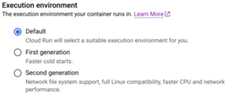
- Select the desired execution environment using theoption buttons. Keep "Default" to let Cloud Run select a suitableexecution environment.
ClickCreate orDeploy.
gcloud
You canupdate the execution environmentfor a given service by using the following command:
gcloudrunservicesupdateSERVICE--execution-environmentENVIRONMENT
ReplaceSERVICE with the name of your service andENVIRONMENTwith the desired execution environment. Specify the valuegen1 for firstgeneration orgen2 for second generation.
You can also set the execution environment duringdeployment using the command:
gcloudrundeploy--imageIMAGE_URL--execution-environmentENVIRONMENT
Replace the following:
- IMAGE_URL: a reference to the container image, forexample,
us-docker.pkg.dev/cloudrun/container/hello:latest. If you use Artifact Registry,therepositoryREPO_NAME mustalready be created. The URL follows the format ofLOCATION-docker.pkg.dev/PROJECT_ID/REPO_NAME/PATH:TAG. ENVIRONMENT: the desired executionenvironment. Specify the valuegen1for first generation orgen2for second generation.
YAML
If you are creating a new service, skip this step.If you are updating an existing service, download itsYAML configuration:
gcloudrunservicesdescribeSERVICE--formatexport>service.yamlset the
run.googleapis.com/execution-environmentannotation:apiVersion:serving.knative.dev/v1kind:Servicemetadata:name:SERVICEspec:template:metadata:annotations:run.googleapis.com/execution-environment:ENVIRONMENT
Replace the following:
- SERVICE: the name of your Cloud Run service.
- ENVIRONMENT: the selected execution environment.Specify the value
gen1for first generation orgen2for secondgeneration.
Remove the
run.googleapis.com/execution-environmentannotation for thedefault behavior.Create or update the service using the following command:
gcloudrunservicesreplaceservice.yaml
Terraform
To learn how to apply or remove a Terraform configuration, seeBasic Terraform commands.
Add the following to agoogle_cloud_run_v2_service resource in your Terraform configuration:resource"google_cloud_run_v2_service""default"{name="cloudrun-service-execution-environment"location="REGION"template{containers{image="us-docker.pkg.dev/cloudrun/container/hello"}execution_environment="ENVIRONMENT"}}Replace the following:
- REGION: the Google Cloud region. For example,
europe-west1. - ENVIRONMENT:
EXECUTION_ENVIRONMENT_GEN1for firstgeneration, orEXECUTION_ENVIRONMENT_GEN2for second generation.
View Execution environment settings
To view the current Execution environment settings for yourCloud Run service:
Console
In the Google Cloud console, go to the Cloud RunServices page:
Click the service you are interested in to open theService detailspage.
Click theRevisions tab.
In the details panel at the right, the Execution environment settingis listed under theContainer tab.
gcloud
Use the following command:
gcloudrunservicesdescribeSERVICE
Locate the Execution environment setting in the returnedconfiguration.
Graceful shutdowns
When a Cloud Run instance is shutting down, it receives aSIGTERM signalto enable a 10 second graceful shutdown.
Handling SIGTERM signal
We recommend that your container install aSIGTERM handler,especially if you are usingrequest-based billing.
Handling SIGTERM gives your container a chance to perform any necessary cleanuptasks such as flushing logs before exiting. If your container does not catchSIGTERM, it will still be given 10 seconds toperform these tasks; those 10 seconds arebilled.
How to check whether your container handles SIGTERM
To determine whether your container has a SIGTERM handler installed:
Start Cloud Shell. You can find
 Activate Cloud Shell in the header of the documentationpage you're on. You may need to authorize it and wait for it to provision.Alternatively,start a standalone session.
Run the container locally in Cloud Shell:
docker runIMAGE_URL
ReplaceIMAGE_URL with a reference to the container image, forexample,
us-docker.pkg.dev/cloudrun/container/hello:latest. If you use Artifact Registry,therepositoryREPO_NAME mustalready be created. The URL follows the format ofLOCATION-docker.pkg.dev/PROJECT_ID/REPO_NAME/PATH:TAG.Open another tab in Cloud Shell and get a list of the containers runningin the current Cloud Shell session:
docker container ls
You need to locate the container ID returned from the command.
Using the container ID, send your container a SIGTERM signal
docker kill -s SIGTERMCONTAINER_ID
Return to the tab where you invoked
docker runto see whether the containerhas exited (stopped). If the SIGTERM signal caused your container to exit, yourcontainer is handling SIGTERM.
How to handle SIGTERM
If your container does not handle SIGTERM, the simplest way to add a SIGTERMhandler is to wrap your service withtini. Doing this makes your service runas a subprocess oftini, which takes on the role of the container init process.Refer to theDocker instructionsfor instructions.
Alternatively, you can change your application to directly handle SIGTERM.
What's next
- To use Filestore with Cloud Run, refer toUsing Filestore with Cloud Run.
- To use Cloud Storage FUSE with Cloud Run, refer toUsing Cloud Storage FUSE with Cloud Run.
Except as otherwise noted, the content of this page is licensed under theCreative Commons Attribution 4.0 License, and code samples are licensed under theApache 2.0 License. For details, see theGoogle Developers Site Policies. Java is a registered trademark of Oracle and/or its affiliates.
Last updated 2026-02-19 UTC.