

Using version control and deploying
Looker uses Git to record changes and manage file versions. Each LookML project corresponds to a Git repository, and each developer branch correlates to a Git branch.
Looker can be configured to work with many Git providers, such as GitHub, GitLab, and Bitbucket. See theSetting up and testing a Git connection documentation page for information on setting up Git for your Looker project.
Working with Git branches
One of the main benefits of Git is that a Looker developer can work in abranch, an isolated version of a file repository. You can develop and test without affecting other users. As a developer in Looker, you're using a Git branch whenever you're inDevelopment Mode.
Another major feature of Git is the ease of collaborating with other developers that it provides. You cancreate a branch and (if desired) make changes, and then other developers canswitch to that branch to review or make changes to the branch. If another developer has committed changes to the branch, Looker displays thePull Remote Changes button. You should pull those committed changes to the branch before making additional changes.
You can alsodelete a branch other than the master branch, your current branch, or a developer's personal branch.
Personal branches
To increase performance, the first time you open a LookML project in Development Mode, the Looker IDE displays theProduction Mode version of the project, along with theCreate Developer Copy button. Once you click theCreate Developer Copy button for the project, Looker creates a local clone of the project's Git repository, creates yourpersonal Git branch, and loads the LookML project inDevelopment Mode for you.
Your personal branch starts withdev- and includes your name.

Your personal branch is specific to you, and itcannot bedeleted. Your personal branch is read-only to all other developers. If you're collaborating with other developers on a project, you may want tocreate a new branch so that others can switch to that branch and contribute changes as well.
Note: You can't make changes to another developer's personal branch. To build on work in somebody else's personal branch,create a new branch starting from their branch.Creating a new Git branch
If you're working on a simple fix and not collaborating with other developers, your personal branch is usually a good place to work. You can use your personal branch to make quick updates, and then commit the changes and push them to production.
However, you may also want to create new Git branches in addition to your personal branch. A new Git branch makes sense in these situations:
- You're working with other developers. Since your personal branch is read-only to other developers, if you want to collaborate with others, you should create a new Git branch so that other developers can write to the branch. When you're collaborating with others, be sure to pull changes each time you resume work. That way, you'll have the latest updates from all developers before continuing work.
- You're working on multiple sets of features at once. Sometimes you may be in the middle of a major project, but want to resolve a minor issue or make a quick fix. In this case, you can commit your changes to the branch you're on and then create or switch to another branch to work on a separate set of features. You can make your fix in the new branch, and then deploy that branch's changes to production — before resuming work in your original branch.
Before creating a new branch:
- If you have a merge conflict on your current branch, you mustresolve the conflict before you can create a new branch.
- If you have any uncommitted changes on the current branch, you mustcommit the changes on your current branch before creating a new branch.
- If you want to create a branch starting from an existing development branch (and not the production branch), first get the latest version of the development branch byswitching to that development branch, and thenpull remote changes to sync your local version of that branch.
To create a new Git branch:

- Verify that you haveDevelopment Mode turned on.
Navigate to your project files in theDevelop menu.

Select theGit icon in the left-hand icon menu to open theGit Actions panel.
Select theView Branches drop-down menu.
SelectNew Branch.

In theNew Branch window, enter a name for your branch. Note that there are limitations for Git branch names; for naming requirements, seeRules for naming a Git branch on this page.
Select theCreate From drop-down menu and select an existing branch to use as the starting point for your new branch.
SelectCreate to create your branch.
Alternatively, you can create Git branches from theBranch Management tab of the project's settings.
Rules for naming a Git branch
Looker uses the branch-naming-convention requirements specified by Git.
Git branch names mustnot:
- Contain a space character
- Contain a double period:
.. - Contain a backslash:
\ - Contain the sequence:
@{ - Contain a question mark:
? - Contain an opening square bracket:
[ - Contain an ASCII control character:
~or\^or: - Begin with a period:
. - Begin with the prefix:
dev-(reserved for the personal branches of Looker developers) - End with a forward slash:
/ - End with the extension:
.lock
In addition, the branch name can only contain an asterisk (*) if the asterisk represents an entire path component (for example,foo/* orbar/*/baz), in which case it is interpreted as a wildcard and not as part of the actual branch name.
Switching to another Git branch
Notes:- If you have a merge conflict on your current branch, you mustresolve the conflict before you can switch to a different branch.
- If you have uncommitted changes on your current branch, you can't switch to an existing branch until youcommit the changes on your current branch.
To switch to a different Git branch, follow these steps:

- In the project, navigate to theGit Actions panel by selecting theGit icon in the left-hand icon menu.
- In theGit Actions panel, select the Git branch drop-down menu to the right of your current Git branch name.
- Select the branch you want to switch to by selecting it in the menu, or by typing the branch name into the search box. Branch name search is case-insensitive. For example, you can search for "DEV" and see all branches with names that include "dev", "DEV", "Dev", and so on.
Managing Git branches
TheBranch Management tab of theproject settings shows a table of all the Git branches for the Looker project. To open theBranch Management tab, first navigate to the project settings by selecting theSettings icon from the left-hand icon menu. Next, select theBranch Management tab.

On theBranch Management tab, you can:
- Create a new branch by selecting theNew Branch button. See theCreating a new Git branch section on this page for more information.
- Search for branch names in theSearch Bar.
- Refresh the table by selecting theRefresh button.
- Sort the table by selecting a column name.
The table includes the following information:
- Name: Name of the Git branch. Looker developers'personal branches start with
dev-and include the first and last name of the developer. - Status: The difference between your local version of the branch and the remote version of the branch. For example, a status of
3 commits behindmeans that your local version of the branch is behind the remote version of the branch by three commits. Because Looker always uses the remote version of master, theBranch Management tab doesn't show the status of the local version of the master branch. The master branch can always be considered to be up to date. - Last Updated: Amount of time since a Looker developer made a commit to the branch.
- Actions: A button todelete the branch, or the reason that the branch isn't eligible for deletion.
Deleting Git branches
From theBranch Management tab, you can delete branches that have aDelete button in the table. You cannot delete the following branches:
- The master branch
- Your current branch
- A Looker developer'spersonal branch
In the table, these branches don't have aDelete button. Instead, theAction column of the table shows the reason that the branch can't be deleted.
Note: You can't restore a branch once it's been deleted. When you delete a branch, Looker removes both your local version of the branch and the remote version of the branch. However, if the branch was created by another Looker developer, or if other developers have checked out the branch, those developers will still have their local version of the branch. If a Looker developer makes commits to their local version of the branch and pushes it to production, you will once again see a remote version of the branch. This can be handy if youdo want to restore the branch. Otherwise, when you delete a branch, all other Looker developers should delete the same branch to ensure that it can't be accidentally resurfaced by someone pushing it to remote.To delete one or more Git branches from your project, first navigate to the project settings by selecting theSettings icon from the left-hand icon menu. Then select theBranch Management tab. In theBranch Management tab, you can delete branches in two ways:

- Delete multiple branches by first selecting the branch checkboxes and then selectingDelete Selected Branches.
- Delete a single branch by selectingDelete next to the branch name.
Executing Git commands in Looker
Looker has a built-in interface that integrates with your Git service. Looker displays theGit button in the upper right corner of the LookML IDE.

The Git button shows different options depending on where you are in the process of making changes and deploying to production. In general, the option shown on the button is the best guide for your next action.
If your developer branch is in sync with the production branch, the Git button displays theUp to Date message and isn't selectable.

Once your project isconfigured for Git, you can select theGit Actions button to open theGit Actions panel.

The commands available on theGit Actions panel depend on where you are in the process of making changes and deploying toproduction.
Getting your changes to production
With the default Looker Git integration, Looker prompts developers through the following Git workflow:
- Committing changes to the developer's current development branch (andrunning data tests if your project is set up torequire tests before deploying)
- Merging the development branch into the production branch, which by default is called
master - Deploying the production branch to the Looker production environment that will be presented to your Looker end users
This means that, with the default Git integration, all developers merge their changes into a branch calledmaster, and the latest commit on themaster branch is what is used for the production environment of Looker.
For advanced Git implementations, you can customize this workflow:
- You can have your developers submit pull requests for your Git production branch, instead of allowing developers to merge their changes through the Looker IDE. See theConfiguring project version control settings documentation page for details.
- You can use theGit Production Branch Name field to specify which branch from your Git repository Looker should use as the target branch into which your Looker developers' branches are merged. See theConfiguring project version control settings documentation page for details.
- You can useadvanced deploy mode for specifying a different commit SHA or tag name to deploy to your Looker production environment, instead of using the latest commit on the production branch. (If you want to deploy a commit from a different branch, you can use the advanced deploy modewebhook orAPI endpoint.) See theAdvanced deploy mode documentation page for details.
Viewing uncommitted changes
The LookML IDE has several indicators that are displayed when you're in Development Mode and have uncommitted changes, as described in theMarking additions, changes, and deletions section of theLooker IDE overview documentation page.
You can get a difference summary for all files by selecting theView Uncommitted Changes option from theGit Actions panel.

In theUncommitted Changes to Project window, Looker displays a summary of all the uncommitted, saved changes in all the project's files. For each change, Looker shows the following:
- The name of the replaced file and the name of the added file.
- The name of the replaced file (indicated with
---) and the name of the added file (indicated with+++). In many cases, this may show different versions of the same file, with revisions identified by--- a/and+++ b/. - Deleted files are shown as replacing a null file (
+++ /dev/null). - Added files are shown as replacing a null file (
--- /dev/null).
- The name of the replaced file (indicated with
- The line number where the change begins.For example,
-101,4 +101,4indicates that, at the 101st line in the file, 4 lines were removed and 4 lines were added. A deleted file with 20 lines would show-1,20 +0,0to indicate that, at the first line in the file, 20 lines were removed and replaced by zero lines. - The text that was updated:
- Deleted lines are displayed in red.
- Added lines are displayed in green.
To display a difference summary for a single file, select theView Changes option from the file's menu.

Committing changes
After you have made and saved any changes to your LookML project, the IDE may require you to validate your LookML. The Git button displays the textValidate LookML in this scenario.

Whether this is required depends on your project's setting forcode quality. For more information on the Content Validator, see theValidating your LookML documentation page.
If another developer has made changes to the production branch since you last updated your local branch, Looker requires you to pull those updates from the production branch. The Git button displays the textPull from Production in this scenario.
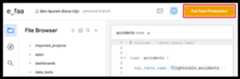
Once you save your changes (and fix any LookML warnings or errors,if required) and pull from production (if required), the Git button displays the textCommit Changes & Push.
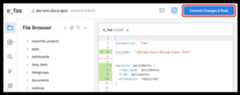
If desired, you can firstreview your uncommitted changes before committing.
When you're ready to commit the changes, use the Git button to commit these changes to your current branch. Looker displays theCommit dialog box, which lists the files that have been added, changed, or deleted.
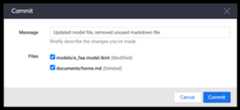
Enter a message that briefly describes your changes, and clear the checkboxes next to any files that you don't want to include in the sync. Then selectCommit to commit the changes.
Checking for unbuilt PDTs
If you have made changes to any PDTs in your project, it is optimal that all of your PDTs be built when you deploy to production so that the tables can be used immediately as the production versions. To check the status of PDTs in the project, select theProject Health icon to open theProject Health panel, and then select theValidate PDT Status button.

See theDerived tables in Looker documentation page for more information about checking for unbuilt PDTs in your LookML project and about working with derived tables in Development Mode.
Running data tests
Your project may include one or moretest parameters that define data tests to verify the logic of your LookML model. See thetest parameter documentation page for information on setting up data tests in your project.
test parameters, the data tests must pass before you can deploy the project to production.If your project contains data tests and you're inDevelopment Mode, you can initiate your project's data tests in several ways:

- If your project settings are configured torequire data tests to pass before deploying your files to production, the IDE will present theRun Tests button after youcommit changes to the project to run all the tests for your project, no matter which file defines the test. You must pass the data tests before you can deploy your changes to production.
- Select theRun Data Tests button in theProject Health panel. Looker will run all data tests in your project, no matter which file defines the test.
- Select theRun LookML Tests option from the file's menu. Looker will run only the tests defined in the current file.
Once you run the data tests, theProject Health panel will display the progress and results.

- A data test passes when the test's assertion is true for every row in the test's query. See the
testparameter documentation page for details on setting up test assertions and queries. - If a data test fails, theProject Health panel will provide information about why the test failed, whether the test found errors in your model's logic or if it was the test itself that was invalid.
- From the data test results, you can select the name of a data test to go directly to the LookML for the data test, or you can select theExplore Query button to open an Explore with the query defined in the data test.
Deploying to production
Once you have committed changes to your branch, the Looker IDE will prompt you to merge your changes to the primary branch. The type of prompt you'll see in the IDE will depend on your project's configuration:
- If your project is configured foradvanced deploy mode, the IDE will prompt you to merge your changes into the primary branch. Once you merge your commit, a Looker developer with the
deploypermission can deploy your commit to production by using the Looker IDEdeployment manager, or by using awebhook or anAPI endpoint. - If your project is configured for Git integration usingpull requests, you will be prompted to open a pull request using your Git provider's interface.
- Otherwise, with the default Looker Git integration, if you have
deploypermission, the Looker IDE will prompt you to merge your changes to the production branch and deploy your changes to the production version of your Looker instance.
Unlocking a locked Git branch
Preview: This feature is subject to the "Pre-GA Offerings Terms" in theGeneral Service Terms section of the Service Specific Terms. Pre-GA products and features are available "as is" and might have limited support. For more information, see thelaunch stage descriptions.If you encounter an issue during the Public Preview of unlocking a Git branch, report it tolooker-git-dev-external@google.com.
Now available in preview, LookML developers can unlock a Git branch in cases where their Git branch is locked as a result of another Git operation in progress or a previous Git operation failing. When the Git repository is locked, Looker displays theUnlock Branch option in theGit Actions panel of the Looker IDE. In addition, if a LookML developer tries to commit a change on a locked Git branch, Looker displays a warning in theCommit dialog, along with an option to delete the Git lock.
Deleting your developer copy of the LookML project
Preview: This feature is subject to the "Pre-GA Offerings Terms" in theGeneral Service Terms section of the Service Specific Terms. Pre-GA products and features are available "as is" and might have limited support. For more information, see thelaunch stage descriptions.If you encounter an issue during the Public Preview of deleting your developer copy, report it tolooker-git-dev-external@google.com.
The first time you open a LookML project in Development Mode, the Looker IDE displays theProduction Mode version of the project, along with theCreate Developer Copy button. When you click theCreate Developer Copy button for the project, Looker creates a local clone of the project's Git repository, creates yourpersonal Git branch, and loads the LookML project inDevelopment Mode for you.
If you don't need your local developer copy of the Git repository, if you're in an inconsistent Git state, or if you're unable to edit your LookML files, you can delete your developer copy as described in this section.
If you delete your developer copy of the project's Git repository, you will lose the following:
- Any changes that you haven'tcommitted and pushed to the remote repository
- AnyGit branch that you created, if you haven't yet committed and pushed a change on that branch
Follow these steps to delete your developer copy of the LookML project's repository:
- Open your LookML project in the Looker IDE.
- Select theSettings icon from the Looker IDE icon menu to display the project settings. TheConfiguration tab opens by default.
- In theConfiguration tab, click theDelete Developer Copy button.
- To prevent you from accidentally deleting your devloper copy of the project's repository, Looker displays a confirmation dialog. In the confirmation dialog, enter the name of the LookML project in the text field.
- To prevent you from accidentally deleting your developer copy of the project's repository, Looker displays a confirmation dialog. In the confirmation dialog, enter the name of the LookML project in the text field.
- Click theDelete Developer Copy for <your project's name> button.
When Looker has deleted your developer copy of the project's repository, the Looker IDE displays the Production Mode version of the LookML project.
If you want to create a new developer copy of the project's repository, click theCreate Developer Copy button.
Advanced deploy mode
With the default Looker Git integration, Looker developers commit their changes to their development branch, then merge their development branch into the production branch. Then, when you deploy to the Looker environment, Looker uses the latest commit on the production branch. (See theGetting your changes to production section on this page for the default Git workflow and other options for advanced Git implementations.)
For cases where you don't want the to always use the latest commit on the production branch for your Looker environment, a developer withdeploy permission can use advanced deploy mode to specify the exact commit to be used for your Looker environment. This is useful in multi-environment developer workflows, where each environment points to a different version of a codebase. It also gives one or several developers or administrators greater control over the changes that are deployed to production.
When advanced deploy mode is enabled, the Looker IDE does not prompt developers to deploy their changes to production. Instead, the IDE prompts developers to merge their changes into the production branch. From there, changes can be deployed only in the following ways:
- Using thedeployment manager in the Looker IDE
- Triggering awebhook
Using anAPI endpoint
Note: For projects with advanced deploy mode enabled, if the project has never been deployed to production, the initial deployment to production must be made using thedeployment manager in the Looker IDE. You can't use the API or the webhook for the initial deployment of a project that uses advanced deploy mode. After the initial deployment to production (even if it was initially deployed without advanced deployment mode), you can use the webhook or the API to deploy subsequent changes to production using advanced deploy mode.
See theAdvanced deploy mode documentation page for details.
Checking the impact of your changes
After making your changes available to the organization, you can usecontent validation to make sure you have not invalidated any dashboards or saved Looks. You'll have the opportunity to fix them if you have.
Handling typical issues
While working on your model, you may need to:
Abandon your changes
Occasionally you may want to abandon your data-modeling changes. If they are not yet saved, you can simply refresh or navigate away from the page and then accept the warning prompt. If you have saved the changes, you can revert the uncommitted changes as described in theReverting uncommitted changes section.
Handle merge conflicts with other developers' work
If you have more than one developer working on your data model, Git typically handles the situation. However, occasionally Git needs a human toresolve merge conflicts.
Some changes, such as changing the name of a field, can affect existing dashboards and Looks. As mentioned earlier, after making your changes available to the organization, you can usecontent validation to check your content and fix any issues.
Reverting uncommitted changes
When working on yourpersonal development branch, you can revert uncommitted changes that you have saved if you don't want to deploy them. You can revert all the uncommitted changes for all files in the project or just the changes in a single file.
Note the following about reverting changes:
- When you rename a file, you're essentially deleting the original file and creating a new file with a new name. Because this involves more than one file, you can't use theRevert File option to undo the renaming of a file. If you want to undo a file rename, use theRevert to... option from theGit Actions panel.
- When you delete a file, the file is no longer displayed in the IDE file browser. If you want to revert the deletion of a file, use theRevert to... option from theGit Actions panel.
To revert uncommitted changes forall files, follow these steps:

- Select theRevert to... option in theGit Actions panel.
- Select a revert option:
- To revert onlyuncommitted changes, selectRevert uncommitted changes. You can also select theView changes link to view the changes that would be reverted.
- To revert all changes, including uncommitted and committed changes, selectRevert to Production
- To complete the revert process, selectConfirm.
To revert any additions or deletions in the contents of a single file, select theRevert Changes option from that file's menu:

Resolving merge conflicts
Typically, Git can automatically merge your new changes with the production version of your LookML files.A merge conflict occurs when Git encounters conflicting changes and can't identify which changes should be kept, usually when another developer has made changes since you last pulled and you have made changes in the same area. If you have a merge conflict in your code, Looker displays aMerge conflicts warning after you commit changes and pull from production.

When Looker shows the merge-conflict warning, we recommend that you resolve the merge conflict before making any further changes. Pushing a merge conflict to production will cause parse errors that may prevent exploration of your data. If you're an advanced Git user and you want to move forward with pushing changes, select theDon't Resolve button.
In the LookML file itself, the lines with conflicts are marked like this:
<<<<<<< HEADYour code=======Production code>>>>>>> branch 'master'Looker shows the followingmerge markers to indicate the merge conflicts:
- <<<<<<<
HEADmarks the beginning of the conflicting lines. - >>>>>>>
branch 'master'marks the end of the conflicting lines. - ======= separates each version of the code so you can compare them.
In the preceding example,your code represents the changes you committed, andproduction code represents the code into which Git could not automatically merge your changes.
To resolve a merge conflict:

- Find the files with merge conflicts. Looker marks these files in red, or you can alsosearch your project for merge markers, such as <<<< or
HEAD, to find all the conflicts in your project. You can also find affected files by selecting thefiles link in the merge warning that appears in theGit Actions panel. - In the file, go to the lines with merge conflicts and delete the version of the text that you doNOT want to keep, and also delete all the merge conflict markers.
Save the file, and repeat the preceding steps for any other files marked with merge conflicts.
Tip:Search your project for each of the merge markers to verify that you have resolved all conflicts and deleted all the merge markers. Make sure to remove all instances of merge markers in your LookML files. These markers will cause parse errors that can prevent users from exploring your data.After you have resolved all merge conflicts and deleted all merge markers from your project,commit the changes anddeploy them to production.
Now that you have resolved the merge conflict and pushed your resolution to production, other developers can pull from production and continue work as usual.
Git garbage collection
Git garbage collection cleans up unnecessary files and compresses file revisions to optimize your Git repository. Git garbage collection (git gc) is run automatically when your Looker instance is updated or rebooted. To keep from runninggit gc too often, Looker waits 30 days since the lastgit gc and then runsgit gc on the next reboot.
In rare cases, you might try toPush Changes to Remote orPush Branch to Remote whilegit gc is running. If Looker displays an error, wait for a minute or two and then try again to push your changes.
Except as otherwise noted, the content of this page is licensed under theCreative Commons Attribution 4.0 License, and code samples are licensed under theApache 2.0 License. For details, see theGoogle Developers Site Policies. Java is a registered trademark of Oracle and/or its affiliates.
Last updated 2026-02-18 UTC.